
Add a Sidebar
Styles, comments, tracked changes and search results are easier to work with in a panel beside the document than in a dialog box. The Sidebar of TX Text Control .NET for WPF is such a panel: a control you dock in the window, which shows one of several predefined panels or a control of your own. Starting from the ribbon window of the previous tutorial, you dock a sidebar at the right of the editor, let ribbon buttons open it with the matching panel, show the styles when the window opens and put a control of your own into it.
Prerequisites
- The ribbon window from Create a WPF Ribbon Application, with the tabs
ribbonFormattingTab1andribbonProofingTab1and theTextControlnamedtextControl1.
How a Sidebar Works
A Sidebar is in the toolbox tab TX Text Control 34.0 and is declared in XAML like the bars, as WPF:Sidebar. Three properties decide what it does:
- TextControl names the editor that the predefined panels work with.
- ContentLayout selects the panel, a value of SidebarContentLayout such as
Styles,CommentsorCustom. Sidebar and Panels lists all panels. - IsShown shows or hides the sidebar. Use it rather than the WPF property
Visibility.
The alignment of the sidebar decides whether panels such as Find are laid out vertically, beside the document, or horizontally, above or below it; Place Sidebars in XAML has the rules.
Dock a Sidebar Beside the Editor
Add the sidebar to the DockPanel of MainWindow.xaml, after the status bar and before the rulers, so that it takes the full height at the right of the window:
<WPF:StatusBar x:Name="statusBar1" DockPanel.Dock="Bottom" />
<WPF:Sidebar x:Name="sidebarRight" DockPanel.Dock="Right"
             HorizontalAlignment="Right" IsShown="False" TextControl="textControl1" />
<WPF:RulerBar x:Name="rulerBar1" DockPanel.Dock="Top" />
DockPanel.Dock="Right"andHorizontalAlignment="Right"place the sidebar at the right, with the vertical arrangement of its panels.IsShown="False"hides it when the window opens, until a ribbon button or your code shows it.TextControl="textControl1"connects it to the editor by name, in the same way as the bars.
Open the Sidebar From Ribbon Buttons
Several ribbon tabs have properties that connect one of their buttons to a sidebar. When the user clicks the button, the sidebar opens with the panel of that button. Set the properties on the two tabs in the Ribbon:
<WPF:RibbonFormattingTab x:Name="ribbonFormattingTab1"
                         StylesSidebar="sidebarRight"
                         FindSidebar="sidebarRight"
                         ReplaceSidebar="sidebarRight" />
<WPF:RibbonInsertTab x:Name="ribbonInsertTab1" />
<WPF:RibbonPageLayoutTab x:Name="ribbonPageLayoutTab1" />
<WPF:RibbonViewTab x:Name="ribbonViewTab1" />
<WPF:RibbonProofingTab x:Name="ribbonProofingTab1"
                       CommentsSidebar="sidebarRight"
                       TrackedChangesSidebar="sidebarRight" />
Each property holds the name of the sidebar, and one sidebar serves all five buttons:
| Tab | Property | Opens |
|---|---|---|
| Home | StylesSidebar | The styles of the document, from the Change Styles item of the style list |
| FindSidebar | A search in the text, from the find button | |
| ReplaceSidebar | A search that replaces the text found, from the replace button | |
| Proofing | CommentsSidebar | All comments of the document, from the comments button |
| TrackedChangesSidebar | All tracked changes of the document, from the tracked changes button |
Press F5, type some text and click the comments button of the Proofing tab. The sidebar opens at the right with the comments of the document; the TX Words sample shows the same panel:
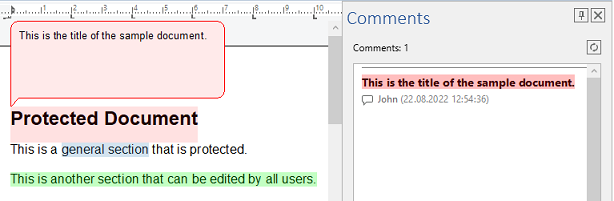
The tabs have more properties of this kind: GotoSidebar of the Home tab, ConditionalInstructionsSidebar of the form fields tab and FieldNavigatorSidebar of the reporting tab. Properties with Horizontal in their name, such as FindHorizontalSidebar, connect a sidebar docked at the top or bottom; the TX Words sample docks one below the editor for them.
Show a Panel When the Window Opens
Code opens a panel by setting ContentLayout and IsShown. The following Loaded handler in MainWindow.xaml.cs shows the styles of the document as soon as the editor is ready. It needs using TXTextControl.WPF; at the top of the file:
private void textControl1_Loaded(object sender, RoutedEventArgs e)
{
    // Open the Styles panel in the right sidebar when the window opens
    sidebarRight.ContentLayout = Sidebar.SidebarContentLayout.Styles;
    sidebarRight.IsShown = true;

    textControl1.Focus();
}
The enumeration SidebarContentLayout is nested in the Sidebar class, hence Sidebar.SidebarContentLayout.Styles. When the user clicks a connected ribbon button later, the same sidebar switches to the panel of that button.
Pinned or as a Dialog
The pin button in the title bar of a sidebar lets users switch between a sidebar docked in the window, where IsPinned is true, the default, and a dialog. Set ShowPinButton to False to keep a sidebar pinned. Show a Sidebar as a Dialog explains the dialog mode and its styles.
Show a Control of Your Own
With ContentLayout set to Custom, a sidebar shows any WPF FrameworkElement that you assign to its Content property. Content can be set only with this layout. The following method shows a text box for notes in the right sidebar; it needs using System.Windows.Controls;:
private void ShowNotes()
{
    // Show a control of your own in the right sidebar
    sidebarRight.ContentLayout = Sidebar.SidebarContentLayout.Custom;
    sidebarRight.Content = new TextBox { Text = "Notes", AcceptsReturn = true };
    sidebarRight.Text = "Notes";
    sidebarRight.ShowPinButton = false;
    sidebarRight.IsShown = true;
}
Text sets the title of the sidebar. Call the method from a button or a menu item of your own.
Next Steps
- Load and Save Documents: New, Open and Save for the ribbon window.
- Sidebar and Panels: every panel, the title bar and the items inside the panels in detail.
- Sidebar: what the sidebar is and where it fits among the controls.
- Ribbon and Sidebar Examples: the TX Words samples with three sidebars.