
Images, Text Frames, and Shapes
Not everything in a document is running text. Logos, address blocks and shapes are frames: objects that TX Text Control places inline with the text, anchored to a paragraph or at a fixed position on a page. A WPF application adds them to the TextControl of its window through the Images, TextFrames and Drawings collections, finds them again by name and removes them. Because WPF has types of its own named Image, Point and Size, the examples also show which names to qualify.
For inserting the same objects with the ribbon, see Images and Text Frames and Shapes. Barcodes are frames as well; they are described in Charts and Barcodes. MainWindow.xaml.cs needs these using directives:
using System.Text;
using System.Windows;
using TXTextControl;
Names to Qualify in WPF
TX Text Control takes positions, sizes and colors as System.Drawing types, while WPF has types of the same names in System.Windows:
PointandSize: writeSystem.Drawing.PointandSystem.Drawing.Size. Withusing System.Windows;, the short names are ambiguous.Image: writeTXTextControl.Image.System.Windows.Controlshas anImagecontrol, so the short name is ambiguous in every file that imports that namespace.Color: writeSystem.Drawing.Color, the type of all colors in the document.
How Frames Are Placed
Images, text frames and drawings derive from FrameBase, with a name, an ID, a size, a location and distances to the text. Each kind has a collection in the text part with the input focus: Images, TextFrames and Drawings. Every frame is placed inline, anchored to a paragraph or at a fixed position, as How Images Are Placed describes, and the Add overload you call decides which:
| Placement | Add overload |
|---|---|
| Inline | Add(frame, textPosition) |
| Anchored to a paragraph | Add(frame, alignment, textPosition, insertionMode) or Add(frame, location, textPosition, insertionMode) |
| Fixed position | Add(frame, page, location, insertionMode) or Add(frame, location, insertionMode) |
-1 as the text position means the current input position, and locations are twips relative to the paragraph, the page or the document. The insertion mode decides the text flow: DisplaceText flows around the object, DisplaceCompleteLines stops above it and continues below, AboveTheText covers the text and BelowTheText lies behind it. These four values are the ones the reference lists for the insertionMode parameter of ImageCollection.Add; Image.InsertionMode combines each of them with MoveWithText or FixedOnPage, and TextDistances sets the space between a frame and the text.
Insert an Image
Insert an Image From Code shows the Image constructor with a file name and an import filter index, anchors a logo to a paragraph, places images at fixed positions and inserts an image from a MemoryStream; Image Formats lists the filter indexes, such as 4 for PNG and 8 for SVG. Two points matter in processing code:
- The stream constructor without System.Drawing.Common. The
Imageclass has three constructors with one parameter: one for aMemoryStream, one for anUnmanagedMemoryStreamand one for aSystem.Drawing.Imageof System.Drawing.Common, which a WPF project doesn't reference. Passing the stream by its name,new TXTextControl.Image(stream: stream), selects the stream constructor, and the compiler no longer reports error CS0012, "The type 'Image' is defined in an assembly that is not referenced". - Images behind the text. An image fixed on a page behind the text, such as a stamp, combines
FixedOnPagewithBelowTheText:textControl1.Images.Add(stamp, 1, new System.Drawing.Point(1440, 1440), ImageInsertionMode.FixedOnPage | ImageInsertionMode.BelowTheText). Text Control's blog articles on watermarks do it this way, although the reference names only the four text flow values forAdd. Pages are numbered from 1.
The blog article Various Ways of Inserting Images into TX Text Control shows further ways, written for Windows Forms.
Add a Watermark to Every Page
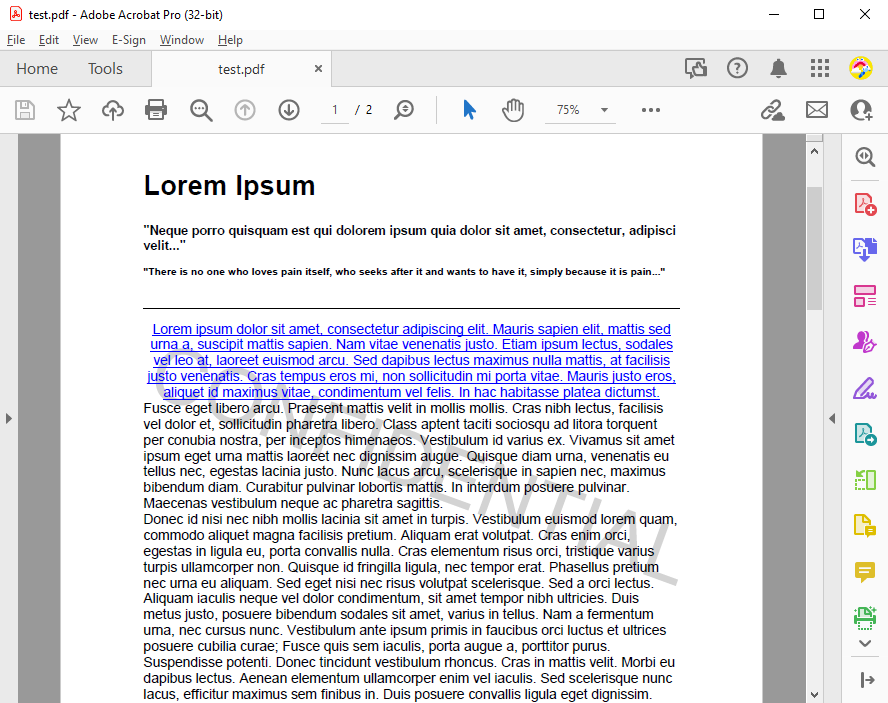
A word such as CONFIDENTIAL or DRAFT behind the text of every page is an image in a header: a header appears on every page of its section, and an image fixed on the page below the text lies behind the main text. The following method adds an SVG image to a new header in each section and centers it between the page margins. Because it takes the sections of a document, it works for the TextControl of the window and, as PDF Creation and Conversion shows, for a copy of its document:
private void Watermark_Click(object sender, RoutedEventArgs e)
{
    // Page sizes, margins and image locations in twips
    textControl1.PageUnit = MeasuringUnit.Twips;

    AddWatermark(textControl1.Sections, "confidential.svg");
}

private static void AddWatermark(SectionCollection sections, string svgFile)
{
    foreach (TXTextControl.Section section in sections)
    {
        // A new header in each section carries the watermark
        section.HeadersAndFooters.Remove(HeaderFooterType.All);
        section.HeadersAndFooters.Add(HeaderFooterType.Header);
        HeaderFooter header = section.HeadersAndFooters.GetItem(HeaderFooterType.Header);

        // 8 is the import filter for SVG
        TXTextControl.Image watermark = new TXTextControl.Image(svgFile, 8);

        // Fixed on the page and behind the text of the page
        header.Images.Add(watermark, 1, new System.Drawing.Point(0, 0),
            ImageInsertionMode.FixedOnPage | ImageInsertionMode.BelowTheText);

        // Center the image between the page margins
        SectionFormat format = section.Format;
        int x = (int)((format.PageSize.Width - watermark.Size.Width -
            (format.PageMargins.Left + format.PageMargins.Right)) / 2);
        int y = (int)((format.PageSize.Height - watermark.Size.Height -
            (format.PageMargins.Top + format.PageMargins.Bottom)) / 2);

        watermark.Location = new System.Drawing.Point(x, y);
    }
}
The code works as follows:
- PageUnit set to twips, instead of the WPF default of 1/96 inch, makes the page size and margins of each section use the same unit as the size and location of the image. The method relies on it, so the caller sets it; the setting stays in effect afterward.
- Sections returns the SectionCollection of the document, and each section gets an image of its own, because sections can differ in page size and orientation.
TXTextControl.Sectionis written in full: the Visual Studio template importsSystem.Windows.Documents, which has aSectionclass as well. - HeaderFooterCollection.Remove with
HeaderFooterType.Alldeletes the existing headers and footers of the section, so that each section gets a header of its own for the watermark. Remove this line and add the image to the existing header when your documents have headers to keep; if the first page has a header of its own,HeaderFooterType.FirstPageHeader, add the image to that header, too. - HeaderFooter.Images takes the image like the main text does, and ImageCollection.Add with a page number and a location fixes it on the page, on every page the header appears on. The blog article Adding Watermarks to PDF Documents in .NET C# calls
FixedOnPagecombined withBelowTheTextthe required values for watermarks; the reference ofAddlists onlyBelowTheTextand the other text flow values for this parameter. - Location moves the image to the center: the page size in Section.Format minus the image size and both margins, halved, as the article calculates it.
An SVG image stays a vector graphic in a PDF and remains sharp at any zoom level. Saved as PDF, the watermark appears behind the text of each page:
The blog article Generating and Adding Watermarks to Documents using C# creates the SVG image itself from a text, a font, a color and an angle; its code is written for Windows Forms. Headers and footers are described in Sections, Pages, Headers, and Footers.
List and Remove Images
The following handler lists the images of the main text, wherever the input position is, and removes the image named "logo":
private void ListImagesButton_Click(object sender, RoutedEventArgs e)
{
    StringBuilder report = new StringBuilder();

    foreach (TXTextControl.Image image in textControl1.TextParts.GetMainText().Images)
    {
        report.AppendLine($"'{image.Name}': {image.Size.Width} x {image.Size.Height} twips, " +
                          $"text position {image.TextPosition}");
    }

    MessageBox.Show(report.ToString());

    // null if no image has this name
    TXTextControl.Image logo = textControl1.Images.GetItem("logo");

    if (logo != null)
    {
        textControl1.Images.Remove(logo);
    }
}
The code works as follows:
- TextParts.GetMainText returns the main text, so the loop doesn't depend on the text part with the input focus.
- Size is the image size in twips, and TextPosition its position in the text.
- GetItem with a name or an ID returns that image, or
null, and Remove deletes it.
Scaling the selected image and the image events are described in React to the Selected Image. Images from files are saved as file references by default; save documents that are sent to others with the image data, as Control How Images Are Saved explains.
Add Text Frames
A TextFrame is a rectangle with text of its own, which has a selection, paragraphs, tables and images like the main text. The following handler fixes an address block for a window envelope on page 1:
private void AddressFrameButton_Click(object sender, RoutedEventArgs e)
{
    // 3.5 x 1 inch in twips
    TextFrame address = new TextFrame(new System.Drawing.Size(5040, 1440))
    {
        Name = "recipient",
        BorderWidth = 0,
        InternalMargins = new int[] { 0, 0, 0, 0 }
    };

    // Page 1, 1 inch from the left and 2 inches from the top edge of the page
    textControl1.TextFrames.Add(address, 1, new System.Drawing.Point(1440, 2880),
        TextFrameInsertionMode.DisplaceCompleteLines);

    // The text frame has a selection of its own
    address.Selection.Text = "Acme Corporation\r\n123 Business Lane, Suite 456\r\nMetropolis, USA";
}
The code works as follows:
- The TextFrame constructor takes the size in twips.
- A BorderWidth of 0 means no border, and InternalMargins are the distances between border and text, left, top, right and bottom.
- TextFrameCollection.Add with a page and a location fixes the frame there. With TextFrameInsertionMode
DisplaceCompleteLines, text stays above and below the frame. - TextFrame.Selection writes and formats the text inside the frame.
A frame with a background, a border and inner margins that the user draws with the mouse, the frame the user is editing and the text frame events are shown in Insert and Edit Text Frames From Code. TextFrameCollection.GetItem finds a frame by its name or ID, for example to fill the address block of a template, and TextFrame.Tables puts a table into a frame.
Insert Shapes
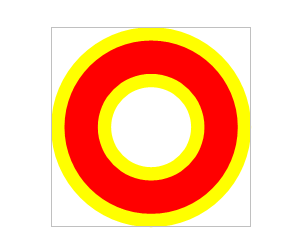
A drawing is a canvas with shapes, such as lines, arrows, stars and callouts, which follow the preset shapes of Office Open XML listed in ShapeType. In WPF, the canvas is a TXDrawingControl of the TXTextControl.WPF.Drawing namespace, and a DrawingFrame places it in the document. Insert a Shape From Code creates a shape, sets its fill and outline and adds the drawing. In code that builds a document, the drawing usually gets a fixed size and goes inline or to a fixed position instead of being drawn with the mouse:
- SetCanvasSize of the WPF control sets the canvas size in twips. The blog article Inserting Shapes and Drawing Groups, written for Windows Forms, passes the size to the constructor,
new TXDrawingControl(3000, 3000); the reference documents only the constructor without parameters. - ShapeCollection.Add with
AddStyle.Nonekeeps the location and size of the shape, whileAddStyle.Fillstretches it over the drawing. - DrawingCollection.Add places the drawing like the other frames:
textControl1.Drawings.Add(frame, -1)inline at the input position, or the overloads with a FrameInsertionMode for anchored and fixed drawings.
The result in the document is a shape like this one:
According to Text Control's feature comparison, drawings and shapes, text frames and barcodes are part of the Enterprise and Professional editions. Integrating WPF Barcodes and Drawings describes the WPF drawing control as a control of its own.
Next Steps
- Charts and Barcodes: add barcodes and QR codes.
- Sections, Pages, Headers, and Footers: put a logo into the header of every page.
- Images: images from the user's side.
- Text Frames and Shapes: let users insert and edit frames and shapes.