
Merge Fields
Each merge field of a template decides how its value appears: as a number with two decimals, as a date with the name of the month, in capital letters or with text before and after it. In a WPF application, users set these options with Field Properties in the Reporting tab, and your code sets them through the MergeField class. Beyond these options, you can insert date fields, choose what fields without data show, merge formatted HTML and fill form fields.
The Getting Started tutorial Create a Template inserts the first merge fields, and Merge Data into Fields merges them. The examples below use its template, invoice.docx, in a TextControl named textControl1, and add their handlers to MainWindow.xaml.cs.
The MergeField Class
In the document, a merge field is an MS Word MERGEFIELD field, stored as an ApplicationField. The MergeField class in the TXTextControl.DocumentServer.Fields namespace adapts such a field: its constructor creates a new field without parameters, or wraps an existing ApplicationField whose settings then change with the adapter's properties.
| Property | Sets |
|---|---|
| Name | The name that is matched with the data |
| Text | The text the field shows until it's merged |
| TextFormat | The case of the letters: Uppercase, Lowercase, FirstCapital, TitleCase or None |
| TextBefore, TextAfter | Text inserted before and after the value |
| DateTimeFormat | A format for dates and times, the MS Word switch \@ |
| NumericFormat | A format for numbers, the MS Word switch \# |
| PreserveFormatting | A flag that MailMerge itself doesn't use |
| DataSourceCulture, MergeCulture | The cultures that parse the value and format it, for this field only |
The field's own formatting in the template, such as its font and color, is kept for the merged value.
Insert and Edit Fields in the Reporting Tab
Users insert merge fields with Insert Merge Field of the WPF Reporting tab and set the properties of the table above in the options dialog box that Field Properties opens. Reporting Ribbon and WPF Dialog Boxes describes these buttons, and Open the Dialog Boxes From Code opens the options dialog box of the field at the input position from your own code.
Format Numbers and Dates
NumericFormat and DateTimeFormat accept .NET format strings: the standard and custom numeric format strings and date and time format strings. A field Price with the numeric format $#,###.00 shows 2.4 as $2.40, and the date format MMMM d, yyyy shows September 1, 2026.
The culture that formats the value decides the currency symbol, the separators and the month names. MailMerge.MergeCulture sets it for the whole merge, and MergeField.MergeCulture for one field. Both default to the culture of the current thread, which depends on the user's regional settings; set them when documents must look the same on every computer. Parse Numbers and Dates With the Right Culture adds DataSourceCulture, which reads the values of the data. The blog article Format Numeric String Values with MailMerge shows format strings in use.
Set Formats on All Fields of a Template
Fields can sit in the main text, in headers and footers and in text frames. TextParts of the WPF TextControl holds these parts, each with its own ApplicationFields. This handler formats three fields of the template in the editor, wherever they are:
using System.Windows;
using TXTextControl;
using TXTextControl.DocumentServer.Fields;
private void formatFieldsButton_Click(object sender, RoutedEventArgs e)
{
    // The main text, text frames, headers and footers
    foreach (IFormattedText textPart in textControl1.TextParts)
    {
        foreach (ApplicationField applicationField in textPart.ApplicationFields)
        {
            if (applicationField.TypeName != "MERGEFIELD")
            {
                continue;
            }

            MergeField mergeField = new MergeField(applicationField);

            switch (mergeField.Name)
            {
                case "Company":
                    mergeField.TextFormat = TextFormatOptions.Uppercase;
                    break;

                case "InvoiceNumber":
                    mergeField.TextBefore = "Invoice ";
                    break;

                case "Price":
                    mergeField.NumericFormat = "$#,##0.00";
                    break;
            }
        }
    }
}
- Every text part implements IFormattedText, and its ApplicationFields holds the fields of the part.
new MergeField(applicationField)wraps a field; setting a property changes the field in the document immediately.- After a click, the template merges the company name in capital letters, precedes the invoice number with "Invoice " and shows prices with a dollar sign and two decimals. Save the template to keep these settings.
Insert Date Fields
A DATE field receives the date of the merge in its format. Users insert one with Date in the Insert Special Field drop-down of the Reporting tab. In code, the DateField adapter creates it:
using System;
using System.Globalization;
using System.Windows;
using TXTextControl.DocumentServer.Fields;
private void insertDateButton_Click(object sender, RoutedEventArgs e)
{
    DateField dateField = new DateField
    {
        Format = "MMMM d, yyyy",
        Culture = CultureInfo.GetCultureInfo("en-US"),
        Date = DateTime.Now
    };

    textControl1.ApplicationFields.Add(dateField.ApplicationField);
}
Format is a standard .NET date and time format string, Culture the culture that applies it, and Date sets the date the field shows in the template. The merge fills the field with the local date and time of the computer, or applies the offset from UTC in minutes that MailMerge.DateFieldUtcOffset sets; its default is null.
Show a Text for Fields Without Data
Fields whose names the data doesn't contain are removed, because RemoveEmptyFields is true by default. To show a text instead, set it to false and change the text in the FieldMerged event, which occurs for every field:
using System.IO;
using System.Windows;
using TXTextControl.DocumentServer;
using TXTextControl.DocumentServer.Fields;
private void mergeWithPlaceholdersButton_Click(object sender, RoutedEventArgs e)
{
    using (MailMerge mailMerge = new MailMerge
    {
        TextComponent = textControl1,
        RemoveEmptyFields = false
    })
    {
        mailMerge.FieldMerged += (s, args) =>
        {
            if (!args.Merged && args.MailMergeFieldAdapter is MergeField mergeField)
            {
                mergeField.Text = "n/a";
            }
        };

        mailMerge.MergeJsonData(File.ReadAllText("invoice.json"));
    }
}
Merged is false for a field without data, and MailMergeFieldAdapter is the field itself. A field named Phone, which invoice.json doesn't contain, shows "n/a" after the merge. Merge Events lists the other arguments of the event.
Merge Formatted Text
Merge fields receive plain text. For formatted values, such as HTML notes, replace the merged content in FieldMerged: load the value into a ServerTextControl, save it in the internal TX Text Control format and assign the bytes to MergedField. The PreserveFormatting flag, which MailMerge ignores, can mark the fields that hold HTML:
mailMerge.FieldMerged += (s, args) =>
{
    // Only fields marked with PreserveFormatting
    if (args.Merged && args.MailMergeFieldAdapter is MergeField mergeField && mergeField.PreserveFormatting)
    {
        using (ServerTextControl htmlText = new ServerTextControl())
        {
            htmlText.Create();
            htmlText.Load(mergeField.Text, StringStreamType.HTMLFormat);

            byte[] data;
            htmlText.Save(out data, BinaryStreamType.InternalUnicodeFormat);
            args.MergedField = data;
        }
    }
};
This handler needs using TXTextControl; for ServerTextControl and the stream types. A value such as <p>Thank you for your <strong>business</strong>.</p> then appears as text with a bold word, not as tags. The blog article Reporting: Merge Formatted HTML into Merge Fields introduced the technique.
Keep Merge Fields After the Merge
A merged field normally disappears, and its value remains as plain text. For a document that users edit in the WPF TextControl and merge again, or for a preview that should still show the fields, assign MergedField to itself in FieldMerged. The fields then stay in the result, with the merged value as their text:
using (MailMerge mailMerge = new MailMerge { TextComponent = textControl1 })
{
    // Assigning MergedField to itself keeps the merged fields in the result
    mailMerge.FieldMerged += (s, args) => args.MergedField = args.MergedField;

    mailMerge.MergeJsonData(File.ReadAllText("invoice.json"));
}
Fields that receive no data are kept by RemoveEmptyFields set to false instead, as in Show a Text for Fields Without Data. The blog article Merging Templates with MailMerge with Different Merge Field Settings in C# shows the results of both settings.
Merge Form Fields
Form fields, such as text boxes, check boxes and drop-downs, are filled in by users after the merge. MailMerge.FormFieldMergeType decides whether the merge fills them:
| Value | Form fields |
|---|---|
None (default) | Aren't merged |
Preselect | Keep their controls, and their content is preselected with the data where possible; fields without a matching column stay unchanged |
Replace | Are replaced with the data, so the result contains no form fields; empty form fields are removed according to RemoveEmptyFields |
FormFieldMerged reports each form field and whether it received data:
using (MailMerge mailMerge = new MailMerge
{
    TextComponent = textControl1,
    FormFieldMergeType = FormFieldMergeType.Preselect
})
{
    mailMerge.FormFieldMerged += (s, args) =>
    {
        if (!args.Merged)
        {
            System.Diagnostics.Debug.WriteLine($"No data for form field {args.FormField.Name}");
        }
    };

    mailMerge.MergeJsonData(File.ReadAllText("invoice.json"));
}
With Preselect, the user gets a form in the editor that is already filled out where the data allows. Keep values users must not change in merge fields and values they may correct in form fields. Form Fields describes the form fields of the editor, and the blog article Merging Form Fields using the MailMerge Class shows a template with both kinds of fields.
Prefixes in Field Names
A dot in a field name reaches into related data: Customer.City is the value City of the nested object or related table Customer, and longer paths go further down. A merge field with the prefix image: is merged as an image, as Images and Barcodes describes.
Inside a merge block, a prefix starts at the table of the block. In the sample database of TX Words, the order table Sales_SalesOrderHeader is related to its order lines in Sales_SalesOrderDetail, and each order line to a product in Production_Product:
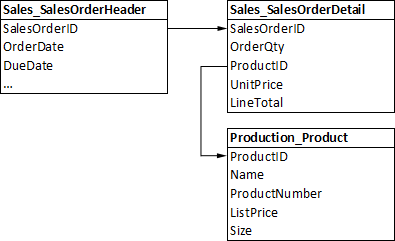
When Sales_SalesOrderHeader is the master table, a merge block Sales_SalesOrderDetail repeats the order lines. The fields OrderQty, UnitPrice and LineTotal in the block have no prefix, because they belong to the block's own table. Production_Product.ProductNumber and Production_Product.Name take the number and the name of the product of the current line:

A path can cross more than one relation. The image placeholder in the last column of the row shows the product photo, which is two relations further away, through the link table Production_ProductProductPhoto to Production_ProductPhoto. Its name therefore lists every table on the way, separated by dots:
Production_Product.Production_ProductProductPhoto.Production_ProductPhoto.ThumbNailPhoto
The merged invoice shows the product numbers, names and photos of the order lines next to their own values:
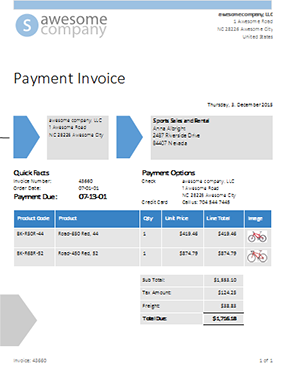
In all these cases, you pass only the master table; MailMerge follows the relations. The Insert Merge Field drop-down of the WPF Reporting tab lists related tables as submenus and adds the prefix, as Reporting Ribbon and WPF Dialog Boxes describes.
Next Steps
- Conditional Content: text that depends on the data, with
IFfields. - Formatting and Styling: format merged cells and rows.
- Merge Blocks: repeat fields for each record of a list.
- Reporting Ribbon and WPF Dialog Boxes: the other commands of the WPF Reporting tab.