
Installing and Updating Packages
A WPF Application project for .NET 8 or higher gets TX Text Control by installing TXTextControl.TextControl.WPF.SDK, either in the NuGet Package Manager of Visual Studio or with the .NET CLI. Once installed, the controls are available in the toolbox and in XAML, and the same tools move the project to a new service pack later. Both ways are shown below, together with the changes the package makes to your project.
Before You Start
- A .NET project. A project created with the WPF Application template for .NET 8 or higher. A project created with WPF App (.NET Framework) references the assemblies of the setup instead; see .NET and .NET Framework.
- A package source. Text Control Offline Packages on a machine with the setup, or the source TextControl of the private feed. See Configuring Package Sources.
Install the Package in Visual Studio
Select the project in Solution Explorer and choose Project > Manage NuGet Packages....
In the Package source list, select Text Control Offline Packages, or TextControl for the private feed, and open the Browse tab.
Select
TXTextControl.TextControl.WPF.SDKand click Install.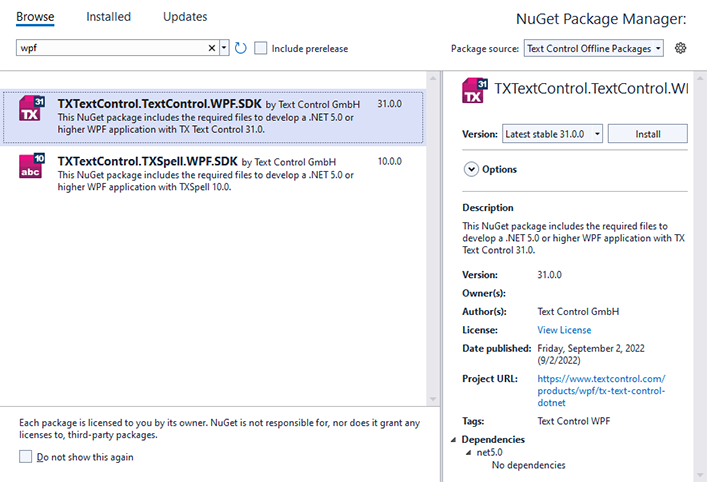
The screenshot comes from version 31.0. For version 34.0, the list shows the version 34.0.5, and the package details name .NET 8 as the target framework.
Open MainWindow.xaml in the designer. The toolbox has the category TX Text Control 34.0 with the TX Text Control controls.
Create Your First WPF Application continues from here and puts a TextControl into the window.
Install the Package With the .NET CLI
With the package source in the nuget.config of the project, run this command in the project folder:
dotnet add package TXTextControl.TextControl.WPF.SDK
To see which packages the private feed offers you, search the source TextControl:
dotnet package search "TXTextControl" TextControl
The result lists only the packages of the products assigned to you.
What Changes in the Project
A package reference. The project file gets a reference with the installed version:
<ItemGroup>
  <PackageReference Include="TXTextControl.TextControl.WPF.SDK" Version="34.0.5" />
</ItemGroup>
The WPF Application template has already set the target framework and
UseWPF; .NET 8 or Higher shows the complete project file.The license file. txtextcontrol.wpf.license appears in the project with the build action Embedded Resource, and the build compiles it into your assembly. A .NET project has no licenses.licx. See Development Licenses.
The toolbox. The items of the package appear in the toolbox for this project only. See Visual Studio Toolbox and XAML Designer.
The native libraries. When you publish the application, the publish process copies the native libraries of the target runtime, such as win-x64, with it. See 32-bit and 64-bit Applications and Publishing .NET Applications.
Update to a New Service Pack
Every service pack comes with a new package version, such as 34.0.5 for Service Pack 5. Installing the service pack doesn't change your projects: each keeps the version it references until you update it.
- Install the latest full setup. It updates the installation and adds the new package version to Text Control Offline Packages. On the private feed, the new version is available when the service pack is released.
- In Visual Studio, choose Project > Manage NuGet Packages..., select the package source and open the Updates tab.
- Select
TXTextControl.TextControl.WPF.SDK, choose the new version and click Update. - Rebuild the project.
With the .NET CLI, name the version:
dotnet add package TXTextControl.TextControl.WPF.SDK 34.0.5
dotnet list package --outdated shows the packages of a project that have newer versions.
At run time, the application can read the service pack it runs with; see Check the Installed Service Pack.
A move to a new major version, for example from 33.0 to 34.0, is covered in Upgrading from Previous Versions.