
Track Changes
When a document passes through several reviewers, each edit should stay visible until someone approves it. The WPF TextControl records insertions and deletions as tracked changes, with author and time, and lets the user or your code accept or reject them. Read on to turn tracking on in XAML or code, work through the changes and react to them with event handlers.
The examples assume a window with a TextControl named textControl1 in MainWindow.xaml, as built in Create Your First WPF Application.
How Track Changes Works
With tracking turned on, every insertion and deletion becomes a tracked change that belongs to the current user. The editor shows inserted text in color and deleted text in color and struck through, with a color per author; the current user's changes are red by default.
Accepting a change keeps it and removes its mark. Rejecting it restores the previous text: inserted text disappears and deleted text returns. Until one of the two happens, the change stays in the document, even after tracking has been turned off, which only ends the recording of new changes.
The TX Text Control format (TX), RTF, DOC and DOCX save tracked changes and load them again, including changes that MS Word recorded in a DOCX file.
A few complex operations, such as deleting a table column or merging table cells, can't be tracked. For those, the editor asks the user in a message box whether to go ahead without tracking; see Handle Changes That Can't Be Tracked.
Review Changes in the Ribbon
The Proofing tab, a RibbonProofingTab, contains a Track Changes group. The Track Changes button turns tracking on and off, further buttons accept or reject changes and move from one change to the next, and the Tracked Changes split button opens a sidebar with all changes, their authors and times:
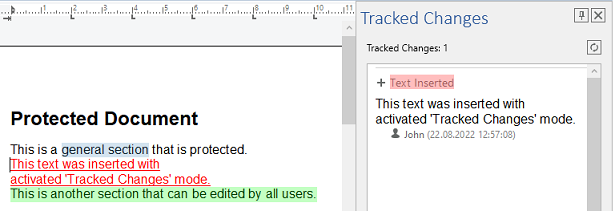
In WPF, the tab refers to the sidebar by its name. Give the sidebar an x:Name and set the TrackedChangesSidebar property of the tab to that name, as a string. The TextControl finds the tab the same way, through its RibbonProofingTab property. Sidebar and Panels and Connecting Ribbon Tabs in XAML show the markup.
Set the Author and Turn On Tracking
New changes belong to the current user, the first name of UserNames. With an empty list, the author is unknown. IsTrackChangesEnabled switches the recording on and off.
Connect a handler to the Loaded event of the control in MainWindow.xaml. The same element also connects the handlers of the sections below:
<WPF:TextControl x:Name="textControl1"
                Loaded="TextControl1_Loaded"
                CannotTrackChange="TextControl1_CannotTrackChange"
                TrackedChangeCreated="TextControl1_TrackedChangeCreated" />
In MainWindow.xaml.cs, the Loaded handler sets the author and turns tracking on:
using System;
using System.Windows;
using TXTextControl;

namespace SampleApp
{
    public partial class MainWindow : Window
    {
        public MainWindow()
        {
            InitializeComponent();
        }

        private void TextControl1_Loaded(object sender, RoutedEventArgs e)
        {
            // The first name is the author of new changes and comments
            textControl1.UserNames = new string[] { "Tim Typer" };

            // Record all insertions and deletions from now on
            textControl1.IsTrackChangesEnabled = true;
        }
    }
}
Use the namespace of your project instead of SampleApp. IsTrackChangesEnabled can also be set as an attribute in XAML, IsTrackChangesEnabled="True". Take the user name from the sign-in of your application. The same list controls which editable regions of a protected document a user may change; see Document Protection and Editable Regions.
List the Tracked Changes
TrackedChanges returns a TrackedChangeCollection, which holds the changes of the text part with the input focus: the main text, a header or footer, or a text frame. The collection and the TrackedChange objects in it belong to the TXTextControl namespace, not to TXTextControl.WPF. The following method shows all changes in a message box:
private void ShowTrackedChanges()
{
    System.Text.StringBuilder report = new System.Text.StringBuilder();

    foreach (TrackedChange change in textControl1.TrackedChanges)
    {
        // ChangeTime is UTC; show it in local time
        report.AppendLine($"{change.Number}. {change.ChangeKind} by {change.UserName}, " +
            $"{change.ChangeTime.ToLocalTime()}: {change.Text}");
    }

    MessageBox.Show(report.ToString(), "Tracked Changes");
}
The properties of a change:
| Property | Value |
|---|---|
| ChangeKind | InsertedText or DeletedText |
| UserName | The author; null or an empty string for an unknown user |
| ChangeTime | The date and time of the change in Coordinated Universal Time (UTC) |
| Text | The inserted or deleted text |
| Start, Length | The position of the change; Start is one-based |
| Number | The place of the change in the text, starting at 1; the indexer of the collection takes it |
Accept and Reject Changes
A tracked change leaves the document only through TrackedChangeCollection.Remove. Its second parameter accepts the change with true and rejects it with false. GetItem returns the change at the input position, or null:
private void AcceptButton_Click(object sender, RoutedEventArgs e)
{
    // The change at the input position, or null
    TrackedChange change = textControl1.TrackedChanges.GetItem();

    if (change != null)
    {
        textControl1.TrackedChanges.Remove(change, true);
    }
}

private void RemoveAllChanges(bool accept)
{
    // Every call removes one change, so always take the first one
    while (textControl1.TrackedChanges.Count > 0)
    {
        if (!textControl1.TrackedChanges.Remove(textControl1.TrackedChanges[1], accept))
        {
            break;
        }
    }
}
The code works as follows:
AcceptButton_Clickis theClickhandler of a WPFButtonand accepts the change that contains the input position.RemoveAllChanges(true)accepts all changes of the text part andRemoveAllChanges(false)rejects them. Because the remaining changes are renumbered after each removal, it always removes change number 1. IfRemovereturnsfalse, the change could not be removed and the loop stops.
Move Through the Changes
GetItem(true) returns the next change after the input position and GetItem(false) the previous one. ScrollTo moves the input position to the change and scrolls it into view, and Select selects its text:
private void NextChangeButton_Click(object sender, RoutedEventArgs e)
{
    TrackedChange next = textControl1.TrackedChanges.GetItem(true);

    if (next != null)
    {
        next.ScrollTo();
        next.Select();
    }
}
Handle Changes That Can't Be Tracked
CannotTrackChange occurs before an operation that can't be tracked. Unless a handler takes over, the editor shows its message box. The handler below, connected in the XAML above, refuses every such operation without asking:
private void TextControl1_CannotTrackChange(object sender, CannotTrackChangeEventArgs e)
{
    // Don't change the document, and don't show the message box
    e.Cancel = true;
    e.Handled = true;
}
CannotTrackChangeEventArgs has three properties:
- Handled,
falseby default, suppresses the message box when set totrue. - Cancel,
trueby default, cancels the operation. Withfalse, the document is changed without tracking. - DefaultMessage is the text the message box would show, for a dialog window of your own.
React to Tracked Changes
Four events report tracked changes. Their handlers receive TrackedChangeEventArgs with the change in its TrackedChange property:
- TrackedChangeCreated when a change has been recorded.
- TrackedChangeDeleted when a change has been accepted or rejected.
- TrackedChangeChanged when the text of a change has been altered.
- TrackedChangeStateChanged when a change has become active or inactive.
The following handler writes the latest change into the title of the window:
private void TextControl1_TrackedChangeCreated(object sender, TrackedChangeEventArgs e)
{
    Title = $"{e.TrackedChange.ChangeKind} by {e.TrackedChange.UserName}";
}
These are ordinary .NET events, which XAML attributes connect as shown above. Events explains the event model of the WPF TextControl.
Change How Changes Are Highlighted
A few properties of a TrackedChange change its appearance:
- HighlightColor is a
System.Drawing.Color, not a WPFSystem.Windows.Media.Color. While it is DefaultHighlightColor, changes of other users get a color derived from the user name. - HighlightMode takes
HighlightMode.AlwaysorHighlightMode.Never. - Active with
falsedeactivates the change: it isn't highlighted, andGetItemdoesn't return it.
For documents that nobody opens in the editor, a ServerTextControl has the same TrackedChanges collection; see Comments and Tracked Changes. The blog article Inspect and Process Track Changes in DOCX Documents with TX Text Control with .NET C# filters tracked changes by author, kind and date that way.
Next Steps
- Comments: comment on text and answer comments during a review.
- Document Protection and Editable Regions: lock a document except for the regions of certain users.
- Sidebar and Panels: add the Tracked Changes and Comments panels to the window.
- Events: how the events of the WPF
TextControlare connected.