
Form Fields and Conditional Instructions
A form is a protected document in which users can change only the form fields: text boxes, check boxes, drop-down lists, combo boxes and date pickers. The WPF TextControl lets users or your code design such forms, fill them out, validate the entries with conditional instructions and hand the values to your application.
The examples use a window with a TextControl named textControl1, as in Create Your First WPF Application. Form fields were introduced in version 28.0 and are part of the Enterprise edition; see Editions and Feature Availability. The tutorial Create a PDF Form saves form fields as a fillable PDF.
Form Field Types
Form fields are text fields that users fill out. Their base class is FormField, and WPF.TextControl.FormFields contains all of them:
| Form field | Class | What the user does |
|---|---|---|
| Text form field | TextFormField | Types text |
| Check box | CheckFormField | Checks or unchecks it |
| Drop-down list | SelectionFormField, Editable is false | Selects an item |
| Combo box | SelectionFormField, Editable is true | Selects an item or types text |
| Date form field | DateFormField | Picks a date or types it |
Add the Form Fields and Permissions Tabs
WPF.RibbonFormFieldsTab inserts, edits and navigates form fields, manages form validation and shows the properties of the selected field. WPF.RibbonPermissionsTab protects the finished form. The following MainWindow.xaml connects both tabs with the TextControl, gives the conditional instructions a sidebar and adds buttons for the code of this page:
<Window x:Class="SampleApp.MainWindow"
        xmlns="http://schemas.microsoft.com/winfx/2006/xaml/presentation"
        xmlns:x="http://schemas.microsoft.com/winfx/2006/xaml"
        xmlns:WPF="clr-namespace:TXTextControl.WPF;assembly=TXTextControl.WPF"
        Title="MainWindow" Height="600" Width="900">
    <DockPanel>
        <Ribbon DockPanel.Dock="Top">
            <WPF:RibbonPermissionsTab x:Name="ribbonPermissionsTab" />
            <WPF:RibbonFormFieldsTab x:Name="ribbonFormFieldsTab"
                                    ConditionalInstructionsSidebar="sidebarRight" />
        </Ribbon>
        <WPF:Sidebar x:Name="sidebarRight" DockPanel.Dock="Right" />
        <StackPanel DockPanel.Dock="Top" Orientation="Horizontal">
            <Button Content="Insert Form" Click="InsertForm_Click" />
            <Button Content="Add Rules" Click="AddRules_Click" />
            <Button Content="Protect Form" Click="ProtectForm_Click" />
            <Button Content="Read Values" Click="ReadValues_Click" />
            <Button Content="Preview Form" Click="PreviewForm_Click" />
        </StackPanel>
        <WPF:TextControl x:Name="textControl1"
                        RibbonPermissionsTab="ribbonPermissionsTab"
                        RibbonFormFieldsTab="ribbonFormFieldsTab"
                        FormFieldCheckChanged="textControl1_FormFieldCheckChanged" />
    </DockPanel>
</Window>
- RibbonFormFieldsTab and RibbonPermissionsTab of the
TextControltake the names of the tabs. - ConditionalInstructionsSidebar is the name of the WPF.Sidebar in which Manage Conditional Instructions shows the instructions of the document. Sidebar and Panels covers sidebars.
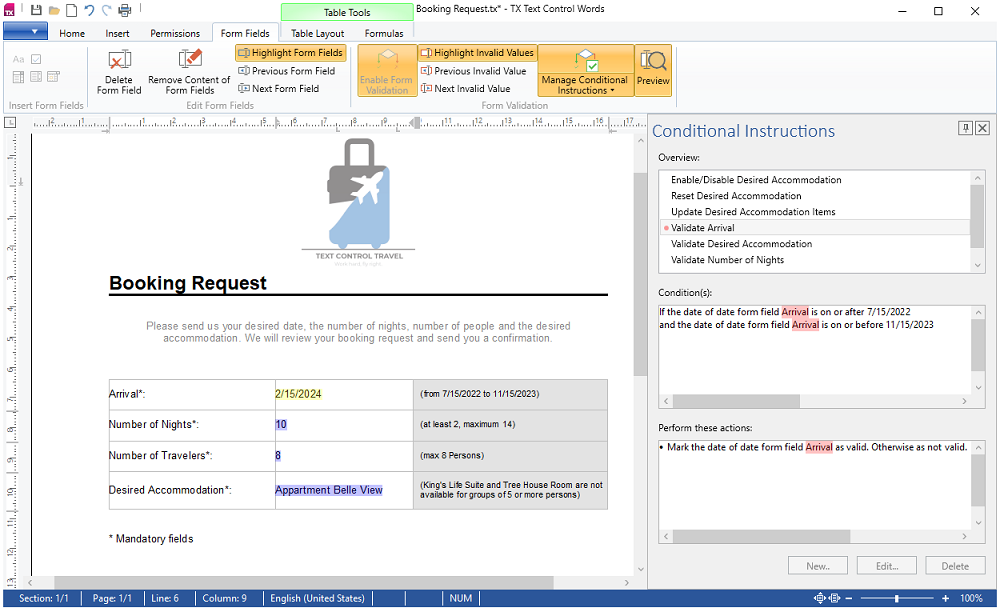
In TX Text Control Words, the WPF sample application, the Form Fields tab and the sidebar look like this:
Insert Form Fields in Code
MainWindow.xaml.cs starts like this:
using System.Text;
using System.Windows;
using TXTextControl;
The following handler writes a booking form with one field of each type:
private void InsertForm_Click(object sender, RoutedEventArgs e)
{
    textControl1.Selection.Text = "Arrival: ";
    AddFormField(new DateFormField(0) { Name = "Arrival" });

    textControl1.Selection.Text = "\nNumber of nights: ";
    AddFormField(new TextFormField(1000) { Name = "Nights" });   // width in twips while empty

    textControl1.Selection.Text = "\nAccommodation: ";
    AddFormField(new SelectionFormField(new string[] { "Single room", "Double room", "Suite" }, -1)
    {
        Name = "Accommodation",
        Editable = false   // false: drop-down list, true: combo box
    });

    textControl1.Selection.Text = "\nBreakfast: ";
    AddFormField(new CheckFormField(false) { Name = "Breakfast" });
}

// Insert a form field and move the input position behind it
private void AddFormField(FormField formField)
{
    textControl1.FormFields.Add(formField);
    textControl1.InputPosition = new InputPosition(
        formField.Start + formField.Length - 1,
        TextFieldPosition.OutsideTextField);
}
- TextFormField, DateFormField and SelectionFormField have a constructor that takes the width in twips while the field is empty, 0 for a default width. The
SelectionFormFieldoverload used here takes the items and the preselected index, -1 for none. CheckFormField takes the checked state. - Name is how your code, conditional instructions and PDF forms refer to the field. DescriptiveText describes it for screen readers.
- FormFieldCollection.Add inserts the field at the input position, and InputPosition with
TextFieldPosition.OutsideTextFieldplaces the cursor behind it.
Further settings are SelectionFormField.Items, CheckFormField.Checked, DateFormField.Date and DateFormField.DateFormat. FormField.FormFieldDialog opens the built-in dialog box of a form field.
Protect the Form
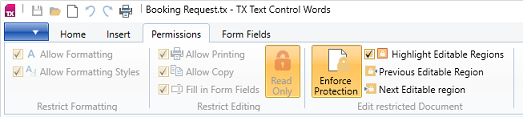
On the Permissions tab, users select Fill in Form Fields and Read Only and click Enforce Protection. While the protection is enforced, the other permission buttons are unavailable:
The same in code:
private void ProtectForm_Click(object sender, RoutedEventArgs e)
{
    // Users can fill in the form fields and change nothing else
    textControl1.DocumentPermissions.AllowEditingFormFields = true;
    textControl1.DocumentPermissions.ReadOnly = true;
    textControl1.EditMode = EditMode.ReadAndSelect;
}
AllowEditingFormFields and ReadOnly, from WPF.TextControl.DocumentPermissions, take effect in the ReadAndSelect edit mode. In a protected form, FormField.Enabled set to false locks a single field. Document Protection and Editable Regions covers permissions and passwords.
Read the Values
private void ReadValues_Click(object sender, RoutedEventArgs e)
{
    StringBuilder values = new StringBuilder();

    foreach (FormField formField in textControl1.FormFields)
    {
        string value = formField switch
        {
            CheckFormField checkField => checkField.Checked ? "yes" : "no",
            DateFormField dateField => dateField.Date?.ToShortDateString() ?? "",
            _ => formField.Text
        };

        values.AppendLine(formField.Name + ": " + value);
    }

    MessageBox.Show(this, values.ToString());
}

private void textControl1_FormFieldCheckChanged(object sender, CheckFormFieldEventArgs e)
{
    Title = e.CheckFormField.Name + ": " + e.CheckFormField.Checked;
}
The loop reads Text, Checked or Date, depending on the type. For each type there is an event, raised when the user changes a value, not when your code sets a property such as Checked or Date: FormFieldTextChanged with TextFormFieldEventArgs, FormFieldCheckChanged with CheckFormFieldEventArgs, FormFieldSelectionChanged with SelectionFormFieldEventArgs and FormFieldDateChanged with DateFormFieldEventArgs. Typed text and typed dates are reported when the user leaves the field.
Validate Entries With Conditional Instructions
Conditional instructions add rules to a form: conditions on form field values, and instructions that enable or disable a field, mark its value as valid or invalid, set its value or replace the items of a drop-down list. Users create them with Manage Conditional Instructions on the Form Fields tab, and the Form Validation group of the tab highlights the values a rule has marked as invalid and moves between them.
Conditional Instructions covers the ribbon items, every operator and instruction type and the rules of a complete booking form. Create Rules in Code adds rules with ConditionalInstruction objects, and Initial and Change Instructions decides when an instruction runs. The TX Text Control Words sample Conditional Instructions in %USERPROFILE%\Documents\TX Text Control 34.0.NET for WPF\CSharp\TX Words\Conditional Instructions previews a booking form with rules, as Preview a Form shows. The blog article Building a Credit Card Payment Form with Conditional Instructions builds another form.
Preview a Form
While designing a form, you want to try its rules without protecting the document for good. The TX Text Control Words sample Conditional Instructions has a Preview button on the Form Fields tab for this, which is enabled while Enable Form Validation is on. The picture in Add the Form Fields and Permissions Tabs shows the sample in preview mode. The button is part of the sample, not of RibbonFormFieldsTab; the following handler for the Preview Form button of MainWindow.xaml does the same:
private byte[] formBeforePreview;
private bool allowEditingBeforePreview;
private bool readOnlyBeforePreview;

private void PreviewForm_Click(object sender, RoutedEventArgs e)
{
    if (formBeforePreview == null)
    {
        // Keep the designed form and its permissions
        textControl1.Save(out formBeforePreview, BinaryStreamType.InternalUnicodeFormat);
        allowEditingBeforePreview = textControl1.DocumentPermissions.AllowEditingFormFields;
        readOnlyBeforePreview = textControl1.DocumentPermissions.ReadOnly;

        // Switch to a form: the conditional instructions run
        textControl1.IsFormFieldValidationEnabled = true;
        textControl1.DocumentPermissions.AllowEditingFormFields = true;
        textControl1.DocumentPermissions.ReadOnly = true;
        textControl1.EditMode = EditMode.ReadAndSelect;
    }
    else
    {
        // Discard the test entries and return to the design
        textControl1.Load(formBeforePreview, BinaryStreamType.InternalUnicodeFormat);
        formBeforePreview = null;
        textControl1.DocumentPermissions.AllowEditingFormFields = allowEditingBeforePreview;
        textControl1.DocumentPermissions.ReadOnly = readOnlyBeforePreview;
        textControl1.EditMode = EditMode.Edit;
    }
}
The code works as follows:
- Save with
BinaryStreamType.InternalUnicodeFormatwrites the form with its fields and rules into a byte array before the preview starts, and the handler stores the two permissions it changes. AllowEditingFormFields,ReadOnlyand theReadAndSelectedit mode make the document a form, so the rules are applied as they will be for users. Turn on Highlight Invalid Values to see the values the rules mark as invalid.- A second click reloads the saved form with Load, which discards what was entered during the preview, and restores the permissions. The sample leaves resetting the edit mode to
Load, which sets it back toEdit; the handler sets it explicitly.
While the preview runs, the sample also disables Enable Form Validation and hides the ribbon groups after Form Validation, so that the form can't be changed. Template Preview uses the same save-and-reload pattern for merge previews.
Forms in Files
Forms are saved and loaded with the TX Text Control format, DOC, DOCX and RTF. Form fields of Word documents are loaded as form fields, unless LoadSettings.ApplicationFieldFormat loads them as MS Word fields. Content Controls describes both ways for the content controls and legacy form fields of Word documents, and the field adapter classes that read and create them in code. A PDF export turns the form fields into fillable PDF form fields; see PDF Forms. Forms and Conditional Instructions in Document Processing works with form fields in ServerTextControl.
Next Steps
- Conditional Instructions: operators, instruction types, else values and a complete booking form.
- Signature Fields: add places for signatures to a form.
- Document Protection and Editable Regions: protect documents with permissions and passwords.
- PDF Forms: create, read and flatten PDF forms.