
Bullets and Numbered Lists
Agendas, instructions, contract clauses and outlines need bullets or numbers that renumber themselves when an item is added. In the WPF TextControl, bulleted, numbered and multilevel lists are attributes of paragraphs, described by a ListFormat object. Users set them with the ribbon and the Bullets and Numbering dialog box. The examples below create each kind of list in code, restart the numbering, define list styles and read the numbers the editor displays.
The other attributes of paragraphs are in Text and Paragraph Formatting. The code goes into MainWindow.xaml.cs with using TXTextControl;.
How Lists Work
Each paragraph of a list has a ListFormat. Its Type, a ListType value, decides what kind of list the paragraph belongs to:
| Value | Meaning |
|---|---|
None | No list |
Bulleted | A bulleted list |
Numbered | A numbered list |
Structured | A structured list, in which each number is preceded by the numbers of all higher levels, such as 2.1.3. |
- Levels go from 1 to 10, the value of MaxLevel, and Level is 1 by default.
- Numbering continues across lists until RestartNumbering starts a new list at FirstNumber, which is 1 by default.
- Position. HangingIndent, 360 twips by default, and LeftIndent place the bullet or number and the text. FormatCharacter separates them with a
Tab(the default), aSpaceorNone. - Mixed selections. For a selection whose paragraphs have different settings, the
ListFormatproperties return their defaults; IsCommonValueSelected tells whether a value is common to all of them.
Open the Bullets and Numbering Dialog Box
The text mini toolbar and the formatting tab of the WPF ribbon have list buttons. From your own menu, ListFormatDialog opens the Bullets and Numbering dialog box for the selected paragraphs. With <MenuItem Header="Bullets and Numbering..." Click="MenuItemBullets_Click" /> in the XAML:
private void MenuItemBullets_Click(object sender, RoutedEventArgs e)
{
    TXTextControl.WPF.DialogResult result = textControl1.ListFormatDialog();
}
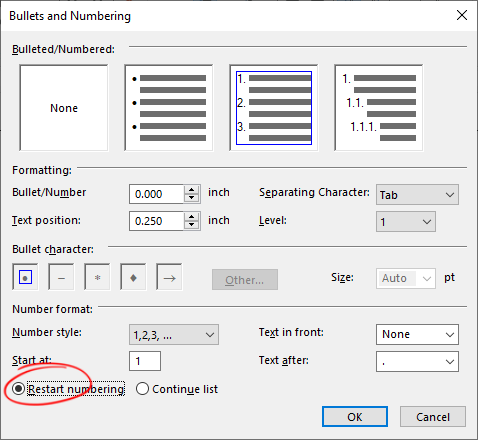
The dialog box sets the formatting attributes of bulleted and numbered lists, including any Unicode character from any font as the bullet. The method returns Cancel when the user canceled the dialog box or changed nothing.
The dialog box offers the list types, the positions of the bullet or number and of the text, the separating character, the level, the bullet character and its size, and for numbered lists the number style, the start number, the text in front of and after the number, and whether to restart the numbering or continue the list:
Create a Bulleted List
Create a ListFormat, set its attributes and assign it to Selection.ListFormat. This handler makes the selected paragraphs a bulleted list with a round bullet from Arial:
private void bulletsButton_Click(object sender, RoutedEventArgs e)
{
    ListFormat bullets = new ListFormat(ListType.Bulleted);
    bullets.BulletCharacter = '•';
    bullets.FontName = "Arial";

    textControl1.Selection.ListFormat = bullets;
}
BulletCharacter is by default the character B7 (hexadecimal) of the Windows Symbol font. Since version 23.0, any Unicode character works, taken from the font that FontName names; without a font name, the Symbol font is assumed. BulletSize 0, the default, sizes the bullet like the list text.
Create a Numbered List
private void numbersButton_Click(object sender, RoutedEventArgs e)
{
    ListFormat numbers = new ListFormat(ListType.Numbered);
    numbers.NumberFormat = NumberFormat.ArabicNumbers;
    numbers.TextAfterNumber = ".";
    numbers.FormatCharacter = ListFormatCharacter.Tab;

    textControl1.Selection.ListFormat = numbers;
}
- NumberFormat takes a NumberFormat value:
ArabicNumbers(1, 2, 3),Letters(a, b, c),CapitalLetters(A, B, C),RomanNumbers(I, II, III) orSmallRomanNumbers(i, ii, iii). - TextBeforeNumber and TextAfterNumber put up to 20 characters (MaxText) around the number, for example "Step " before and ":" after it. The older
CharBeforeNumberandCharAfterNumberare obsolete.
Create a Multilevel List
In a structured list, a paragraph at level 2 shows the number of the level 1 paragraph before its own, such as 1.1. and 1.2.:
private void outlineButton_Click(object sender, RoutedEventArgs e)
{
    ListFormat outline = new ListFormat(ListType.Structured);
    outline.NumberFormat = NumberFormat.ArabicNumbers;
    outline.TextAfterNumber = ".";
    outline.Level = 2;

    textControl1.Selection.ListFormat = outline;
}
The text before and after the numbers of the higher levels is displayed as well.
Restart the Numbering
Setting RestartNumbering to true begins a new list at the selected paragraph:
private void restartButton_Click(object sender, RoutedEventArgs e)
{
    ListFormat restart = new ListFormat(ListType.Numbered);
    restart.RestartNumbering = true;
    restart.FirstNumber = 1;

    textControl1.Selection.ListFormat = restart;
}
The next paragraph a user creates with ENTER inherits the setting and restarts the list again. The blog article Two Ways to Restart Numbered Lists in TX Text Control solves this in code or, more simply, with two list styles.
Use List Styles
A "List" style continues the numbering. A "List Restart" style restarts it and has "List" as its following style, so the paragraph after it continues the new list:
private void AddListStyles()
{
    ParagraphStyle list = new ParagraphStyle("List");
    list.ListFormat = new ListFormat(ListType.Numbered) { RestartNumbering = false };
    list.FollowingStyle = "List";

    ParagraphStyle restart = new ParagraphStyle("List Restart", "List");
    restart.ListFormat = new ListFormat(ListType.Numbered) { RestartNumbering = true };
    restart.FollowingStyle = "List";

    textControl1.ParagraphStyles.Add(list);
    textControl1.ParagraphStyles.Add(restart);
}
Call the method once the control is loaded, for example in its Loaded handler, because the style collections are available at run time only. Users apply the styles like any other; Stylesheets explains styles.
Remove a List
A ListFormat of the type None takes the selected paragraphs out of their list:
textControl1.Selection.ListFormat = new ListFormat(ListType.None);
Read the List Numbers
Displayed numbers aren't part of the paragraph text. Paragraph.ListNumber returns the number of a paragraph, or 0 outside a numbered list, and ListNumberText returns it with its text before and after. With using System.Diagnostics;:
private void ShowNumbers()
{
    foreach (TXTextControl.Paragraph paragraph in textControl1.Paragraphs)
    {
        if (paragraph.ListNumber > 0)
        {
            Debug.WriteLine(paragraph.ListNumberText + " " + paragraph.Text);
        }
    }
}
To show the list state in your own toolbar, read BulletedList, NumberedList and StructuredList of InputFormat.
Next Steps
- Stylesheets: paragraph styles with list attributes.
- Text and Paragraph Formatting: indents, spacing and tab stops.
- Built-in Dialog Boxes: the other dialog boxes of the editor.