
Spell Checking and Hyphenation
Red zigzag lines under misspelled words, suggestions on a right-click and hyphens at the ends of lines: the WPF TextControl displays all of this, but the knowledge of words comes from a spell checker. That is TX Spell .NET for WPF, a separate product of Text Control with its own documentation, or a checker of your own that your code connects through an event. Here you find the members of TX Text Control involved, the XAML that connects TX Spell .NET, and the links into its documentation.
The samples work in a window with a TextControl named textControl1, as built in Create Your First WPF Application.
What the User Sees
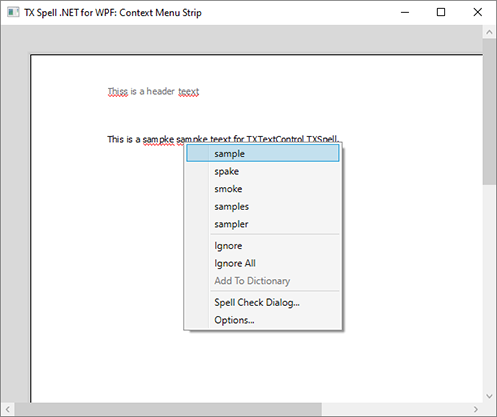
Once a spell checker is connected and checking is on, words are checked as they are typed, and misspelled ones are underlined in red. Right-clicking one shows suggestions and the commands Ignore, Ignore All, Add To Dictionary, Spell Check Dialog... and Options...:
In a ribbon, the Proofing tab, a RibbonProofingTab, turns spell checking and hyphenation on and off, opens the thesaurus and the spelling dialog, and loads dictionaries. The TextControl finds the tab by the name in its RibbonProofingTab property.
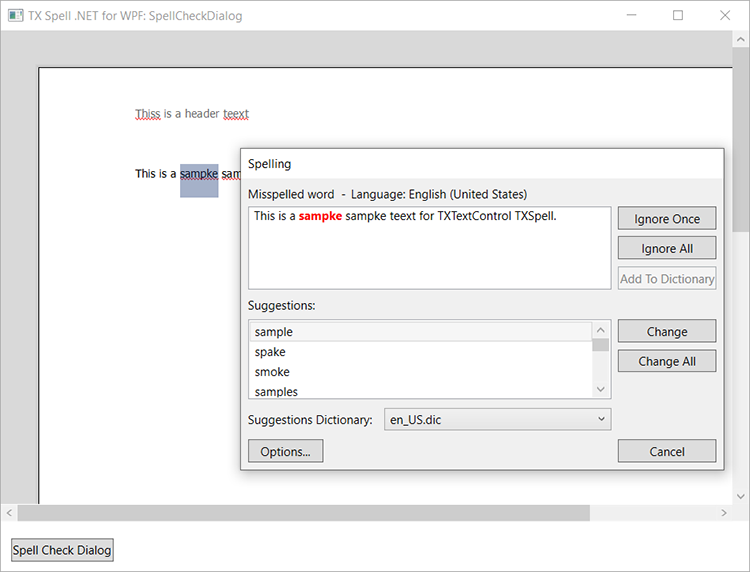
The spelling dialog shows the misspelled word in its sentence, the language, the suggestions of the selected dictionary and the buttons Ignore Once, Ignore All, Add To Dictionary, Change, Change All and Options...:
What TX Text Control Provides
These members of the WPF TextControl work with the spell checker:
- SpellChecker connects the spell checker. In WPF, it is a string: the key of a
TXSpellCheckerresource in the resources of the control or of one of its parents, such as the window. An empty string disconnects it. - IsSpellCheckingEnabled turns checking as the user types on and off.
- SpellCheckDialog opens the built-in spelling dialog, which goes through the main text, then the headers, footers and text frames.
- SpellCheckContextMenu chooses the menu of a misspelled word:
(Default)for the built-in one,(none)for none, or the resource key of aContextMenuof your own. - MisspelledWords returns the misspelled words of the text part with the input focus, as MisspelledWord objects.
- IsHyphenationEnabled divides the last word of a full line, and the HyphenateWord event lets your code change where.
- IsLanguageDetectionEnabled gives text without a language the one TX Spell .NET detects, and LanguageDialog lets the user set the language of the selection, which chooses the dictionary.
- SpellCheckText hands new text to a spell checker of your own when no
SpellCheckeris connected.
Connect TX Spell .NET
TX Spell .NET for WPF has its own setup, license and NuGet package, TXTextControl.TXSpell.WPF.SDK. Its TXSpellChecker is declared as a resource of the window, and SpellChecker names its key; the TextControl initializes the connected spell checker itself. Connect the Spell Checker in XAML shows the complete XAML with the namespace declaration and a Proofing tab.
Integrating TX Spell .NET for WPF also installs and licenses both products, shares one spell checker among several editors and deploys the application. The TX Spell .NET for WPF documentation describes dictionaries, hyphenation lists, the spelling dialog and the context menus.
Use Another Spell Checker
If SpellChecker is empty and IsSpellCheckingEnabled is True, the TextControl raises SpellCheckText each time text has changed. Your handler checks the text and returns the misspelled words, which the editor underlines. Connect it with SpellCheckText="TextControl1_SpellCheckText" on the TextControl element. The following handler reports each occurrence of teh:
private void TextControl1_SpellCheckText(object sender, SpellCheckTextEventArgs e)
{
    List<MisspelledWord> misspelledWords = new List<MisspelledWord>();

    // Find the words with your spell checker; here, one known typo
    int index = e.Text.IndexOf("teh");

    while (index >= 0)
    {
        // MisspelledWord positions are one-based
        misspelledWords.Add(new MisspelledWord(index + 1, 3));
        index = e.Text.IndexOf("teh", index + 3);
    }

    e.MisspelledWords = misspelledWords.ToArray();
}
What the code does:
- Text of the SpellCheckTextEventArgs is the text to check, and Culture its language.
- Each MisspelledWord takes the one-based position of the word in
Textand its length. - Setting MisspelledWords hands the result to the editor.
SpellCheckTextEventArgs and MisspelledWord are in the TXTextControl namespace, and List<T> needs using System.Collections.Generic; unless implicit usings are on. The built-in spelling dialog and the suggestion menu require a connected SpellChecker, so with your own checker, your application provides that user interface.
Control Where Words Are Divided
When hyphenation is on and a word doesn't fit into the line, HyphenateWord occurs with HyphenateWordEventArgs:
| Property | Value |
|---|---|
| Word, Culture | The word to hyphenate and its language |
| DividePos | The division calculated by TX Spell .NET, or 0 without a spell checker; the handler can change it |
| MaxDividePos | How many characters of the word still fit into the line |
The word is divided at DividePos if that isn't greater than MaxDividePos. With HyphenateWord="TextControl1_HyphenateWord" on the TextControl element, the following handler keeps short words in one piece:
private void TextControl1_HyphenateWord(object sender, HyphenateWordEventArgs e)
{
    // Don't divide words of fewer than seven characters
    if (e.Word.Length < 7)
    {
        e.DividePos = 0;
    }
}
Next Steps
- TX Spell .NET for WPF: the documentation of the spell checker.
- Built-in Ribbon Tabs: the Proofing tab among the other tabs.
- Context Menus: the other context menus of the editor.
- Events: event handlers in XAML and code.