
Charts and Barcodes
Barcodes and QR codes carry order numbers, product codes and links in printed documents. In a WPF application, TX Text Control creates them with a WPF barcode control and places them in the document like images, where your code can change and remove them again. Charts are a different matter: they are Windows Forms controls and can't be used with the WPF TextControl, as the last section explains.
For the user's side, see Charts and Barcodes. Integrating WPF Barcodes and Drawings describes the barcode control as an element of your windows, and Images and Barcodes the barcodes a mail merge fills with data. Frames are positioned as Images, Text Frames, and Shapes describes. MainWindow.xaml.cs needs these using directives:
using System.Windows;
using System.Windows.Media;
using TXTextControl;
using TXTextControl.Barcode;
using TXTextControl.DataVisualization;
using TXTextControl.WPF.Barcode;
How Barcodes Work
A barcode in a document is a TXBarcodeControl, which holds the type, the encoded text and the WPF colors, placed by a BarcodeFrame like an image. How Barcodes Work describes both classes and the formats that keep barcodes, and Insert a Barcode From Code inserts a QR code step by step.
Barcodes of the TextControl returns the BarcodeCollection of the text part with the input focus. HeaderFooter.Barcodes holds the barcodes of a header, which appear on every page. Text Control's feature comparison lists 1D and 2D barcodes for the Enterprise and Professional editions.
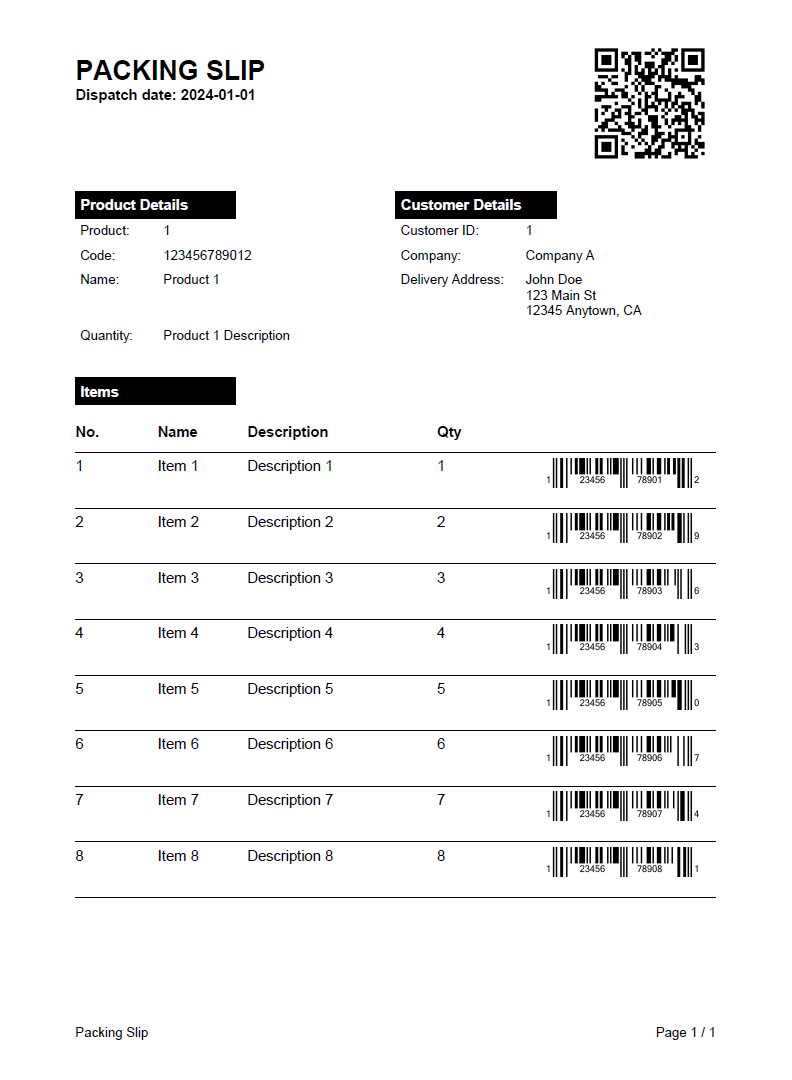
A document with barcodes looks like this packing slip, with a QR code at the top and a linear barcode in each item row:
Insert a Barcode With Text
The following handler checks an invoice number and inserts it inline as a Code 128 barcode with its text and a caption below the bars:
private void InsertBarcodeButton_Click(object sender, RoutedEventArgs e)
{
    string invoiceNumber = "INV-2025-001";

    // Check the text before it is assigned
    string errorMessage;

    if (!TXBarcodeControl.IsTextValid(BarcodeType.Code128, invoiceNumber, out errorMessage))
    {
        MessageBox.Show(errorMessage);
        return;
    }

    TXBarcodeControl code128 = new TXBarcodeControl();
    code128.BarcodeType = BarcodeType.Code128;
    code128.UpperTextLength = invoiceNumber.Length;
    code128.Text = invoiceNumber;
    code128.ShowText = true;
    code128.AdditionalText = "Invoice number";
    code128.TextAlignment = TXTextControl.Barcode.TextAlignment.Bottom;

    // Inline, like a single character, at the input position
    BarcodeFrame frame = new BarcodeFrame(code128)
    {
        Name = "invoice-number",
        Size = new System.Drawing.Size(4320, 1080) // 3 x 0.75 inch in twips
    };

    textControl1.Barcodes.Add(frame, -1);
}
- The static IsTextValid checks a text for a barcode type and returns an error message for an invalid one. Use it for values the user types, instead of catching the exception of
Text. - ShowText shows the encoded text of a one-dimensional barcode, and AdditionalText adds a text of your own.
- TextAlignment puts both texts at the
Bottom, the default, or theTop. The enumeration is written asTXTextControl.Barcode.TextAlignment, becauseSystem.Windowshas aTextAlignmentas well. - ForeColor and BackColor, not set here, take a nullable
System.Windows.Media.Color. The default ofForeColor,null, stands for the system's window text color. System.Drawing.Sizeis written in full becauseSystem.Windowshas aSizeof its own.
To anchor the code at the right edge of the paragraph with the input position, with the text flowing around it, use textControl1.Barcodes.Add(frame, TXTextControl.HorizontalAlignment.Right, -1, FrameInsertionMode.DisplaceText); DisplaceText is a value of FrameInsertionMode, and TXTextControl.HorizontalAlignment is qualified because WPF has a HorizontalAlignment too. For a code on every page, add the frame to the header: header.Barcodes.Add(frame, TXTextControl.HorizontalAlignment.Right, -1, FrameInsertionMode.AboveTheText). For one page, use the overload with a page number and a location, textControl1.Barcodes.Add(frame, 1, new System.Drawing.Point(8640, 720), FrameInsertionMode.AboveTheText).
Change and Remove Barcodes
BarcodeFrame.Barcode returns the barcode control of a frame as an object; cast it to the WPF TXBarcodeControl. A changed barcode appears in the document after Refresh:
private void UpdateBarcodeButton_Click(object sender, RoutedEventArgs e)
{
    // null if no barcode has this name
    BarcodeFrame frame = textControl1.Barcodes.GetItem("invoice-number");

    if (frame == null)
    {
        return;
    }

    TXBarcodeControl barcode = (TXBarcodeControl)frame.Barcode;
    barcode.Text = "INV-2025-002";

    // Changes to the barcode are shown after Refresh
    frame.Refresh();
}
BarcodeCollection.GetItem finds a barcode by its name or ID and returns null when there is none, and Remove deletes it. The TextControl raises BarcodeCreated and BarcodeDeleted when barcodes are created and deleted. Changes your code makes to a barcode don't go into the undo history of the editor unless you call AddUndoUnit.
SaveImage of the WPF barcode control writes the barcode to a stream as an image, in a format of TXTextControl.WPF.Barcode.ImageFormat such as PNG. The class has further SaveImage overloads with the ImageFormat of System.Drawing.Imaging. Because of them, a WPF project needs the NuGet package System.Drawing.Common for any call of SaveImage, also one with the WPF ImageFormat; without it, the compiler reports error CS0012, "The type 'ImageFormat' is defined in an assembly that is not referenced".
Charts in WPF Applications
Charts are Windows Forms controls, and the WPF TextControl has no Charts collection, as Charts in WPF explains. ChartFrame, ChartCollection and ServerTextControl.Charts appear in the reference of this product as well, but a chart frame needs the Windows Forms chart control System.Windows.Forms.DataVisualization.Charting.Chart in any case. To show numbers graphically in a WPF application, use a table, as Tables and Calculations describes, or an image of a chart created elsewhere, inserted as Images, Text Frames, and Shapes shows.
Next Steps
- Images, Text Frames, and Shapes: the other kinds of frames.
- Charts and Barcodes: barcodes from the user's side.
- Integrating WPF Barcodes and Drawings: the WPF barcode control in your windows.
- Images and Barcodes: fill barcodes of a template with data.