
Sections, Pages, Headers, and Footers
Page layout in a WPF document editor comes from three building blocks: sections, which carry the page size, orientation and margins, the headers and footers of each section, and the pages that TX Text Control formats from them. The WPF TextControl shows all three as the user will see them on paper. From the code-behind of your window, you insert sections, add headers and footers with page numbers, react when the user edits a header and read the formatted pages.
The handlers below belong in MainWindow.xaml.cs of the application from Create Your First WPF Application, whose TextControl is named textControl1 in MainWindow.xaml. Creating Documents sets the page size and margins of a new document.
MainWindow.xaml.cs needs these using directives:
using System.Text;
using System.Windows;
using TXTextControl;
How Sections, Headers and Footers Fit Together
- Sections divide a document into parts with their own page size, margins, orientation, page columns and page borders, numbered from 1. WPF.TextControl.Sections returns them, and Section.Format holds the page settings of a section. What a Section Is in Sections and Page Layout explains section breaks and what a new section inherits.
- Headers and footers are HeaderFooter objects with a
Selection, paragraphs, tables and images of their own, per section and by type. How Headers and Footers Work in Headers and Footers describes the types and how the headers of consecutive sections are connected. - Pages are the result of formatting. A section can span several pages, and a page can hold several sections. In page view, GetPages returns them as Page objects.
SectionFormatDialog opens the Page Setup dialog box, in which users set these values themselves. Its parameter selects the tab: 0 for margins and paper, 1 for headers and footers, 2 for columns and 3 for page borders.
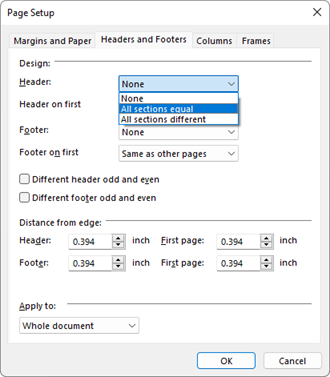
textControl1.SectionFormatDialog(1) opens it with the Headers and Footers tab shown above. Headers and Footers and Sections and Page Layout in the Document Editor section show the ribbon commands for the same settings.
Insert a Section in Landscape Orientation
SectionCollection.Add inserts a section break at the input position and returns true on success. A SectionBreakKind value decides where the new section starts: BeginAtNewPage on the next page, BeginAtNewLine on the next line. The following Click handler of a button writes a report whose middle section is in landscape orientation:
private void LandscapeSection_Click(object sender, RoutedEventArgs e)
{
    textControl1.Text = "";
    textControl1.Selection.Text = "Quarterly Report\r\nThis part is in portrait orientation.";

    // Section 2 begins on a new page and is turned to landscape
    textControl1.Sections.Add(SectionBreakKind.BeginAtNewPage);
    textControl1.Selection.Text = "This part has room for a wide table.";
    textControl1.Sections[2].Format.Landscape = true;

    // Section 3 inherits landscape from section 2, so turn it back
    textControl1.Sections.Add(SectionBreakKind.BeginAtNewPage);
    textControl1.Selection.Text = "The report continues in portrait orientation.";
    textControl1.Sections[3].Format.Landscape = false;
}
The code works as follows:
- The text written after each
Addgoes into the new section. textControl1.Sections[2]returns a section by its number through the indexer, and GetItem returns the section with the input position.- SectionFormat.Landscape turns the pages. Format a Section in Sections and Page Layout lists the other properties of
SectionFormat.
Page sizes and margins use the unit of PageUnit; column widths, lines and page borders use twips, 1/1440 inch.
Give a Section Its Own Header
Headers of consecutive sections are connected and show the same content. Set ConnectedToPrevious to false on the header of a section before you give it text of its own:
private void ChapterHeaders_Click(object sender, RoutedEventArgs e)
{
    textControl1.Text = "";
    textControl1.Selection.Text = "Chapter 1\r\nThe first chapter.";
    textControl1.Sections.Add(SectionBreakKind.BeginAtNewPage);
    textControl1.Selection.Text = "Chapter 2\r\nThe second chapter.";

    textControl1.HeadersAndFooters.Add(HeaderFooterType.Header);

    // With several sections, get the headers from the sections
    HeaderFooter header1 = textControl1.Sections[1].HeadersAndFooters.GetItem(HeaderFooterType.Header);
    HeaderFooter header2 = textControl1.Sections[2].HeadersAndFooters.GetItem(HeaderFooterType.Header);

    header2.ConnectedToPrevious = false;

    header1.Selection.Text = "Chapter 1";
    header2.Selection.Text = "Chapter 2";

    // Page numbers start again in section 2
    textControl1.Sections[2].Format.RestartPageNumbering = true;
}
In a document with several sections, most collections of a HeaderFooter that you get from the document's collection are null, so take headers and footers from Section.HeadersAndFooters. A restarted section begins with the StartNumber of its page number field.
Set Page Columns and Page Borders
Page columns belong to a section. A section that begins on a new line changes the number of columns without a page break, so a heading can span the full width of the page while the text below it runs in two columns:
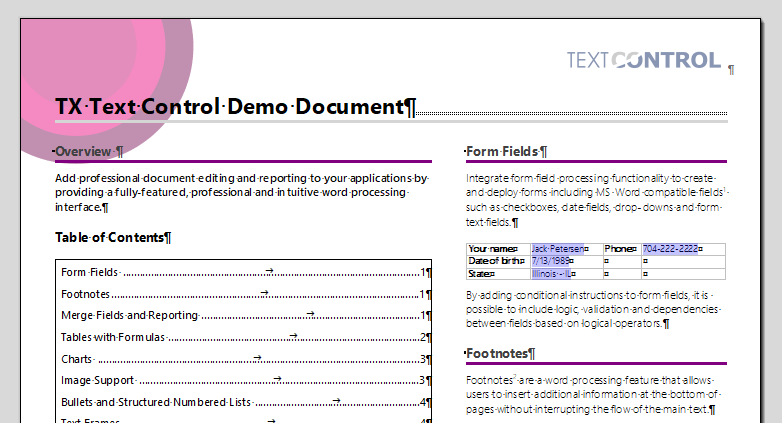
The following Click handler writes a heading, adds a two-column section below it on the same page and puts a border around the pages:
private void Columns_Click(object sender, RoutedEventArgs e)
{
    textControl1.Text = "";
    textControl1.Selection.Text = "Newsletter\r\n";

    // A new section on the same page, in two columns 0.5 inch apart
    textControl1.Sections.Add(SectionBreakKind.BeginAtNewLine);

    SectionFormat twoColumns = new SectionFormat(2, 720);
    twoColumns.ColumnLineWidth = 10;
    twoColumns.ColumnLineColor = System.Drawing.Color.Gray;
    textControl1.Sections.GetItem().Format = twoColumns;

    textControl1.Selection.Text = "The text of this section flows from the first column into the second.";

    // A border 0.5 inch from the edge of each page, except the first page of the section
    PageBorder border = new PageBorder(20, 720, System.Drawing.Color.DarkBlue);
    border.OmitFirstPage = true;
    textControl1.Sections[1].Format.PageBorder = border;
}
The code works as follows:
- The SectionFormat constructor with a number of columns and a distance in twips creates columns of equal width, calculated from the page size. Another overload takes an array of widths and an array of distances, for columns of different widths. Columns is 1 by default. ColumnWidths and ColumnDistances are read only, so other widths and distances need a new
SectionFormat. - ColumnLineWidth draws a line of that width in twips between the columns; the default, 0, draws none. ColumnLineColor is a
System.Drawing.Color, like the other colors of a document. - Section.Format takes the new format for the section with the input position, which
Sections.GetItem()returns. - The PageBorder constructor takes one line width in twips, one distance from the edge of the page and one color for all four lines. OmitFirstPage skips the first page of the section,
FirstPageOnlydraws the border on that page only, and MeasureFromText measures the distances from the text instead of the edge. SectionFormat.PageBorder gives the border to a section.
Each line of a PageBorder can also be set on its own, with properties such as TopLineWidth, LeftLineColor and BottomDistance.
Columns of Different Widths
A narrow sidebar column beside a wide text column needs the second SectionFormat constructor, which takes the number of columns, an array with one width per column and an array with one distance fewer. All values are twips. The widths and the distances together must not be wider than the text area of the page, which is the page width less the left and the right margin; otherwise the constructor throws an exception. So when you choose the first width, the second is what is left:
second width = page width - left margin - right margin - first width - distance
The page size and the margins of a section are not in twips, but in the unit of PageUnit: Millimeter, CentiInch (1/100 inch), StandardWPF (1/96 inch) or Twips. The following method converts them before it calculates, and adds a section with two columns below the input position:
// Twips per unit of the current PageUnit
private double TwipsPerPageUnit()
{
    switch (textControl1.PageUnit.ToString())
    {
        case "Millimeter": return 1440 / 25.4;
        case "CentiInch": return 14.4;
        case "StandardWPF": return 15;
        default: return 1; // Twips
    }
}

private void InsertColumns(int firstColumnWidth, int columnDistance)
{
    // A new section on the same page
    textControl1.Sections.Add(SectionBreakKind.BeginAtNewLine);
    SectionFormat current = textControl1.Sections.GetItem().Format;

    // PageSize is always given in portrait orientation
    double pageWidth = current.Landscape ? current.PageSize.Height : current.PageSize.Width;
    double factor = TwipsPerPageUnit();

    int textWidth = (int)((pageWidth - current.PageMargins.Left - current.PageMargins.Right) * factor);
    int secondColumnWidth = textWidth - firstColumnWidth - columnDistance;

    textControl1.Sections.GetItem().Format = new SectionFormat(
        2,
        new int[] { firstColumnWidth, secondColumnWidth },
        new int[] { columnDistance });
}
A call such as InsertColumns(2880, 360) gives the new section a first column of 2 inches and a gap of a quarter inch; the second column takes the rest of the line.
The code works as follows:
- SectionFormat.PageSize is a
System.Drawing.Sizewhose width and height are always those of the portrait page, so a landscape section, detected withLandscape, takes the height as its width. - PageMargins.Left and PageMargins.Right are
doublevalues in the same unit as the page size. Multiplied by the factor, the text width is in twips, like the column widths. - The constructor with arrays sets
EqualColumnWidthtofalse. ThecolumnWidthsparameter must have exactly one element per column, andcolumnDistancesone element fewer. PageUnit.ToString()returns the name of the current value, one of the four listed above. If your application setsPageUnitto one value at startup, a constant factor does the same.
Remove All Section Breaks
Documents from Word often consist of several sections with their own page formats and headers. Removing the section breaks gives such a document one layout. The following handler loads a document and removes the break at the start of every section after the first, following the blog article How to Delete All Section Breaks in a DOCX Document using C#, which is written for Windows Forms:
private void RemoveSections_Click(object sender, RoutedEventArgs e)
{
    textControl1.Load("report.docx", StreamType.WordprocessingML);

    // Sections.Count goes down with each removed break
    for (int section = 2; section <= textControl1.Sections.Count;)
    {
        // The input position in front of the break that starts the section
        textControl1.Select(textControl1.Sections[section].Start - 2, 0);

        // Insert a paragraph, select its end and delete it together with the break
        textControl1.Selection.Text = "\r\n";
        textControl1.Selection.Length = 1;
        textControl1.Selection.Text = "";
    }
}
Section.Start is the one-based position of the first character of a section. The loop doesn't count up, because each removed break lowers Sections.Count until a single section remains. The document then has one page orientation, one set of margins and one set of headers and footers.
React When the User Edits a Header
A header or footer is activated when it receives the input position; the user then types in it instead of the main text. Set Up the Editing Behavior in XAML in Headers and Footers sets whether a click or a double-click activates it and handles the HeaderFooterActivated and HeaderFooterDeactivated events, and HeaderFooter.Activate and Deactivate do the same in code; both return true on success.
Work With the Pages of a Document
Pages is the number of pages, and GetPages returns a PageCollection whose indexer takes a page number from 1. The collection exists only while ViewMode is ViewMode.PageView; in the other views, GetPages returns null. Each Page has read-only properties, among them Number, Section, Start, Length, Header and Footer. The following handler lists them in a TextBlock named statusText:
private void DescribePages_Click(object sender, RoutedEventArgs e)
{
    StringBuilder report = new StringBuilder();
    report.AppendLine($"{textControl1.Pages} pages in {textControl1.Sections.Count} sections");

    foreach (TXTextControl.Page page in textControl1.GetPages())
    {
        string header = page.Header == null ? "no header" : page.Header.Type.ToString();
        report.AppendLine($"Page {page.Number}: section {page.Section}, characters {page.Start} to {page.Start + page.Length - 1}, {header}");
    }

    statusText.Text = report.ToString();
}
TXTextControl.Page is written in full, because the Visual Studio template imports System.Windows.Controls, which has a Page class of its own. InputPosition.Page is the page with the input position in page view, and Page.Select selects the text of a page without its header and footer.
Render a Page as an Image
Page.GetImage renders a page for thumbnails, previews or an export. Its overloads return a System.Drawing.Bitmap, a System.Drawing.Imaging.Metafile or a string in SVG format. Because two of them use types of the System.Drawing.Common library, a .NET WPF project can't call any GetImage overload until it has that package; the compiler otherwise reports error CS0012, "The type 'Bitmap' is defined in an assembly that is not referenced". Install the NuGet package System.Drawing.Common, as Printing does for PrintDocument:
dotnet add package System.Drawing.Common
The following handler shows a thumbnail of the first page in an Image control named thumbnailImage of the window. A WPF Image takes a BitmapSource, so the bitmap is saved as PNG into a stream and loaded as a BitmapImage from System.Windows.Media.Imaging:
private void ThumbnailButton_Click(object sender, RoutedEventArgs e)
{
    PageCollection pages = textControl1.GetPages();

    // 20 percent of the original size, with headers, footers and main text
    using (System.Drawing.Bitmap thumbnail = pages[1].GetImage(20, TXTextControl.Page.PageContent.All))
    using (System.IO.MemoryStream stream = new System.IO.MemoryStream())
    {
        // Convert the System.Drawing bitmap into a WPF image source
        thumbnail.Save(stream, System.Drawing.Imaging.ImageFormat.Png);
        stream.Position = 0;

        BitmapImage source = new BitmapImage();
        source.BeginInit();
        source.CacheOption = BitmapCacheOption.OnLoad;
        source.StreamSource = stream;
        source.EndInit();

        thumbnailImage.Source = source;
    }
}
The code works as follows:
- The indexer of the PageCollection takes a page number from 1.
GetImage(int, PageContent)returns a bitmap in screen resolution, scaled by the zoom factor in percent. The values of PageContent, written asPage.PageContentin code, select the parts of the page:Background,HeadersAndFootersandMainText, andAllfor these three.BitmapCacheOption.OnLoadreads the stream completely inEndInit, so the stream and the bitmap can be disposed when the handler ends.
To export the pages as SVG files, which stay sharp at any size, call the overload with a maximum resolution for embedded pixel images. File needs using System.IO;, which WPF projects don't import by default:
private void SaveSvgButton_Click(object sender, RoutedEventArgs e)
{
    foreach (TXTextControl.Page page in textControl1.GetPages())
    {
        // Images of the page are embedded as PNG with at most 150 dpi
        string svg = page.GetImage(TXTextControl.Page.PageContent.All, 150);
        File.WriteAllText($"page-{page.Number}.svg", svg);
    }
}
The blog article Convert MS Word DOCX to SVG in .NET C# shows what the SVG contains.
Save the Pages as a Multipage TIFF
The pages of a document can also be saved as one TIFF file with a frame for each page. GetImage renders each page as a bitmap, and the TIFF encoder of System.Drawing.Common adds the bitmaps to the file as frames. The handler needs using System.Drawing.Imaging; and using System.Linq; at the top of MainWindow.xaml.cs:
private void SaveTiffButton_Click(object sender, RoutedEventArgs e)
{
    // The TIFF encoder of System.Drawing
    ImageCodecInfo tiffCodec = ImageCodecInfo.GetImageEncoders()
        .First(codec => codec.MimeType == "image/tiff");

    using (EncoderParameters parameters = new EncoderParameters(2))
    {
        parameters.Param[0] = new EncoderParameter(System.Drawing.Imaging.Encoder.Compression,
            (long)EncoderValue.CompressionLZW);

        System.Drawing.Bitmap firstPage = null;

        foreach (TXTextControl.Page page in textControl1.GetPages())
        {
            // 100 percent, with headers, footers and main text
            System.Drawing.Bitmap bitmap = page.GetImage(100, TXTextControl.Page.PageContent.All);

            if (firstPage == null)
            {
                // The first page creates the file
                firstPage = bitmap;
                parameters.Param[1] = new EncoderParameter(System.Drawing.Imaging.Encoder.SaveFlag,
                    (long)EncoderValue.MultiFrame);
                firstPage.Save("document.tif", tiffCodec, parameters);
            }
            else
            {
                // Each further page is a new frame of the file
                parameters.Param[1] = new EncoderParameter(System.Drawing.Imaging.Encoder.SaveFlag,
                    (long)EncoderValue.FrameDimensionPage);
                firstPage.SaveAdd(bitmap, parameters);
                bitmap.Dispose();
            }
        }

        if (firstPage != null)
        {
            // Close the file
            parameters.Param[1] = new EncoderParameter(System.Drawing.Imaging.Encoder.SaveFlag,
                (long)EncoderValue.Flush);
            firstPage.SaveAdd(parameters);
            firstPage.Dispose();
        }
    }
}
The first bitmap is saved with EncoderValue.MultiFrame and creates the file; every further page is appended with SaveAdd and FrameDimensionPage, and Flush closes the file. The bitmaps are in screen resolution, scaled by the zoom factor in percent. Encoder is written with its namespace because System.Text has an Encoder class as well.
Remove Empty Pages
Documents assembled from several parts, or edited by users after they were created, can end up with pages that hold nothing but a page break or a section break. Such a page has a Length of 1, because the length counts the break at the end of the page. The following handler deletes these breaks:
private void RemoveEmptyPagesButton_Click(object sender, RoutedEventArgs e)
{
    PageCollection pages = textControl1.GetPages();

    // From the last page to the first, so that the positions of earlier pages stay valid
    for (int number = pages.Count; number >= 1; number--)
    {
        TXTextControl.Page page = pages[number];

        // A page that holds nothing but its page or section break
        if (page.Length == 1)
        {
            // Page.Start counts from 1, text positions from 0
            textControl1.Select(page.Start - 1, 1);
            textControl1.Selection.Text = "";
        }
    }
}
Page.Start is the one-based number of the first character of the page, so Start - 1 is the text position of the break. Page.Select doesn't help here, because it leaves out the page break characters. RemoveEmptyPagesButton_Click doesn't call GetImage and compiles without System.Drawing.Common.
Next Steps
- Headers and Footers: add headers and footers from the ribbon.
- Sections and Page Layout: page setup and section breaks in the user interface.
- Fields and Subtext Parts: other fields of a document.
- Printing: print the pages of a document.