
Sorting and Filtering
Data from an ERP system or a web service seldom has the order or the selection a document needs. Instead of reshaping it in code before each merge, attach sorting and filter instructions to the merge block: MailMerge sorts and filters the rows of the block while it merges, and the instructions stay with the template. In a WPF application, users edit them in a WPF dialog box, and your code sets them when it inserts a block, changes them on existing blocks and adds conditions that decide whether a nested block is merged at all.
The block tools of the Reporting tab are described in Merge Blocks. The code uses invoice.json with its Items array, loaded into the Reporting tab ribbonReportingTab1, and the orders template of Nested Blocks and Master-Detail Reports. The handlers go into MainWindow.xaml.cs, each connected to a button in MainWindow.xaml.
How Sorting and Filtering Works
Three lists of a MergeBlockInfo, the description of a block, hold the instructions:
| Property | Contains | Effect |
|---|---|---|
| Filters | FilterInstruction objects | Only the rows that match are merged |
| SortingInstructions | SortingInstruction objects | The rows are merged in this order |
| BlockMergingCondition | FilterInstruction objects | The block is merged only if its parent record matches |
A list that is empty or null means no filter, no sorting or no condition. Your code passes the lists with a new block to InsertMergeBlock, or changes them on an existing block and stores them with Apply; the dialog box stores them itself.
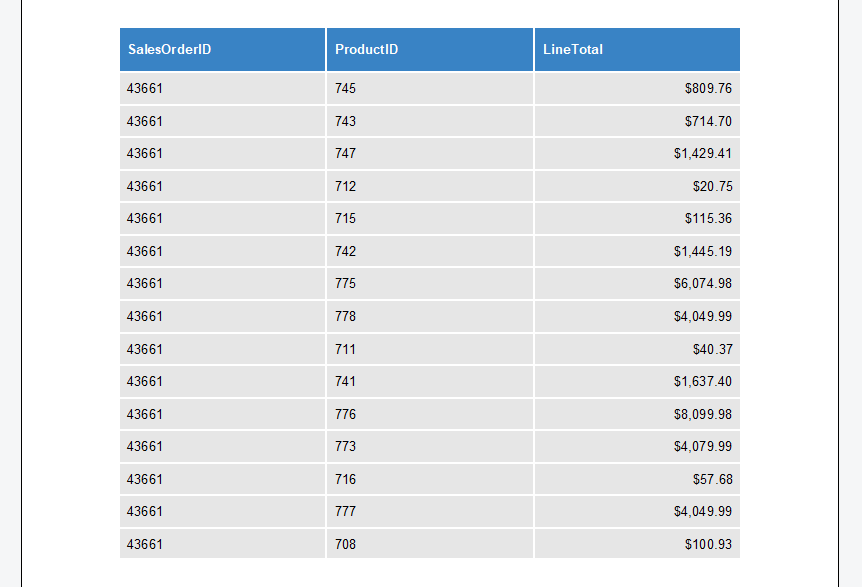
A filter changes what the merged table shows. Without a filter, a block lists every row of an order:
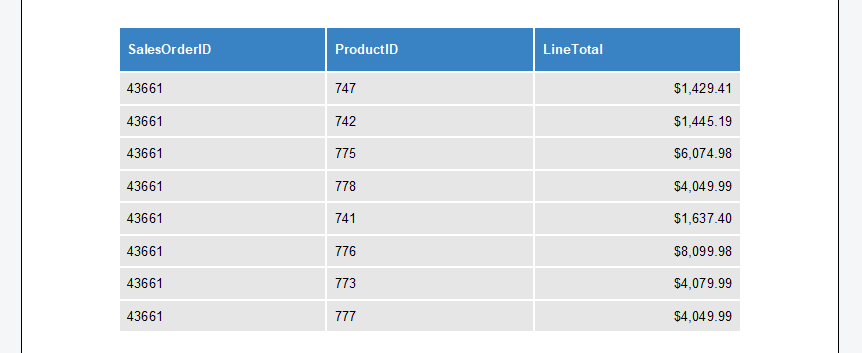
With a filter that keeps rows whose LineTotal is greater than 1000, the same block lists eight rows:
Filter Instructions
A FilterInstruction compares a column of each row with a value. The constructor takes the column name, a relational operator, the value and, optionally, a logical operator:
| Operator | A row matches when the column value |
|---|---|
Equals, NotEqual | Is equal or not equal to the value |
LessThan, LessThanOrEqualTo | Is less than, or less than or equal to, the value |
GreaterThan, GreaterThanOrEqualTo | Is greater than, or greater than or equal to, the value |
IsBlank, IsNotBlank | Is null or empty, or is not |
- Numeric or string comparison. A value that can be parsed as a number is compared numerically with a column of numbers; everything else is compared as strings. Culture parses the numbers and defaults to the invariant culture.
- Combined instructions. LogicalOperator connects an instruction with the previous one by
AndorOr; constructors without it useAnd. - Blank checks.
IsBlankandIsNotBlankneed no value; use the constructor with the column name and the operator only.
The blog article MailMerge: Using Filters to Remove Unwanted Rows drops a total row that the data delivers with the line items.
Sorting Instructions
A SortingInstruction sorts by one column. Its constructor takes the column name and SortOrder.Ascending or SortOrder.Descending, ascending when left out. With several instructions, the rows are sorted by the first column, then by the next.
The handlers below need these using directives in MainWindow.xaml.cs:
using System.Collections.Generic;
using System.Linq;
using TXTextControl;
using TXTextControl.DocumentServer;
using TXTextControl.DocumentServer.DataShaping;
using TXTextControl.DocumentServer.DataSources;
using TXTextControl.DocumentServer.WPF;
Set Instructions When Inserting a Block
This handler inserts an Items block that keeps items with a price of at least 200 and a description, the highest price first:
private void insertFilteredItemsButton_Click(object sender, RoutedEventArgs e)
{
    MergeBlockInfo itemsBlock = new MergeBlockInfo("Items")
    {
        ColumnNames = new List<string> { "Description", "Quantity", "Price" },

        // Only items with a price of at least 200 and a description
        Filters = new List<FilterInstruction>
        {
            new FilterInstruction("Price", RelationalOperator.GreaterThanOrEqualTo, 200),
            new FilterInstruction("Description", RelationalOperator.IsNotBlank)
        },

        // The highest price first, then by description
        SortingInstructions = new List<SortingInstruction>
        {
            new SortingInstruction("Price", SortOrder.Descending),
            new SortingInstruction("Description")
        }
    };

    ribbonReportingTab1.DataSourceManager.InsertMergeBlock(textControl1, itemsBlock,
        new MergeBlockSettings(BlockTemplateType.TableRow, true));
}
With the data of invoice.json, only Training, at 480.00, passes the price filter, so the merged table has one row. An Or connection needs the logical operator as fourth parameter: new FilterInstruction("Quantity", RelationalOperator.GreaterThan, 1, LogicalOperator.Or).
Change the Block at the Input Position
To change an existing block, create a MergeBlockInfo from its subtext part, replace a list and call Apply. This handler sorts the block at the input position by price:
private void sortCurrentBlockButton_Click(object sender, RoutedEventArgs e)
{
    SubTextPart subTextPart = textControl1.SubTextParts.GetItem();

    if (subTextPart == null || !DataSourceManager.IsMergeBlock(subTextPart))
    {
        MessageBox.Show(this, "Place the input position in a merge block.");
        return;
    }

    MergeBlockInfo mergeBlockInfo = new MergeBlockInfo(subTextPart)
    {
        // Replace the sorting instructions: the lowest price first
        SortingInstructions = new List<SortingInstruction>
        {
            new SortingInstruction("Price", SortOrder.Ascending)
        }
    };

    // Store the change in the block
    mergeBlockInfo.Apply();
}
- SubTextParts.GetItem returns the innermost subtext part at the input position of the WPF
TextControl; DataSourceManager.IsMergeBlock checks that it is a block. - The MergeBlockInfo constructor reads the block and its instructions; a list is
nullwhen the block has none of that kind. - Only
Applywrites the change into the block, together with the other lists. Nested blocks aren't affected; callApplyfor each changed block.
Existing instructions can be read from ColumnName, ComparisonOperator and CompareTo of a filter and OrderBy and SortOrder of a sorting instruction.
Let Users Edit the Instructions
FilterAndSortDialog of the namespace TXTextControl.DocumentServer.WPF is a WPF window in which users define filters and sorting instructions for a block. The following handler opens it for the block at the input position, filled with the block's current instructions:
private void filterAndSortButton_Click(object sender, RoutedEventArgs e)
{
    SubTextPart subTextPart = textControl1.SubTextParts.GetItem();

    if (subTextPart == null || !DataSourceManager.IsMergeBlock(subTextPart))
    {
        MessageBox.Show(this, "Place the input position in a merge block.");
        return;
    }

    MergeBlockInfo mergeBlockInfo = new MergeBlockInfo(subTextPart);

    // The columns of the block's table fill the drop-downs of the dialog
    DataTableInfo table = ribbonReportingTab1.DataSourceManager.DataTables[mergeBlockInfo.TableName];

    if (table == null)
    {
        MessageBox.Show(this, "The loaded data source has no table " + mergeBlockInfo.TableName + ".");
        return;
    }

    FilterAndSortDialog dialog = new FilterAndSortDialog(table)
    {
        Owner = this,
        // Show the instructions the block already has
        Filters = mergeBlockInfo.Filters?.ToArray(),
        SortingInstructions = mergeBlockInfo.SortingInstructions?.ToArray()
    };

    // ShowDialog returns true when the user clicks OK
    if (dialog.ShowDialog() == true)
    {
        // Write the instructions into the block
        dialog.StoreBlockMetaData(subTextPart);
    }
}
The code works as follows:
- The FilterAndSortDialog constructor takes the DataTableInfo of the block's data, looked up by name in
DataTables, or the column names as a string array. - Filters and SortingInstructions are arrays that fill the dialog box when it opens and hold the user's instructions when it closes.
Ownerkeeps the dialog box in front of the main window;ShowDialogreturns a nullablebool, as for every WPF window.- StoreBlockMetaData writes the instructions into the block and throws an exception for a subtext part that isn't a merge block.
Merge a Block Only for Matching Parent Rows
A merging condition is checked one level up, against the parent record of a nested block: when the parent record doesn't match, the block isn't merged. With the orders template of Nested Blocks in textControl1, this handler restricts the articles block to the order with the ID 123:
private void articlesConditionButton_Click(object sender, RoutedEventArgs e)
{
    SubTextPart articlesPart = textControl1.SubTextParts.GetItem(MailMerge.MergeBlockNamePrefix + "articles");

    if (articlesPart == null)
    {
        MessageBox.Show(this, "The template has no articles block.");
        return;
    }

    MergeBlockInfo articles = new MergeBlockInfo(articlesPart)
    {
        // Checked against the parent row, the current order
        BlockMergingCondition = new List<FilterInstruction>
        {
            new FilterInstruction("id", RelationalOperator.Equals, 123)
        }
    };

    articles.Apply();
}
GetItem with a name finds a subtext part by its name, txmb_ from MergeBlockNamePrefix plus the block name, and returns null when there is none. After a merge with orders.json, order 123 shows its article and order 321 has no articles. The blog article MailMerge: Conditional Rendering of Merge Blocks contrasts conditions with blocks that are removed for missing data.
Where the Instructions Are Stored
The instructions are saved in the block's subtext part, as a JSON string in its Data property, whether Apply, InsertMergeBlock or the dialog box wrote them. Save such templates in the TX Text Control format, which keeps this data with the blocks. The blog article Mail Merge: Conditional Data Shaping in Merge Blocks shows that JSON for a block with a merging condition.
Next Steps
- Conditional Content: include or leave out whole sections depending on the data.
- Nested Blocks and Master-Detail Reports: the master-detail templates that merging conditions work with.
- Reporting Ribbon and WPF Dialog Boxes: the other dialog boxes of the Reporting tab.
- The blog article Filtering and Sorting Repeating Blocks in MailMerge using C#: inventory reports built with filters and sorting.