
MailMerge
MailMerge turns a template with placeholders into finished documents, such as letters, invoices and reports, by filling the placeholders with your data. In a WPF application, it works on the document of a WPF.TextControl in the window or on a ServerTextControl in the background, and the Reporting ribbon tab lets users design the templates. The sections below explain how the class connects to an editor, what a template contains, which data it merges and which user interface comes with it.
What MailMerge Is
MailMerge in the TXTextControl.DocumentServer namespace is a .NET component, derived from System.ComponentModel.Component. It is not a WPF element, and the toolbox tab that the NuGet package registers has no item for it: you create it in code, for example in the Loaded handler of the editor, as the WPF mail merge samples do.
MailMerge holds no document of its own. Its TextComponent property names the object that holds the template and, afterward, the result: the WPF.TextControl of the window, whose document the user then sees merged, or a ServerTextControl, which leaves the editor untouched. Where the Merge Runs compares the two, with code.
Mail merge, merge fields and the reporting features are part of the Enterprise and Professional editions, not of the Standard edition. See Editions and Feature Availability.
Templates
A template is an ordinary document with two kinds of placeholders:
- Merge fields are MS Word MERGEFIELD fields, each replaced with the value of the data column that has its name.
MailMergealso processes the Word fields INCLUDETEXT, IF and DATE. In code, the MergeField class creates a merge field. - Merge blocks repeat a part of the template for each record, such as a table row for each item of an order. A block is a subtext part whose name starts with
txmb_, and blocks can be nested.
When you load a DOCX template into the editor, set LoadSettings.ApplicationFieldFormat to ApplicationFieldFormat.MSWord, so that the Word fields become fields MailMerge can fill, and LoadSubTextParts to true, so that the merge blocks are loaded.
Data Sources
Each kind of data has its own method:
| Method | Merges |
|---|---|
| Merge | A DataTable, one document per row. The WPF samples fill merge blocks and nested blocks from the related tables of the same DataSet. |
| MergeObjects | An IEnumerable of objects or of dictionaries with string keys. Public properties become columns, and properties that are collections supply merge blocks. |
| MergeObject | One object, analyzed the same way |
| MergeJsonData | A JSON string with one object or an array of objects of the same structure |
With more than one record, the append parameter decides whether the results form one document or stay separate documents. The WPF samples read XML data with DataSet.ReadXml and merge one of its tables.
The Reporting User Interface
Users design templates without writing code. The RibbonReportingTab inserts merge fields and merge blocks from the data that its DataSourceManager holds, the TXTextControl.DocumentServer.WPF namespace contains its dialog boxes for merge blocks, and a Sidebar lists the fields and blocks of the template. The Reporting sample of TX Words shows the tab with a loaded template and the Field Navigation sidebar at the right:
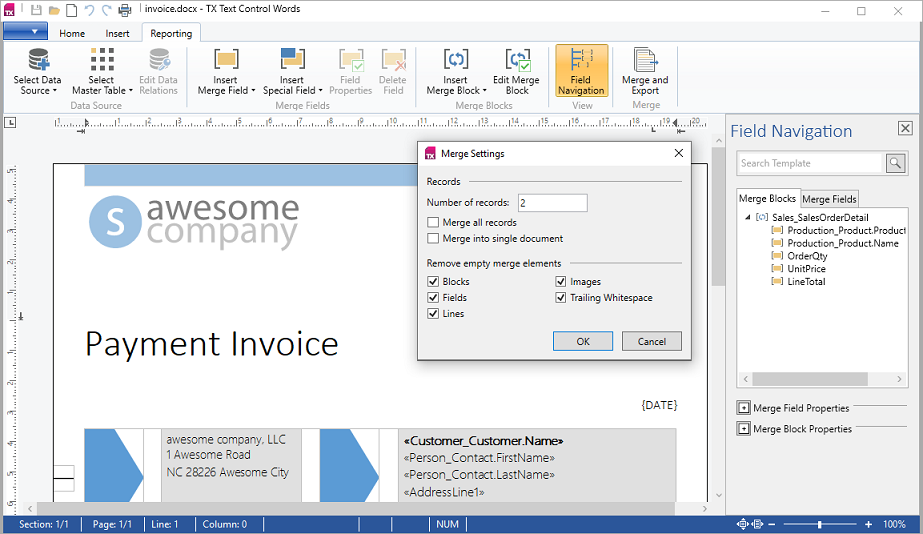
Reporting Ribbon and WPF Dialog Boxes describes the tab, its data sources and the dialog classes. The sample merges through DataSourceManager to keep design and merge in one application; for real applications, the sample's documentation recommends MailMerge for the merge itself.
Control the Merge Result
Properties of MailMerge such as RemoveEmptyFields and RemoveEmptyLines decide what happens to fields, blocks and lines without data; Remove What Stays Empty lists them with their defaults. Events such as FieldMerged and BlockRowMerged let your code change the result while it is built, as Merge Events shows.
Key Classes
| Class | Purpose |
|---|---|
| MailMerge | Merges data into the template of a WPF.TextControl or a ServerTextControl. |
| MergeField | An MS Word merge field in a template. |
| RibbonReportingTab | The ribbon tab in which users design templates. |
| DataSourceManager | The data behind the Reporting tab and its dialog boxes. |
| LoadSettings | Loads the fields and blocks of a DOCX template. |
Next Steps
- Mail Merge in Getting Started — create a template, fill its fields and add merge blocks.
- Mail Merge and Reporting — data sources, fields, blocks, events and the reporting interface in detail.
- Reporting Ribbon and WPF Dialog Boxes — the Reporting tab and its dialogs.
- ServerTextControl — merge without touching the editor.