
Creating AcroForms
A fillable PDF form is a set of AcroForm fields, the interactive form fields of the PDF format, on top of the page. In a WPF application, you don't build these fields yourself: TX Text Control turns the form fields of the document in the TextControl into AcroForm fields when it saves the document as PDF. The sections below show how each form field type ends up in the PDF, how a Word form becomes a fillable PDF and how to check what a PDF reader will see.
The tutorial Create a PDF Form inserts a text box, a drop-down list and a check box and saves them as a PDF form. Inserting form fields in the editor is covered in Form Fields and Conditional Instructions, and the form field classes in Forms and Conditional Instructions. Form fields require the Enterprise edition.
What AcroForms Are
AcroForms are the common standard for interactive PDF forms. Their fields are text fields, check boxes, radio buttons, push buttons and choice fields such as drop-down lists, each with a name that identifies its value. TX Text Control handles them in both directions:
- Creating. Since version 28.0, form fields become PDF form fields when a document is saved as PDF. Nothing has to be switched on.
- Reading. Since version 29.0,
Forms.GetAcroFormFieldsreturns the fields of a PDF document and their values, as Reading Form Fields and Values describes.
How Form Fields Become PDF Fields
The Name of a form field becomes the name of its PDF field:
| Form field in the document | Field in the PDF |
|---|---|
| TextFormField | Text field |
| CheckFormField | Check box |
| SelectionFormField | Choice field: a drop-down list, or a combo box when users may type their own value |
| DateFormField | Text field with the date as the form displays it |
TX Text Control has no radio buttons or push buttons of its own, so it doesn't create these PDF fields; it reads them from PDF forms made with other tools. Values set before saving are filled in and can be changed in the PDF reader.
Design the Form in the Window
In a ribbon window, users design forms with the Form Fields tab, the WPF class RibbonFormFieldsTab. Its buttons insert and edit form fields and manage the conditional instructions that validate them. In the WPF version of the TX Text Control Words sample, a booking form with the tab and the Conditional Instructions sidebar looks like this:
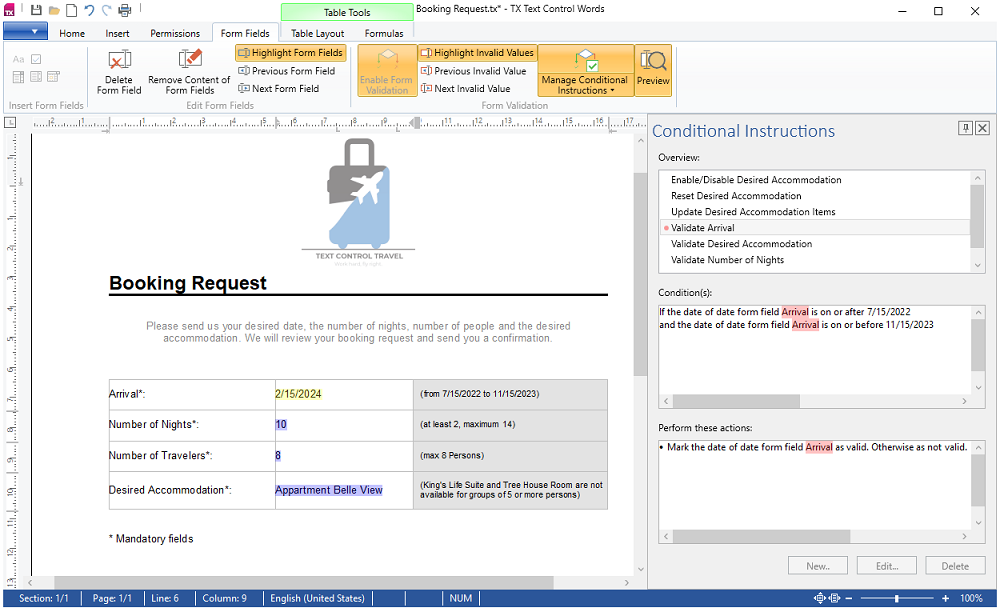
The tab is declared in XAML and connected to the TextControl through its RibbonFormFieldsTab attribute, as Insert Form Fields With the Ribbon shows. Saved with StreamType.AdobePDF, the document becomes a fillable PDF form.
Turn a Word Form Into a Fillable PDF
Legacy form fields and content controls of a Microsoft Word document become form fields when the document is loaded, and AcroForm fields when it is saved as PDF. The following handler in MainWindow.xaml.cs loads registration.docx into textControl1, adds a description to every field that has none and saves the fillable PDF:
private void ConvertWordFormButton_Click(object sender, RoutedEventArgs e)
{
    LoadSettings loadSettings = new LoadSettings()
    {
        // Content controls and legacy form fields become form fields
        ApplicationFieldFormat = ApplicationFieldFormat.MSWordTXFormFields
    };

    textControl1.Load("registration.docx", StreamType.WordprocessingML, loadSettings);

    // A tooltip in the PDF reader for every field without a description
    foreach (FormField formField in textControl1.FormFields)
    {
        if (string.IsNullOrEmpty(formField.DescriptiveText))
        {
            formField.DescriptiveText = "Enter " + formField.Name;
        }
    }

    textControl1.Save("registration.pdf", StreamType.AdobePDF);
}
The code works as follows:
- With LoadSettings.ApplicationFieldFormat
MSWordTXFormFields, form fields of the Word document become TX Text Control form fields and the other Word fields, such as merge fields, application fields. The default valueNoneimports form fields as form fields, too, but no other Word fields. - FormFields of the WPF
TextControlcontains all form fields of the document. - FormField.DescriptiveText, new in version 34.0, describes a field for screen readers, and PDF readers such as Adobe Acrobat Reader show it as the tooltip of the field.
Pointing at a field in Acrobat Reader shows its description:

The blog article Designing the Perfect PDF Form with TX Text Control in .NET C# puts form fields in table cells, where they keep their size and position in every PDF reader, and names them after their content, such as account_owner_name, so that code can map the values to its data.
Check the Fields of the Saved Form
What a PDF reader sees can be checked with Forms.GetAcroFormFields. The following handler writes the name, type and tooltip of each field of the saved PDF to the Output window:
private void ListAcroFormFieldsButton_Click(object sender, RoutedEventArgs e)
{
    foreach (AcroForms.FormField field in Forms.GetAcroFormFields("registration.pdf"))
    {
        // Derived classes first: a radio button is a check box, a list box is a combo box
        string kind = field switch
        {
            AcroForms.FormTextField => "text field",
            AcroForms.FormRadioButton => "radio button",
            AcroForms.FormCheckBox => "check box",
            AcroForms.FormListBox => "list box",
            AcroForms.FormComboBox => "combo box",
            AcroForms.FormButton => "push button",
            _ => field.FieldType.ToString()
        };

        Debug.WriteLine($"{field.FieldName}: {kind}, tooltip \"{field.AlternateFieldName}\"");
    }
}
These using directives go at the top of MainWindow.xaml.cs:
using System.Diagnostics;
using System.Windows;
using TXTextControl;
using TXTextControl.DocumentServer.PDF;
using AcroForms = TXTextControl.DocumentServer.PDF.AcroForms;
The TXTextControl namespace has a FormField class, too, and the alias AcroForms keeps the two apart. FieldName is the name of the PDF field and AlternateFieldName its tooltip, which comes from DescriptiveText. All classes are described in Reading Form Fields and Values.
Where Users Fill In the Form
- Adobe Acrobat Reader and other PDF readers that support form fields.
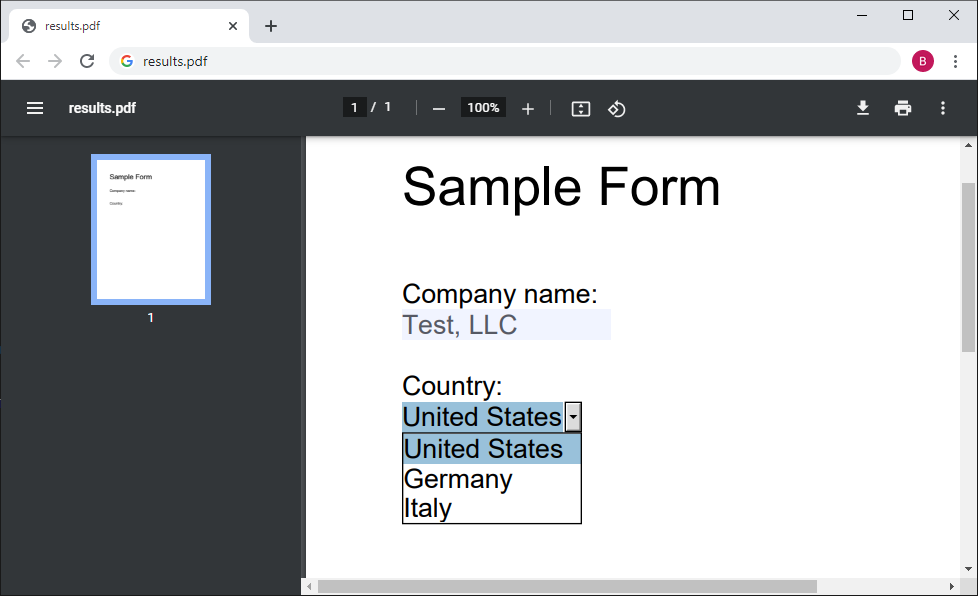
- Google Chrome, which fills in AcroForm fields since version 85 and downloads the PDF with the values.
- Your WPF application. The
TextControlcan protect the text and leave only the form fields editable, as Fill Out the Form in the Editor shows.
A form saved by TX Text Control, filled in with Chrome:
Forms, Permissions and PDF/A
- Permissions. With a master password and DocumentAccessPermissions, readers fill in the form but change nothing else, as Save a Fillable Form shows.
- PDF/A. Encryption isn't allowed in PDF/A, so permissions can't protect a PDF/A form. A filled form can be flattened and then archived as PDF/A, as Exporting Interactive and Flattened Forms describes.
Next Steps
- Reading Form Fields and Values: read the values of filled PDF forms.
- Exporting Interactive and Flattened Forms: save forms fillable or with fixed values.
- Forms and Conditional Instructions: create form fields in code.