
PDF Forms
A PDF form in a WPF application goes out and comes back: it starts as a document with form fields in the TextControl of a window, becomes a fillable PDF when it is saved, returns filled in from a PDF reader and ends up as data in your application. When the process is complete, the values can be fixed in a flattened PDF that is signed or archived.
Create a PDF Form in Getting Started builds the first fillable PDF. Users insert form fields with the ribbon, as Form Fields and Conditional Instructions describes, and the form field classes are covered in Forms and Conditional Instructions. Form fields require the Enterprise edition; see Editions and Feature Availability.
How a PDF Form Travels
Design. Text boxes, check boxes, drop-down lists, combo boxes and date fields are inserted in code, with the Form Fields tab of the WPF ribbon or by loading a Word form.
Create.
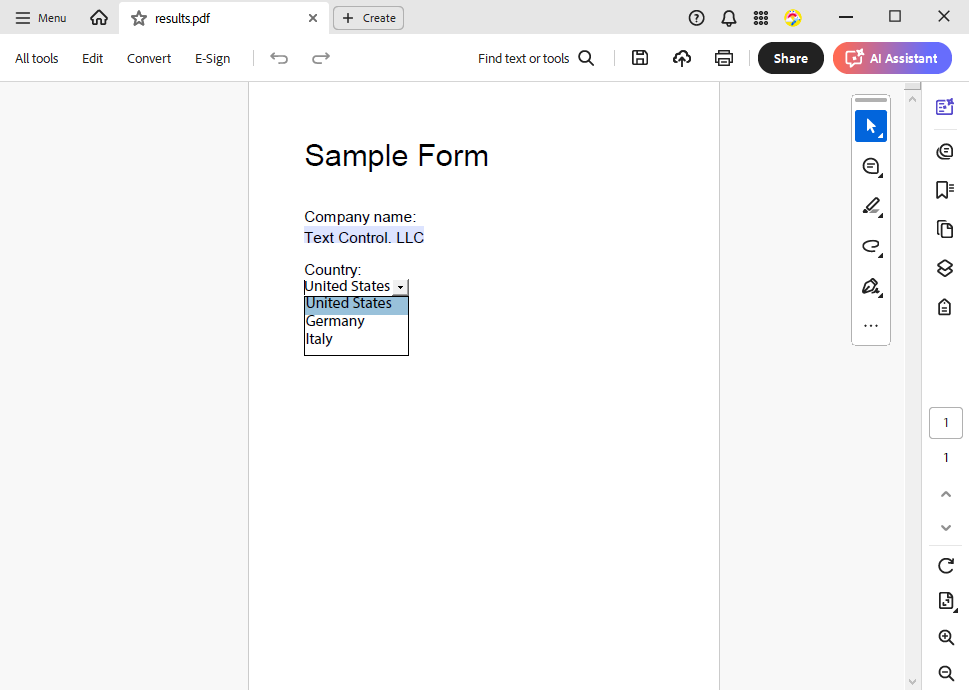
StreamType.AdobePDFsaves the form fields as AcroForm fields, the interactive fields of PDF, with their names and values.Fill in. Recipients fill in the form in Adobe Acrobat Reader, Google Chrome or another PDF reader:
Read.
Forms.GetAcroFormFieldsreturns the fields of the returned PDF with their values.Finalize. The values go back into your document of the form, the fields are flattened and the result is signed or archived.
The fields of an existing PDF are read, but TX Text Control doesn't write new values into it: a PDF with changed values is always saved from a document.
Find the Right Page
| If you want to | Read |
|---|---|
| Know how form fields become PDF fields, convert a Word form and check the saved form | Creating AcroForms |
| Read the values of a filled PDF form and show them in the window | Reading Form Fields and Values |
| Protect a fillable form with permissions or fix the values by flattening | Exporting Interactive and Flattened Forms |
| Let users fill in the form inside the window | Fill Out the Form in the Editor |
Where to Start
- Create a PDF Form, if you haven't saved a form as PDF yet.
- Creating AcroForms: what ends up in the PDF.
- Reading Form Fields and Values: get the data back.
- Exporting Interactive and Flattened Forms: finish the document.