
Signing PDF Documents
Signing is the last step of saving: ServerTextControl applies the signature while it writes the PDF, so every document that your code creates, converts or merges can leave the application signed. The signing options, a signed merge result, an ASP.NET Core action that returns a signed PDF and the errors to handle are covered in the sections below.
A first signed document, with a self-signed test certificate, is created in Sign the Whole Document in Getting Started. Signing single signature fields instead of the whole document is the subject of Signature Fields.
How Signing Works in TX Text Control
Three things come together when a document is signed:
- A DigitalSignature holds the certificate. Its constructor takes an
X509Certificate2with a private key and the URL of a time server. Withnullor an empty string instead of a URL, the current date and time of the computer are used; with a URL, the signature gets a trusted timestamp, as RFC 3161 Timestamps describes. - SaveSettings.DigitalSignature takes the
DigitalSignature. The signature covers the whole document and isn't visible on the pages; PDF readers list it in their signature panel. - A PDF format. The signature is created when the document is saved with
StreamType.AdobePDForStreamType.AdobePDFA, or the same values ofBinaryStreamType. For other formats, such as DOCX, the property has no meaning.
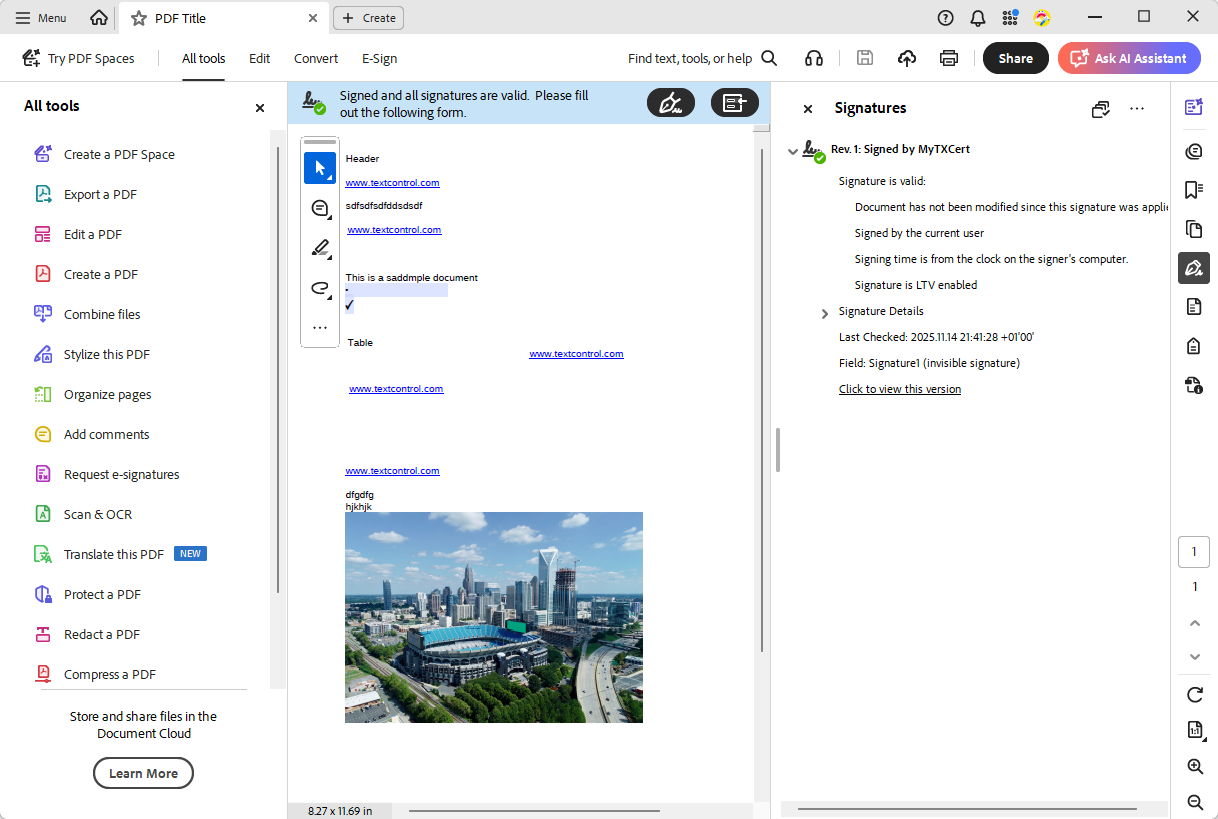
Open a signed document in Adobe Acrobat Reader to see the result. The bar above the page states whether all signatures are valid, and the Signatures panel lists the signature with the name of its certificate. Because a whole-document signature has no visible field, the panel names its field as an invisible signature, and without a time server it notes that the signing time comes from the clock of the signing computer:
These methods take SaveSettings and can save a signed document:
| Method | Saves the document to |
|---|---|
| ServerTextControl.Save with a path | A file |
ServerTextControl.Save with a FileStream | An open file stream |
ServerTextControl.Save with out byte[] | A byte array |
| MailMerge.SaveDocument, MailMerge.SaveDocumentToMemory | A file or a byte array, after a merge |
Where certificates come from and what they need is described in Certificate-Based Signatures.
Sign a Merged Document
Generated documents are the typical case: a template is merged with data, and the result is signed as it's saved. The following program merges data.json into the invoice template template.docx of Simple Mail Merge and saves a signed PDF/A document:
using System.Security.Cryptography.X509Certificates;
using TXTextControl;
using TXTextControl.DocumentServer;

// Load the certificate including its private key
X509Certificate2 certificate = X509CertificateLoader.LoadPkcs12FromFile(
    "certificate.pfx",
    "123",
    X509KeyStorageFlags.Exportable);

string jsonData = File.ReadAllText("data.json");

using (ServerTextControl tx = new ServerTextControl())
{
    tx.Create();

    // Load the template with its merge fields and merge blocks
    LoadSettings loadSettings = new LoadSettings()
    {
        ApplicationFieldFormat = ApplicationFieldFormat.MSWord,
        LoadSubTextParts = true
    };

    tx.Load("template.docx", StreamType.WordprocessingML, loadSettings);

    using (MailMerge mailMerge = new MailMerge { TextComponent = tx })
    {
        mailMerge.MergeJsonData(jsonData);
    }

    // Sign the complete document while it's saved as PDF/A
    SaveSettings saveSettings = new SaveSettings()
    {
        DocumentTitle = "Invoice INV-2025-001",
        CreatorApplication = "Invoice Service",
        DigitalSignature = new DigitalSignature(certificate, null)
    };

    tx.Save("invoice-signed.pdf", StreamType.AdobePDFA, saveSettings);
}
The code works as follows:
- The merge replaces the merge fields of the template with the data, as Simple Mail Merge explains.
- The same
SaveSettingscarry the document properties, DocumentTitle and CreatorApplication, and the signature. StreamType.AdobePDFAcreates a PDF/A document for the archive; PDF/A, PDF/UA and Digital Signatures describes what a signature adds to it.X509CertificateLoaderrequires .NET 9 or later. In a .NET 8 project, usenew X509Certificate2("certificate.pfx", "123", X509KeyStorageFlags.Exportable).
To create one signed document per record, pass the same SaveSettings to Save in the loop of Create One Document or Separate Documents. The same certificate can be passed to several DigitalSignature objects.
Return a Signed PDF From ASP.NET Core
A web application signs documents in memory and returns them in the response. The following controller action receives a DOCX file, converts it and returns it as a signed PDF:
using System.Security.Cryptography.X509Certificates;
using Microsoft.AspNetCore.Mvc;
using TXTextControl;
public class SignedPdfController : Controller
{
[]
public IActionResult Sign(IFormFile document)
{
// Copy the uploaded DOCX file into a byte array
byte[] data;
using (MemoryStream memoryStream = new MemoryStream())
{
document.CopyTo(memoryStream);
data = memoryStream.ToArray();
}
using (X509Certificate2 certificate = X509CertificateLoader.LoadPkcs12FromFile(
Path.Combine(AppContext.BaseDirectory, "certificate.pfx"),
"123",
X509KeyStorageFlags.Exportable))
using (ServerTextControl tx = new ServerTextControl())
{
tx.Create();
try
{
tx.Load(data, BinaryStreamType.WordprocessingML);
}
catch (FilterException exception)
{
return BadRequest($"The document could not be loaded: {exception.Reason}");
}
SaveSettings saveSettings = new SaveSettings()
{
DigitalSignature = new DigitalSignature(certificate, null)
};
// Sign the document while it's saved into a byte array
byte[] pdf;
tx.Save(out pdf, BinaryStreamType.AdobePDF, saveSettings);
return File(pdf, "application/pdf",
Path.GetFileNameWithoutExtension(document.FileName) + ".pdf");
}
}
}
The code works as follows:
- The upload is copied into a byte array, because
Loadhas no overload for the stream of an upload, as Load Uploaded Documents in ASP.NET Core explains. AppContext.BaseDirectoryfinds certificate.pfx in the output folder of the application. The certificate is loaded for the request and disposed afterward. In production, the file and the password come from the configuration, as Load the Certificate in ASP.NET Core shows.Savewithout byte[]andBinaryStreamType.AdobePDFsigns the document in memory, andFilereturns it.
Handle Certificate and Time Server Errors
Signing can fail for two reasons that concern the signature itself. Both throw a FilterException when the document is saved, and its Reason tells them apart:
| Reason | Meaning |
|---|---|
InvalidCertificate | The certificate is invalid or has no private key. |
InvalidTimeServer | The time server doesn't exist or returns invalid data. |
The following program signs a document with a timestamp and reports both errors:
using System.Security.Cryptography.X509Certificates;
using TXTextControl;

X509Certificate2 certificate = X509CertificateLoader.LoadPkcs12FromFile(
    "certificate.pfx", "123", X509KeyStorageFlags.Exportable);

if (!certificate.HasPrivateKey)
{
    Console.WriteLine("The certificate has no private key and can't be used to sign.");
    return;
}

using (ServerTextControl tx = new ServerTextControl())
{
    tx.Create();
    tx.Text = "This document is signed with a trusted timestamp.";

    SaveSettings saveSettings = new SaveSettings()
    {
        DigitalSignature = new DigitalSignature(certificate, "http://timestamp.digicert.com")
    };

    try
    {
        tx.Save("signed.pdf", StreamType.AdobePDF, saveSettings);
        Console.WriteLine("signed.pdf created");
    }
    catch (FilterException exception) when (exception.Reason == FilterException.FilterError.InvalidCertificate)
    {
        Console.WriteLine("The certificate is invalid or has no private key.");
    }
    catch (FilterException exception) when (exception.Reason == FilterException.FilterError.InvalidTimeServer)
    {
        Console.WriteLine("The time server doesn't exist or returned invalid data.");
    }
}
Checking HasPrivateKey before the document is created turns a wrong certificate file into a clear message early. Check a Certificate Before Signing adds a check of the validity period.
Combine Signatures With Passwords
A signature shows whether a document was changed and who signed it, but it doesn't hide the content, as What a Digital Signature Proves explains. To encrypt a signed document as well, set the passwords and permissions of Protect a PDF With Passwords and Permissions in the same SaveSettings and save with AdobePDF, because PDF/A doesn't allow encryption. The blog article PDF Security Explained: Passwords, Permissions, Encryption and Digital Signatures in C# .NET compares the protections.
After the Document Is Signed
- Any change invalidates the signature. Archive signed documents without modifying them. Even a change to the metadata of the file makes validators report the signature as invalid, as Signature Validation shows.
- Finish the content before signing. Fill in and flatten form fields before the document is saved, so that the signature covers the final values, as Flatten, Then Sign describes.
- Sign the documents you generate. A PDF created elsewhere is rebuilt when
ServerTextControlloads it, and saving it creates a new PDF from that reconstruction, as Load and Modify a PDF explains. Keep documents in an editable format such as DOCX until they're final, and sign when you create the PDF.
Next Steps
- Signature Fields: show visible signatures in named fields.
- RFC 3161 Timestamps: add a trusted signing time.
- Certificate-Based Signatures: load certificates from the store or Azure Key Vault.
- Signature Validation: check the signed documents in code.