
Charts and Barcodes
Business graphics and codes for invoices, tickets or labels have objects of their own in the Document Editor. Your code reacts to charts, and it inserts, changes, exports and removes barcodes such as QR codes from JavaScript.
The examples extend the view of the ASP.NET Core tutorial. Charts and barcodes are frames, like images and text frames: Images explains how frames are placed, and Shapes how frames in general are selected and changed.
Charts
A chart in a document is a chart frame, which holds the chart and its data. Users insert charts from the Insert tab of the ribbon and change them with the contextual chart tools that the editor shows for a selected chart. A chart is saved and loaded with the TX Text Control format and RTF; other formats store an image of the chart.
What Your Code Can Do With Charts
The JavaScript API has no chart objects and no methods that create or change a chart. It raises four events: chartCreated, chartDeleted, chartSelected and chartDeselected. Their handlers receive ChartEventArgs, whose chartFrame contains the ID, name, location and text position of the chart.
The following code remembers the selected chart and opens the dialog box for the frame attributes of the selected frame. Add it below the editor in Views/Home/Index.cshtml:
<input type="button" onclick="formatSelectedChart()" value="Chart Layout" />

<script>
    var selectedChart = null;

    TXTextControl.addEventListener("textControlLoaded", function () {
        TXTextControl.addEventListener("chartSelected", function (e) {
            selectedChart = e.chartFrame;
            console.log("Chart selected: ID " + e.chartFrame.id + ", name " + e.chartFrame.name);
        });

        TXTextControl.addEventListener("chartDeselected", function () {
            selectedChart = null;
        });
    });

    function formatSelectedChart() {
        if (selectedChart === null) {
            console.log("Select a chart first.");
            return;
        }
        TXTextControl.showDialog(TXTextControl.DialogBoxKind.FrameAttributesDialog);
    }
</script>
showDialog with FrameAttributesDialog from DialogBoxKind opens the formatting attributes of the selected frame.
On the server, ServerTextControl.Charts returns the charts of a document. Each ChartFrame is associated with a chart control of System.Windows.Forms.DataVisualization.Charting, which holds the appearance and the data. In templates, charts can be filled with data by MailMerge, which raises ChartMerged for each merged chart. The blog article Using MailMerge with Chart Objects and JSON Data shows how a chart is connected to data.
Barcodes
A barcode is a barcode frame that encodes a text as a one- or two-dimensional code, such as a QR code. Barcodes are built into TX Text Control and are saved and loaded with the TX Text Control format and RTF; other formats store an image of the barcode. Unlike charts, barcodes are fully available in the JavaScript API. Users insert them with the Barcode button of the Insert tab, whose menu lists the barcode types by name, such as QRCode, Code128, EAN13 and Datamatrix.
| Object | Represents | You get it from |
|---|---|---|
| BarcodeCollection | The barcodes of the text part with the input focus: the main text, a header or footer, or a text frame | TXTextControl.barcodes |
| BarcodeFrame | The frame with its position and size, with the FrameBase methods of all frames | The callbacks of BarcodeCollection |
| Barcode | The code itself: type, text, colors and text display | BarcodeFrame.barcode |
Insert a Barcode
BarcodeCollection inserts barcodes inline, anchored or at a fixed position, like images. Except for addWithMouse, its insert methods take the parameters in an order that differs from the other collections: the callback comes first, followed by the error callback, the barcode type and the text.
The following code inserts a QR code inline at the input position, and a second one anchored and right-aligned with the text flowing around it:
<input type="button" onclick="insertQRCode()" value="Insert QR Code" />
<input type="button" onclick="insertAnchoredQRCode()" value="Insert Anchored QR Code" />

<script>
    function logError(error) {
        console.log(error.msg);
    }

    function insertQRCode() {
        // The callback and the error callback come before the type and the text
        TXTextControl.barcodes.addInline(function (barcodeFrame) {
            barcodeFrame.setName("invoice-qr", function () {
                barcodeFrame.barcode.setForeColor("#1F4E79");
            });
        }, logError, TXTextControl.BarcodeType.QRCode, "INV-1048", -1);
    }

    function insertAnchoredQRCode() {
        TXTextControl.barcodes.addAnchored(function (barcodeFrame) {
            barcodeFrame.setID(2);
        }, logError,
            TXTextControl.BarcodeType.QRCode,
            "INV-1049",
            TXTextControl.HorizontalAlignment.Right,
            -1,
            TXTextControl.FrameInsertionMode.DisplaceText);
    }
</script>
The code works as follows:
- addInline takes the callback, the error callback, the type from TXTextControl.BarcodeType, the text to encode and the text position;
-1stands for the input position. - addAnchored also takes the horizontal alignment and the insertion mode, a value of FrameInsertionMode.
- The callback receives the new
BarcodeFrame. setName and setID give it a name or ID to find it later. - Barcode.setForeColor sets the color of the code as a CSS color string.
With the input position at the beginning of a letter, Insert Anchored QR Code places the code at the right margin, and the text flows around it:
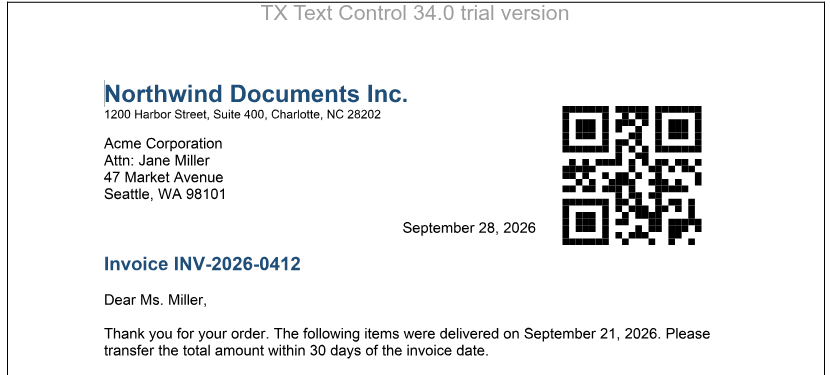
Further methods insert a barcode at a fixed position on a page (addAtFixedPositionOnPage) or let the user draw it (addWithMouse).
Change, Export and Remove a Barcode
BarcodeCollection.getItem without an ID passes the barcode that the user has selected, and getItemByName finds one by its name. The following code changes the text of the selected barcode, shows it as a PNG image and removes the barcode named "invoice-qr":
<input type="button" onclick="updateSelectedBarcode()" value="Change Text" />
<input type="button" onclick="exportSelectedBarcode()" value="Export as PNG" />
<input type="button" onclick="removeInvoiceBarcode()" value="Remove Barcode" />
<img id="barcodeImage" alt="Barcode image" />

<script>
    function updateSelectedBarcode() {
        TXTextControl.barcodes.getItem(function (barcodeFrame) {
            if (barcodeFrame === null) {
                console.log("Select a barcode first.");
                return;
            }
            barcodeFrame.barcode.setText("INV-2001");
        });
    }

    function exportSelectedBarcode() {
        TXTextControl.barcodes.getItem(function (barcodeFrame) {
            if (barcodeFrame === null) {
                return;
            }
            barcodeFrame.barcode.saveImage(TXTextControl.ImageFormat.Png, function (base64) {
                document.getElementById("barcodeImage").src = "data:image/png;base64," + base64;
            });
        });
    }

    function removeInvoiceBarcode() {
        TXTextControl.barcodes.getItemByName(function (barcodeFrame) {
            if (barcodeFrame !== null) {
                TXTextControl.barcodes.remove(barcodeFrame);
            }
        }, null, "invoice-qr");
    }
</script>
- Barcode.setText changes the encoded text.
- saveImage takes a format from ImageFormat first and passes the image as Base64 data to its callback.
- remove removes the barcode from the document.
Barcode Settings
Method of Barcode | Sets |
|---|---|
| setBarcodeType | The type of code |
| setBackColor | The background color |
| setAngle | The rotation angle of the code |
| setAlignment | The position of the code inside the frame, a value of BarcodeAlignment such as MiddleCenter |
| setShowText, setTextAlignment | Whether the encoded text is shown, and whether below or above the code |
| setAdditionalText | An additional text below or above the code |
| setUpperTextLength | The maximum length of the text; the frame keeps its size, so a shorter text produces a smaller code |
The reference page of TXTextControl.BarcodeType refers to the list of barcode types. TXTextControl.barcodeTypeSettings contains the settings that depend on the type, such as whether a check value is included and shown.
The editor raises barcodeCreated, barcodeDeleted, barcodeSelected and barcodeDeselected. Their handlers receive BarcodeEventArgs with the ID, name, location and text position of the barcode.
Barcodes in Templates and on the Server
In a template, a barcode is filled with data like a merge field: MailMerge uses its name to find the data and raises BarcodeMerged for each merged barcode. See Barcodes in Mail Merge and Reporting. To create barcodes in code on the server, use ServerTextControl.Barcodes; the blog article Adding QR Codes to PDF Documents in C# .NET shows how.
Next Steps
- Shapes: drawings and text frames.
- Signature Fields: frames that hold signatures.
- Events: all chart, barcode and frame events.