
Comments
Reviewers leave notes on a draft without touching its wording, and the WPF TextControl stores such notes as comments compatible with MS Word. Users work with them through the context menu, the Proofing tab and a sidebar; your code reads, adds, answers and removes them through the CommentCollection and learns about every change from events.
The code samples use a TextControl named textControl1 in MainWindow.xaml, as in Create Your First WPF Application, with the button handlers in MainWindow.xaml.cs.
How Comments Work
Each comment is a commented text: a range of the document plus the comment string. On the screen, commented text is highlighted in a color that depends on its author, red for the current user. The author is the user who was current when the comment was added, the first name in UserNames, or an unknown user if the list is empty.
A comment can have replies from other users. They refer to the same range of text. When a comment is removed, its replies go with it, while the commented text stays in the document.
The TX Text Control format (TX), RTF, DOC and DOCX keep comments when a document is saved and restore them when it is loaded, including comments written in MS Word.
Comment Text as a User
With text selected, the user adds a comment from the context menu or with Add Comment on the Proofing tab. The comment goes into the document once the user closes the input box with a mouse click or the Enter key. Right-clicking a comment offers to edit it, delete it or reply to it. A Comments sidebar lists the comments of the document:
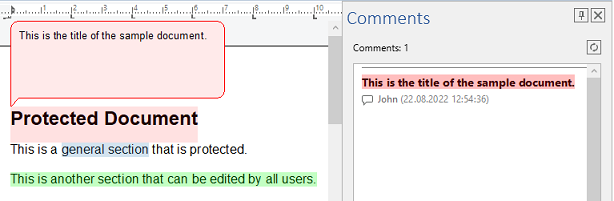
The Comments button of the RibbonProofingTab opens that sidebar when its CommentsSidebar property holds the name of a sidebar in the window; see Sidebar and Panels. An application without a ribbon shows the same list in the modeless CommentsDialog window of the TXTextControl.WPF namespace:
private void CommentsDialogButton_Click(object sender, RoutedEventArgs e)
{
    TXTextControl.WPF.CommentsDialog dialog = new TXTextControl.WPF.CommentsDialog(textControl1);
    dialog.Show();
}
Add Comments in Code
The Comments property returns a CommentCollection with the comments of the text part that has the input focus. Add inserts a comment given as a CommentedText object, or, without a parameter, opens the input box so that the user types the comment. CommentCollection and CommentedText are classes of the TXTextControl namespace:
using System.Windows;
using TXTextControl;

// ...

private void AddCommentButton_Click(object sender, RoutedEventArgs e)
{
    // Comment the selected text
    CommentCollection.AddResult result =
        textControl1.Comments.Add(new CommentedText("Please check this figure."));

    if (result == CommentCollection.AddResult.NoSelection)
    {
        MessageBox.Show("Select the text you want to comment on.");
    }
}

private void CommentHeadingButton_Click(object sender, RoutedEventArgs e)
{
    // Comment the first 20 characters; the start is one-based
    textControl1.Comments.Add(new CommentedText("Shorten the heading.", 1, 20));
}
What the code does:
- A
CommentedTextcreated with the comment string only refers to the current selection. Addreports the outcome as a value of CommentCollection.AddResult.Successfulmeans the comment was inserted;NoSelectionandSelectionTooComplexmean there was no selection or no continuous one.- The constructor with a start and a length comments a range without selecting it. The first character has the position 1.
Read and Answer Comments
Enumerating the collection returns all comments and replies. GetItem returns the comment at the input position, and GetItem(true) or GetItem(false) the next or previous one; each returns null if there is none:
private void ListCommentsButton_Click(object sender, RoutedEventArgs e)
{
    System.Text.StringBuilder report = new System.Text.StringBuilder();

    foreach (CommentedText comment in textControl1.Comments)
    {
        // Replies are listed below the comment they answer
        if (comment.RepliedComment != null)
        {
            continue;
        }

        report.AppendLine($"\"{comment.Text}\": {comment.Comment} " +
            $"({comment.UserName}, {comment.CreationTime.ToLocalTime()})");

        foreach (CommentedText reply in comment.Replies ?? new CommentedText[0])
        {
            report.AppendLine($"    {reply.UserName}: {reply.Comment}");
        }
    }

    MessageBox.Show(report.ToString(), "Comments");
}

private void ReplyButton_Click(object sender, RoutedEventArgs e)
{
    CommentedText comment = textControl1.Comments.GetItem();

    if (comment != null)
    {
        textControl1.Comments.Add(new CommentedText("Done.", comment));
    }
}
| Member | Value |
|---|---|
| Text | The commented text |
| Comment | The comment itself; setting it changes the comment |
| UserName, CreationTime | The author and the time of the comment in UTC |
| Replies | The replies, or null without replies |
| RepliedComment | For a reply, the comment it answers |
A reply is a CommentedText created with the answered comment as its second parameter, and Add inserts it like any other comment.
Change the Highlighting
CommentHighlightMode decides when commented text is highlighted. It can be set in XAML, for example CommentHighlightMode="Always":
| Value | Commented text is highlighted |
|---|---|
Activated | While it contains the input position (default) |
Always | Always |
Never | Never |
The HighlightMode and HighlightColor of a single comment override the setting for that comment. HighlightColor is a System.Drawing.Color. A comment whose Active property is false isn't highlighted, and GetItem doesn't return it.
React to Comments
Six events report comments, each with CommentEventArgs whose CommentedText is the comment concerned:
- CommentCreated and CommentDeleted when a comment has been added or removed.
- CommentChanged when its text has been changed.
- CommentStateChanged when it has become active or inactive.
- CommentedTextEntered and CommentedTextLeft when the input position has moved into or out of commented text.
Connect a handler as an attribute of the control in MainWindow.xaml:
<WPF:TextControl x:Name="textControl1"
                CommentedTextEntered="TextControl1_CommentedTextEntered" />
The handler shows the comment at the input position in the title of the window:
private void TextControl1_CommentedTextEntered(object sender, CommentEventArgs e)
{
    Title = $"{e.CommentedText.UserName}: {e.CommentedText.Comment}";
}
Comments of stored documents, for example for an import into a database, are read without the editor through the Comments collection of a ServerTextControl. See Comments and Tracked Changes and the blog article Extracting Comments from DOCX Files in .NET C#.
Next Steps
- Track Changes: record insertions and deletions and accept or reject them.
- Document Protection and Editable Regions: user names and protected documents.
- Sidebar and Panels: add the Comments panel to the window.
- Built-in Dialog Boxes: the other dialog windows of the editor.