
Comments
In review workflows, users discuss parts of a document in comments without changing its text. Next to how comments work in the Document Editor, you see how your code adds, lists, answers and removes them.
The examples extend the view of the ASP.NET Core tutorial.
How Comments Work
A comment is a note attached to a piece of text. It stores the comment text, the author, the time it was created and the replies of other users. Comments are compatible with MS Word and are saved and loaded with DOCX, RTF and the TX Text Control format.
Users work with comments in the editor:
- They select text and add a comment from the context menu or with the comment group of the Proofing tab. The comment is added when they close the input box.
- The context menu of a comment changes or removes it, or adds a reply.
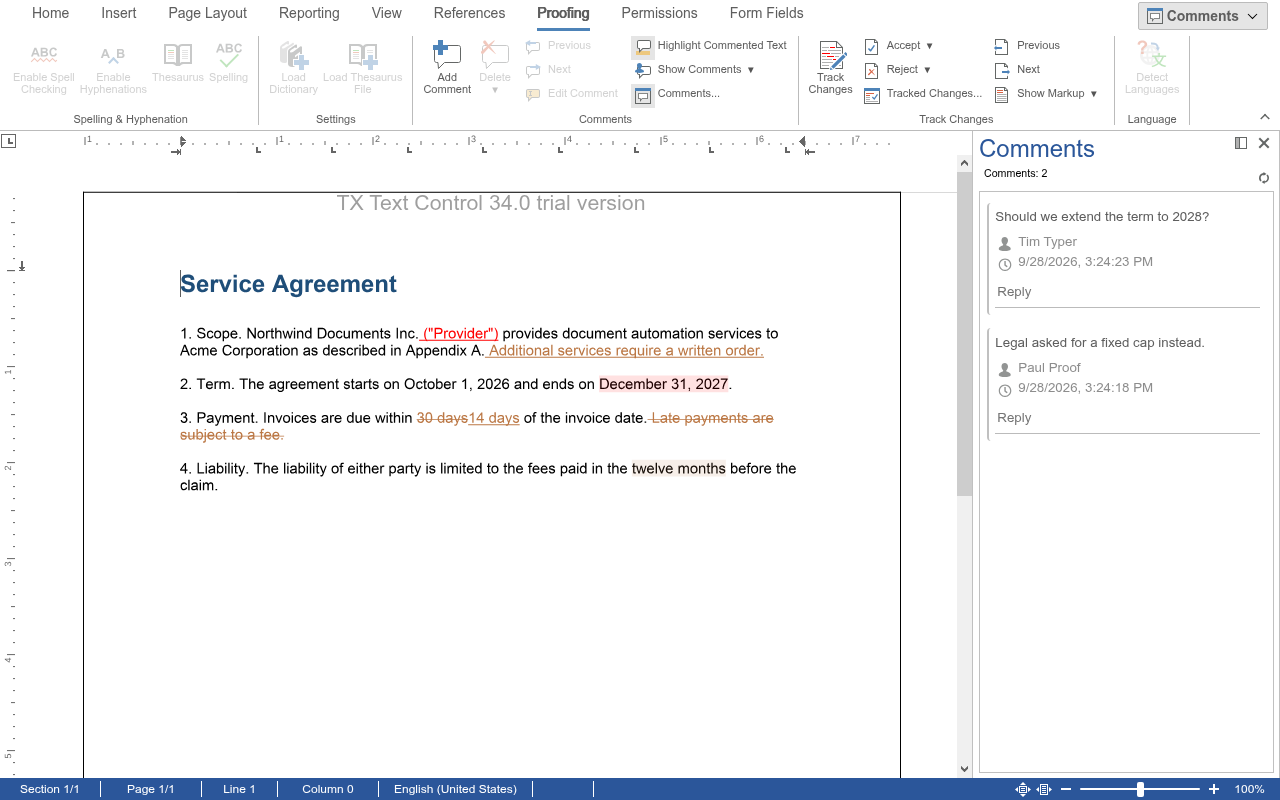
- The comments sidebar lists all comments with their author and time and has a Reply link for each. It is one of the sidebars that the toggle button in the top right corner of the ribbon opens.
- A comment can also be attached to a tracked change. It is removed when the change is accepted or rejected; see Track Changes.
The author of a new comment is the current user, the first name of the user names that you pass to the editor with TextControlSettings.UserNames in a view, or with userNames of DocumentEditorSettings in a JavaScript page. If the list is empty, the author is unknown.
Add, List and Remove Comments
TXTextControl.comments returns the CommentCollection of the main text. Each comment in it is a CommentedText object.
The following view sets the author, opens the comments sidebar and highlights all comments. Its buttons comment the selected text, reply to the comment at the input position, list all comments and remove a comment. Replace the content of Views/Home/Index.cshtml:
@using TXTextControl.Web.MVC

@Html.TXTextControl().TextControl(settings => {
    settings.UserNames = new string[] { "Tim Typer" };
}).Render()

<input type="button" onclick="addComment()" value="Comment Selection" />
<input type="button" onclick="replyToComment()" value="Reply" />
<input type="button" onclick="listComments()" value="List Comments" />
<input type="button" onclick="removeComment()" value="Remove Comment" />

<script>
    TXTextControl.addEventListener("textControlLoaded", function () {
        TXTextControl.showSideBar(TXTextControl.SideBarType.Comments);
        TXTextControl.setCommentHighlightMode(TXTextControl.HighlightMode.Always);
    });

    TXTextControl.addEventListener("commentCreated", function (e) {
        console.log(e.commentedText.userName + " commented: " + e.commentedText.comment);
    });

    function addComment() {
        TXTextControl.comments.add("Please check this wording.", function (result) {
            if (result.addResult !== TXTextControl.AddResult.Successful) {
                console.log("Comment not added: " + result.addResult);
                return;
            }
            result.comment.getUserName(function (userName) {
                console.log("Comment added by " + userName);
            });
        });
    }

    function replyToComment() {
        TXTextControl.comments.getItem(function (comment) {
            if (!comment) {
                return; // no comment at the input position
            }
            TXTextControl.comments.addReply("Agreed, I changed it.", comment);
        });
    }

    function listComments() {
        TXTextControl.comments.forEach(function (comment) {
            comment.getText(function (text) {
                comment.getComment(function (commentText) {
                    comment.getUserName(function (userName) {
                        comment.getCreationTime(function (time) {
                            console.log(userName + ", " + new Date(time).toLocaleString() +
                                ", \"" + text + "\": " + commentText);
                        });
                    });
                });
            });
        });
    }

    function removeComment() {
        TXTextControl.comments.getItem(function (comment) {
            if (!comment) {
                return;
            }
            TXTextControl.comments.remove(comment, function (removed) {
                console.log("Removed: " + removed);
            });
        });
    }
</script>
The code works as follows:
- CommentCollection.add comments the text that is currently selected. The callback receives CommentCallbackData: addResult is
Successfulor a reason from AddResult such asNoSelection, and comment is the new comment. Withnullinstead of a text, the editor opens an input box for the user. - getItem passes the comment at the input position. addReply adds a reply with a text to a comment.
- forEach calls the function for each comment. getText passes the commented text and getComment the text of the comment. getCreationTime passes the time as a Unix timestamp in milliseconds, which
new Dateconverts. - remove removes a comment. The commented text stays in the document.
- setCommentHighlightMode sets whether commented text is highlighted, with a value of HighlightMode:
Never,Activated(while the input position is in the comment),AlwaysorAuto.
Select a word, click Comment Selection, and the comment appears in the sidebar with the author Tim Typer.
To comment a range without selecting it, addAtPosition takes the comment text, the one-based start position and the length.
Move Through Comments and Replies
getNextItem and getPreviousItem pass the next and the previous comment in the text. The following function moves to the next comment and logs its replies:
function goToNextComment() {
  TXTextControl.comments.getNextItem(function (comment) {
    if (!comment) {
      return;
    }

    comment.scrollTo();

    comment.getReplies(function (replies) {
      if (replies === null) {
        return; // the comment has no replies
      }
      replies.forEach(function (reply) {
        reply.getComment(function (replyText) {
          console.log("Reply: " + replyText);
        });
      });
    });
  });
}
- scrollTo moves the input position to the comment and scrolls it into view.
- getReplies passes an array of the replies, or
null. A reply is aCommentedTextas well; getRepliedComment passes the comment it answers.
Other Properties of a Comment
A CommentedText also has setComment to change the text of the comment, getStart and getLength for the commented range, setID for an identifier of your choice, setHighlightColor for the color, and setActive to deactivate a comment.
React to Comments
The editor raises commentCreated and commentDeleted, commentChanged when the text of a comment changes, commentStateChanged when a comment becomes active or inactive and commentedTextEntered and commentedTextLeft when the input position moves into or out of commented text. The handlers receive CommentEventArgs, whose commentedText is a CommentedTextInfo object. Unlike a CommentedText, it has no methods and no callbacks; its properties hold the values of the comment when the event was raised:
| Property | Contains |
|---|---|
comment, userName | The text of the comment and the name of the user who wrote it |
creationTime | The time the comment was created, as a Unix time stamp in milliseconds |
start, length | The one-based start position of the commented text and its length in characters |
id, number | The identifier of the comment and its number in the text flow of the document |
active | Whether the comment is active |
highlightColor, highlightMode | The highlight color as a CSS color string, and the highlight mode, a value of HighlightMode |
Events lists all events.
The blog article Comments JavaScript API: Useful Tips and Tricks shows more uses of the API. To read the comments of stored documents on the server, use ServerTextControl.Comments.
Next Steps
- Track Changes: record and review changes.
- Context Menus: change the context menu, including the menu of comments.
- Loading and Saving Documents: save documents with their comments.