
Images
How does a company logo get into a letter, and how does it stay at the right edge while the text flows around it? In the WPF TextControl, users insert images from the Insert tab, move and resize them with the mouse and set the text flow on the Frame Formatting tab. Your code does the same with TextControl.Images and handles the image events in XAML.
The examples are event handlers in MainWindow.xaml.cs of a window with a TextControl named textControl1, as built in Create Your First WPF Application; replace SampleApp with the namespace of your project, and copy an image named logo.png into the output folder. How ServerTextControl handles images without a user interface is described in Images, Text Frames, and Shapes.
How Images Are Placed
An Image of the TXTextControl namespace is a frame, like a text frame, a barcode or a drawing, and inherits its name, ID, size, location and text distances from FrameBase. TextControl.Images returns the ImageCollection of the main text; headers, footers and text frames have their own.
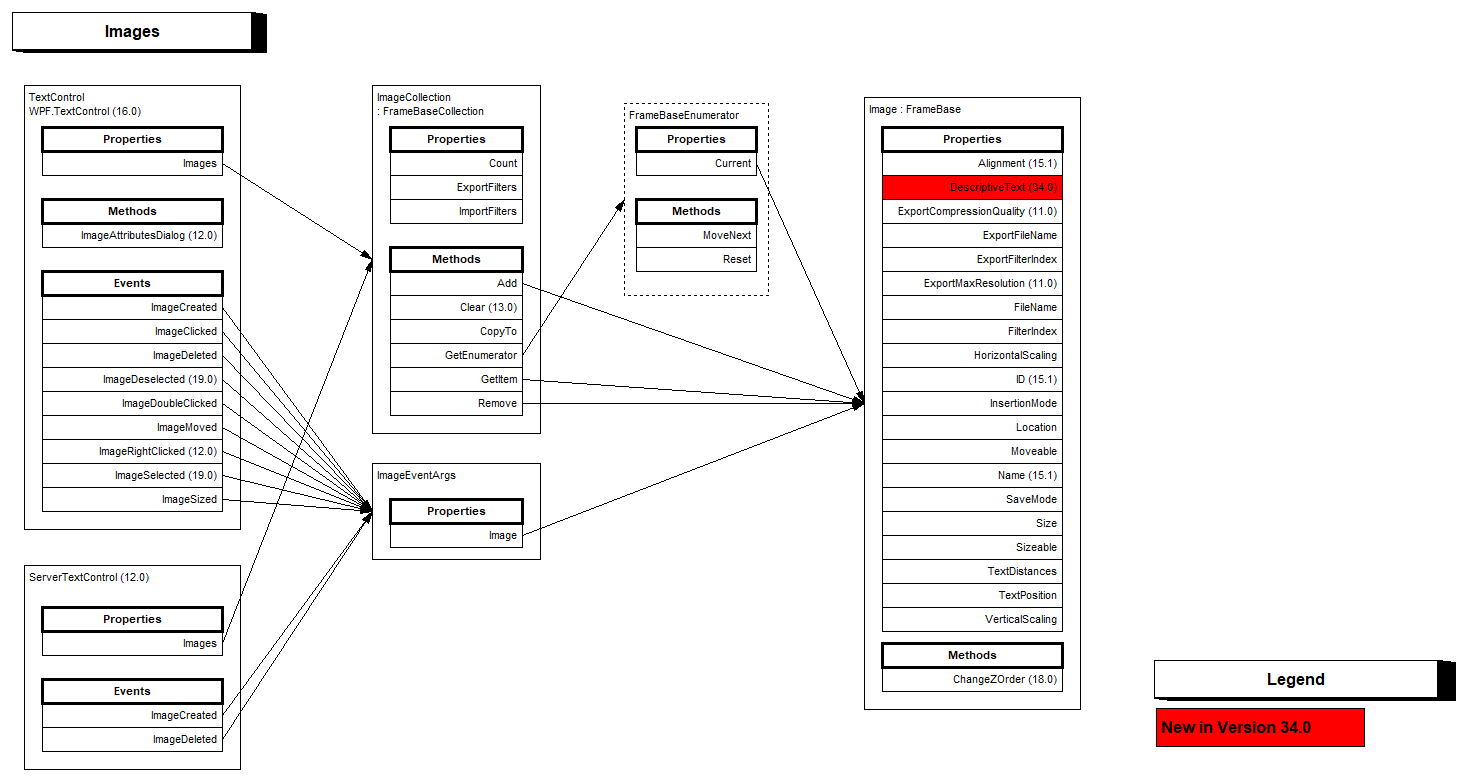
Each image is placed in one of three ways:
- Inline. The image is treated like a single character and moves with the text around it.
- Anchored to a paragraph. The image moves with its paragraph, and its location is measured from the paragraph's top-left corner. When the user drags it, it's anchored to the nearest paragraph at its new position.
- At a fixed position. The image stays at a location on a page, or in the document, while the text changes.
Locations and sizes of images are measured in twips, 1/1440 inch, not in the device-independent units of WPF.
Insert and Arrange Images in the Ribbon
Image in the Illustrations group of the Insert tab, the RibbonInsertTab, inserts an image at the input position: Image... opens a file dialog box, and Image Placeholder adds a placeholder that a mail merge fills, as Images and Barcodes describes.
A click on an image selects it. Users move it by dragging and resize it with its handles. The Frame Formatting tab, a RibbonFrameLayoutTab, changes the selected image:
| Group | Commands |
|---|---|
| Arrange | Wrap Text with In Line with Text, Top and Bottom, Square, In Front of Text, Behind Text and More Layout Options...; Bring to Front, Send to Back and Position |
| Size | Height and Width |
| Properties | Name, ID and Descriptive Text |
The tab works once the RibbonFrameLayoutTab property of the TextControl holds its name; Connecting Ribbon Tabs in XAML shows the XAML. The same tab formats text frames, drawings and barcodes.
Insert an Image From Code
The following handlers open the file dialog box and anchor a logo at the right edge of the paragraph with the input position:
using System.Windows;
using TXTextControl;

namespace SampleApp;

public partial class MainWindow : Window
{
    private void InsertImage_Click(object sender, RoutedEventArgs e)
    {
        // Opens a file dialog box and inserts the image inline at the input position
        textControl1.Images.Add();
        textControl1.Focus();
    }

    private void InsertLogo_Click(object sender, RoutedEventArgs e)
    {
        // 4 is the import filter for PNG
        TXTextControl.Image logo = new TXTextControl.Image("logo.png", 4);

        // Anchored to the paragraph at the input position, the text flows around it
        textControl1.Images.Add(logo, TXTextControl.HorizontalAlignment.Right, -1,
            ImageInsertionMode.DisplaceText);

        logo.Name = "logo";
        logo.DescriptiveText = "Company logo";
    }
}
The code works as follows:
- ImageCollection.Add without parameters shows a file dialog box and inserts the chosen image inline at the input position. The other overloads also show it when the image has no file name and no filter index.
- The Image constructor takes a file name and the number of the import filter, 4 for PNG.
Add(image, alignment, textPosition, insertionMode)anchors the image to the paragraph that contains the text position, where-1is the input position. The alignment isLeft,RightorCenter, and a value of ImageInsertionMode sets the text flow:DisplaceTextlets the text flow around the image,DisplaceCompleteLinescontinues it below the image, andAboveTheTextandBelowTheTextput the image in front of or behind the text.- FrameBase.Name identifies the image for your code, and DescriptiveText is its alternative text for screen readers and tagged PDF files.
- WPF has classes named
ImageandHorizontalAlignmentof its own, so the code writesTXTextControl.ImageandTXTextControl.HorizontalAlignment.
Add(image, page, location, insertionMode) places an image at a fixed location on a page, measured from the page's top-left corner. Add(image, location, insertionMode) measures from the top-left corner of the whole document, gaps between the pages included: horizontally from the left edge of the pages, vertically from the top of the document with the gap above the first page. Whichever of the two inserted a fixed image, its Location is relative to the document; for an anchored image, it's relative to the paragraph, and for an inline image, or an anchored image with an alignment, it's zero.
Alignment, Left, Right or Center, exists only for images anchored to a paragraph. Inline images and images at a fixed position have no horizontal alignment.
Change the Z-Order
Images in front of or behind the text can overlap each other and other frames. ChangeZOrder does in code what Bring to Front and Send to Back do in the ribbon:
private void LogoToFront_Click(object sender, RoutedEventArgs e)
{
    TXTextControl.Image logo = textControl1.Images.GetItem();

    // Move the selected image in front of the text, above all other objects
    logo?.ChangeZOrder(ZOrder.TopMost);
}
A value of ZOrder says where the frame goes: TopMost in front of the text above all other objects, BottomMost behind the text below all others (only for a frame that is behind the text), Up and Down one plane without crossing the text, and Top and Bottom to the top or the bottom of the objects on its own side of the text. The method returns false when the order can't be changed.
Insert an Image From Memory
Images from a database or a web service arrive as bytes. The Image constructor that takes a MemoryStream needs a stream whose buffer is publicly visible:
using System.IO;
using System.Windows;
using TXTextControl;

namespace SampleApp;

public partial class MainWindow : Window
{
    private void InsertImageFromBytes(byte[] data)
    {
        // The Image class needs a stream whose buffer is publicly visible
        using (MemoryStream stream = new MemoryStream(data, 0, data.Length, false, true))
        {
            TXTextControl.Image image = new TXTextControl.Image(stream);
            textControl1.Images.Add(image, -1);
        }
    }
}
The fifth argument of the MemoryStream constructor, publiclyVisible, is true. The Image class also has a constructor for a System.Drawing.Image, which a .NET WPF project doesn't reference: to compile a call of the stream constructor, install the NuGet package System.Drawing.Common in the major version of your .NET, for example 8.0 for .NET 8. Otherwise the compiler reports error CS0012 for the type Image in System.Drawing.Common.
Image Formats
ImageCollection.ImportFilters returns the formats TX Text Control reads as a filter string. Assigned to the Filter property of an OpenFileDialog of your own, it lists them the way the blog article Custom Insert Image Dialog in TX Text Control .NET for WPF does:
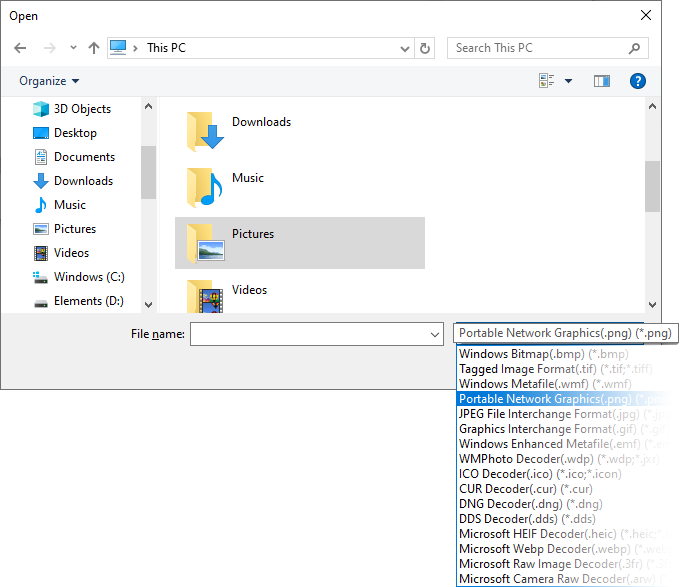
The number of a format in this list is its filter index, and the first eight are:
| Filter index | Format |
|---|---|
| 1 | Windows Bitmap (BMP) |
| 2 | Tagged Image Format (TIF) |
| 3 | Windows Metafile (WMF) |
| 4 | Portable Network Graphics (PNG) |
| 5 | JPEG (JPG, JPEG) |
| 6 | Graphics Interchange Format (GIF) |
| 7 | Windows Enhanced Metafile (EMF) |
| 8 | Scalable Vector Graphics (SVG) |
React to the Selected Image
Image events are declared on the TextControl element in MainWindow.xaml, where WPF is the prefix of the namespace TXTextControl.WPF:
<WPF:TextControl x:Name="textControl1"
                 ImageDoubleClicked="TextControl1_ImageDoubleClicked" />
The following handlers open the image dialog box on a double-click and halve the size of the selected image:
using System.Windows;
using TXTextControl;

namespace SampleApp;

public partial class MainWindow : Window
{
    private void TextControl1_ImageDoubleClicked(object sender, ImageEventArgs e)
    {
        // A double-click selects the image, so the dialog box opens for it
        textControl1.ImageAttributesDialog();
    }

    private void HalveImage_Click(object sender, RoutedEventArgs e)
    {
        // The image the user has selected, or null
        TXTextControl.Image image = textControl1.Images.GetItem();

        if (image != null)
        {
            // Scaling factors in percent
            image.HorizontalScaling = 50;
            image.VerticalScaling = 50;
        }
    }
}
The code works as follows:
- ImageDoubleClicked passes an ImageEventArgs with the Image.
- ImageAttributesDialog opens the dialog box of the selected image, with tabs for text wrapping and layout, size and distances, and saving options.
- ImageCollection.GetItem without a parameter returns the selected image, or
null; with a name or an ID, that image. - HorizontalScaling and VerticalScaling are percentages.
FrameBase.Sizeis read only for images.
ImageClicked, ImageMoved, ImageSized and ImageDeleted report other actions, and ImageCreated occurs for pasted and loaded images, not for images added by your code. FrameSelected and TextControl.Frames cover images, text frames, barcodes and drawings together. See Events.
Control How Images Are Saved
An image inserted from a file is saved as a reference to the file with its absolute path; a pasted image is saved with its data. On another computer, a missing file is shown as a rectangle with the file name, so save documents that leave the machine with the image data:
- SaveSettings.ImageSaveMode
SaveAsDatasaves the data of all images, and Image.SaveMode that of one image. - SaveSettings.ImageExportFilterIndex and Image.ExportFilterIndex convert images when saving, with numbers of their own: 1 BMP, 2 WMF, 3 PNG, 4 JPG, 5 EMF, 6 TIF and 7 GIF.
- LoadSettings.ImageSearchPath names a folder where file references are looked up when loading.
The saving tab of the image dialog box offers users the same options. See Loading and Saving Documents for SaveSettings and LoadSettings.
Image Formats per Document Format
Not every document format can hold every image format. When a document format doesn't support the export format you set, the image is saved in the default format of the document format, the first one in the table:
| Document format | Image formats, default first |
|---|---|
| RTF | PNG, BMP, WMF, JPG, EMF |
| DOC | WMF, BMP, PNG, JPG, EMF, TIF |
| DOCX | PNG, BMP, WMF, JPG, EMF, TIF, GIF, SVG |
| HTML | PNG, BMP, JPG, GIF |
| BMP, JPG; the vector formats EMF, WMF and SVG are converted to PostScript and stay vector graphics | |
| TX Text Control format | WMF, BMP, PNG, JPG, EMF, TIF, GIF, SVG |
Where Image Files Are Written
An image saved as a file reference, with ImageSaveMode.SaveAsFileReference, needs a file. If the file doesn't exist, for example because the image was pasted or converted to another format, TX Text Control creates it when the document is saved, by these rules:
- Folder. SaveSettings.ImageSavePath sets the folder, which is created if it doesn't exist. Without it, a folder named after the document with
_Imagesappended is created next to the document:C:\Temp\sample.rtfwrites its images toC:\Temp\sample_Images\. - File name. Image.ExportFileName sets the name of one image; users set it on the saving tab of the image dialog box. Without it, the original file name of the image is used, with the extension of the export format.
- Numbered names. An image without any file name, such as a pasted one, is named after the document and a number:
sample_1.bmp,sample_2.bmpand so on.
private void SaveWithImageFiles_Click(object sender, RoutedEventArgs e)
{
    SaveSettings saveSettings = new SaveSettings()
    {
        // Save all images as files in C:\Temp\images, as PNG
        ImageSaveMode = ImageSaveMode.SaveAsFileReference,
        ImageSavePath = @"C:\Temp\images",
        ImageExportFilterIndex = 3
    };

    textControl1.Save(@"C:\Temp\sample.htm", StreamType.HTMLFormat, saveSettings);
}
Next Steps
- Text Frames and Shapes: text boxes and drawings, placed like images.
- Headers and Footers: repeat a logo on every page.
- Images and Barcodes: merge images into template placeholders.
- Images, Text Frames, and Shapes: images with
ServerTextControl.