
Using Images
Logos, photos and icons go into a TXTextControl document as images, which flow with a paragraph, sit in a line like a character or stay at a fixed place on the page. You choose the placement with the method that inserts the image, and you decide how image data is stored when the document is saved.
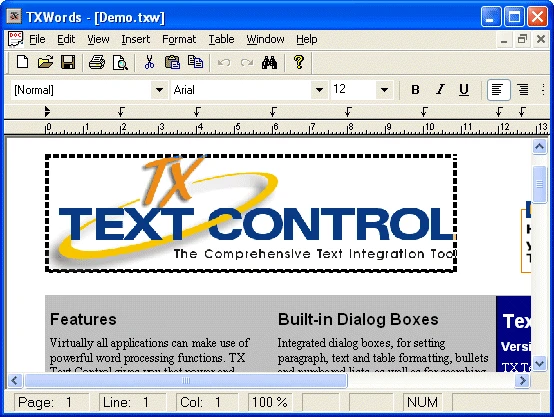
The Visual Basic 6 samples below come from the Samples\vb6\Images sample source directory. They open a file dialog box to insert an image and open the built-in dialog box for its attributes.
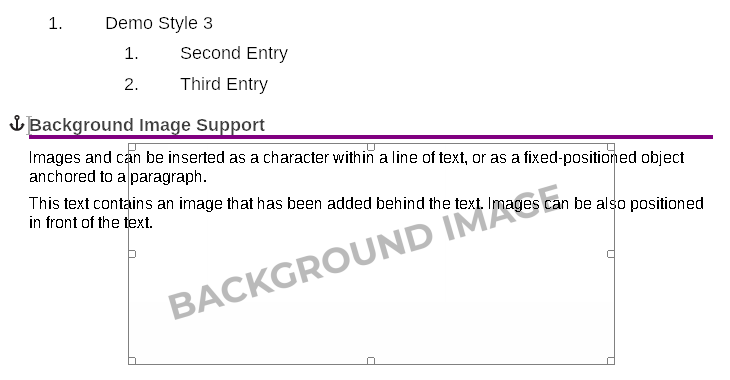
How Images Are Placed
TX Text Control has three methods for inserting images:
| Method | Placement | Typical use |
|---|---|---|
| ImageInsert | Anchored to a paragraph. Text can flow around the image, and the image moves with the paragraph. | The default method for inserting images |
| ImageInsertAsChar | Handled like a single character in the text | Small images and icons |
| ImageInsertFixed | At a fixed position on the page. The image keeps its position regardless of the surrounding text. | Images that must not move with the text |
How Image Data Is Loaded and Saved
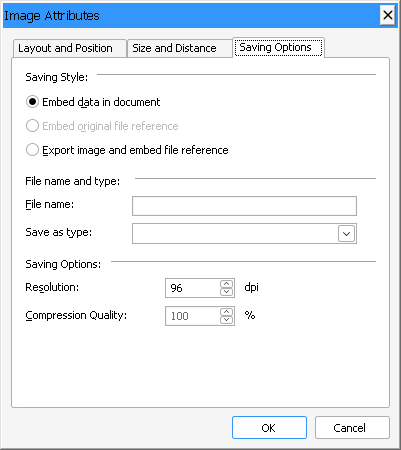
Images are inserted from a file or from the clipboard. When you save a document, you choose whether the image data is embedded in the document file or the document holds a reference to a separate image file. Not every option is available in every file format: RTF, DOCX and DOC files can embed image data, and HTML can't.
Further options are:
- converting images to a different file format;
- converting embedded images to image files;
- changing the image resolution and the compression rate.
These options matter when you create HTML files, in which embedded images and image file formats such as WMF or TIFF have to be converted to JPEG or GIF files so that a browser can display them. Resolution and compression settings are also needed for PDF files, for instance to create one version of a PDF file with low-resolution images for viewing on screen and another one with high-resolution images for printing.
Insert an Image From a File
The mnuImage_Insert_Click procedure of the sample opens a dialog box in which the user selects an image file, and then inserts the image:
Private Sub mnuImage_Insert_Click()
    On Error GoTo err_InsertImage

    CmDialog1.DialogTitle = "Insert Image"
    CmDialog1.Filter = TXTextControl1.ImageFilters
    CmDialog1.FileName = ""
    CmDialog1.Flags = cdlOFNPathMustExist Or cdlOFNOverwritePrompt Or cdlOFNHideReadOnly
    CmDialog1.CancelError = True
    CmDialog1.ShowOpen

    TXTextControl1.ImageInsert CmDialog1.FileName, -1, 1, 0, 0, 100, 100, 3, 100, 100, 100, 100
    Exit Sub

err_InsertImage:
    If Err <> cdlCancel Then MsgBox Err.Description

End Sub
The code works as follows:
- ImageFilters returns the available image filters as a string that initializes the
Filterproperty of the Common Dialog controlCmDialog1. - With
CancelErrorset toTrue, canceling the dialog box ends in the error handlererr_InsertImage, which shows a message for every error other thancdlCancel. - ImageInsert inserts the selected file anchored to the paragraph at the current input position (
-1), left aligned (1), at 100 percent in both directions, with the text flowing around it (3) and a distance of 100 twips to the text on each side.
Set Image Attributes
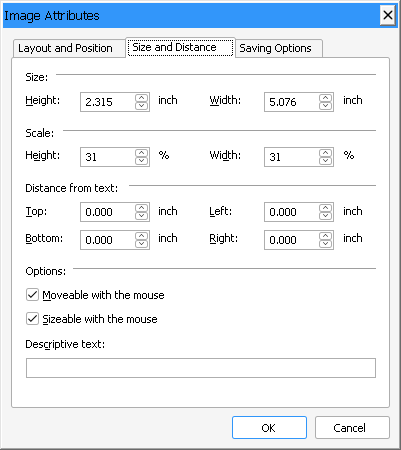
TX Text Control has a built-in dialog box in which the user changes the size of an image, the way it is stored and other settings. In the sample, the Image Settings menu item opens the Image Attributes dialog box, and so does a right-click on an image. Both call the ObjectAttrDialog method:
Private Sub mnuImage_Settings_Click()
    TXTextControl1.ObjectAttrDialog
End Sub

Private Sub TXTextControl1_ObjectRightClicked(ByVal ObjectId As Integer)
    TXTextControl1.ObjectAttrDialog
End Sub
The code works as follows:
mnuImage_Settings_Clickhandles the Image Settings menu item.- ObjectRightClicked occurs when an object has been clicked with the right mouse button, and passes its identifier in
ObjectId.
Find the Members for Images
The programming category Images, Text Frames, Signature Fields and OLE Objects lists all properties, methods and events for images. Members whose names begin with "Object" work with images and with the other kinds of embedded objects, such as text frames and OLE objects. Members whose names begin with "Image" apply to images only.
Next Steps
- Using Text Frames: inserting text frames, which share the "Object" members with images.
- Working with Files: loading and saving documents.
- Images, Text Frames, Signature Fields and OLE Objects: all members for images and other objects.