
Built-In Dialog Boxes
Formatting a paragraph, setting up the page or editing a table doesn't require dialog boxes of your own: the WPF TextControl includes them. The ribbon tabs open them, and so can a button, a menu item or a command in your window with one method call. Below you find each built-in dialog box, the tab parameter of the tabbed ones, the WPF-specific return values and the separate dialog windows for bookmarks, hyperlinks, comments and tracked changes.
Dialog Methods and Their Results
A built-in dialog box is opened by a method of the TextControl ending in Dialog, for example ParagraphFormatDialog. The dialog box edits the current selection or input position. Most of these methods return a value of the WPF.DialogResult enumeration of TX Text Control, not the bool? that Window.ShowDialog returns:
| Value | Meaning |
|---|---|
OK | The user left the dialog box with OK |
Cancel | The user canceled the dialog box |
None | The user left the dialog box with the Escape key |
The ribbon groups use the same dialog boxes, and Built-in Ribbon Tabs shows where they are.
The Built-In Dialog Boxes
| Method | Dialog box | Available when |
|---|---|---|
| FontDialog | Fonts and character attributes | |
| ParagraphFormatDialog | Alignment, spacing, indents, frames and pagination | |
| TabDialog | Tab stops | |
| ListFormatDialog | Bulleted and numbered lists | |
| FormattingStylesDialog | Create, delete and modify formatting styles | |
| LanguageDialog | The language of the selected text | |
| AddSymbolDialog | Insert symbol characters | |
| ForeColorDialog, TextBackColorDialog | Text color and text background color | |
| FrameFillColorDialog, FrameLineColorDialog | Background color of a paragraph or table cell, frame color of a paragraph or table | |
| PageColorDialog | The page color | |
| SectionFormatDialog | Page setup of a section: margins, size, headers and footers, columns, borders | |
| TableFormatDialog | Lines, colors, distances, cell size, formulas and number formats of a table | The input position is in a table |
| ImageAttributesDialog | Layout, size and saving options of an image | An image is selected |
| TextFrameAttributesDialog | Layout, size and appearance of a text frame | A text frame is selected |
| BarcodeLayoutDialog | Layout, size, colors, type and text of a barcode | A barcode is selected |
| DrawingLayoutDialog | Layout, size, colors, rotation and transparency of a drawing | A drawing is selected |
| SignatureFieldLayoutDialog | Layout, size and image saving options of a signature field | A signature field is selected |
| TableOfContentsDialog | Insert a table of contents or change the one at the input position | |
| ConditionalInstructionDialog, ManageConditionalInstructionsDialog | Create, edit and manage conditional instructions of form fields | IsFormFieldValidationEnabled is true |
| SpellCheckDialog | Correct misspelled words | A spell checker is connected through SpellChecker |
Differences in the return values:
AddSymbolDialogandSpellCheckDialogreturn nothing.LanguageDialogreturnsNonewhen the selected language could not be set.ConditionalInstructionDialogandManageConditionalInstructionsDialogreturnbool?:truefor OK,falsefor Cancel andnullwhen the dialog box could not be opened.ListFormatDialogreturnsCancelalso when nothing was changed.
Find, Replace, Open, Save and Print
| Call | Opens |
|---|---|
Find() | The built-in Find dialog box |
Replace() | The built-in Replace dialog box |
Load(), Load(StreamType) | A file Open dialog box with the given format filters |
Save(), Save(StreamType) | A file Save As dialog box |
Print(string docName, bool useLastPrinterSettings) | The standard print dialog box; true fills it with the settings of the previous call |
The overload Save(StreamType, SaveSettings, SaveSettings.DialogSettings) adds options to the Save As dialog box with SaveSettings.DialogSettings: StylesheetOptions for HTML, EnterPassword for Adobe PDF and SaveSelection when text is selected. Search and Replace, Loading and Saving and Printing go into these tasks.
Open a Dialog Box From a Button
Two buttons below the editor open the Paragraph dialog box on its second tab and the table dialog box. Add them to the Grid of MainWindow.xaml, next to the TextControl:
<StackPanel Orientation="Horizontal" VerticalAlignment="Bottom">
    <Button Content="Paragraph..." Click="ParagraphButton_Click" />
    <Button Content="Table..." Click="TableButton_Click" />
</StackPanel>
The handlers go into MainWindow.xaml.cs:
using System.Windows;
using TXTextControl.WPF;

public partial class MainWindow : Window
{
    public MainWindow()
    {
        InitializeComponent();
    }

    private void ParagraphButton_Click(object sender, RoutedEventArgs e)
    {
        // Open the tab for frames and pagination
        TXTextControl.WPF.DialogResult result = textControl1.ParagraphFormatDialog(1);

        if (result == TXTextControl.WPF.DialogResult.OK)
        {
            // Return the keyboard focus to the editor
            textControl1.Focus();
        }
    }

    private void TableButton_Click(object sender, RoutedEventArgs e)
    {
        // The table dialog box needs a table at the input position
        if (textControl1.Tables.GetItem() != null)
        {
            textControl1.TableFormatDialog(0);
        }
    }
}
The code works as follows:
ParagraphFormatDialog(1)opens the second tab. Called without a parameter, a tabbed dialog box shows the tab that was open last.- The result type is written with its full name,
TXTextControl.WPF.DialogResult. Inside a window class, the short nameDialogResultrefers to theDialogResultproperty of theWindow, abool?, and the code would not compile. - TableCollection.GetItem returns the table at the input position or
null. ImageCollection.GetItem and TextFrameCollection.GetItem check for a selected image or text frame.
Tab Indexes
| Method | 0 | 1 | 2 | 3 |
|---|---|---|---|---|
FontDialog | Font and attributes | Baseline and text effects | ||
ParagraphFormatDialog | Alignment, line spacing, indents, distances | Frame and pagination | ||
SectionFormatDialog | Margins, page size, orientation | Headers and footers | Page columns | Page borders |
TableFormatDialog | Frame lines, color, distances | Vertical size and alignment | Formulas and number formats | |
ImageAttributesDialog | Wrapping and layout | Size and distances | Saving attributes | |
TextFrameAttributesDialog | Wrapping and layout | Size and distances | Frame line and background | |
BarcodeLayoutDialog, DrawingLayoutDialog | Wrapping and layout | Size and distances | Colors and further attributes | |
SignatureFieldLayoutDialog | Wrapping and layout | Size and distances | Saving attributes of a set signature image |
Units in Dialog Boxes
DialogUnit chooses the unit of sizes and distances in the dialog boxes: Auto, Centimeter, Inch or Millimeter. Auto takes the unit from the culture of the current thread. It can be set in XAML like any other property:
<WPF:TextControl x:Name="textControl1" DialogUnit="Millimeter" />
Dialog Windows
The dialog boxes for bookmarks, links, navigation, comments, tracked changes and synonyms are classes of their own. Each inherits from System.Windows.Window and is created for a TextControl:
| Class | Purpose | Shown with |
|---|---|---|
| BookmarkDialog | Insert a bookmark (a document target) or rename the one at the input position | ShowDialog |
| DeleteBookmarksDialog | Go to or delete targets | ShowDialog |
| HyperlinkDialog | Insert, edit or delete a hyperlink or a link to a target | ShowDialog |
| GotoDialog | Go to a page, section, line, table or bookmark | Show |
| CommentsDialog | List, reply to, edit and delete comments | Show |
| TrackedChangesDialog | List, accept and reject tracked changes | Show |
| ThesaurusDialog | Synonyms of the selected word | ShowDialog |
The TX Words sample opens the hyperlink dialog box from the drop-down menu of its Hyperlink button, here for an existing link:
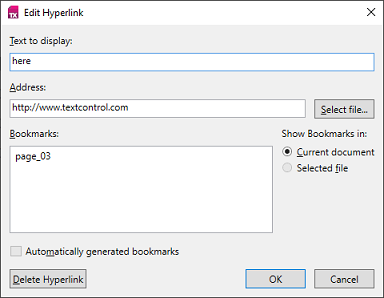
BookmarkDialog and HyperlinkDialog throw an exception when nothing can be inserted or edited at the input position; their reference pages name the CanAdd and GetItem checks to make first.
Every item of these windows has a name, listed in the class's DialogItem enumeration, such as BookmarkDialog.DialogItem. FrameworkElement.FindName finds an item by that name. The following code hides the check box for deletable bookmarks and opens the window modally over the main window:
BookmarkDialog dialog = new BookmarkDialog(textControl1) { Owner = this };

// Hide the check box before the window is shown
UIElement deletable = dialog.FindName(BookmarkDialog.DialogItem.TXITEM_Deletable.ToString()) as UIElement;
if (deletable != null)
{
    deletable.Visibility = Visibility.Collapsed;
}

bool? confirmed = dialog.ShowDialog();
Adapt the Comments and Tracked Changes Dialog Boxes
The two modeless windows work the same way. Their items are named after the values of CommentsDialog.DialogItem and TrackedChangesDialog.DialogItem. The WPF classes have no FindItem method of their own: pass the name of the value to FindName, which returns null when the item isn't found:
| Dialog box | Its items |
|---|---|
CommentsDialog | TXITEM_CommentsCount (the label with the number of comments), TXITEM_CommentsRefresh, TXITEM_CommentsViewer (the list of comments), TXITEM_DeleteComment, TXITEM_DeleteAllComments, TXITEM_EditComment, TXITEM_ReplyComment and TXITEM_Close |
TrackedChangesDialog | TXITEM_TrackedChangesCount (the label with the number of changes), TXITEM_TrackedChangesRefresh, TXITEM_TrackedChangesViewer (the list of changes), TXITEM_AcceptTrackedChange, TXITEM_AcceptAllTrackedChanges, TXITEM_RejectTrackedChange, TXITEM_RejectAllTrackedChanges and TXITEM_Close |
The following handler opens the tracked changes window for a reviewer who may accept single changes but not accept or reject all of them at once:
private void ReviewButton_Click(object sender, RoutedEventArgs e)
{
    TrackedChangesDialog dialog = new TrackedChangesDialog(textControl1) { Owner = this };

    // Hide the buttons that act on all tracked changes
    foreach (TrackedChangesDialog.DialogItem item in new[] {
        TrackedChangesDialog.DialogItem.TXITEM_AcceptAllTrackedChanges,
        TrackedChangesDialog.DialogItem.TXITEM_RejectAllTrackedChanges })
    {
        if (dialog.FindName(item.ToString()) is UIElement element)
        {
            element.Visibility = Visibility.Collapsed;
        }
    }

    // Modeless: the user goes on working in the document
    dialog.Show();
}
For comments, CommentsDialog.DialogItem.TXITEM_DeleteAllComments names the button that deletes every comment, which you hide the same way.
Dialog Boxes of Fields
FormField.FormFieldDialog edits the formatting of a form field, and PageNumberField.PageNumberDialog the format and numbering of a page number field. Both return a Selection.DialogResult.
Next Steps
- Context Menus: add menu items that open dialog boxes.
- Localization and Resource Kit: the language of the dialog texts.
- Right-to-Left UI: dialog boxes in a right-to-left window.
- Custom Tabs and Commands: ribbon buttons for dialog boxes.