
Text Frames and Shapes
Letters with an address window, forms with a boxed note and flow charts need content that isn't part of the running text. The WPF TextControl offers two kinds of objects for it: text frames, boxes with text of their own, and drawings, which hold shapes such as arrows, stars and callouts. Users draw both with the mouse; your code inserts them, fills and formats them and binds their marker lines to WPF controls.
The handlers below belong in MainWindow.xaml.cs of a window with a TextControl named textControl1, as in Create Your First WPF Application, with SampleApp replaced by your namespace. Text frames and drawings are frames and are placed like images: inline, anchored to a paragraph or at a fixed position, as described in Images. For documents without a user interface, see Images, Text Frames, and Shapes.
How Text Frames Work
A TextFrame is a text part like the main text or a header, with its own Selection, paragraphs, tables and images. TextControl.TextFrames returns the TextFrameCollection of the main text.
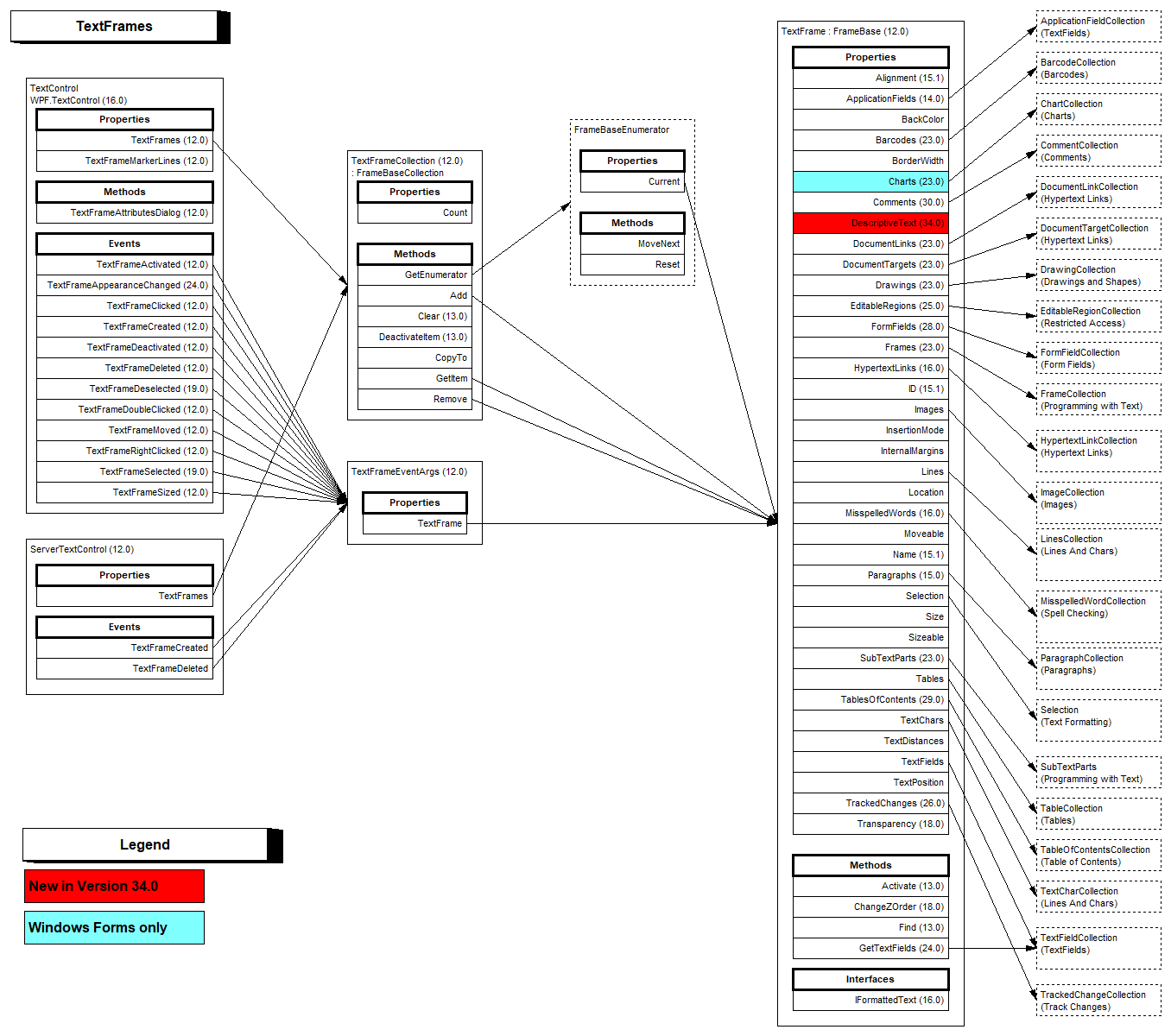
| State | What the user does | Returned by |
|---|---|---|
| Selected | Moves, resizes or deletes the frame with its sizing handles | TextFrameCollection.GetItem without a parameter |
| Activated | Types and formats text inside the frame | GetActivatedItem |
DeactivateItem returns the input position to the text part that contains the frame. Sizes, borders and margins are twips, 1/1440 inch.
Insert Text Frames and Shapes in the Ribbon
The Insert tab, a RibbonInsertTab, has both commands:
- Text Frame in the Text group: Insert Text Frame turns the mouse pointer into a cross with which the user draws the frame, and ESC cancels. Show Text Frame Marker Lines outlines frames that have no border.
- Shape in the Illustrations group: a gallery with the categories Lines, Rectangles, Basic Shapes, Block Arrows, Equation Shapes, Flowchart, Stars and Banners and Callouts, plus New Drawing Canvas for several shapes in one drawing and Show Drawing Marker Lines.
A selected frame is formatted on the Frame Formatting tab, a RibbonFrameLayoutTab: Arrange, Size and Properties as for images, and a Frames & Background group, with Background Color, Transparency, Border Width and Border Color for text frames and Line Color, Background Color, Line Width, Transparency and Rotate for drawings. Connecting Ribbon Tabs in XAML connects both tabs to the editor.
The two marker line settings are the properties TextFrameMarkerLines and DrawingMarkerLines of the TextControl. Without a ribbon, bind them to check boxes in MainWindow.xaml:
<StackPanel DockPanel.Dock="Top" Orientation="Horizontal">
    <CheckBox Content="Text frame marker lines"
              IsChecked="{Binding ElementName=textControl1, Path=TextFrameMarkerLines}" />
    <CheckBox Content="Drawing marker lines"
              IsChecked="{Binding ElementName=textControl1, Path=DrawingMarkerLines}" />
</StackPanel>
Insert and Edit Text Frames From Code
The following handlers let the user draw a text frame, insert a note at the right edge of the current paragraph, open the text frame dialog box and write the date into the frame being edited:
using System;
using System.Windows;
using TXTextControl;

namespace SampleApp;

public partial class MainWindow : Window
{
    private void DrawTextFrame_Click(object sender, RoutedEventArgs e)
    {
        // The user draws the frame with the mouse; ESC cancels
        TextFrame frame = new TextFrame(new System.Drawing.Size(2880, 1440));
        textControl1.TextFrames.Add(frame, TextFrameInsertionMode.DisplaceText);
        textControl1.Focus();
    }

    private void InsertNote_Click(object sender, RoutedEventArgs e)
    {
        // 3 x 1.5 inches in twips
        TextFrame note = new TextFrame(new System.Drawing.Size(4320, 2160))
        {
            Name = "note",
            BackColor = System.Drawing.Color.LightYellow,
            BorderWidth = 20,
            BorderColor = System.Drawing.Color.DarkBlue,
            BorderStyle = FrameStyle.Double,
            InternalMargins = new int[] { 144, 144, 144, 144 }
        };

        // Anchored at the right edge of the paragraph at the input position
        textControl1.TextFrames.Add(note, TXTextControl.HorizontalAlignment.Right, -1,
            TextFrameInsertionMode.DisplaceText);

        // The frame has a selection of its own
        note.Selection.Text = "Payment due within 14 days.";
    }

    private void FrameAttributes_Click(object sender, RoutedEventArgs e)
    {
        // A text frame the user has selected, or null
        if (textControl1.TextFrames.GetItem() != null)
        {
            textControl1.TextFrameAttributesDialog();
        }
    }

    private void InsertDate_Click(object sender, RoutedEventArgs e)
    {
        // The text frame whose text the user is editing, or null
        TextFrame frame = textControl1.TextFrames.GetActivatedItem();

        if (frame != null)
        {
            frame.Selection.Text = DateTime.Today.ToShortDateString();
        }
    }
}
The code works as follows:
- The TextFrame constructor takes a
System.Drawing.Sizein twips, and the colors of a text frame areSystem.Drawing.Colorvalues, not WPF colors. - TextFrameCollection.Add with only a TextFrameInsertionMode starts the mouse interface.
textControl1.Focus()gives the editor the keyboard focus back after the button click, so that the user can draw right away. Add(frame, alignment, textPosition, insertionMode)anchors the frame to the paragraph at the text position,-1for the input position, andDisplaceTextlets the text flow around it.- BackColor, BorderWidth, BorderColor, BorderStyle and InternalMargins set border, background and inner distances.
- TextFrameAttributesDialog opens the dialog box of the selected frame, with tabs for layout, size and distances, and border and background.
TextFrameActivated occurs when a text frame receives the input position; declare it on the WPF:TextControl element like the other events on Events.
Insert a Shape From Code
A drawing is a TXDrawingControl of the TXTextControl.WPF.Drawing namespace, which holds the shapes, inside a DrawingFrame that places it in the document. TextControl.Drawings returns the DrawingCollection.
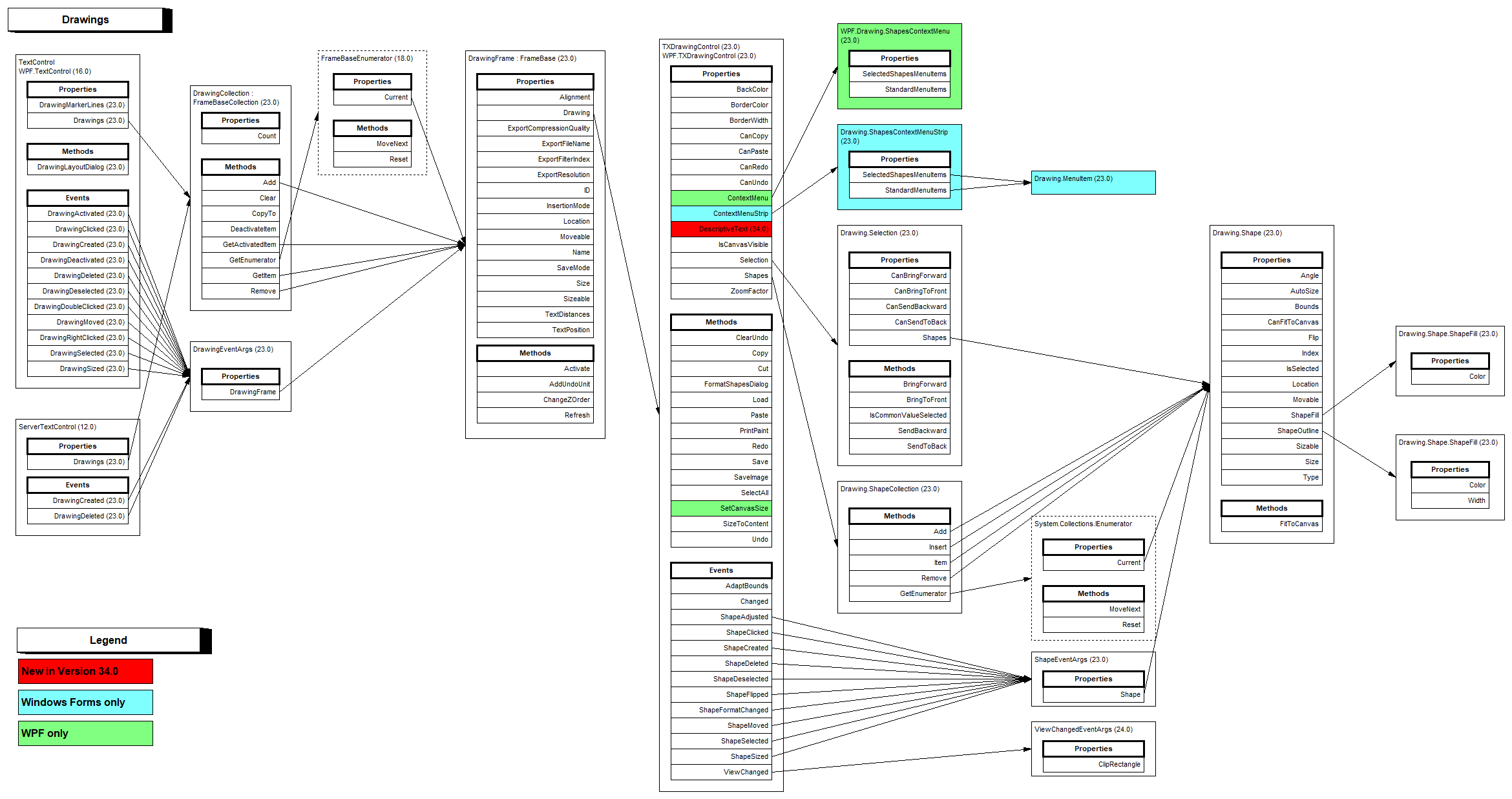
The following handler creates a red donut with a yellow outline and lets the user draw its frame:
using System.Windows;
using TXTextControl;
using TXTextControl.DataVisualization;
using TXTextControl.Drawing;
using TXTextControl.WPF.Drawing;

namespace SampleApp;

public partial class MainWindow : Window
{
    private void DrawDonut_Click(object sender, RoutedEventArgs e)
    {
        // A drawing control holds the shapes of one drawing
        TXDrawingControl drawing = new TXDrawingControl();

        Shape donut = new Shape(ShapeType.Donut);
        donut.ShapeFill.Color = System.Drawing.Color.Red;
        donut.ShapeOutline.Color = System.Drawing.Color.Yellow;
        donut.ShapeOutline.Width = 200;

        // The shape fills the whole drawing
        drawing.Shapes.Add(donut, ShapeCollection.AddStyle.Fill);

        // The user draws the frame of the drawing with the mouse
        DrawingFrame frame = new DrawingFrame(drawing);
        textControl1.Drawings.Add(frame, FrameInsertionMode.DisplaceText);
        textControl1.Focus();
    }
}
The code works as follows:
TXTextControl.WPF.Drawing.TXDrawingControlis the WPF drawing control; the Shape class and ShapeType come fromTXTextControl.Drawingand are the same as in Windows Forms. The shape colors areSystem.Drawing.Colorvalues.- ShapeFill and ShapeOutline set fill color, outline color and outline width.
- ShapeCollection.Add with
AddStyle.Fillfits the shape to the drawing; withMouseCreation, the user draws it inside an activated drawing. - DrawingCollection.Add with only a FrameInsertionMode lets the user draw the frame;
Add(frame, -1)inserts it inline.
A click on a drawing activates it for editing its shapes, and a click on its border selects it for moving and sizing. DrawingCollection.GetActivatedItem returns the activated drawing, DrawingFrame.Activate activates one from code, and DrawingActivated reports it. DrawingLayoutDialog opens the dialog box of a selected drawing.
Drawings are kept in DOCX and the TX Text Control format. The blog article Inserting Shapes and Drawing Groups builds groups of shapes, with Windows Forms code whose TX Text Control calls are the same in WPF apart from the drawing control. Integrating WPF Barcodes and Drawings covers the assemblies and namespaces.
Find and Remove Frames
GetItem with a name or an ID returns the text frame or drawing that has this FrameBase.Name or ID, or null. TextFrameCollection.Remove and DrawingCollection.Remove delete it. TextControl.Frames contains the images, text frames, barcodes and drawings together.
Next Steps
- Images: pictures, placed like frames.
- Charts and Barcodes: barcodes in the WPF editor.
- Headers and Footers: frames that repeat on every page.
- Images, Text Frames, and Shapes: frames with
ServerTextControl.