
Track Changes
Review and approval workflows let several people change a document while someone decides which changes to keep. Track changes in the Document Editor supports them, and your code sets the author, turns tracking on and off, lists tracked changes and accepts or rejects them through the JavaScript API.
The examples extend the view of the ASP.NET Core tutorial.
How Track Changes Works
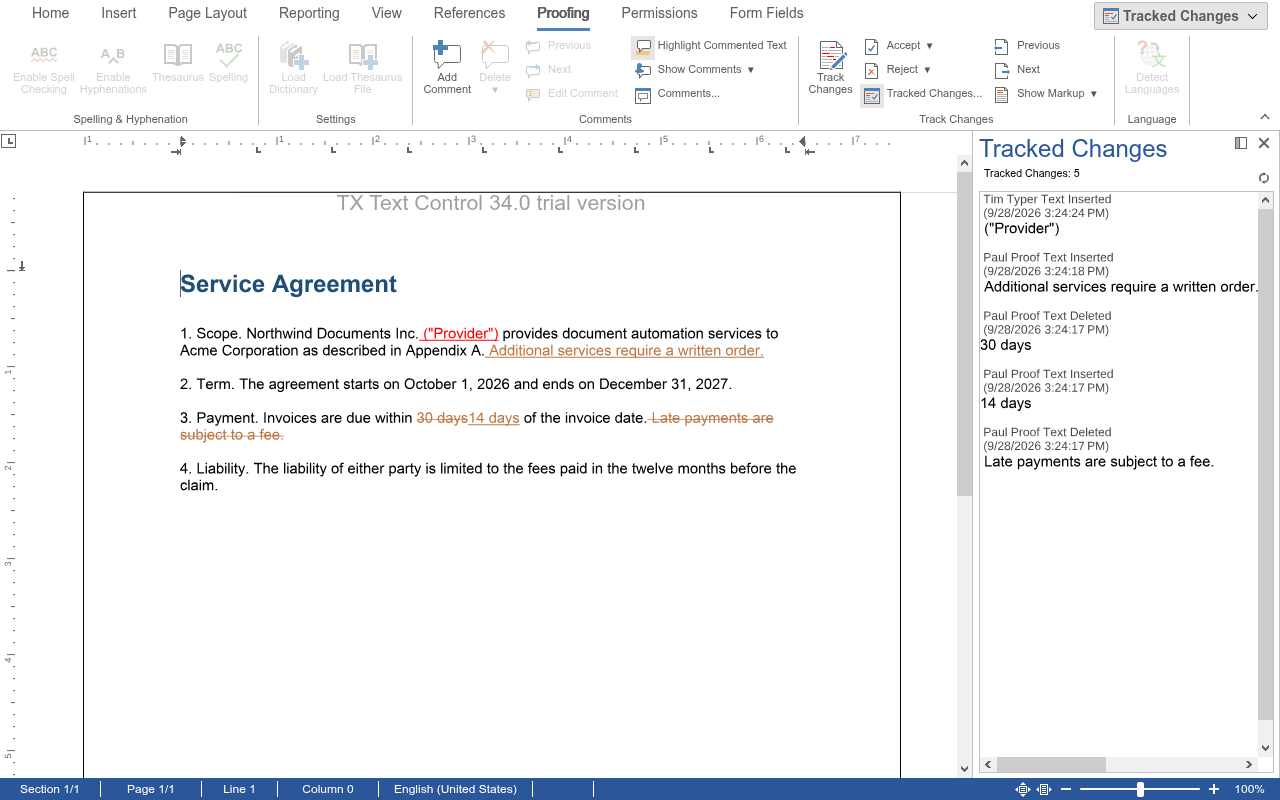
When tracking is turned on, the editor records every insertion and deletion as a tracked change, with the name of the author and the time, and highlights it, so reviewers see what has changed. Each change stays marked until someone accepts it, which keeps the change, or rejects it, which undoes it.
Turning tracking off only stops the recording of new changes. Changes that were already recorded stay marked until they are accepted or rejected.
Users turn tracking on with the Track Changes button on the Proofing tab of the ribbon. The Track Changes group of the tab also accepts and rejects changes and moves through them. The sidebar, titled Tracked Changes, lists all changes with their author and time and lets users move through them and accept or reject them:
Set the Author
The editor records the current user as the author of a change. The current user is the first name in the list of user names that you pass to the editor. In an ASP.NET Core view, set TextControlSettings.UserNames:
@using TXTextControl.Web.MVC

@Html.TXTextControl().TextControl(settings => {
    settings.UserNames = new string[] { "Tim Typer" };
}).Render()
In a JavaScript page, pass the names to TXTextControl.init as userNames of the editorSettings object, a DocumentEditorSettings. The same list sets the users who may edit editable regions of a protected document. Set it from the identity of the signed-in user, so that each change shows who made it. If the list is empty, changes are recorded without an author.
Your code reads the list with getUserNames. The JavaScript API has no method that changes it.
Work With Tracked Changes
The following view sets the author and turns tracking on when the editor is loaded. Its buttons turn tracking on and off, accept the change at the input position, accept or reject all changes and list them. Replace the content of Views/Home/Index.cshtml:
@using TXTextControl.Web.MVC

@Html.TXTextControl().TextControl(settings => {
    settings.UserNames = new string[] { "Tim Typer" };
}).Render()

<input type="button" onclick="toggleTrackChanges()" value="Track Changes On/Off" />
<input type="button" onclick="acceptCurrentChange()" value="Accept Change" />
<input type="button" onclick="removeAllChanges(true)" value="Accept All" />
<input type="button" onclick="removeAllChanges(false)" value="Reject All" />
<input type="button" onclick="listTrackedChanges()" value="List Changes" />

<script>
    TXTextControl.addEventListener("textControlLoaded", function () {
        TXTextControl.setIsTrackChangesEnabled(true);
        TXTextControl.showSideBar(TXTextControl.SideBarType.TrackChanges);
    });

    TXTextControl.addEventListener("trackedChangeCreated", function (e) {
        console.log("New change by " + e.trackedChange.userName);
    });

    function toggleTrackChanges() {
        TXTextControl.getIsTrackChangesEnabled(function (enabled) {
            TXTextControl.setIsTrackChangesEnabled(!enabled);
        });
    }

    function acceptCurrentChange() {
        TXTextControl.trackedChanges.getItem(function (change) {
            if (change === null) {
                return; // no tracked change at the input position
            }
            TXTextControl.trackedChanges.remove(change, true);
        });
    }

    function removeAllChanges(accept) {
        TXTextControl.trackedChanges.getCount(function (count) {
            if (count === 0) {
                return;
            }
            TXTextControl.trackedChanges.elementAt(0, function (change) {
                TXTextControl.trackedChanges.remove(change, accept, function (removed) {
                    // Continue with the next change once this one is removed
                    if (removed === true) {
                        removeAllChanges(accept);
                    }
                });
            });
        });
    }

    function listTrackedChanges() {
        TXTextControl.trackedChanges.forEach(function (change) {
            change.getChangeKind(function (kind) {
                change.getUserName(function (userName) {
                    change.getText(function (text) {
                        var action = (kind === TXTextControl.ChangeKind.InsertedText) ? "inserted" : "deleted";
                        console.log(userName + " " + action + ": " + text);
                    });
                });
            });
        });
    }
</script>
The code works as follows:
- setIsTrackChangesEnabled turns tracking on or off, and getIsTrackChangesEnabled passes the current state. The older property
isTrackChangesEnabledis obsolete. - showSideBar opens the Track Changes sidebar, selected with
TrackChangesfrom SideBarType. - TXTextControl.trackedChanges returns the TrackedChangeCollection. Its getItem passes the change at the input position, or
null. - TrackedChangeCollection.remove accepts a change with
trueand rejects it withfalse. A rejected insertion is removed, and a rejected deletion is restored. removeAllChangesremoves the first change and, once its callback reports success, calls itself again until no change is left. Each change is removed only after the previous one has been removed.- TrackedChange passes its kind with getChangeKind,
InsertedTextorDeletedTextfrom ChangeKind, its author with getUserName, and the changed text with getText.
Type some text in the editor, delete a word and click List Changes: the browser console shows both changes with the author Tim Typer. Click Reject All to restore the original text.
Other Properties of a Tracked Change
| Method | Passes or sets |
|---|---|
| getStart, getLength | The one-based position of the first changed character and the number of characters |
| getChangeTime | The time of the change as a Unix timestamp |
| setHighlightColor, setHighlightMode | The color and whether the change is highlighted |
| setActive | Whether the change is active; an inactive change isn't highlighted |
React to Tracked Changes
The editor raises these events:
trackedChangeCreatedandtrackedChangeDeletedwhen a change is recorded or removed,trackedChangeChangedwhen the text of a change is altered andtrackedChangeStateChangedwhen a change becomes active or inactive. The handlers receive TrackedChangeEventArgs with the author, kind, time and position of the change.cannotTrackChangewhen a change of the document can't be added to the tracked changes. The handler receives a default message.
Events lists all events.
Save Documents With Tracked Changes
Tracked changes are saved and loaded with DOCX, RTF and the TX Text Control format, and they are compatible with the tracked changes of MS Word. A document that your users review in the editor can therefore be opened in MS Word with its changes, and the other way around. Save the document as described in Loading and Saving Documents.
To process tracked changes on the server, for example to accept all changes before a document is archived, use ServerTextControl.TrackedChanges. The blog article Document Redlining and Approval Workflows with TX Text Control Track Changes in .NET C# describes a complete workflow.
Next Steps
- Comments: add comments to text and to tracked changes.
- Events: the events of tracked changes.
- Document Protection: protect documents and set editable regions.