
Images, Text Frames, and Shapes
A logo in the letterhead, an address block at the window position of an envelope and a highlighted shape next to a total are objects that sit in a document beside its text. TX Text Control calls them frames: images, text frames and drawings, each with a collection your code uses to add, find and remove them. You place each kind in the TextControl of a form inline with the text, anchored to a paragraph or fixed on a page.
Users insert the same objects with the ribbon, as Images and Text Frames and Shapes describe. Barcodes and charts are frames as well and have their own page, Charts and Barcodes. Form1.cs needs these using directives:
using System;
using System.Drawing;
using System.IO;
using System.Text;
using System.Windows.Forms;
using TXTextControl;
using TXTextControl.Drawing;
Image and HorizontalAlignment exist in Windows Forms or System.Drawing as well, so the examples write them as TXTextControl.Image and TXTextControl.HorizontalAlignment.
How Frames Are Placed
Images, text frames and drawings derive from FrameBase, which provides their name, ID, size, location and distance to the text. Each kind has a collection in the text part with the input focus: Images, TextFrames and Drawings. Its Add method decides where the object goes:
| Placement | Behavior | Add overload |
|---|---|---|
| Inline | Treated like a single character of the text | Add(frame, textPosition) |
| Anchored to a paragraph | Moves with its paragraph; the text flows around it, or it lies above or below the text | Add(frame, alignment, textPosition, insertionMode) or Add(frame, location, textPosition, insertionMode) |
| Fixed position | Stays where it is when the text changes | Add(frame, page, location, insertionMode) or Add(frame, location, insertionMode) |
A text position of -1 stands for the current input position. Locations are in twips, relative to the paragraph, to the page or to the whole document. The insertion mode sets the text flow: DisplaceText lets the text flow around the object, DisplaceCompleteLines stops the text above and continues it below, AboveTheText covers the text and BelowTheText lies behind it. The reference lists these four values for the insertionMode parameter of ImageCollection.Add. Image.InsertionMode combines each of them with MoveWithText or FixedOnPage.
Insert an Image
The Image class loads BMP, TIF, WMF, PNG, JPG, GIF, EMF and SVG files, and ImageCollection.Add with the text position -1 inserts one inline at the input position. Insert an Image From Code shows the constructor with a file name and an import filter, Name and DescriptiveText, and Image Formats lists the filter numbers.
Images from a database or a download arrive as bytes. Pass them to the constructor in a MemoryStream whose buffer is publicly visible, which the Image class needs to read the data:
private void insertFromBytesButton_Click(object sender, EventArgs e)
{
    // For example the contents of a database column
    byte[] data = File.ReadAllBytes("logo.png");

    // A read-only stream whose buffer is publicly visible
    using (MemoryStream stream = new MemoryStream(data, 0, data.Length, false, true))
    {
        TXTextControl.Image image = new TXTextControl.Image(stream);
        textControl1.Images.Add(image, -1);
    }
}
The blog article Various Ways of Inserting Images into TX Text Control also inserts a System.Drawing.Image and an image from a URL.
Position an Image on the Page
The following handler anchors a logo at the right edge of the paragraph with the input position and places an SVG stamp on the first page, 1 inch from its top-left corner, behind the text:
private void positionImagesButton_Click(object sender, EventArgs e)
{
    // Anchored to the paragraph at the input position, aligned right, text flows around it
    TXTextControl.Image logo = new TXTextControl.Image("logo.png", 4);
    textControl1.Images.Add(logo, TXTextControl.HorizontalAlignment.Right, -1,
        ImageInsertionMode.DisplaceText);

    // Fixed on page 1, 1 inch from the left and top edge of the page, behind the text
    TXTextControl.Image stamp = new TXTextControl.Image("stamp.svg", 8);
    textControl1.Images.Add(stamp, 1, new Point(1440, 1440),
        ImageInsertionMode.FixedOnPage | ImageInsertionMode.BelowTheText);
}
The alignment of an anchored image is Left, Right or Center, and the page of a fixed image is numbered from 1. The stamp is added with FixedOnPage combined with BelowTheText, as in Text Control's blog articles on watermarks, although the reference names only the four text flow values for Add. ImageInsertionMode lists the text flow values. TextDistances sets the space between the image and the text around it.
Add a Watermark to Every Page
A word such as CONFIDENTIAL or DRAFT behind the text of every page is an image in a header: a header appears on every page of its section, and an image fixed on the page below the text lies behind the main text. The following method adds an SVG image to a new header in each section and centers it between the page margins. It takes the sections of a document, so that the same method works for the TextControl and, in PDF Creation and Conversion, for a copy of its document:
private void watermarkButton_Click(object sender, EventArgs e)
{
    // Page sizes, margins and image locations in twips
    textControl1.PageUnit = MeasuringUnit.Twips;

    AddWatermark(textControl1.Sections, "confidential.svg");
}

private static void AddWatermark(SectionCollection sections, string svgFile)
{
    foreach (Section section in sections)
    {
        // A new header in each section carries the watermark
        section.HeadersAndFooters.Remove(HeaderFooterType.All);
        section.HeadersAndFooters.Add(HeaderFooterType.Header);
        HeaderFooter header = section.HeadersAndFooters.GetItem(HeaderFooterType.Header);

        // 8 is the import filter for SVG
        TXTextControl.Image watermark = new TXTextControl.Image(svgFile, 8);

        // Fixed on the page and behind the text of the page
        header.Images.Add(watermark, 1, new Point(0, 0),
            ImageInsertionMode.FixedOnPage | ImageInsertionMode.BelowTheText);

        // Center the image between the page margins
        SectionFormat format = section.Format;
        int x = (int)((format.PageSize.Width - watermark.Size.Width -
            (format.PageMargins.Left + format.PageMargins.Right)) / 2);
        int y = (int)((format.PageSize.Height - watermark.Size.Height -
            (format.PageMargins.Top + format.PageMargins.Bottom)) / 2);

        watermark.Location = new Point(x, y);
    }
}
The code works as follows:
- PageUnit set to twips makes the page size and margins of each section use the same unit as the size and location of the image. The method relies on it, so the caller sets it; the setting stays in effect afterward.
- Sections returns the SectionCollection of the document. Sections can differ in page size and orientation, so each one gets an image of its own.
- HeaderFooterCollection.Remove with
HeaderFooterType.Alldeletes the existing headers and footers of the section, so that each section gets a header of its own for the watermark. Remove this line and add the image to the existing header when your documents have headers to keep. A document whose first page has a header of its own,HeaderFooterType.FirstPageHeader, then needs the image in that header as well. - HeaderFooter.Images takes the image like the main text does. ImageCollection.Add with a page number and a location fixes it on the page, on every page the header appears on. The combination of
FixedOnPageandBelowTheTextis the one the blog article Adding Watermarks to PDF Documents in .NET C# calls required for watermarks; the reference ofAddlists onlyBelowTheTextand the other text flow values for this parameter. - Location moves the image to the center: the page size in Section.Format minus the image size and both margins, halved, as the article calculates it.
SVG images stay vector graphics in a PDF, so the watermark is sharp at any zoom level. Saved as PDF, it appears behind the text of each page:
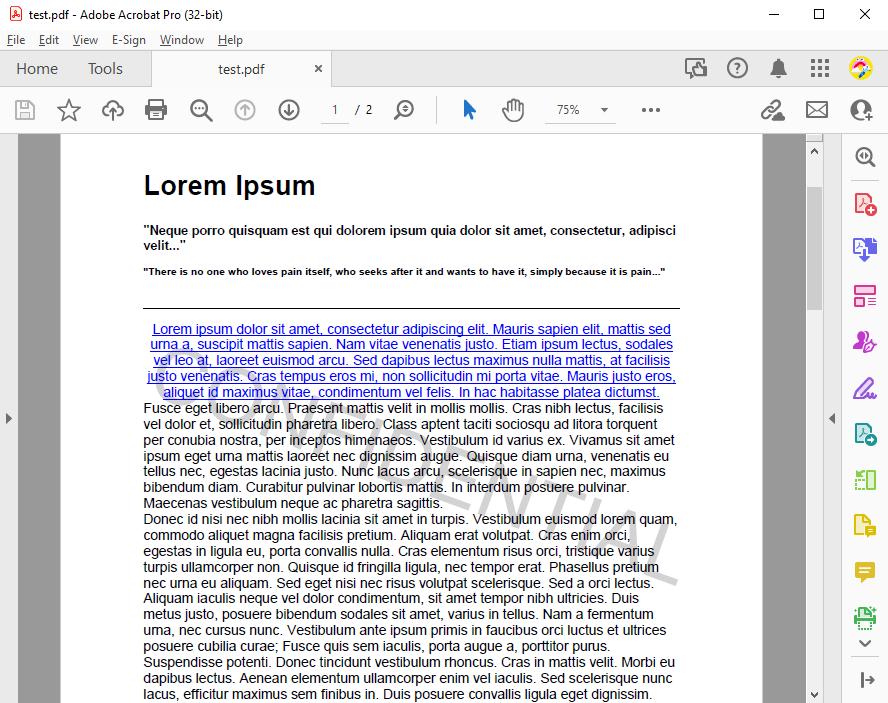
The blog article Generating and Adding Watermarks to Documents using C# creates the SVG image itself from a text, a font, a color and an angle. Headers and footers are described in Sections, Pages, Headers, and Footers.
Find, Change and Remove Images
The following handler lists the images of the main text and removes the image named "logo":
private void listImagesButton_Click(object sender, EventArgs e)
{
    StringBuilder report = new StringBuilder();

    foreach (TXTextControl.Image image in textControl1.TextParts.GetMainText().Images)
    {
        report.AppendLine($"'{image.Name}': {image.Size.Width} x {image.Size.Height} twips, " +
                          $"text position {image.TextPosition}");
    }

    MessageBox.Show(report.ToString());

    // null if no image has this name
    TXTextControl.Image logo = textControl1.Images.GetItem("logo");

    if (logo != null)
    {
        textControl1.Images.Remove(logo);
    }
}
The code works as follows:
GetMainTextreturns the main text, so the handler lists its images even while the user edits a header. Size is the size in twips, and TextPosition the position of the image in the text.- GetItem with a name or an ID returns the image with that name or ID, or
nullwhen there is none. - Remove deletes the image from the document.
React to the Selected Image changes the size of the image the user has selected. An image inserted from a file is saved as a reference to that file unless it is saved as data, so set the image save mode before a document leaves the computer, as Control How Images Are Saved describes.
Add Text Frames
A TextFrame is a rectangle with text of its own, formatted like the main text. It has its own selection, paragraphs, tables and images. The following handler places an address block for a window envelope on the first page:
private void addressFrameButton_Click(object sender, EventArgs e)
{
    // 3.5 x 1 inch in twips
    TextFrame address = new TextFrame(new Size(5040, 1440))
    {
        Name = "recipient",
        BorderWidth = 0,
        InternalMargins = new int[] { 0, 0, 0, 0 }
    };

    // Page 1, 1 inch from the left and 2 inches from the top edge of the page
    textControl1.TextFrames.Add(address, 1, new Point(1440, 2880),
        TextFrameInsertionMode.DisplaceCompleteLines);

    // The text frame has a selection of its own
    address.Selection.Text = "Acme Corporation\r\n123 Business Lane, Suite 456\r\nMetropolis, USA";
}
The code works as follows:
- The TextFrame constructor takes the size of the frame in twips.
- BorderWidth 0 means no border. InternalMargins are the distances between the border and the text, left, top, right and bottom.
- TextFrameCollection.Add with a page and a location fixes the frame on that page. TextFrameInsertionMode
DisplaceCompleteLineskeeps the text above and below the frame. - TextFrame.Selection inserts and formats text in the frame.
Insert a Text Frame From Code gives a frame a background and a border, anchors it to a paragraph and lets the user draw it with the mouse.
TextFrameCollection.GetItem finds a frame by its name or ID, for example to fill the address of a template: textControl1.TextFrames.GetItem("recipient").Selection.Text = "...";. GetActivatedItem returns the frame the user is editing, and Remove deletes a frame. TextFrame.Tables and TextFrame.Images add tables and images to a frame.
Insert Shapes
A drawing is a canvas with one or more shapes, such as lines, arrows, stars or callouts, following the preset shapes of Office Open XML that ShapeType lists. In Windows Forms, the canvas is a TXDrawingControl, and a DrawingFrame places it in the document with DrawingCollection.Add, like the other frames. Insert a Shape From Code inserts a donut shape and explains the fill, the outline and the ways to add a shape. Drawings are part of the Enterprise and Professional editions.
Render Shapes as SVG With TXDrawingCore
TXDrawingCore, introduced in version 33.0, is a canvas of shapes without a control. It holds the same Shape objects as TXDrawingControl and returns them as an SVG string, for example to create a graphic for a web page or a file. A DrawingFrame takes a TXDrawingControl, as the reference of its constructor states, so a shape that users should edit in the document is inserted as in the previous section. The SVG goes into a document as an image. The following handler draws a rounded rectangle and inserts it at the input position:
private void svgShapeButton_Click(object sender, EventArgs e)
{
    // A canvas of 2 x 1 inches, in twips
    TXDrawingCore drawing = new TXDrawingCore(2880, 1440);

    Shape box = new Shape(ShapeType.RoundRectangle)
    {
        Location = new Point(144, 144),
        Size = new Size(2592, 1152)
    };

    box.ShapeFill.Color = Color.LightSteelBlue;
    box.ShapeOutline.Color = Color.DarkBlue;
    box.ShapeOutline.Width = 40; // twips

    drawing.Shapes.Add(box);

    // The shapes as SVG, without the handles of selected shapes
    string svg = drawing.GetSVG(drawing.Size, false);
    File.WriteAllText("shape.svg", svg);

    // 8 is the import filter for SVG
    textControl1.Images.Add(new TXTextControl.Image("shape.svg", 8), -1);
}
The code works as follows:
- The TXDrawingCore constructor takes the width and height of the canvas in twips. Without parameters, the canvas is 1134 x 1134 twips.
- The Shape constructor takes the ShapeType. Location and Size are in twips from the top-left corner of the canvas. ShapeFill.Color is the fill color, and ShapeOutline.Color and ShapeOutline.Width are the color and width of the outline.
- Shapes is the collection of the canvas.
Addwithout a second parameter keeps the location and size of the shape; withShapeCollection.AddStyle.Fill, the shape fills the canvas. - GetSVG returns the shapes in the given size, which also becomes the Size of the canvas. Its second parameter shows the resize and adjust handles of selected shapes.
TXDrawingCore also has a selection, an undo buffer, clipboard methods and Load and Save for the shape data, which What's New in Version 33.0 lists. Barcodes have a counterpart without a control too, described in Create a Barcode as SVG With TXBarcodeCore.
Next Steps
- Charts and Barcodes: the other kinds of frames.
- Sections, Pages, Headers, and Footers: put a logo into the header of every page.
- Images: images from the user's side.
- Text Frames and Shapes: let users insert and edit frames and shapes.