
Document Object Model
Behind the TextControl in your XAML window is an object model that your code reads and changes: text parts, paragraphs, tables, frames and sections, each with its own collection. It is the same model that ServerTextControl uses without a window. Knowing its structure answers the questions that come up first in WPF applications: where a header keeps its tables, why a collection suddenly contains the elements of a text frame, and which positions count from 0.
Two Classes, One Document Model
TX Text Control .NET for WPF holds a document in one of two classes:
- TextControl,
TXTextControl.WPF.TextControl, is the editor in your window, declared in XAML as<WPF:TextControl x:Name="textControl1" />, with theWPFprefix mapped toclr-namespace:TXTextControl.WPF;assembly=TXTextControl.WPF. Your code and the user share its document. Its members are available once WPF has loaded the control, so code that runs at startup belongs in theLoadedevent of the control, not in the constructor of the window. TextControl in the Overview introduces it. - ServerTextControl,
TXTextControl.ServerTextControl, holds a document without a user interface. It is created in code, initialized withCreateand disposed after the work. Using ServerTextControl in Desktop Applications covers it in detail.
The document classes themselves, such as Selection, Paragraph, Table and Image, are in the TXTextControl namespace and are the same for both. The examples of this section are Click handlers in MainWindow.xaml.cs that work on textControl1, and use a ServerTextControl where the user shouldn't see the work.
What a Document Consists of
A document is made of text parts: the main text and, beside it, text frames, headers, footers and footnote sections. Each text part has its own paragraphs, tables, images and fields, while sections and pages belong to the whole document:
WPF.TextControl / ServerTextControl
│
├── TextParts ──────────── MainText            the body of the document
│                          TextFrame ...       rectangles of text placed on a page
│                          HeaderFooter ...    headers and footers of the sections
│                          FootnoteSection ... footnotes
│
│   Each text part (IFormattedText) has:
│   ├── Selection          the selected text, or the input position
│   ├── Paragraphs, Lines, TextChars
│   ├── Tables, Images, Frames, Barcodes, Drawings
│   ├── ApplicationFields, TextFields, FormFields, SubTextParts
│   └── Comments, TrackedChanges
│
├── Sections ───────────── page size, margins, headers and footers of each section
├── ParagraphStyles, InlineStyles
└── DocumentSettings        title, author and other properties
TextParts returns a TextPartCollection: the main text first, then the text frames and last the headers and footers, each group in the order of its position in the document. All of them implement IFormattedText, the interface of everything a text part has, and so do WPF.TextControl, ServerTextControl, MainText, TextFrame, HeaderFooter and FootnoteSection.
Frames
Images, text frames, barcodes and drawings are frames: objects placed in the text like a character, anchored to a paragraph or fixed on a page. They derive from FrameBase, which provides the name, ID, size, location and text distances. Each kind has its own collection, and Frames returns a FrameCollection of all of them.
Charts are the exception. WPF.TextControl has no Charts collection, because charts are Windows Forms chart controls and can be used only with the Windows Forms TextControl. Charts and Barcodes explains what that means for WPF applications.
The Class Hierarchy
The graphic of Text Control's class hierarchy shows every class of the library with the class it derives from, in groups such as Windows Forms Components, WPF Components, Server Components, Document Formatting, Programmable Objects, Text Fields, Tables and Drawings, Collections, DocumentServer and Exceptions. Its colors mark the classes that exist only for Windows Forms, only for WPF or only for ASP.NET, and the classes new in version 34.0:
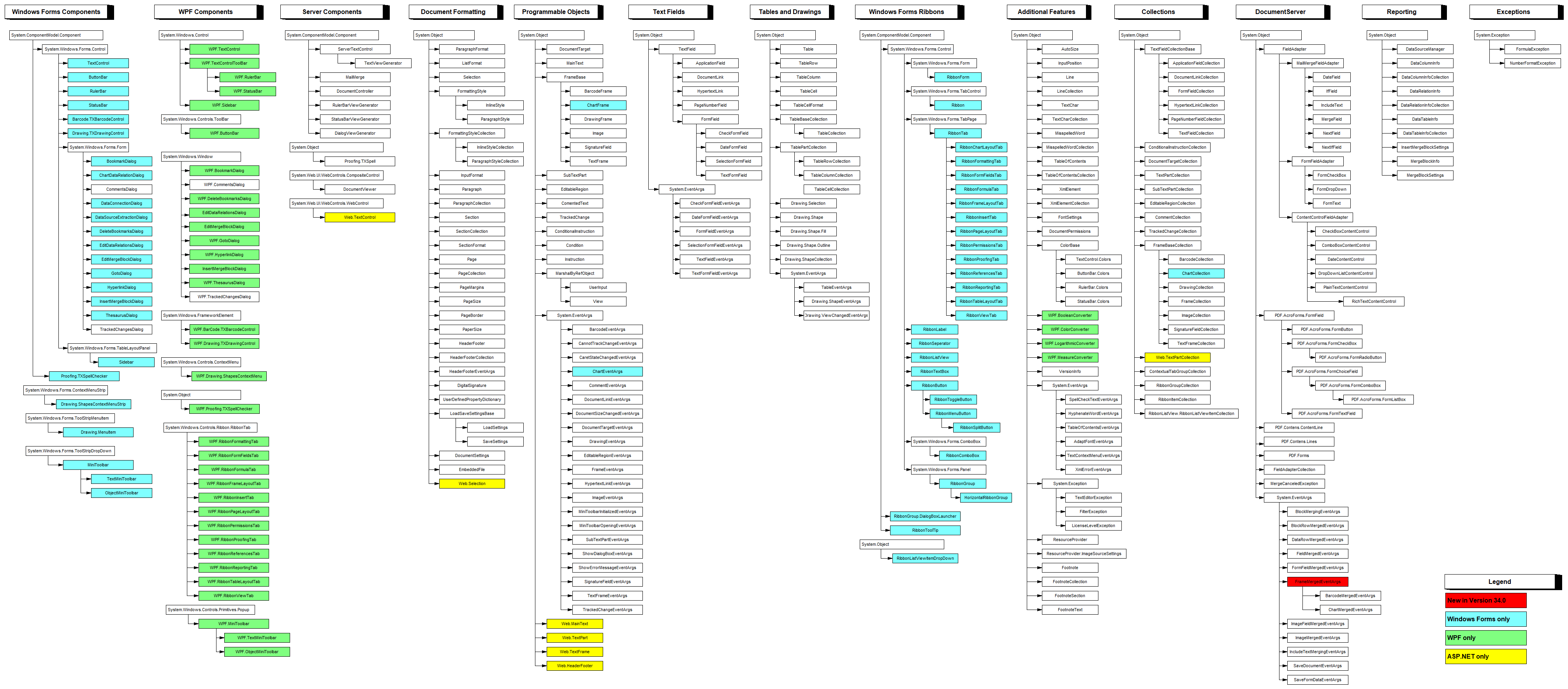
WPF.TextControl derives from System.Windows.Controls.Control and ServerTextControl from System.ComponentModel.Component. The classes of a document, such as Selection, Paragraph, Section and Table, derive from System.Object and are shared by all products; the Windows Forms and ASP.NET classes of the graphic aren't part of TX Text Control .NET for WPF.
The Input Focus Decides What a Collection Contains
The user can click into a header or a text frame of the TextControl. The text part the cursor is in has the input focus, and many properties of WPF.TextControl refer to that text part instead of the main text:
Property of WPF.TextControl | Refers to |
|---|---|
| Selection, Paragraphs, Tables, Images, TextFrames, Frames, ApplicationFields, Comments, TrackedChanges | The text part with the input focus: the main text, a text frame, a header or a footer |
| Sections, FormFields, TextParts | The whole document |
A ServerTextControl has no user and no input focus, and its Selection always refers to the main text.
While the cursor is in a header, textControl1.Tables.Add inserts a table into that header, even when your code runs from a button. GetMainText returns the main text, whose collections don't depend on the input focus:
private void MainTextButton_Click(object sender, RoutedEventArgs e)
{
    // Depends on the input focus: main text, text frame, header or footer
    int tablesWithFocus = textControl1.Tables.Count;

    // Always the main text
    MainText mainText = textControl1.TextParts.GetMainText();
    int tablesInMainText = mainText.Tables.Count;

    MessageBox.Show($"Text part with the input focus: {tablesWithFocus} tables\r\n" +
                    $"Main text: {tablesInMainText} tables");
}
To move the input focus back to the main text, call TextPartCollection.Activate with it: textControl1.TextParts.Activate(textControl1.TextParts.GetMainText()). The document scrolls to the activated text part when it isn't visible.
Positions and Units
- Text positions start at 0. Selection.Start is the first selected character, and 0 is the first position of the text. Selection.Length counts the selected characters; with a length of 0,
Startis the input position. - Elements are numbered from 1.
Paragraphs[1]is the first paragraph, and rows, columns, sections, pages and lines count from 1 as well. Paragraph.Start is one-based, so subtract 1 before you select from it. - Font sizes and distances are in twips, 1/1440 inch or 1/20 point. A font size of 240 is 12 pt.
- Page sizes and margins use the unit of PageUnit, by default the device-independent unit of WPF, 1/96 inch. The Windows Forms control uses 1/100 inch instead, so values copied from Windows Forms samples give slightly different sizes.
- Colors of the document are
System.Drawing.Colorvalues, for example inSelection.ForeColorandTableCellFormat.BackColor, not theSystem.Windows.Media.Colorof WPF.
Example
Add a button to MainWindow.xaml, below the TextControl:
<Button Content="Show Structure" Click="StructureButton_Click" />
The handler in MainWindow.xaml.cs lists the text parts of the document with their paragraphs, tables and images, and then the sections, pages and frames. The file needs using System.Text;, using System.Windows; and using TXTextControl;:
private void StructureButton_Click(object sender, RoutedEventArgs e)
{
    StringBuilder report = new StringBuilder();

    // The main text, text frames, footnote sections, headers and footers
    foreach (IFormattedText textPart in textControl1.TextParts)
    {
        report.AppendLine($"{textPart.GetType().Name}: {textPart.Paragraphs.Count} paragraphs, " +
            $"{textPart.Tables.Count} tables, {textPart.Images.Count} images");
    }

    report.AppendLine($"Sections: {textControl1.Sections.Count}, pages: {textControl1.Pages}");
    report.AppendLine($"All frames: {textControl1.Frames.Count}");

    MessageBox.Show(report.ToString());
}
What the code does:
textControl1.TextPartsreturns the text parts of the whole document, whatever has the input focus.GetType().Nameshows the class of each, such asMainTextorHeaderFooter.- IFormattedText.Paragraphs, Tables and Images are the collections of one text part.
- Pages is the number of pages of the document.
MessageBoxis the WPF message box ofSystem.Windows.
Since every text part implements IFormattedText, a single method can process the editor, a ServerTextControl, a header or a text frame:
// Works with WPF.TextControl, ServerTextControl and every other text part
private static void CountElements(IFormattedText document)
{
    MessageBox.Show($"{document.Paragraphs.Count} paragraphs, {document.Tables.Count} tables, " +
                    $"{document.Images.Count} images, {document.Frames.Count} frames");
}
Where Each Element Is Described
| Element | Collection | Page |
|---|---|---|
| Text, characters, paragraphs, styles | Selection, Paragraphs, ParagraphStyles, InlineStyles | Text, Paragraphs, and Stylesheets |
| Tables and formulas | Tables | Tables and Calculations |
| Images, text frames, drawings | Images, TextFrames, Drawings | Images, Text Frames, and Shapes |
| Barcodes | Barcodes | Charts and Barcodes |
| Sections, pages, headers and footers | Sections, HeadersAndFooters | Sections, Pages, Headers, and Footers |
| Fields and subtext parts | ApplicationFields, TextFields, SubTextParts | Fields and Subtext Parts |
| Form fields | FormFields | Forms and Conditional Instructions |
| Comments and tracked changes | Comments, TrackedChanges | Comments and Tracked Changes |
Key Members
| Member | Purpose |
|---|---|
| TextParts | All text parts of the document: main text, text frames, headers, footers and footnote sections. |
| GetMainText | The main text, independent of the input focus. |
| Selection | The selected text or the input position in the text part with the input focus. |
| InputPosition | The current input position, with its page, line and column. |
| Frames | All images, text frames, barcodes and drawings of the text part with the input focus. |
| Sections | The sections of the document, with their page formats. |
| IFormattedText | The interface shared by the controls and all text parts. |
Next Steps
- Creating Documents: start a new document and build it from pieces.
- Text, Paragraphs, and Stylesheets: select, find and format text.
- Control Initialization and Document Access: when the control is ready for your code.
- Using ServerTextControl in Desktop Applications: process documents without showing them.