
Overview
What happens between loading a template and saving the merged document? Knowing how TX Text Control reporting works, from its layout model and the shape of the data to the events of a merge, makes the difference between a template that merges once and one that holds up with real data. These concepts apply to every template you merge, whatever its data source.
The MailMerge page in the Overview introduces the class, and Getting Started: Mail Merge walks through a first merge. The examples below use template.docx and the invoice data in data.json from the Simple Mail Merge tutorial.
The Reporting Model
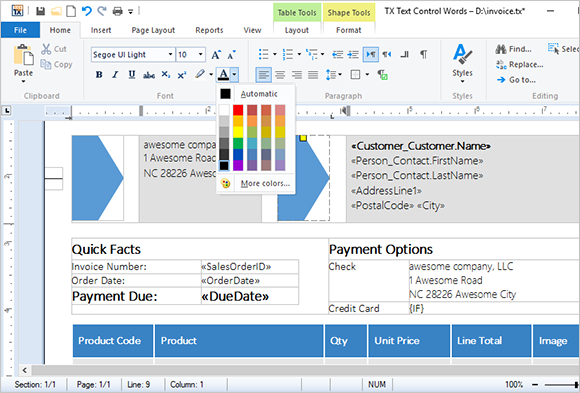
TX Text Control reporting doesn't use a banded report designer with fixed header, body and footer bands. A template is an ordinary document, designed with the features of a word processor, such as tables, page columns, images, headers and footers:
- The text flows. TX Text Control breaks lines and pages as the merged content grows. A table that doesn't fit on a page continues on the next one, with its header rows repeated, and paragraph settings such as "keep with next" or "page break before" control where pages break.
- Templates contain no data connections. A template holds only the names of merge fields and merge blocks, never a connection string, so the same template works with different data.
- Calculated values come with the data. Values such as totals can be calculated in your code or your business objects and merged like any other value.
Pre-Shaped Data
MailMerge expects prepared data instead of querying a data source during the merge. You prepare the data in the hierarchy the document needs, as JSON or as business objects built from any number of sources, and merge it. This is called pre-shaped data. It keeps templates easy to understand, and merging is faster because the data already has the right structure. The one exception is a Windows Forms feature: with a Report Data Source Configuration file, MailMerge connects to a database and queries it itself, which Data Sources explains along with why .NET Server applications merge prepared data instead.
Internally, the hierarchy is converted into tables:
| In the data | In the template |
|---|---|
| Properties of the root object | Merge fields, such as InvoiceNumber |
| A nested object | Merge fields with dot notation, such as Customer.CustomerName |
| An array | A merge block with the name of the array, such as LineItems, repeated for each item |
The following diagram shows the tables of an order document: the root object provides company_name, the nested objects and arrays address, contacts and orders become tables of their own, and each order's articles array is a table related to its order:
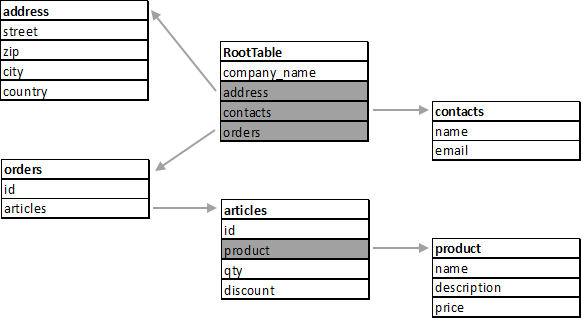
The records you pass to a merge method form the master table: the template is merged once for each record, so an array of 100 invoice objects creates 100 invoices. MailMerge merges all records it's given. To leave records or rows out, shape the data before merging, or store filter instructions in the template, as Sorting and Filtering describes. Data Sources lists the kinds of data you can merge.
What a Merge Processes
A merge fills more than merge fields. These elements of a template receive data:
| Element | What happens | Described in |
|---|---|---|
MERGEFIELD fields | The field is replaced with the value of the same name | Merge Fields |
DATE fields | The current date is inserted in the field's format | Merge Fields |
IF fields | One of two texts is inserted, depending on a comparison | Conditional Content |
INCLUDETEXT fields | Another document, a sub-template, is included in place of the field | Template Design |
| Merge blocks | The block is repeated for each record of a collection, also in nested levels | Merge Blocks |
Named images and image: fields | The image is replaced with image data | Images |
| Named barcodes | The barcode encodes the value | Barcodes |
| Charts | The chart is filled through the data relation stored in the template; only outside merge blocks | Charts and Barcodes |
| Form fields | Depending on FormFieldMergeType, not merged, preselected or replaced with the value | Merge Fields |
Merge fields in headers and footers are merged as well.
Create One Document or Separate Documents
MergeJsonData, MergeObjects and Merge have an optional second parameter, append. With true, the default, all records are merged into one document, and each record starts a new section. With false, a separate document is created for each record.
The ServerTextControl holds only the last document after a merge with append set to false. To get every document, handle the DataRowMerged event, which occurs after each record. Its MergedRow property contains the document of the record in the TX Text Control format. The following program creates one PDF file for each invoice in data.json:
using TXTextControl;
using TXTextControl.DocumentServer;

string jsonData = File.ReadAllText("data.json");
List<byte[]> documents = new List<byte[]>();

using (ServerTextControl tx = new ServerTextControl())
{
    tx.Create();

    LoadSettings loadSettings = new LoadSettings()
    {
        ApplicationFieldFormat = ApplicationFieldFormat.MSWord,
        LoadSubTextParts = true
    };

    tx.Load("template.docx", StreamType.WordprocessingML, loadSettings);

    using (MailMerge mailMerge = new MailMerge { TextComponent = tx })
    {
        // Collect the document of each record
        mailMerge.DataRowMerged += (sender, e) => documents.Add(e.MergedRow);

        // false: a separate document for each record
        mailMerge.MergeJsonData(jsonData, false);
    }
}

for (int i = 0; i < documents.Count; i++)
{
    using (ServerTextControl document = new ServerTextControl())
    {
        document.Create();
        document.Load(documents[i], BinaryStreamType.InternalUnicodeFormat);
        document.Save($"invoice-{i + 1}.pdf", StreamType.AdobePDF);
    }
}

Console.WriteLine($"{documents.Count} invoices created");
To see several documents, add a second invoice object with the same structure to the array in data.json. When all records are merged into one document, a first page header shows the data of the first record in every section unless it's disconnected from the previous section, as the blog article Merging Multiple Records with First-Page Headers and Footers explains.
Get Separate Documents From DataSourceManager
DataSourceManager.Merge returns the documents of the records directly, without an event handler. It takes the template as a byte array in the TX Text Control format and returns a list with one document in the same format for each record. An overload limits the number of documents, for example to preview the first records of a large data source:
using TXTextControl;
using TXTextControl.DocumentServer.DataSources;

using (ServerTextControl tx = new ServerTextControl())
{
    tx.Create();
    tx.Load("template.tx", StreamType.InternalUnicodeFormat);

    byte[] template;
    tx.Save(out template, BinaryStreamType.InternalUnicodeFormat);

    DataSourceManager dataSourceManager = new DataSourceManager();
    dataSourceManager.LoadJson(File.ReadAllText("data.json"));

    MergeSettings mergeSettings = new MergeSettings()
    {
        AsSingleDocument = false
    };

    // One document for each of the first 10 records
    IList<byte[]> documents = dataSourceManager.Merge(template, 10, tx, mergeSettings);

    for (int i = 0; i < documents.Count; i++)
    {
        using (ServerTextControl document = new ServerTextControl())
        {
            document.Create();
            document.Load(documents[i], BinaryStreamType.InternalUnicodeFormat);
            document.Save($"invoice-{i + 1}.pdf", StreamType.AdobePDF);
        }
    }
}
The code works as follows:
- LoadJson loads the data that
Mergemerges. The otherLoadmethods ofDataSourceManagerload business objects, aDataSetor XML. - The second parameter of
Mergeis the maximum number of documents; the overload without it merges all records. The third parameter is aServerTextControl, whichMergeneeds for licensing purposes. - MergeSettings sets whether the results are combined into one document, where each record starts on a new page, and whether empty fields, blocks, images and lines and trailing whitespace are removed. All removal settings are
trueby default, unlikeRemoveEmptyLinesandRemoveEmptyImagesofMailMerge.
Put Several Records on One Page
Address labels, name badges and shipping labels print several records on one page. Such a template repeats the same fields in each label, usually in the cells of a table, and ends each label with a NEXT field. The NEXT field moves on to the next record, so the next label shows the following record instead of the same one. The following label of a shipping label template has merge fields, barcode placeholders and a NEXT field at its end:
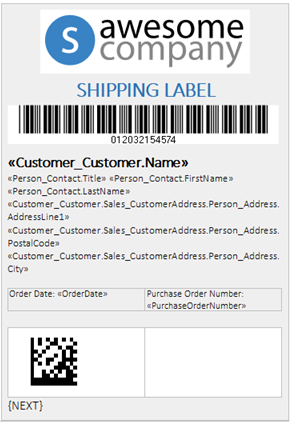
In MS Word, NEXT is a field of its own; in code, the NextField adapter creates it, as Fields in Document Processing lists. The same field alternates the colors of table rows, as Styling describes. A NEXTIF field moves on only when a comparison is true, as Conditional Content shows.
Skip or Stop Records During the Merge
MailMerge merges every record it's given, so the best place to leave out records is the data. When the decision can only be made during the merge, handle DataRowMerged:
- Skip a record. Assign an empty document to MergedRow. The record then adds nothing to the result, as the blog article Mail Merge: Skipping Records During the Merge Process in .NET C# shows.
- Stop the merge. Set Cancel to
true. The merge ends with a MergeCanceledException, which your code catches.Merge,MergeJsonDataandMergeObjectsall throw it, and theServerTextControlthen still contains the unmerged template, without the records merged before.
The following program leaves out the second record of data.json; DataRowNumber counts the records from 0:
using TXTextControl;
using TXTextControl.DocumentServer;

// Created once: an empty document replaces a skipped record
byte[] emptyDocument;

using (ServerTextControl empty = new ServerTextControl())
{
    empty.Create();
    empty.Save(out emptyDocument, BinaryStreamType.InternalUnicodeFormat);
}

using (ServerTextControl tx = new ServerTextControl())
{
    tx.Create();
    tx.Load("template.tx", StreamType.InternalUnicodeFormat);

    using (MailMerge mailMerge = new MailMerge { TextComponent = tx })
    {
        mailMerge.DataRowMerged += (sender, e) =>
        {
            // Leave out the second record
            if (e.DataRowNumber == 1)
            {
                e.MergedRow = emptyDocument;
            }
        };

        mailMerge.MergeJsonData(File.ReadAllText("data.json"));
    }

    tx.Save("output.pdf", StreamType.AdobePDF);
}
To stop instead, set e.Cancel = true in the handler, for example after a maximum number of records, and put the merge call in a try block with a catch (MergeCanceledException).
Let MailMerge Load and Save the Document
Instead of loading the template into the ServerTextControl yourself, you can let MailMerge load it and save the result:
using TXTextControl;
using TXTextControl.DocumentServer;

using (ServerTextControl tx = new ServerTextControl())
{
    tx.Create();

    using (MailMerge mailMerge = new MailMerge { TextComponent = tx })
    {
        if (!mailMerge.LoadTemplate("template.tx", FileFormat.InternalUnicodeFormat))
        {
            Console.WriteLine("The template could not be loaded.");
            return;
        }

        mailMerge.MergeJsonData(File.ReadAllText("data.json"));
        mailMerge.SaveDocument("output.pdf", StreamType.AdobePDF, new SaveSettings());
    }
}
- LoadTemplate returns
falseif the template couldn't be loaded. The format is a value of FileFormat:MSWord,RichTextFormat,WordprocessingMLorInternalUnicodeFormat. LoadTemplateFromMemory loads a template from memory. - SaveDocument saves the merged document to a file, and SaveDocumentToMemory to a byte array or a string.
For DOCX templates with merge blocks, loading with tx.Load and LoadSettings, as in the previous example, lets you set LoadSubTextParts explicitly.
Follow the Merge With Events
Events of MailMerge let your code react while a merge runs:
| Event | Occurs | Typical use |
|---|---|---|
| FieldMerged | For each field, whether it received data or not | Change the merged text, find fields without data |
| BlockMerging | Before a merge block is merged | Log the blocks and their data |
| BlockRowMerged | After each row of a merge block | Change the content or formatting of a merged row |
| DataRowMerged | After each record of the master table | Get or change the document of a record |
| ImageMerged, ImageFieldMerged | After an image or an image field has been merged | Change the merged image |
| BarcodeMerged, ChartMerged, FormFieldMerged | After a barcode, a chart or a form field has been merged | Check the merged object |
| IncludeTextMerging | When an INCLUDETEXT field is merged | Supply the included document from your code |
The arguments of FieldMerged, FormFieldMerged, ImageMerged and ImageFieldMerged tell where in the template the merged element is: MergeBlockName is the name of its merge block, and NestingDepth the level of that block. FieldMerged, BlockRowMerged and DataRowMerged provide the merged content as a byte array in the TX Text Control format, which you can load into another ServerTextControl, change and assign back.
Merge in an ASP.NET Core Web API
A common service receives a template and JSON data over HTTP and returns the merged PDF. The merge code is the same as in a console application; REST Services builds such an endpoint, answers invalid templates and JSON data with a bad request and moves long-running merges into background jobs.
Next Steps
- Data Sources: the kinds of data you merge and how they are shaped.
- Merge Fields: formats, date fields and the
FieldMergedevent. - Merge Blocks: repeat parts of a template for each record.
- Template Design: design templates that merge well.