
Reporting Ribbon and WPF Dialog Boxes
With the Reporting tab in its ribbon, the TextControl of a WPF window becomes a template designer: users load a data source, insert merge fields, special fields and merge blocks and set their options in dialog boxes. The WPF tab is a class of its own, and it differs from the Windows Forms tab in a few groups and dialog boxes. Below you find each group and dialog box of the WPF tab, the classes that open the dialog boxes from your code and how to hide buttons with FindName.
The tutorial Create a Template adds the tab in XAML and inserts the first merge fields. Merge Fields, Merge Blocks and Data Sources explain what the tab inserts and loads.
The Reporting Tab
RibbonReportingTab derives from System.Windows.Controls.Ribbon.RibbonTab and is placed inside the Ribbon element of MainWindow.xaml. The TextControl names it in its RibbonReportingTab attribute, which connects the two; Add the Reporting Tab shows the XAML, and Connecting Ribbon Tabs in XAML explains this pattern for all tabs. The tab has four groups:

| Group | Buttons | What they do |
|---|---|---|
| Data Source | Select Data Source, Select Master Table, Edit Data Relations | Load the data whose names the tab offers, choose the master table and relate tables |
| Merge Fields | Insert Merge Field, Insert Special Field, Field Properties, Delete Field | Insert and edit merge fields and the special fields IF, INCLUDETEXT, DATE, NEXT and NEXTIF |
| Merge Blocks | Insert Merge Block, Edit Merge Block | Insert repeating blocks, rename and remove them |
| View | Field Navigation | Show the fields and blocks of the document in a sidebar |
Compared with Windows Forms, the WPF tab has no Config File button, and Select Data Source doesn't connect to databases: data source configuration files and database connections of the designer are Windows Forms features.
Data Source
The data source provides the names that the drop-down menus of the tab offer. It serves the design only; at merge time, any data with the same structure fills the template. Select Data Source has three commands:
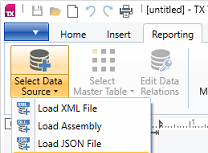
Load XML File, Load Assembly and Load JSON File load an XML file, the public classes of a .NET assembly or a JSON file. Your code loads data with the tab's DataSourceManager, for example in the Loaded event of the window, as Create a Template shows.
Select Master Table lists the tables of the loaded data. The master table supplies the merge fields outside blocks, and the tables related to it are offered as merge blocks. Edit Data Relations opens a dialog box that relates two tables by a column.
Merge Fields
Insert Merge Field lists the columns of the master table. Related tables appear as submenus, and a field inserted from a submenu gets the name of its table as a prefix, such as Production_Product.Name. The last two entries are Insert Custom Merge Field... and Highlight Merge Fields, which marks all merge fields in the document.
Insert Special Field inserts fields that aren't filled from a column directly: an IF field that inserts one of two texts, an INCLUDETEXT field that includes a subtemplate, a DATE field with the current date, and the NEXT and NEXTIF fields that continue with the next record. IF and INCLUDETEXT fields are inserted through their options dialog box, which Field Properties opens again later.
For a merge field, Field Properties opens the Merge Field Options dialog box with the name, the text before and after the value, the letter case and the number and date formats, as Merge Fields describes. Conditional Content and Subtemplates cover the IF and INCLUDETEXT fields. Delete Field removes the field at the input position.
Merge Blocks
Insert Merge Block lists the tables related to the master table:
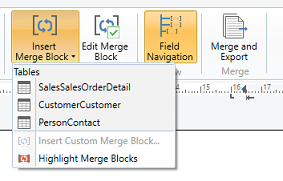
A table opens the Insert Merge Block dialog box. In it, the user checks the columns that become merge fields and sets their order, chooses between a table row, optionally with a header row, and a plain paragraph, picks the highlight color of the block and adds filter and sorting rules. Merge Blocks reads what the user inserted, and Sorting and Filtering explains the rules.
Insert Custom Merge Block makes the selected text a block with a name of the user's choice. Highlight Merge Blocks marks all blocks of the document. Edit Merge Block opens a dialog box that renames or removes merge blocks.
Show the Field Navigation Sidebar
Field Navigation in the View group opens a panel with the tabs Merge Blocks and Merge Fields, a search box and the properties of the selected element:
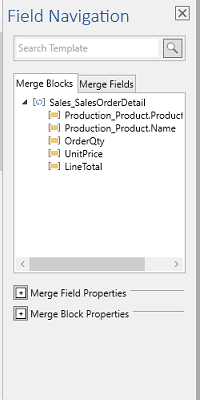
The button stays hidden until a sidebar is connected. In WPF, FieldNavigatorSidebar is a string: the name of a Sidebar element of the window, set in XAML as Show the Field Navigation Sidebar in Getting Started shows. Sidebar and Panels describes sidebars.
Dialog Classes
The dialog boxes for blocks and data relations are WPF windows, derived from System.Windows.Window, in the namespace TXTextControl.DocumentServer.WPF. The field options dialog boxes open through the field classes of TXTextControl.DocumentServer.Fields:
| Dialog box | Opened by | Class or method |
|---|---|---|
Merge Field Options and the options of IF, INCLUDETEXT and DATE fields | Field Properties | FieldAdapter.ShowDialog of MergeField, IfField, IncludeText and DateField |
| Insert Merge Block | Insert Merge Block | InsertMergeBlockDialog |
| Filter and sorting rules | The Insert Merge Block dialog box | FilterAndSortDialog |
| Rename and remove blocks | Edit Merge Block | EditMergeBlocksDialog |
| Data relations | Edit Data Relations | EditDataRelationsDialog |
The windows are modal and shown with ShowDialog. Their constructors take the DataSourceManager of the tab and, where they change the document, the TextControl.
Open the Dialog Boxes From Code
The following handlers of MainWindow.xaml.cs open the options of the field at the input position and the dialog box for merge blocks. Connect them to buttons with Click="fieldOptionsButton_Click" and so on:
using System.Windows;
using TXTextControl;
using TXTextControl.DocumentServer.Fields;
using TXTextControl.DocumentServer.WPF;
private void fieldOptionsButton_Click(object sender, RoutedEventArgs e)
{
    // The field at the input position, or null
    ApplicationField applicationField = textControl1.ApplicationFields.GetItem();

    if (applicationField == null)
    {
        return;
    }

    FieldAdapter fieldAdapter;

    switch (applicationField.TypeName)
    {
        case "MERGEFIELD": fieldAdapter = new MergeField(applicationField); break;
        case "IF": fieldAdapter = new IfField(applicationField); break;
        case "INCLUDETEXT": fieldAdapter = new IncludeText(applicationField); break;
        case "DATE": fieldAdapter = new DateField(applicationField); break;
        default: return;
    }

    // The window owns the dialog box
    fieldAdapter.ShowDialog(this);
}

private void editBlocksButton_Click(object sender, RoutedEventArgs e)
{
    EditMergeBlocksDialog dialog = new EditMergeBlocksDialog(
        ribbonReportingTab1.DataSourceManager, textControl1)
    {
        Owner = this
    };

    dialog.ShowDialog();
}
The code works as follows:
- ApplicationFields.GetItem returns the field at the input position, and its TypeName selects the field class: MergeField, IfField, IncludeText or DateField. For WPF dialog boxes, the owner passed to
ShowDialogmust be aSystem.Windows.Window, here the main window. EditMergeBlocksDialogis a WPF window: it gets its owner through theOwnerproperty ofWindowand takes theDataSourceManagerof the tab and theTextControlwhose blocks it lists.
FilterAndSortDialog, the window for the filter and sorting rules of a block, is opened for the block at the input position in Sorting and Filtering.
Hide Buttons of the Tab
Every item of the WPF tab has a name from the RibbonReportingTab.RibbonItem enumeration, and FindName of the tab returns the item of that name. There is no FindItem method as in Windows Forms. The following handler of the window's Loaded event, Loaded="Window_Loaded" in XAML, hides Edit Data Relations:
using System.Windows;
using TXTextControl.WPF;
private void Window_Loaded(object sender, RoutedEventArgs e)
{
    // Hide the Edit Data Relations button
    if (ribbonReportingTab1.FindName(
        RibbonReportingTab.RibbonItem.TXITEM_EditDataRelations.ToString()) is UIElement item)
    {
        item.Visibility = Visibility.Collapsed;
    }
}
The string of a RibbonItem value is the Name of the item, so ToString() gives the name FindName looks for. Group names end in Group, such as TXITEM_DataSourceGroup. The entries of drop-down menus are values of RibbonReportingTab.RibbonDropDownItem, which identify their texts and icons for the resource provider. Built-in Ribbon Tabs covers the items of the other tabs.
Next Steps
- Template Design: where and with which data users design templates.
- Template Preview: merge the template with the data of the tab.
- Merge Fields: the options of the Merge Field Options dialog box in code.
- Built-in Dialog Boxes: the other dialog boxes of the editor.