
Reporting Ribbon and Dialog Boxes
The Reporting tab turns the TextControl of a Windows Forms ribbon application into a template designer. Its buttons load a data source, insert merge fields, special fields and merge blocks, and open dialog boxes for their options, all without code of yours. Every group, button and dialog box of the tab is listed below, with the classes that open the same dialog boxes from your own menus and the code that hides what your users don't need.
Adding the tab and inserting a first field is part of the tutorial Create a Template. What the fields, blocks and data sources do is explained in Merge Fields, Merge Blocks and Data Sources.
The Reporting Tab
The tab is the class RibbonReportingTab. The smart tag of the ribbon adds it with Add a RibbonReportingTab, and it works with the TextControl connected to its ribbon, like the other predefined tabs described in Built-in Ribbon Tabs. It has four groups:

| Group | Buttons | What they do |
|---|---|---|
| Data Source | Select Data Source, Select Master Table, Edit Data Relations, Config File | Load the data whose names the tab offers, choose the master table, relate tables and save or load a database configuration |
| Merge Fields | Insert Merge Field, Insert Special Field, Field Properties, Delete Field | Insert and edit merge fields and the special fields IF, INCLUDETEXT, DATE, NEXT and NEXTIF |
| Merge Blocks | Insert Merge Block, Edit Merge Block | Insert repeating blocks, rename and remove them |
| View | Field Navigation | Show the fields and blocks of the document in a sidebar |
Data Source
The data source defines the names in the drop-downs of the tab. It is only used for designing; the merge itself takes any data of the same structure. Select Data Source loads it:
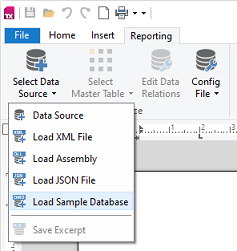
- Data Source opens the Choose Data Source dialog box, which connects to a database such as MS SQL Server, an MS Access file or an ODBC data source, as DataSets and DataTables describes.
- Load XML File, Load Assembly and Load JSON File load an XML file, the public classes of a .NET assembly or a JSON file.
- Save Excerpt saves an excerpt of a connected database, up to a number of rows the user chooses, to a file, so templates can be designed without the database.
- Load Sample Database in the picture is an addition of the TX Words sample, not part of the tab.
Your code loads the data with the DataSourceManager of the tab, for example with LoadJson when the form opens, as in Create a Template.
Select Master Table lists the tables of the data source. The master table provides the merge fields outside of blocks, and the tables related to it are offered as merge blocks. Edit Data Relations opens the Create Data Relation dialog box, which relates two tables by a column, as Edit Relations in the Designer shows, and Config File saves or loads a data source configuration file with Save Configuration and Load Configuration, as Data Source Configuration Files shows.
Merge Fields
Insert Merge Field lists the columns of the master table under the heading Table: with its name. Related tables appear as submenus with their own columns, and a field from a submenu gets the table name as a prefix, such as Production_Product.Name:
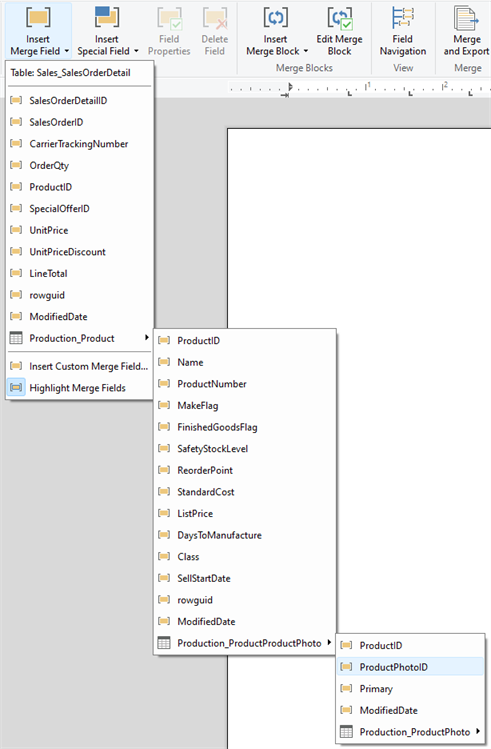
At the end of the drop-down, Insert Custom Merge Field... is followed by Highlight Merge Fields, which marks all merge fields of the document.
Insert Special Field inserts the fields that aren't filled from a column directly: an IF field that inserts one of two texts, an INCLUDETEXT field that includes a subtemplate, a DATE field with the current date and the NEXT and NEXTIF fields that continue with the next record. IF and INCLUDETEXT fields are inserted through their options dialog box, which Field Properties opens again later: the If Field Options dialog box, shown in Conditional Content, and the IncludeText Field Options dialog box, shown in Subtemplates.
For a merge field, Field Properties opens the Merge Field Options dialog box with the name, text before and after, case and number and date formats, which Merge Fields shows. The Date Field Options dialog box is shown in Merge Fields. Delete Field removes the field at the input position.
Merge Blocks
Insert Merge Block lists the tables related to the master table, which can become merge blocks, and opens the Insert Merge Block dialog box for the chosen table. In it, the user picks the columns, the layout as table rows or paragraphs and the filter and sorting rules of the block. At the end of the drop-down, Insert Custom Merge Block and Highlight Merge Blocks create a block with a name of your own and mark all blocks. Edit Merge Block opens a dialog box that renames or removes the merge blocks of the document.
Work With Blocks in the Reporting Tab shows the drop-down and the dialog box and explains each option, and Sorting and Filtering the rules.
Show the Field Navigation Sidebar
Field Navigation in the View group shows a panel with two tabs, Merge Blocks and Merge Fields, which list the blocks and fields of the template, with a search box and the properties of the selected element below:
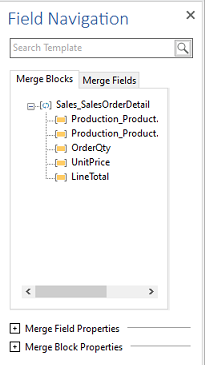
The button is hidden until a sidebar is connected to it. Add a sidebar with Add Right Sidebar in the smart tag of the TextControl and click Arrange Controls Automatically, then select the Reporting tab and choose the sidebar for its FieldNavigatorSidebar property in the Properties window. In code, assign the sidebar to FieldNavigatorSidebar:
// Show the Field Navigation button, connected to a sidebar
ribbonReportingTab1.FieldNavigatorSidebar = sidebar1;
The button then shows the sidebar with the field navigator panel. Sidebar and Panels describes sidebars in general.
Dialog Classes
The dialog boxes of the tab are public classes, so your own menus and buttons can open them. The block and data dialog boxes are Windows Forms forms in the namespace TXTextControl.DocumentServer.Windows.Forms, and the field options dialog boxes open through the field classes of TXTextControl.DocumentServer.Fields:
| Dialog box | Opened by | Class or method |
|---|---|---|
| Merge Field Options, If Field Options, IncludeText Field Options, Date Field Options | Field Properties | FieldAdapter.ShowDialog of MergeField, IfField, IncludeText and DateField |
| Insert Merge Block | Insert Merge Block | InsertMergeBlockDialog |
| Filter and sorting rules | Filter & Sort... | FilterAndSortDialog |
| Rename and remove blocks | Edit Merge Block | EditMergeBlocksDialog |
| Create Data Relation | Edit Data Relations | EditDataRelationsDialog |
| Choose Data Source | Data Source | DatabaseConnectionDialog |
| Save an excerpt | Save Excerpt | DataSourceExtractionDialog |
Each of these forms is modal and is shown with ShowDialog. Their constructors take the DataSourceManager of the tab, which holds the loaded data, and, where the dialog box changes the document, the TextControl. Add Repeating Merge Blocks opens InsertMergeBlockDialog this way.
Open the Dialog Boxes From Code
The following handlers open the options of the field at the input position and the dialog box that edits the merge blocks. They belong in Form1.cs and need these using directives:
using System;
using System.Windows.Forms;
using TXTextControl;
using TXTextControl.DocumentServer.Fields;
using TXTextControl.DocumentServer.Windows.Forms;
private void fieldOptionsButton_Click(object sender, EventArgs e)
{
    // The field at the input position, or null
    ApplicationField applicationField = textControl1.ApplicationFields.GetItem();

    if (applicationField == null)
    {
        return;
    }

    FieldAdapter fieldAdapter;

    switch (applicationField.TypeName)
    {
        case "MERGEFIELD": fieldAdapter = new MergeField(applicationField); break;
        case "IF": fieldAdapter = new IfField(applicationField); break;
        case "INCLUDETEXT": fieldAdapter = new IncludeText(applicationField); break;
        case "DATE": fieldAdapter = new DateField(applicationField); break;
        default: return;
    }

    // The form owns the dialog box
    fieldAdapter.ShowDialog(this);
}

private void editBlocksButton_Click(object sender, EventArgs e)
{
    using (EditMergeBlocksDialog dialog = new EditMergeBlocksDialog(
        ribbonReportingTab1.DataSourceManager, textControl1))
    {
        dialog.ShowDialog(this);
    }
}
The code works as follows:
- ApplicationFields.GetItem returns the field at the input position. Its TypeName decides which field class wraps it: MergeField, IfField, IncludeText or DateField.
ShowDialog(this)makes the form the owner of the options dialog box and returns a value of the DialogResult enumeration ofTXTextControl.DocumentServer.Fields, not theDialogResultof Windows Forms. EditMergeBlocksDialogtakes theDataSourceManagerof the tab and theTextControlwhose blocks it lists.
The filter and sorting rules of a block are edited with FilterAndSortDialog, which Sorting and Filtering opens for the block at the input position.
Customize the Tab
Each button of the tab has a name from the RibbonReportingTab.RibbonItem enumeration, and FindItem returns the control of that name. The following handler of the form's Load event hides the buttons for data relations and configuration files, which users who design against fixed data don't need:
using System;
using TXTextControl.Windows.Forms.Ribbon;
private void Form1_Load(object sender, EventArgs e)
{
    // Hide the commands for configuration files and data relations
    ribbonReportingTab1.FindItem(RibbonReportingTab.RibbonItem.TXITEM_ConfigFile).Visible = false;
    ribbonReportingTab1.FindItem(RibbonReportingTab.RibbonItem.TXITEM_EditDataRelations).Visible = false;
}
The names of the groups end in Group, such as TXITEM_DataSourceGroup. The entries of drop-down menus are values of RibbonReportingTab.RibbonDropDownItem, which identify their texts and icons for the resource provider. Built-in Ribbon Tabs shows how items are renamed and removed.
Column names of databases can be cryptic for users. The blog article Windows Forms Ribbon: Displaying User-Friendly Merge Field Names replaces the texts of the Insert Merge Field entries with readable names while the inserted fields keep the real column names.
Next Steps
- Template Design: where and with which data users design templates.
- Template Preview: merge the template with the data of the tab.
- Merge Fields: the options of the Merge Field Options dialog box in code.
- Built-in Dialog Boxes: the other dialog boxes of the editor.