
Context Menus
The menus that open on a right-click in the Document Editor can carry commands of your own application, lose built-in commands users shouldn't use or be turned off. You react to the contextMenuOpening event, add items with click handlers and change built-in items.
The examples extend the view of the ASP.NET Core tutorial, whose Insert Table button inserts a table with the ID 10.
Add Items to a Context Menu
The following code adds an Upper Case item to the context menu of selected text, and a Table Tools sub menu to the context menu of a table. Add it below the Insert Table button in Views/Home/Index.cshtml:
<script>
    // Click handler of the "Upper Case" item
    function convertToUpperCase(args) {
        TXTextControl.selection.getText(function (text) {
            TXTextControl.selection.setText(text.toUpperCase());
        });
    }

    // Click handler of the "Show Table ID" item
    function showTableId(args) {
        TXTextControl.tables.getItem(function (table) {
            table.getID(function (id) {
                console.log(args.item.text + ": " + id);
            });
        });
    }

    function handleContextMenuOpening(e) {
        var location = TXTextControl.ContextMenuLocation;

        // Show the built-in items and the location in the browser console
        console.log(e.location, e.items);

        if ((e.location & location.TextSelection) !== 0) {
            e.items.push({ text: "" }); // separator
            e.items.push({ text: "Upper Case", clickHandler: convertToUpperCase });
        }

        if ((e.location & location.Table) !== 0) {
            e.items.push({ text: "" });
            e.items.push({
                text: "Table Tools",
                items: [
                    { text: "Show Table ID", clickHandler: showTableId }
                ]
            });
        }
    }

    TXTextControl.addEventListener("textControlLoaded", function () {
        TXTextControl.addEventListener("contextMenuOpening", handleContextMenuOpening);
    });
</script>
The code works as follows:
- The
contextMenuOpeninghandler receives ContextMenuEventArgs. items is the array of ContextMenuItem objects the menu shows. The code adds items withpush. - location is a combination of ContextMenuLocation values. The bitwise
&tests whether a value is part of it, because a menu over a selection in a table has bothTextSelectionandTable. - An item with an empty text is a separator line. An item with items opens a sub menu.
- clickHandler is the function that runs when the item is clicked. It receives ContextMenuItemClickEventArgs, whose item is the clicked item.
- The click handlers work with what the menu was opened for: Selection.getText and setText change the selected text, and TableCollection.getItem without an ID passes the table at the input position, whose ID Table.getID passes.
Select a word and right-click it: the menu contains Upper Case, which converts the word.
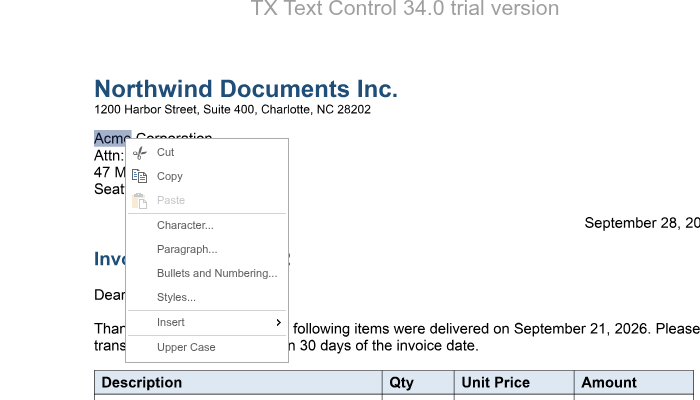
Click Insert Table, click into the table, right-click and choose Table Tools > Show Table ID: the console shows "Show Table ID: 10".
The handler is a named function, so that removeEventListener can remove it again: TXTextControl.removeEventListener("contextMenuOpening", handleContextMenuOpening);.
Where a Context Menu Opens
ContextMenuLocation value | The menu opens for |
|---|---|
TextSelection, TextInputPosition | Selected text, or the text input position |
Header, NoHeader, Footer, NoFooter, PageMargin | The top or bottom page margin, with or without a header or footer |
PageNumberField | A page number field |
SelectedFrame | A selected text frame, image, chart or barcode |
Table, TextField, TableOfContents | A selection or the input position in a table, a text field or a table of contents |
MisspelledWord | A selection or the input position in a misspelled word |
TrackedChange, Comment | A selection or the input position in a tracked change or a comment |
Change Built-In Items
Built-in items are ContextMenuItem objects in the same array. Find them by their text and change them before the menu opens. The texts of the built-in items aren't listed in the reference, and the items changed in version 34.0, so log e.items in the browser console, as the code above does, to see the items of your version.
The following handler cancels the menu in the page margins and disables the Footnote item of the Insert sub menu. It shows two more changes in comments:
function findItem(items, text) {
  return (items || []).find(function (item) { return item.text === text; });
}

TXTextControl.addEventListener("textControlLoaded", function () {
  TXTextControl.addEventListener("contextMenuOpening", function (e) {
    // No context menu in the top and bottom page margins
    if ((e.location & TXTextControl.ContextMenuLocation.PageMargin) !== 0) {
      e.cancel = true;
      return;
    }

    var insert = findItem(e.items, "Insert");
    if (!insert) {
      return;
    }

    var footnote = findItem(insert.items, "Footnote");
    if (footnote) {
      footnote.isEnabled = false;

      // To replace the built-in action instead:
      // footnote.clickHandler = function (args) { args.cancel = true; console.log("Footnotes are not available."); };
    }

    // To remove the complete "Insert" item:
    // e.items.splice(e.items.indexOf(insert), 1);
  });
});
- ContextMenuEventArgs.cancel with
truesuppresses the menu. - isEnabled with
falseshows the item disabled. - A click handler set on a built-in item runs when the item is clicked. ContextMenuItemClickEventArgs.cancel with
truekeeps the click from being sent to the backend, so the built-in command isn't carried out. spliceremoves an item from the array, so that the menu doesn't show it.
Find items by their text rather than by their position in the array: the order of the built-in items isn't documented either. The blog article Manipulating the Context Menu in the Document Editor using JavaScript shows these changes step by step.
Next Steps
- Ribbon: change the ribbon of the editor.
- Localization: the language of the user interface.
- Events: all events of the editor.