
Headers and Footers
Developers building a WPF editor for letters, reports or contracts need headers and footers: the letterhead on the first page, a title on every page, page numbers at the bottom. The WPF TextControl lets users add and edit them from the ribbon and the Page Setup dialog box; in XAML you set how they're activated, and in code you add them with page numbers and follow the user into them.
The code belongs in MainWindow.xaml.cs of a window with a TextControl named textControl1, as in Create Your First WPF Application; replace SampleApp with your namespace. Sections, parts of a document with page settings of their own, are explained in Sections and Page Layout. Sections, Pages, Headers, and Footers covers the same objects with ServerTextControl.
How Headers and Footers Work
Headers and footers are HeaderFooter objects of the TXTextControl namespace. Each is a text part with a Selection, paragraphs, tables and images of its own.
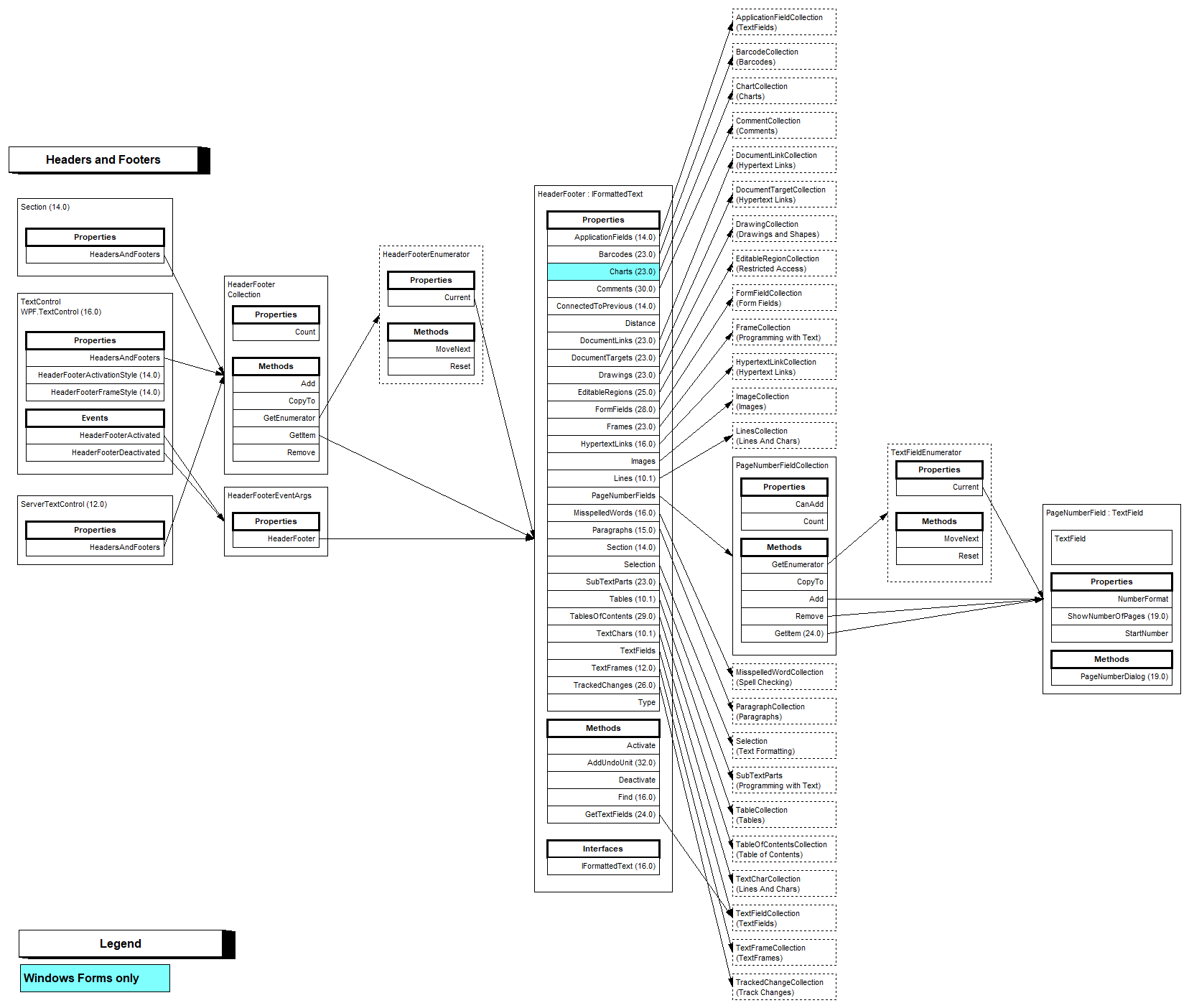
- Per section. Section.HeadersAndFooters is the HeaderFooterCollection of one section. TextControl.HeadersAndFooters belongs to the whole document and is meant for documents with a single section; with more sections, most collections of its headers are
null. - By type. HeaderFooterType distinguishes
HeaderandFooterfor every page,FirstPageHeaderandFirstPageFooterfor the first page of a section, andEvenHeaderandEvenFooterfor even pages; with an even header,Headeris the header of the odd pages. - Connected to the previous section. A new section inherits the headers and footers of the one before it, with the same content. HeaderFooter.ConnectedToPrevious set to
falseseparates them.
Add Headers and Footers in the Ribbon
The Headers & Footers group of the Insert tab, a RibbonInsertTab, has Header with Edit Header and Remove Header, Footer with Edit Footer and Remove Footer, and, while a header or footer is being edited, Page Number with Insert Page Number, Format Page Number... and Remove Page Number.
For all headers and footers at once, the Page Setup dialog box has a Headers and Footers tab:
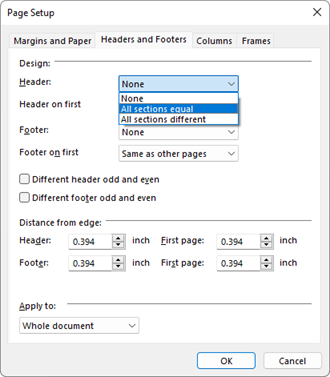
- Header, Header on first, Footer and Footer on first choose which headers and footers exist. For the Whole document, the Header and Footer lists offer None, All sections equal and All sections different; for a Section, None, Same as previous section and This section different.
- Different header odd and even and Different footer odd and even add the even variants.
- Distance from edge positions headers and footers, with separate values for the first page.
SectionFormatDialog opens the dialog box from code; SectionFormatDialog(1) shows the Headers and Footers tab.
Set Up the Editing Behavior in XAML
How users enter a header or footer and how an active one is marked are properties of the TextControl, which you set as attributes in MainWindow.xaml together with the event handlers. WPF is the prefix of the namespace TXTextControl.WPF:
<WPF:TextControl x:Name="textControl1"
                 HeaderFooterActivationStyle="ActivateDoubleClick"
                 HeaderFooterFrameStyle="DividingLine"
                 HeaderFooterActivated="TextControl1_HeaderFooterActivated"
                 HeaderFooterDeactivated="TextControl1_HeaderFooterDeactivated" />
- HeaderFooterActivationStyle is
ActivateClickfor a single click orActivateDoubleClickfor a double-click into a header or footer. - HeaderFooterFrameStyle marks the active header or footer with a
DividingLine, aDottedFrame, aSingleFrameorNoFrame. - HeaderFooterActivated occurs when a header or footer receives the input position, and HeaderFooterDeactivated when it loses it.
Add Page Numbers and Edit a Header From Code
The following handlers add a footer with "Page x of y" to the current section, open its header for editing like Edit Header, and show in the title bar which part the user is editing:
using System.Windows;
using TXTextControl;

namespace SampleApp;

public partial class MainWindow : Window
{
    private void AddFooter_Click(object sender, RoutedEventArgs e)
    {
        // Add a footer to the section with the input position
        Section section = textControl1.Sections.GetItem();
        section.HeadersAndFooters.Add(HeaderFooterType.Footer);
        HeaderFooter footer = section.HeadersAndFooters.GetItem(HeaderFooterType.Footer);

        // "Page x of y"
        footer.Selection.Text = "Page ";
        footer.PageNumberFields.Add(new PageNumberField(1, NumberFormat.ArabicNumbers));
        footer.Selection.Text = " of ";

        PageNumberField numberOfPages = new PageNumberField();
        numberOfPages.ShowNumberOfPages = true;
        footer.PageNumberFields.Add(numberOfPages);

        footer.Selection.ParagraphFormat.Alignment = TXTextControl.HorizontalAlignment.Center;

        // 0.5 inch from the bottom of the page, in twips
        footer.Distance = 720;
    }

    private void EditHeader_Click(object sender, RoutedEventArgs e)
    {
        Section section = textControl1.Sections.GetItem();

        // GetItem throws an ArgumentException for a header that doesn't exist
        bool hasHeader = false;

        foreach (HeaderFooter headerFooter in section.HeadersAndFooters)
        {
            if (headerFooter.Type == HeaderFooterType.Header)
            {
                hasHeader = true;
            }
        }

        if (!hasHeader)
        {
            section.HeadersAndFooters.Add(HeaderFooterType.Header);
        }

        // Move the input position into the header
        section.HeadersAndFooters.GetItem(HeaderFooterType.Header).Activate();
        textControl1.Focus();
    }

    private void TextControl1_HeaderFooterActivated(object sender, HeaderFooterEventArgs e)
    {
        Title = "Editing: " + e.HeaderFooter.Type;
    }

    private void TextControl1_HeaderFooterDeactivated(object sender, HeaderFooterEventArgs e)
    {
        Title = "Editing: main text";
    }
}
The code works as follows:
- SectionCollection.GetItem without a parameter returns the section with the input position.
- HeaderFooterCollection.Add adds a header or footer of a type. GetItem returns it, and throws an
ArgumentExceptionfor a type that doesn't exist, soEditHeader_Clicklooks for an existing header first. - A PageNumberField can only be used in a header or footer. HeaderFooter.PageNumberFields adds it at the input position; its constructor takes the start number and a NumberFormat such as
ArabicNumbersorRomanNumbers, and ShowNumberOfPages shows the number of pages instead. - HeaderFooter.Distance is measured in twips from the page edge; the default is 567 twips, 1 cm.
- HeaderFooter.Activate moves the input position into the header, and
textControl1.Focus()gives the keyboard focus from the button back to the editor. Deactivate returns to the main text. - HeaderFooterEventArgs.HeaderFooter is the header or footer of the event, and its Type says which one.
Page number fields update when the number of pages changes. HeaderFooterCollection.Remove removes headers and footers by type.
Put Images and Other Content Into a Header
HeaderFooter.Images, HeaderFooter.Tables and HeaderFooter.Barcodes take a logo, a table or a barcode with the Add methods described in Images and Charts and Barcodes. An image placed behind the text of a header is repeated on every page of its section. The blog article Merging Multiple Records with First-Page Headers and Footers uses first page headers in a mail merge.
Next Steps
- Sections and Page Layout: page settings and headers per section.
- Fields, Hyperlinks, and Bookmarks: fields in the text and in headers.
- Footnotes: notes at the bottom of a page.
- Sections, Pages, Headers, and Footers: headers and footers with
ServerTextControl.