
TX Text Control ActiveX

Headers and Footers

Topic

Headers and footers repeat text such as a title, a company name or a page number at the top and the bottom of each page. In TXTextControl they are text parts of their own, separate from the main text: users activate them to type in them, and your code selects them to change their text and format.

The concept comes first: how headers and footers are shown, activated and positioned, and which properties and methods work on them. The Visual Basic 6 sample program of the Samples\vb6\Headers sample source directory then adds a header from a menu.

How Headers and Footers Work

Headers and footers are visible only when the ViewMode property is set to Page View. Text Formatting and Views describes the view modes.

Headers and footers are parts of a document. The HeaderFooter property determines whether the document contains headers and footers, only headers or only footers. It also specifies a different header, footer or both for the first page and for even pages.

To edit a header or footer, it must be activated, either with the HeaderFooterActivate method or by a double-click in the area of the header or footer:

  • The activated part. An activated header or footer gets the input focus. Since version 19.0, a dividing line separates it from the main text, with a label that tells which type of header or footer (even, odd, first page) is activated.
  • The gray text. While a header or footer is activated, the main text is displayed in gray. Otherwise, the text of the headers and footers is displayed in gray.
  • The events. TXTextControl fires the HeaderFooterActivated and HeaderFooterDeactivated events to tell your application that a header or footer has been activated or deactivated.

Set How Headers and Footers Are Activated

The HeaderFooterStyle property offers these settings:

  • Activation. A header or footer is activated with double-clicks, single clicks or both.
  • Border. An activated header or footer is divided from the main text by a dashed line, or has a solid border or no border.

By default, a header or footer is activated with a double-click and divided from the main text by a dashed line. Set HeaderFooterStyle to txMouseClick to let users activate headers and footers with a single click as well.

Position Headers and Footers

By default, the top of a header is one centimeter from the top of the page, and the bottom of a footer is one centimeter from the bottom of the page. The HeaderFooterPosition property changes these distances. The height of a header or footer depends on its current text.

When a document is loaded or converted from another format, the headers and footers it contains are displayed automatically. The HeaderFooter property returns which headers and footers the current document contains.

Program Headers and Footers

Headers and footers are separate text parts, independent of the main text. When the user changes the text or its format, for example with a connected TXButtonBar, TXTextControl uses the current input focus to decide whether the change applies to a header, a footer or the main text. The same happens when your code changes the text. When a menu inserts a table with the TableInsert method, for example, the input focus decides whether the table goes into a header, a footer or the main text.

Instead of relying on this default, your code can call the HeaderFooterSelect method to make a property or method work on a certain text part. The following code changes the text of the header:

TXTextControl1.HeaderFooterSelect txHeader
TXTextControl1.Text = "This is the header's text"
TXTextControl1.HeaderFooterSelect 0

The code works as follows:

  • The first line selects the header, regardless of the current input focus.
  • The second line changes the text of the header with the Text property.
  • The third line returns to the default selection mode.

Between the two HeaderFooterSelect calls, you can use more than one property or method.

Members That Work With Headers and Footers

Almost all properties and methods work this way, with some exceptions. This is the complete list of properties and methods that work with headers and footers:

Members That Need HeaderFooterSelect

The following members work on a header or footer only in combination with the HeaderFooterSelect method:

Run the Sample Program

The sample program of the Samples\vb6\Headers sample source directory adds headers and footers from a menu. TX Text Control supports headers and footers, and a different header or footer for the first page.
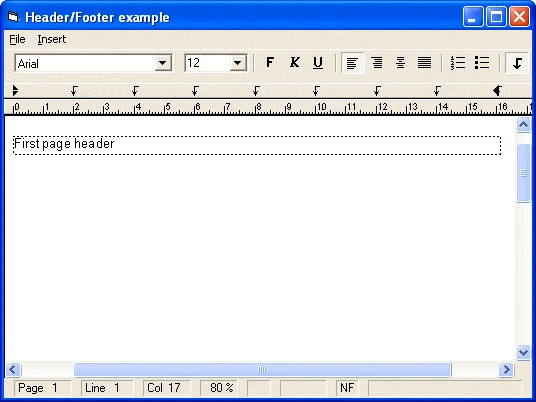
The Header/Footer example window with File and Insert menus, a button bar and a ruler, showing an activated first page header with a dotted frame.

To insert a header or footer, click Insert and choose one of the four options. The code behind the menu items is almost the same for each of them; the sections below show it for the Header menu item.

Add a Header

This line tells TXTextControl to add a header to the current settings:

TXTextControl1.HeaderFooter = TXTextControl1.HeaderFooter + txHeader

HeaderFooter holds the sum of the headers and footers the document contains, so adding txHeader keeps the headers and footers that are already there.

Write the Header's Text

For its properties, TXTextControl distinguishes between the main text and the headers and footers. The HeaderFooterSelect method switches between these independent text parts:

TXTextControl1.HeaderFooterSelect txHeader
TXTextControl1.SelText = "Header"
TXTextControl1.HeaderFooterSelect 0

The code works as follows:

  • HeaderFooterSelect txHeader selects the header, so that the following code affects the header.
  • The SelText property sets the text of the header.
  • HeaderFooterSelect 0 resets the mode to zero.

Activate or Remove the Header

Your code activates a header or footer with the HeaderFooterActivate method. To delete a header, subtract the txHeader constant from the current HeaderFooter settings.

This is the complete code of the Header menu item:

Private Sub mnuHeader_Click()
   If mnuHeader.Checked = False Then
      TXTextControl1.HeaderFooter = _
         TXTextControl1.HeaderFooter + txHeader
      TXTextControl1.HeaderFooterSelect txHeader
      TXTextControl1.SelText = "Header"
      TXTextControl1.HeaderFooterSelect 0
      TXTextControl1.HeaderFooterActivate txHeader
      mnuHeader.Checked = True
   Else
      TXTextControl1.HeaderFooter = _
         TXTextControl1.HeaderFooter - txHeader
      mnuHeader.Checked = False
   End If
End Sub

The code works as follows:

  • When the menu item is not checked, the procedure adds the header, writes "Header" into it, activates it with HeaderFooterActivate and checks the menu item.
  • When the menu item is checked, the procedure removes the header and clears the check mark.

Key Members

MemberDescription
HeaderFooterDetermines which headers and footers the document contains, including those for the first page.
HeaderFooterActivateActivates a header or footer for editing.
HeaderFooterActivated, HeaderFooterDeactivatedOccur when a header or footer is activated or deactivated.
HeaderFooterSelectMakes properties and methods work on a header, a footer or the main text.
HeaderFooterStyleSets how headers and footers are activated and how their border looks.
HeaderFooterPositionSets the distance of headers and footers from the page edges.

The programming category Headers and Footers lists all properties, methods and events for headers and footers.