
Headers and Footers
Text that repeats on every page, such as page numbers, belongs in headers and footers. In documents and templates created in the Document Editor, your code adds and changes them with JavaScript: for the whole document or a single section, for the first page and for even pages.
The examples extend the view of the ASP.NET Core tutorial. A section is a part of a document with its own page settings and headers and footers; Sections explains how to insert them.
Add a Footer With Page Numbers
A page number field shows the number of the page it is on. It exists only in headers and footers: HeaderFooter.pageNumberFields returns the page number fields of a header or footer.
The following code adds a footer to all sections and inserts a right-aligned page number. Add it below the editor in Views/Home/Index.cshtml:
<input type="button" onclick="addPageNumberFooter()" value="Add Page Numbers" />

<script>
    function addPageNumberFooter() {
        var headersAndFooters = TXTextControl.headersAndFooters;
        var footerType = TXTextControl.HeaderFooterType.Footer;

        // Add a footer to all sections of the document
        headersAndFooters.add(footerType, function (added) {
            if (!added) {
                return;
            }

            headersAndFooters.getItem(footerType, function (footer) {
                // The footer has its own selection, like the main text
                footer.selection.paragraphFormat.setAlignment(
                    TXTextControl.HorizontalAlignment.Right, function () {

                    // Insert a page number field into the footer
                    footer.pageNumberFields.add(function (field) {
                        field.setNumberFormat(TXTextControl.NumberFormat.ArabicNumbers);
                    });
                });
            });
        });
    }
</script>
The code works as follows:
headersAndFooters.addadds a footer of the typeFooter. The callback receivestrueif the footer was added.getItempasses the new HeaderFooter to its callback. Itsselectionworks like TXTextControl.selection, but inside the footer.- PageNumberFieldCollection.add inserts a page number field. By default, it shows Arabic numbers that start with 1.
- PageNumberField.setNumberFormat takes a value of NumberFormat, for example
RomanNumbersfor I, II, III.
Click Add Page Numbers and scroll through the document: every page shows its number in the bottom right corner.
A page number field has two more settings: setStartNumber sets the number of the first page, and setShowNumberOfPages makes the field show the total number of pages instead of the page number. To add text such as "Page" to a header or footer, use the setText method of its selection.
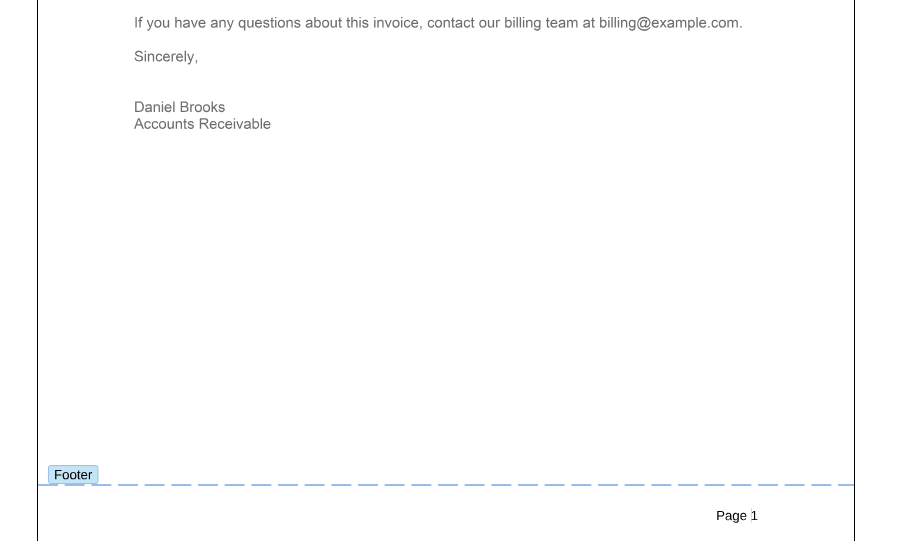
The following picture shows the footer with the text "Page " inserted in front of the field. While the input position is in a footer, the editor marks it with a dashed line and a Footer label, and the Page Number button of the Insert tab becomes available:
Give a Section Its Own Header
When a document has several sections, each new section starts with the headers and footers of the previous one, connected to them. To give a section a different header, get the header from the section's collection and disconnect it with setConnectedToPrevious:
<input type="button" onclick="addSectionHeader()" value="Add Section Header" />

<script>
    function addSectionHeader() {
        var headerType = TXTextControl.HeaderFooterType.Header;

        // Get the section at the current input position
        TXTextControl.sections.getItem(function (section) {
            var headersAndFooters = section.headersAndFooters;

            headersAndFooters.add(headerType, function () {
                headersAndFooters.getItem(headerType, function (header) {
                    if (!header) {
                        return;
                    }

                    // Don't share the content with the previous section's header
                    header.setConnectedToPrevious(false, function () {
                        header.setDistance(720, function () { // 720 twips = 0.5 inch
                            // Move the input position into the header
                            header.activate(function (activated) {
                                console.log("Header activated: " + activated);
                            });
                        });
                    });
                });
            });
        });
    }
</script>
- TXTextControl.sections with getItem returns the section that contains the input position.
setConnectedToPrevious(false)separates the header from the header of the previous section. A connected header always has the same content as the previous one.- setDistance sets the distance of the header from the top of the page in twips, 1/1440 inch. For a footer, it is the distance from the bottom.
- activate moves the input position into the header, so that the user can type the text. deactivate returns it to the main text.
Place the cursor in a section after the first one and click Add Section Header. The cursor moves into the header of this section, and the text you type there doesn't change the header of the previous section.
Next Steps
- Sections: insert sections with their own page layout.
- Fields: the other fields of a document.
- Headers and Footers in Document Processing: add headers and footers on the server with
ServerTextControl.