
Headers and Footers
Headers and footers repeat on every page of a section: a letterhead, a report title, "Page 3 of 12". In a Windows Forms TextControl, users add them from the ribbon or the Page Setup dialog box and type into them after activating them with the mouse. Your code adds them, fills them with text and page numbers, decides how they're activated and follows the user between header, footer and main text.
The examples are methods of Form1.cs in the application from Create Your First Windows Forms Application, called from the Click handler of a button. A section is a part of a document with its own page settings, which Sections and Page Layout introduces. For headers and footers added without a user interface, see Sections, Pages, Headers, and Footers.
How Headers and Footers Work
A HeaderFooter is a text part with its own Selection, paragraphs, tables and images. Each section has a HeaderFooterCollection in Section.HeadersAndFooters. TextControl.HeadersAndFooters is the collection of the whole document; a header or footer added to it goes to the first section, and every other section receives one connected to the previous section. Once a document has more than one section, use the collection of the section, because most collections of a HeaderFooter from the document's collection are then null.
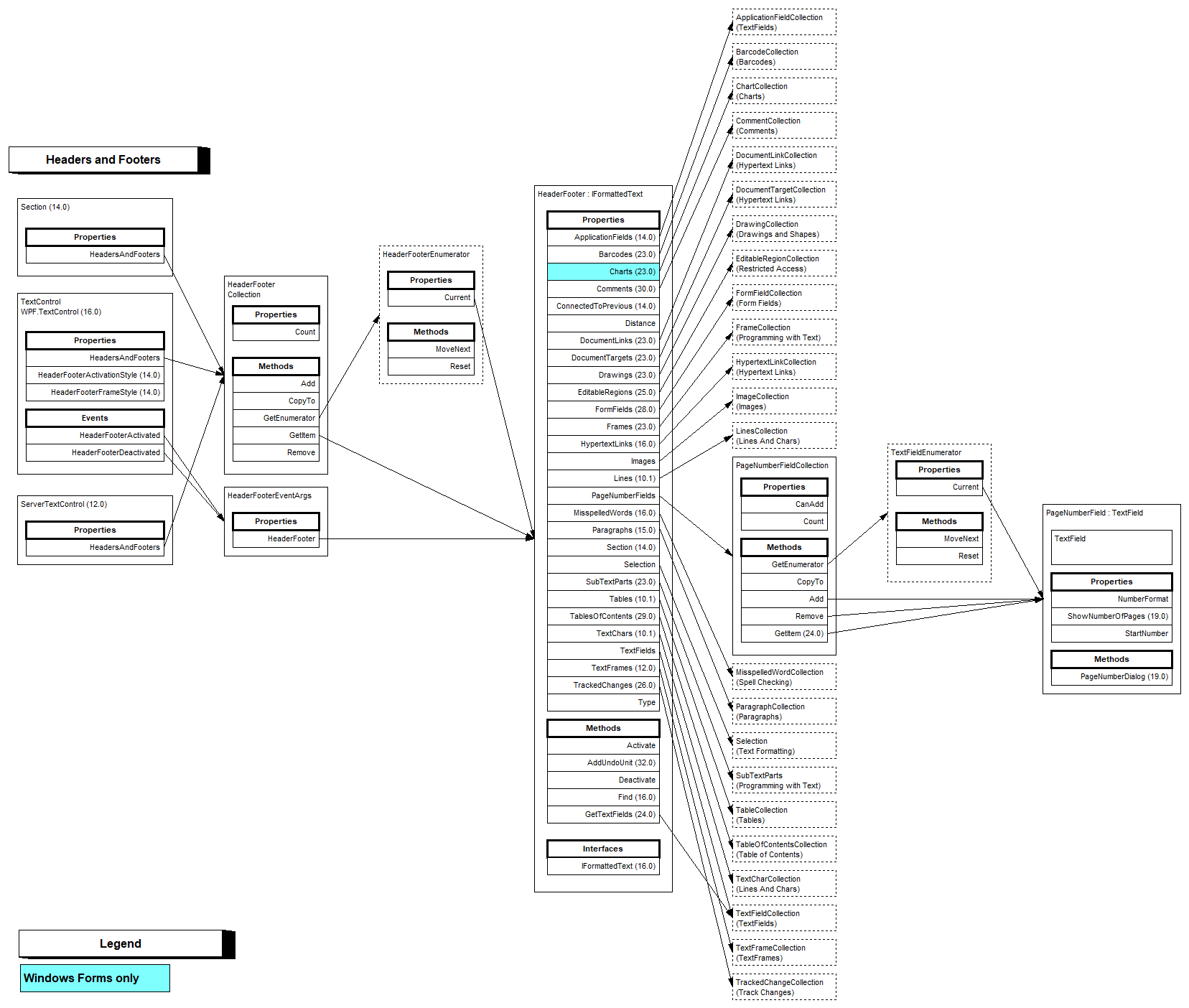
Each header or footer has a type from HeaderFooterType:
| Type | Appears on |
|---|---|
Header, Footer | Every page, or the odd pages if the section has an even header or footer |
FirstPageHeader, FirstPageFooter | The first page of the section |
EvenHeader, EvenFooter | The even pages. Adding one also creates the odd header or footer |
A new section takes over the headers and footers of the previous one, connected to them so that both show the same content. HeaderFooter.ConnectedToPrevious set to false gives a section a header of its own.
Add Headers and Footers in the Ribbon
The Headers & Footers group of the Insert tab has three buttons:
- Header edits the header of the current section, and its menu has Edit Header and Remove Header.
- Footer does the same for the footer, with Edit Footer and Remove Footer.
- Page Number is enabled while a header or footer is being edited. Its menu has Insert Page Number, Format Page Number... and Remove Page Number.
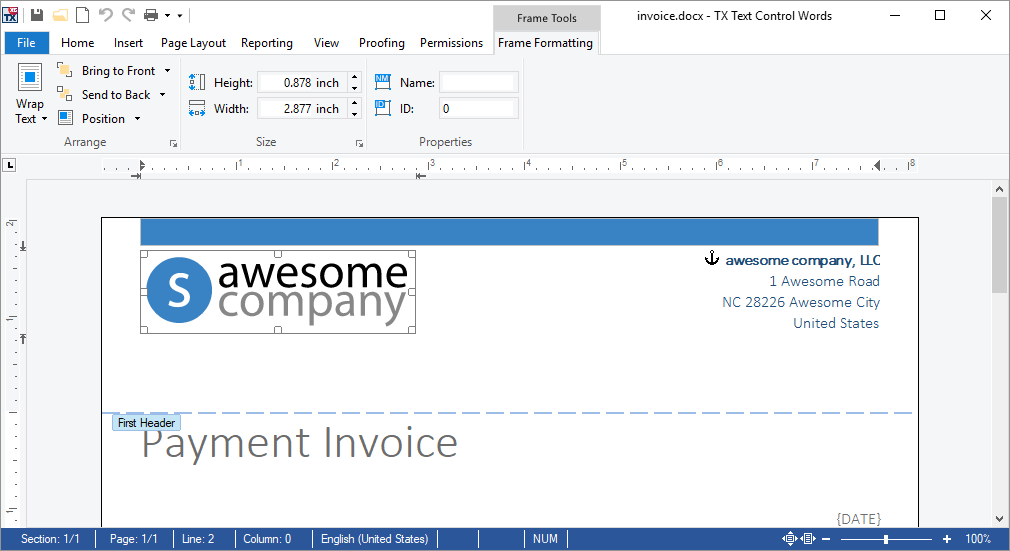
While a header or footer is activated, the input position is inside it. TX Text Control Words marks an activated header with a dashed line and a label such as First Header:
The Headers and Footers tab of the Page Setup dialog box sets all headers and footers at once. Header, Header on first, Footer and Footer on first choose the design, Different header odd and even and Different footer odd and even add the even variants, and Distance from edge sets the positions. With Apply to set to Whole document, the Header and Footer lists offer None, All sections equal and All sections different; for the current section, None, Same as previous section and This section different.
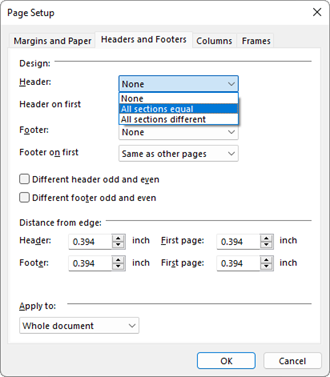
SectionFormatDialog opens this dialog box from code, and SectionFormatDialog(1) opens it on the Headers and Footers tab.
Put Images and Other Content Into a Header
A header has the same collections as the main text: HeaderFooter.Images takes a logo, HeaderFooter.Tables a table and HeaderFooter.Barcodes a barcode, with the same Add methods as in Images and Charts and Barcodes. An image in a header that lies behind the text appears on every page of the section, like a watermark. The blog article Merging Multiple Records with First-Page Headers and Footers combines first page headers with a mail merge.
Next Steps
- Sections and Page Layout: give a section its own page settings and headers.
- Fields, Hyperlinks, and Bookmarks: the other fields of a document.
- Footnotes: notes at the bottom of the page.
- Sections, Pages, Headers, and Footers: headers and footers with
ServerTextControl.