
MSIX Packaging and Microsoft Store Deployment
MSIX is the Windows packaging format for apps that are sideloaded or published to the Microsoft Store. A .NET Windows Forms application with TX Text Control is packaged with a Windows Application Packaging Project in Visual Studio, which takes your application project and its NuGet package references and builds an installable package. The steps below create the package, install it for a test and, optionally, run the application in an AppContainer with limited access to the system.
Prerequisites
A Windows Forms application for .NET 8 or higher that references
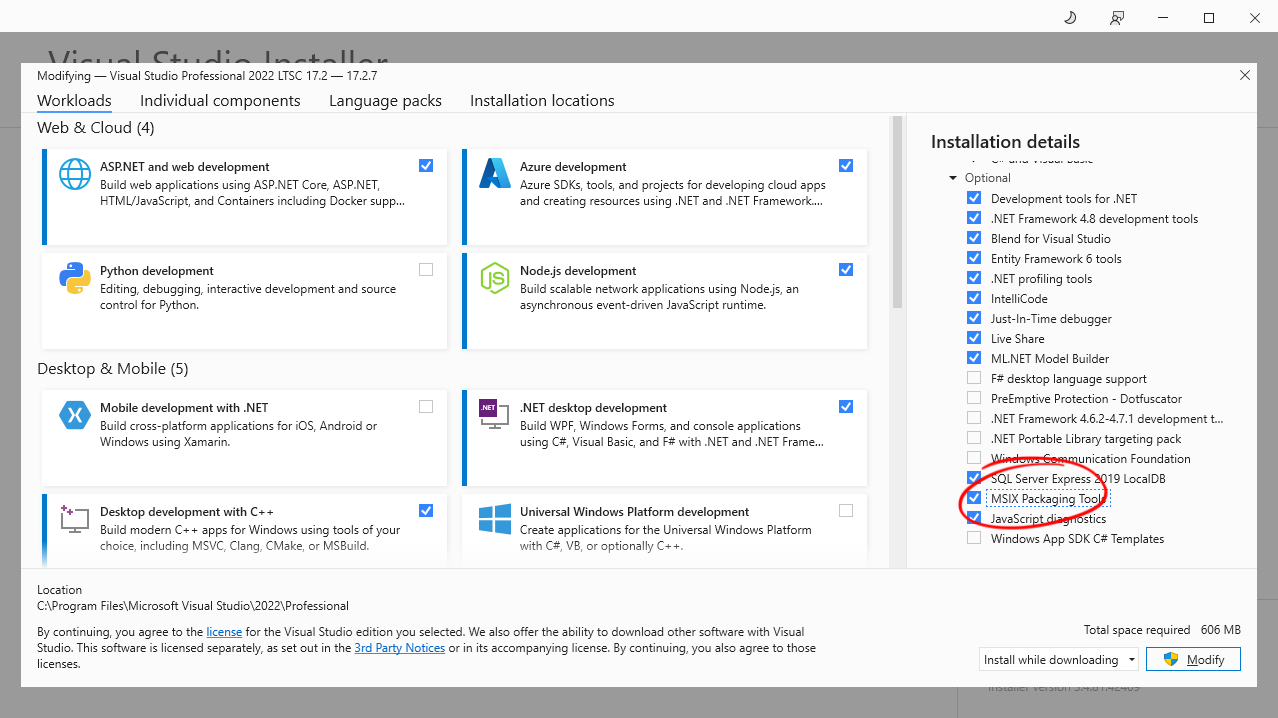
TXTextControl.TextControl.WinForms.SDK; see Create Your First Windows Forms Application.The MSIX Packaging Tools of Visual Studio. In the Visual Studio Installer, select Modify, open the workload .NET desktop development, and check the optional component MSIX Packaging Tools.
Add the Packaging Project
Right-click the solution in Solution Explorer, and choose Add > New Project.
Select the template Windows Application Packaging Project, and click Next.
Enter a project name, and click Create.
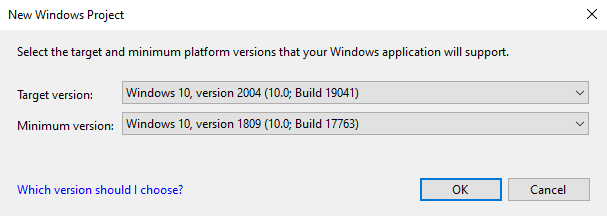
Select the target and minimum Windows versions of the package, and click OK. Text Control's article selects Windows 10, version 1809 as the minimum:
Right-click the packaging project, choose Add > Project Reference, check your Windows Forms project, and click OK.
Right-click the packaging project, and choose Set as Startup Project.
Under Dependencies > Applications of the packaging project, Solution Explorer now shows your application with its reference to TXTextControl.TextControl.WinForms.SDK. The files of TX Text Control come into the package through this reference.
Create the App Package
Select the packaging project, and choose Project > Publish > Create App Packages.
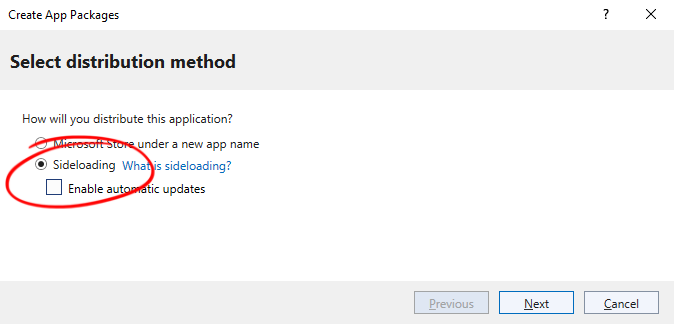
Choose how you distribute the application: Sideloading for installation outside the Store, or the Microsoft Store. For a test, select Sideloading, clear Enable automatic updates, and click Next:
Select Yes, select a certificate, and choose a certificate to sign the package with. Without one, click Create to create a self-signed certificate. Click Next.
Select the architectures to create packages for, such as x64, and click Create:
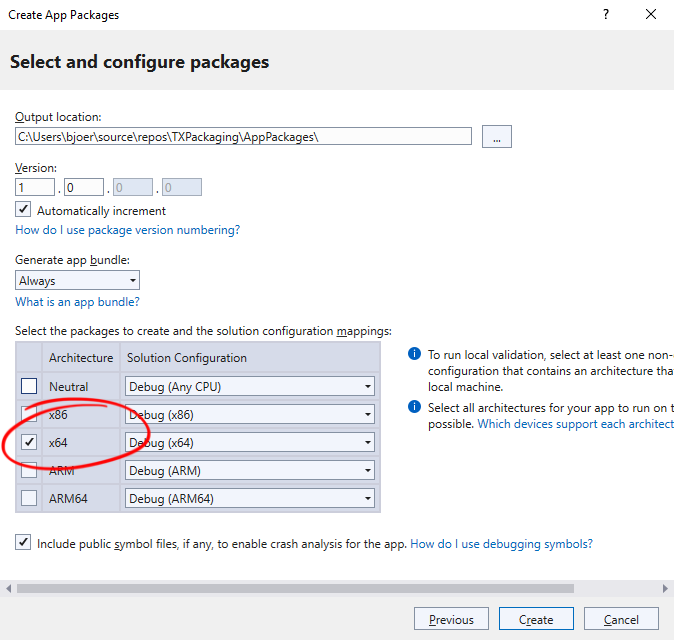
Text Control's article creates an x64 package. x86, x64, and AnyCPU explains what the platform means for the native libraries of TX Text Control.
Install a Sideloaded Package
A package signed with a self-signed certificate installs only on a machine that trusts the certificate.
In the output folder of the package, right-click the certificate file with the extension .cer, and choose Install Certificate.
Select Local Machine, and click Next.
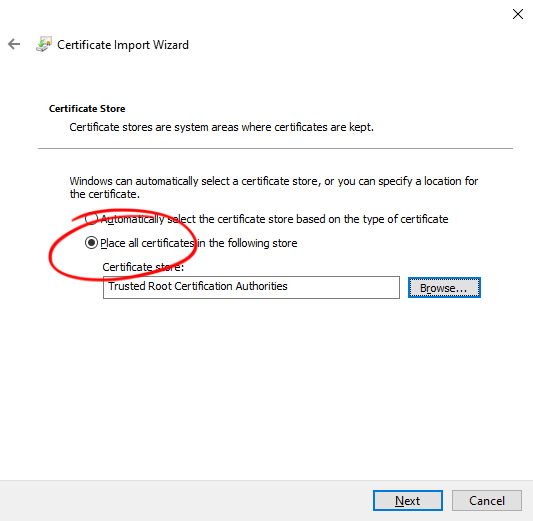
Select Place all certificates in the following store, browse for Trusted Root Certification Authorities, and click Next and Finish.
Double-click the .msixbundle file, and click Install.
The application starts after the installation.
Run the Application in an AppContainer
A packaged .NET application can run in an AppContainer, an isolated environment in which it can reach system resources such as the camera, the microphone, the location or user data only when the package requests them.
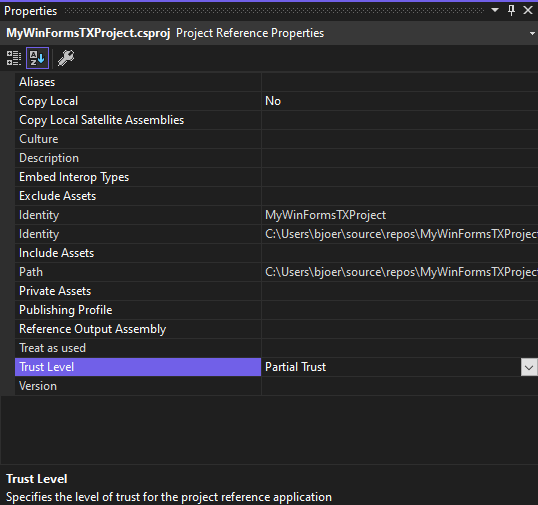
In Solution Explorer, expand Dependencies > Applications of the packaging project, and select your application.
In the Properties window, set Trust Level to Partial Trust:
Open Package.appxmanifest of the packaging project, go to the Capabilities tab, and check each resource the application needs:
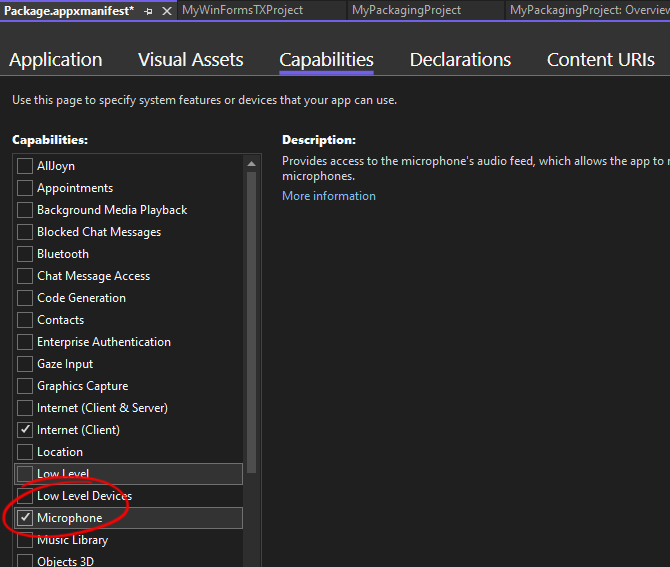
When the application runs with partial trust, it reaches only the resources checked there. If it can't open files or devices it reached before packaging, see An MSIX Package Runs With Limited Access.
Learn More
- The blog article Deploying Windows Forms and WPF to Windows Store using MSIX packages and sideloads a Windows Forms application with a ribbon, written for version 31.0 and .NET 6.
- The blog article Secure and Deploy .NET Windows Forms Apps with MSIX AppContainer Apps sets up the AppContainer, written for version 32.0 and .NET 8.
Next Steps
- Publishing .NET Applications: deploy the application as a folder instead.
- Redistribution Overview: the files of TX Text Control in any deployment.
- CI/CD: build the application on a build server.