
Data Binding and Database Storage
Windows Forms data binding connects a property of one object to a property of another, so that a value shown in a control follows the data without event handlers. With a TextControl, it serves two purposes: controls such as check boxes and combo boxes follow the formatting at the input position, and the document itself comes from and goes back to a record of a table. The sections below cover both and end with reading and writing documents in a database.
Filling a template with the values of a database, rather than editing a stored document, is mail merge: see Mail Merge and DataSets and DataTables.
What Can Be Bound
| Binding | Source | Page section |
|---|---|---|
| Formatting at the input position, such as bold text or the font | InputFormat, returned by TextControl.InputFormat | Bind Controls to the Formatting |
| The document of the current record | A property of your own that calls Load and Save | Bind the Document to a Record |
| A document column of a table, loaded and saved when the record changes | The CurrentChanged event of a BindingSource | Load and Save When the Record Changes |
TextControl has no documented property that holds the formatted document, the way the Rtf property of a RichTextBox does. The content therefore reaches a data source through Load and Save, either inside a bindable property or in an event handler.
Bind Controls to the Formatting
InputFormat represents the formatting attributes at the current input position. Its properties are updated when the input position moves, which makes the object a data source for the DataBindings of other controls. If text is selected and the selection has no common value for an attribute, the property is null.
The following Form1.cs belongs to a form with a TextControl named textControl1, a CheckBox named checkBoxBold and two ComboBox controls named comboBoxFont and comboBoxSize, all added in the designer:
using System;
using System.Windows.Forms;

namespace MyWinFormsApp
{
    public partial class Form1 : Form
    {
        public Form1()
        {
            InitializeComponent();
            Load += Form1_Load;
        }

        private void Form1_Load(object sender, EventArgs e)
        {
            // A check box that shows and sets bold text
            checkBoxBold.DataBindings.Add("Checked", textControl1.InputFormat, "Bold",
                true, DataSourceUpdateMode.OnPropertyChanged);

            // A combo box with the fonts of the editor
            comboBoxFont.DataSource = textControl1.GetSupportedFonts();
            comboBoxFont.DataBindings.Add("Text", textControl1.InputFormat, "FontFamily",
                true, DataSourceUpdateMode.OnPropertyChanged);

            // A combo box for the font size: InputFormat uses twips, the box shows points
            Binding sizeBinding = new Binding("Text", textControl1.InputFormat, "FontSize",
                true, DataSourceUpdateMode.OnPropertyChanged);
            sizeBinding.Format += SizeBinding_Format;
            sizeBinding.Parse += SizeBinding_Parse;
            comboBoxSize.DataBindings.Add(sizeBinding);
        }

        private void SizeBinding_Format(object sender, ConvertEventArgs e)
        {
            // Twips to points for the display
            if (e.Value is int twips)
            {
                e.Value = (twips / 20).ToString();
            }
        }

        private void SizeBinding_Parse(object sender, ConvertEventArgs e)
        {
            // Points to twips for the editor
            if (int.TryParse(e.Value as string, out int points))
            {
                e.Value = points * 20;
            }
        }
    }
}
Keep the namespace Visual Studio created for your project. Set the Appearance of the check box to Button in the designer if it should look like a toolbar button.
The code works as follows:
DataBindings.Addconnects a property of the control, such asChecked, to a property of the data source, here InputFormat.Bold.DataSourceUpdateMode.OnPropertyChangedwrites a change of the check box to the editor at once, so that clicking it makes the selected text bold.- GetSupportedFonts returns the names of the fonts the editor can use. It returns
nullbefore the control is completely initialized, which is why the bindings are set up in theLoadevent of the form. TheTextof the combo box follows InputFormat.FontFamily. - InputFormat.FontSize is in twips, a twentieth of a point. Windows Forms has no value converters for this, so the
Formatevent of theBindingconverts twips to points for the combo box and theParseevent converts the typed value back.
The same pattern works for every property of InputFormat, from Italic and Underline to the paragraph alignment and the list format.
Bind the Document to a Record
A property that loads and saves the document makes the content bindable like any other property. The following class derives from TextControl and adds an Rtf property, which reads and writes the document as an RTF string. Add it as RtfTextControl.cs to the project:
using System.ComponentModel;
using TXTextControl;
namespace MyWinFormsApp
{
public class RtfTextControl : TXTextControl.TextControl
{
public RtfTextControl()
{
// Create the control now, so that Load and Save work before the form is shown
CreateControl();
}
[]
[]
public string Rtf
{
get
{
string data;
Save(out data, StringStreamType.RichTextFormat);
return data;
}
set
{
if (string.IsNullOrEmpty(value))
{
ResetContents();
}
else
{
Load(value, StringStreamType.RichTextFormat);
}
}
}
}
}
Build the project, and RtfTextControl appears in the toolbox. Add it to a form with a BindingSource named bindingSource1 and a BindingNavigator named bindingNavigator1, and bind it in the Load event of the form:
private void Form1_Load(object sender, EventArgs e)
{
    // Three records with an RTF column
    DataTable table = new DataTable("Letters");
    table.Columns.Add("Body", typeof(string));
    table.Rows.Add(@"{\rtf1 First letter\par}");
    table.Rows.Add(@"{\rtf1 Second letter\par}");
    table.Rows.Add(@"{\rtf1 Third letter\par}");

    bindingSource1.DataSource = table;
    bindingNavigator1.BindingSource = bindingSource1;

    // Bind the Rtf property to the Body column
    rtfTextControl1.DataBindings.Add("Rtf", bindingSource1, "Body");
}
It needs using System.Data; for DataTable. Run the application and click the arrows of the navigator: the editor shows the letter of each record.
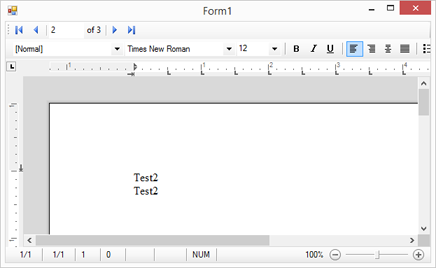
The code works as follows:
- The getter of
Rtfcalls Save with StringStreamTypeRichTextFormat; the setter calls Load, or ResetContents for an empty value.HTMLFormatworks the same way for an HTML column. - The two attributes keep the property out of the Properties window and out of the code the designer writes.
- Windows Forms reads the getter when it writes the value back to the record, by default when the control is validated, for example when the user moves the focus to another control. The edits of a letter are then in its row of the table.
Text Control publishes this approach as the sample TextControl.WindowsForms.PropertyBinding, described in the blog article RichTextBox Compatible Data Binding with TX Text Control.
Load and Save When the Record Changes
Instead of a derived control, an event handler can move the document between the editor and the table. The CurrentChanged event of a BindingSource occurs when the user moves to another record: the handler first stores the document of the record that is left and then loads the one of the new record. The following form keeps the documents in a byte array column, in the TX Text Control format:
using System;
using System.Data;
using System.Windows.Forms;
using TXTextControl;

namespace MyWinFormsApp
{
    public partial class Form1 : Form
    {
        private readonly DataTable documents = new DataTable("Documents");
        private DataRowView currentRow;

        public Form1()
        {
            InitializeComponent();
            Load += Form1_Load;
            FormClosing += Form1_FormClosing;
        }

        private void Form1_Load(object sender, EventArgs e)
        {
            // Id, name and content of each document
            documents.Columns.Add("Id", typeof(int));
            documents.Columns.Add("Name", typeof(string));
            documents.Columns.Add("Content", typeof(byte[]));

            // Fill the table from your database here
            documents.Rows.Add(1, "Offer", null);
            documents.Rows.Add(2, "Contract", null);

            bindingSource1.DataSource = documents;
            bindingSource1.CurrentChanged += BindingSource1_CurrentChanged;
            BindingSource1_CurrentChanged(bindingSource1, EventArgs.Empty);
        }

        private void BindingSource1_CurrentChanged(object sender, EventArgs e)
        {
            // Keep the edits of the document the user leaves
            StoreCurrentDocument();

            currentRow = bindingSource1.Current as DataRowView;
            if (currentRow == null)
            {
                return;
            }

            // Show the document of the new record
            if (currentRow["Content"] is byte[] content)
            {
                textControl1.Load(content, BinaryStreamType.InternalUnicodeFormat);
            }
            else
            {
                textControl1.ResetContents();
            }
        }

        private void StoreCurrentDocument()
        {
            if (currentRow == null)
            {
                return;
            }

            byte[] content;
            textControl1.Save(out content, BinaryStreamType.InternalUnicodeFormat);
            currentRow["Content"] = content;
        }

        private void Form1_FormClosing(object sender, FormClosingEventArgs e)
        {
            StoreCurrentDocument();
            // Write the changed rows of documents to your database here
        }
    }
}
The form has a TextControl named textControl1 and a BindingSource named bindingSource1; a BindingNavigator or a ListBox bound to bindingSource1 lets the user choose the record.
The code works as follows:
- BinaryStreamType
InternalUnicodeFormatis the TX Text Control format. It keeps everything the editor supports, so a document looks the same the next time it is loaded. Store Documents in a Database explains why Text Control recommends it for documents that are still edited. StoreCurrentDocumentruns before a new record is loaded and when the form closes, so that no edit is lost.- A new record with an empty
Contentcolumn gets an empty document.
A Microsoft SQL Server sample of Text Control, described in Using TX Text Control As a Bound Control with MS SQL Server, uses the same event with a TableAdapter created by the Visual Studio data wizards and stores RTF strings.
Read and Write Documents in a Database
A document column holds binary data: varbinary(max) in SQL Server, for example, or BLOB in other databases. Pass the byte array as a parameter of the command; the classes of System.Data.Common work with the provider of any database:
using System.Data;
using System.Data.Common;

namespace MyWinFormsApp
{
    public static class DocumentStore
    {
        public static void SaveDocument(DbConnection connection, int id, byte[] content)
        {
            using DbCommand command = connection.CreateCommand();
            command.CommandText = "UPDATE Documents SET Content = @content WHERE Id = @id";

            DbParameter contentParameter = command.CreateParameter();
            contentParameter.ParameterName = "@content";
            contentParameter.DbType = DbType.Binary;
            contentParameter.Value = content;
            command.Parameters.Add(contentParameter);

            DbParameter idParameter = command.CreateParameter();
            idParameter.ParameterName = "@id";
            idParameter.Value = id;
            command.Parameters.Add(idParameter);

            command.ExecuteNonQuery();
        }

        public static byte[] LoadDocument(DbConnection connection, int id)
        {
            using DbCommand command = connection.CreateCommand();
            command.CommandText = "SELECT Content FROM Documents WHERE Id = @id";

            DbParameter idParameter = command.CreateParameter();
            idParameter.ParameterName = "@id";
            idParameter.Value = id;
            command.Parameters.Add(idParameter);

            return command.ExecuteScalar() as byte[];
        }
    }
}
Open the connection with the provider of your database, such as SqlConnection of the package Microsoft.Data.SqlClient, and pass it in. The @ prefix of the parameter names is the one SQL Server and SQLite use; other providers may expect another. The editor side stays the same: Save(out content, BinaryStreamType.InternalUnicodeFormat) before SaveDocument, and Load(content, BinaryStreamType.InternalUnicodeFormat) after LoadDocument.
To store documents for display or exchange rather than for further editing, save them as DOCX or PDF with BinaryStreamType.WordprocessingML or AdobePDF instead; these formats require the Professional or Enterprise edition, see Editions and Feature Availability.
Next Steps
- Loading and Saving Documents: every format, and the settings of
LoadandSave. - Events: track unsaved changes with the
Changedevent. - Integrating Existing Menus and Toolbars: connect the menus and toolbars of your form to the editor.
- DataSets and DataTables: merge database tables into templates.