
Embedding the Editor in Forms and UserControls
An application rarely consists of one form with one editor. A contract editor becomes a user control that several forms reuse, a mail client shows the text of each message in its own tab, and a word processor gets a ribbon in the title bar. Because the TextControl is a Windows Forms control, it fits into all of these containers; what needs attention is the license of a control library and the bars that belong to one editor at a time.
The samples are C# code for a Windows Forms project with the package TXTextControl.TextControl.WinForms.SDK. They create the controls in code, as Creating and Configuring Controls in Code describes; in the designer, you draw the same controls onto the user control or the tab page.
Choose a Container
| Container | Use it when | What to take care of |
|---|---|---|
| A form | One editor fills a window | Docking; see Creating and Configuring Controls in Code |
| A RibbonForm | The window has a ribbon with a Quick Access Toolbar in its title bar | The form derives from RibbonForm instead of Form |
A UserControl | The same editor, with its bars and commands, appears in several forms or applications | The license, when the user control is in a control library |
A TabControl or a SplitContainer | Several documents are open at once | One set of bars for all editors, or one set per editor |
Put the Editor Into a UserControl
A user control bundles the editor, its bars and your own methods, so that a form only places the user control and calls its methods. The following user control holds an editor with a button bar and gives the form methods to load and save the document:
using System.Windows.Forms;
using TXTextControl;

public partial class EditorControl : UserControl
{
    private readonly TextControl textControl1;
    private readonly ButtonBar buttonBar1;

    public EditorControl()
    {
        // The license is compiled into this control library
        TextControl.EntryAssembly = typeof(EditorControl).Assembly;

        InitializeComponent();

        buttonBar1 = new ButtonBar() { Dock = DockStyle.Top };
        textControl1 = new TextControl() { Dock = DockStyle.Fill };
        Controls.Add(textControl1);
        Controls.Add(buttonBar1);
        textControl1.ButtonBar = buttonBar1;
    }

    // Give the host access to the editor
    public TextControl Editor => textControl1;

    // Load and save a document in the internal format of TX Text Control
    public void LoadDocument(byte[] data) =>
        textControl1.Load(data, BinaryStreamType.InternalUnicodeFormat);

    public byte[] SaveDocument()
    {
        textControl1.Save(out byte[] data, BinaryStreamType.InternalUnicodeFormat);
        return data;
    }
}
The code works as follows:
- TextControl.EntryAssembly names the assembly that contains the license. By default, it is the executable of the application. When the user control is in a control library that the executable doesn't license itself, set the property to the library, before the first
TextControlis created. This works since version 32.0 with Service Pack 2; Application Licensing describes it. A user control in the application's own project doesn't need the line. Editorgives the form direct access to theTextControl, for example to its Selection. Leave it out if the form should only use the methods of the user control.- Load and Save exchange the document as a byte array, which suits a database field.
BinaryStreamType.InternalUnicodeFormatis the internal format of TX Text Control, which keeps every feature of the document.
After a build, Visual Studio lists EditorControl in the toolbox, and you draw it onto a form like any other control.
Put Several Editors in Tab Pages
Each document gets its own TextControl: a new TabPage for each document, with an editor docked to fill it, added to the TabPages of a TabControl. The method AddDocumentTab in the code of the next section does this.
The editors are independent of each other: each has its own document, its own undo history and its own selection. They can also share bars, as the next section shows, or each get a button bar and status bar of their own, created in the same tab page.
Give the Window a Ribbon Title Bar
A form that hosts a ribbon can derive from RibbonForm instead of Form. The RibbonForm draws the Quick Access Toolbar and the headers of contextual tabs, such as Table Tools, in the title bar of the window. In the TX Words sample, a RibbonForm, the title bar holds the Quick Access Toolbar at the left and the header Chart Tools above the contextual tabs of a selected chart:
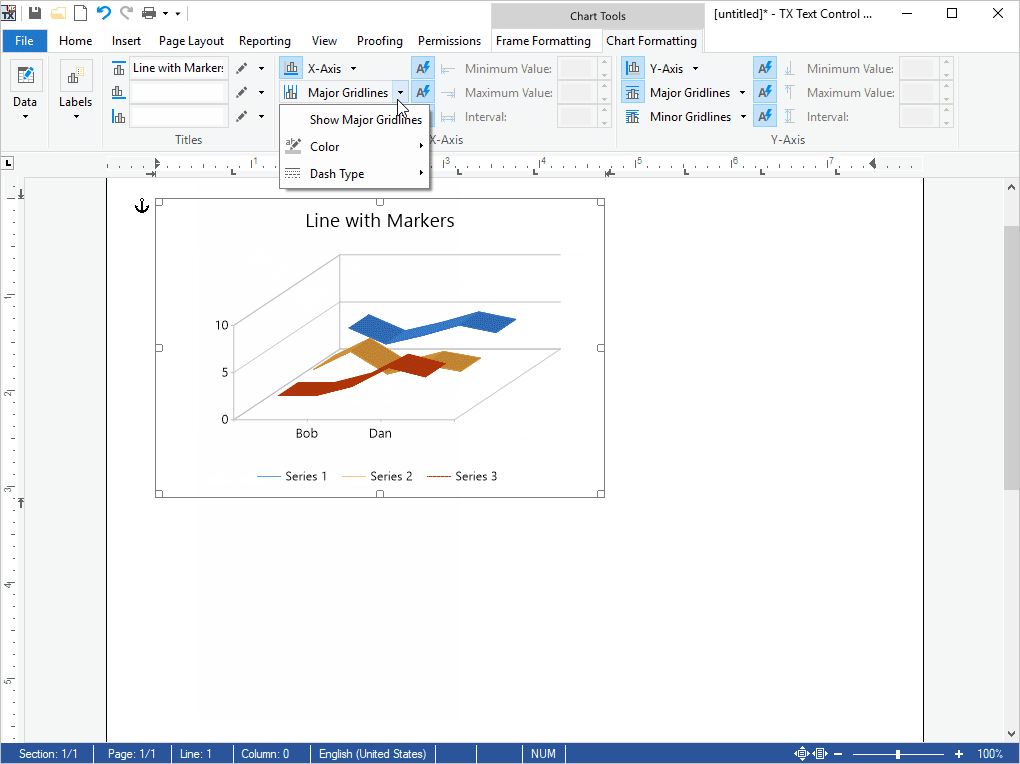
In the designer, click Convert to a RibbonForm in the smart tag of the ribbon; in code, change the base class:
using TXTextControl.Windows.Forms.Ribbon;

public partial class Form1 : RibbonForm
{
    public Form1()
    {
        InitializeComponent();
    }
}
The ribbon is part of the Enterprise and Professional editions; see Editions and Feature Availability. Create a Ribbon Application with Sidebar Support builds such a window step by step.
Next Steps
- Creating and Configuring Controls in Code: create, connect and dispose of the controls in code.
- Data Binding and Database Storage: store the documents of the editors in a database.
- Integrating Existing Menus and Toolbars: connect menus and toolbars of your application to the active editor.
- Application Licensing: the license in executables, class libraries and user controls.