
DataSets and DataTables
Data that comes from a database usually arrives in ADO.NET form: a DataTable per query, collected in a DataSet. MailMerge merges such tables directly, and the relations of the DataSet connect the master records with the rows of their merge blocks. Here you merge a single table, merge related tables for merge blocks and prefixed fields, make the tables available in the Reporting tab and let users connect a database there.
The examples use the invoice of the Mail Merge tutorials in Getting Started, as tables: an Invoice table with the columns Company, Name and InvoiceNumber, and an Items table for the merge block Items.
Merge a DataTable
Merge takes a DataTable. The column names are the field names, and the template is merged once for each row: a table with 50 rows creates 50 letters. The second parameter, append, decides whether they form one document (true) or separate documents (false).
Offer the Tables in the Reporting Tab
LoadDataSet of the tab's DataSourceManager loads a DataSet with its relations for template design, and LoadDataTable a single table:
private void Form1_Load(object sender, EventArgs e)
{
    ribbonReportingTab1.DataSourceManager.LoadDataSet(CreateInvoiceData());
}
Users then choose the master table with Select Master Table. Insert Merge Field lists its columns, and Insert Merge Block the tables related to it, which PossibleMergeBlockTables returns in code.
Edit Relations in the Designer
When the loaded tables lack a relation, users add it with Edit Data Relations in the Data Source group of the Reporting tab. In the Create Data Relation dialog box, they choose a main table and a child table and check the column that connects them in each:
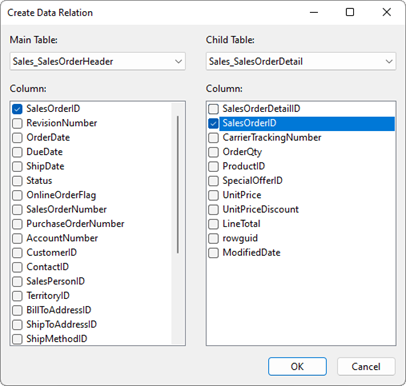
Your code opens the same functionality with EditDataRelationsDialog, and DataRelations lists the relations afterward:
using System.Diagnostics;
using TXTextControl.DocumentServer.DataSources;
using TXTextControl.DocumentServer.Windows.Forms;
private void relationsButton_Click(object sender, EventArgs e)
{
    DataSourceManager dataSourceManager = ribbonReportingTab1.DataSourceManager;

    // Let the user add or remove relations between the loaded tables
    using (EditDataRelationsDialog dialog = new EditDataRelationsDialog(dataSourceManager))
    {
        dialog.ShowDialog(this);
    }

    foreach (DataRelationInfo relation in dataSourceManager.DataRelations)
    {
        Debug.WriteLine($"{relation.ParentTableName} -> {relation.ChildTableName}");
    }
}
These relations belong to the DataSourceManager, the data of the designer. To merge with them, save them together with a database connection in a data source configuration file, or add the same relations to the DataSet your code merges.
Connect a Database in the Designer
In Windows Forms, users can connect the Reporting tab to a database themselves. Data Source in the Select Data Source drop-down opens the Choose Data Source dialog box, where they pick the kind of database and the data provider and then build the connection:
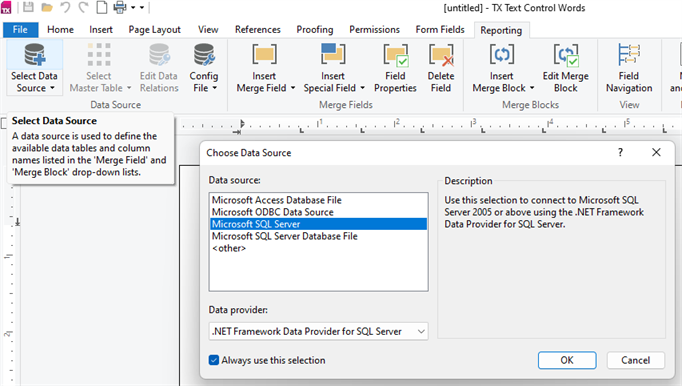
The dialog is DatabaseConnectionDialog, which your code can open with the DataSourceManager it should connect. After the connection, ConnectionString and DataProviderName return the selected connection:
using System;
using System.Windows.Forms;
using TXTextControl.DocumentServer.DataSources;
using TXTextControl.DocumentServer.Windows.Forms;
private void connectButton_Click(object sender, EventArgs e)
{
    DataSourceManager dataSourceManager = ribbonReportingTab1.DataSourceManager;

    using (DatabaseConnectionDialog dialog = new DatabaseConnectionDialog(dataSourceManager))
    {
        dialog.ShowDialog(this);
    }

    MessageBox.Show(this, dataSourceManager.DataProviderName + Environment.NewLine + dataSourceManager.ConnectionString);
}
A connected database is the one kind of data source that can be saved as a configuration file and merged later without code that queries it; Data Source Configuration Files describes the steps.
Replace MergeBlocks in Older Code
Code written for older versions may call MergeBlocks, which merges the blocks of a template with the tables of a DataSet whose names match the block names. The method is obsolete: since version 20.0, Merge merges blocks from the related tables of the master table, as shown above. Deprecated APIs lists it with its replacement.
Next Steps
- JSON and XML: XML files read into a
DataSet, and JSON data. - Data Source Configuration Files: merge a database with the relations defined in the designer.
- Nested Blocks and Master-Detail Reports: relations over several levels.
- Merge Blocks: design the blocks that related tables fill.