
Document Properties
A document carries information about itself: a title, an author, a subject, keywords, the application that created it, and properties you define, such as a department or a revision number. Document management systems search and sort documents by them, and users of Microsoft Word can view them. In TX Text Control .NET for Windows Forms, you read and change them for the document in the editor, let users edit them in a sidebar, and decide which values are written when the document is saved.
The examples use a TextControl named textControl1 on Form1, as in Load and Save Documents, and need using TXTextControl;.
What Document Properties Are
TextControl.DocumentSettings returns a DocumentSettings object with the properties of the document the user is working on. When a document is loaded, the object is filled with the document's values, and when it is saved, all values are stored automatically. DocumentSettings was introduced in version 29.0.
| Property | Contains | Without a value |
|---|---|---|
| DocumentTitle | The title | An empty string |
| Author | The author | An empty string |
| DocumentSubject | The subject | An empty string |
| DocumentKeywords | The keywords, as a string array | null |
| CreationDate | The creation date | January 1, 0001 |
| CreatorApplication | The application that created the document | An empty string |
| DocumentBasePath | A path added to the relative paths of images and hypertext links | |
| UserDefinedDocumentProperties | The properties you define | null |
| EmbeddedFiles | Files embedded in a PDF document | null |
Check DocumentKeywords, UserDefinedDocumentProperties and EmbeddedFiles for null before you use them. DocumentSettings has no modification date: set it with SaveSettings.LastModificationDate when you save, as shown below, and read it from LoadSettings.LastModificationDate after loading.
Set the Properties in Code
The following Click handler of a button named setPropertiesButton sets the standard properties and three user-defined properties:
private void setPropertiesButton_Click(object sender, EventArgs e)
{
    DocumentSettings settings = textControl1.DocumentSettings;

    settings.DocumentTitle = "Quarterly Report";
    settings.Author = "Sales Department";
    settings.DocumentSubject = "Results of the third quarter";
    settings.DocumentKeywords = new string[] { "sales", "report", "Q3" };

    // null if the document has no user-defined properties yet
    UserDefinedPropertyDictionary properties =
        settings.UserDefinedDocumentProperties ?? new UserDefinedPropertyDictionary();

    SetProperty(properties, "Department", "Sales");
    SetProperty(properties, "Revision", 3);
    SetProperty(properties, "Approved", false);

    settings.UserDefinedDocumentProperties = properties;
}

private static void SetProperty(UserDefinedPropertyDictionary properties, string name, object value)
{
    if (properties.Contains(name))
    {
        properties.Remove(name);
    }

    properties.Add(name, value);
}
The code works as follows:
- Standard properties. The strings and the keyword array are assigned directly. They are saved with the document the next time your code or the user saves it.
- User-defined properties. A UserDefinedPropertyDictionary holds them as name and value pairs. A name is a string of at most 255 characters, and a value is a
string,bool,intordouble. - Changing a value.
SetPropertyremoves an existing entry with Contains and Remove before Add stores the new value.
Read the Properties of a Loaded Document
After a document has been loaded, DocumentSettings contains its values. The DocumentLoaded event is the place to read them, for example to show them in your own panel. Connect the handler in the constructor with textControl1.DocumentLoaded += textControl1_DocumentLoaded; and add using System.Collections; and using System.Diagnostics;:
private void textControl1_DocumentLoaded(object sender, EventArgs e)
{
    DocumentSettings settings = textControl1.DocumentSettings;

    Debug.WriteLine("Title: " + settings.DocumentTitle);
    Debug.WriteLine("Author: " + settings.Author);
    Debug.WriteLine("Created: " + settings.CreationDate);

    // null if the document has no keywords
    if (settings.DocumentKeywords != null)
    {
        Debug.WriteLine("Keywords: " + string.Join(", ", settings.DocumentKeywords));
    }

    if (settings.UserDefinedDocumentProperties != null)
    {
        foreach (DictionaryEntry property in settings.UserDefinedDocumentProperties)
        {
            Debug.WriteLine(property.Key + " = " + property.Value);
        }
    }
}
Enumerating a UserDefinedPropertyDictionary returns DictionaryEntry objects with the name in Key and the value in Value. Names returns the names alone, and the indexer Item the value of one name.
The LoadSettings object passed to Load returns the same values in read-only properties, such as DocumentTitle and UserDefinedDocumentProperties. Use them when you load a document with a ServerTextControl or need the values of one load operation only.
Let Users Edit the Properties
The DocumentSettings panel of the Sidebar edits the properties of the document in a connected TextControl. The user types the title, author, subject and keywords (Tags) into text boxes, sees the creation date and manages user-defined properties with Add... and Delete under Custom Properties. When the content of the editor is reset, the creation date is set to the current date; for a loaded document, it's the date stored in the document. The panel also lists the files embedded in a PDF document, as Attachments describes.
Select a sidebar on the form, set its TextControl property to textControl1 and its ContentLayout to DocumentSettings, in the Properties window or its smart tag. To open the panel from a button of your own, set the layout in code and show the sidebar:
private void documentSettingsButton_Click(object sender, EventArgs e)
{
    // Show the document settings panel of the sidebar
    sidebar1.TextControl = textControl1;
    sidebar1.ContentLayout = TXTextControl.Windows.Forms.Sidebar.SidebarContentLayout.DocumentSettings;
    sidebar1.IsShown = true;
}
The TX Words sample application shows this panel in its left sidebar, opened from a Document Settings item of its application menu:
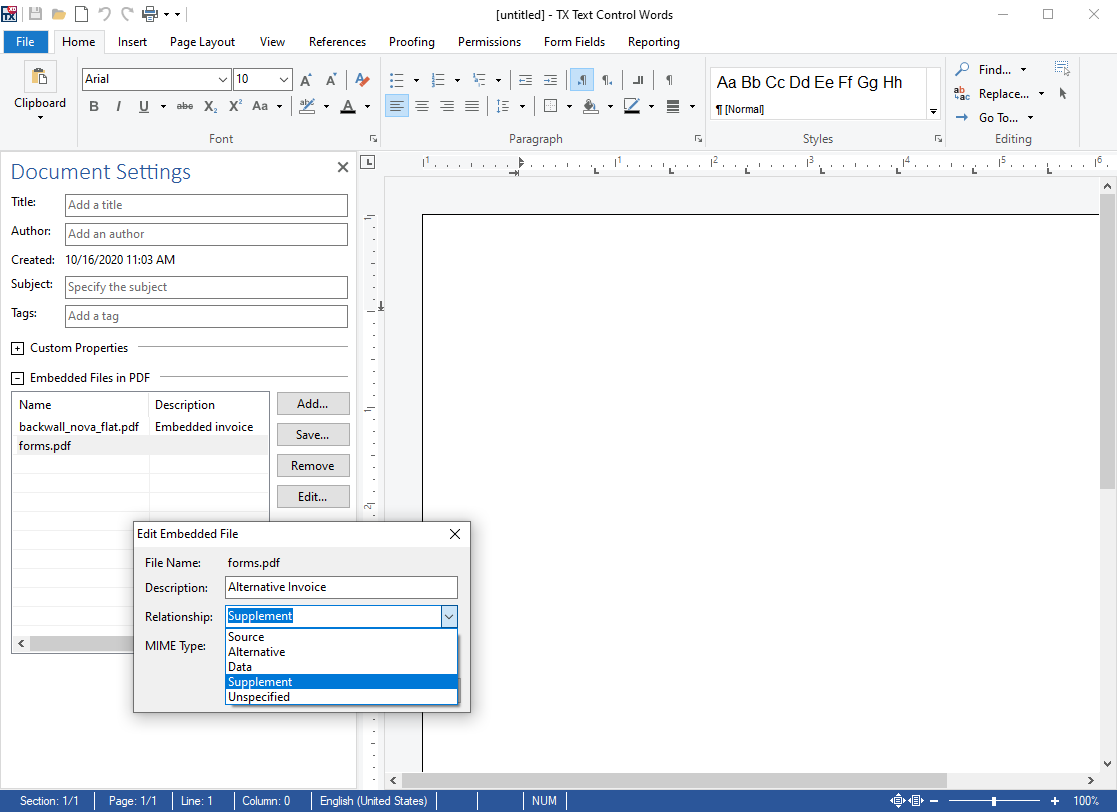
The panel edits the values of DocumentSettings, so whatever the user enters is saved with the next Save. Sidebar and Panels describes the sidebar, its other panels and how to hide single elements of a panel.
Override Values When Saving
A SaveSettings object passed to Save overwrites the values of DocumentSettings in the saved file. A property you leave empty in SaveSettings is taken from DocumentSettings, so a loaded document keeps its properties when it's saved again. Its properties include Author, DocumentTitle, DocumentSubject, DocumentKeywords, CreationDate, LastModificationDate, CreatorApplication and UserDefinedDocumentProperties. The following code saves the name of your application and the current time with the document:
SaveSettings saveSettings = new SaveSettings()
{
    CreatorApplication = "My Editor",
    LastModificationDate = DateTime.Now
};

textControl1.Save("report.docx", StreamType.WordprocessingML, saveSettings);
Older articles, such as the blog article Maintaining Custom Document Properties of 2020, pass user-defined properties explicitly with SaveSettings because they are lost otherwise. Since version 29.0, DocumentSettings keeps them with the document in the editor, and SaveSettings is needed only to replace them.
Which Formats Store the Properties
- Title, author, subject, keywords, dates and creator application can be saved with all supported text formats since version 23.0.
- User-defined properties are saved and loaded with the TX Text Control format, RTF, DOC and DOCX.
- PDF documents store the standard properties as metadata. Document Metadata covers the metadata of PDF documents.
- Embedded files are stored only in PDF and PDF/A documents. Attachments shows how to add them.
Next Steps
- Loading and Saving Documents: the load and save options that go with the properties.
- Document Metadata: the properties of PDF documents.
- Sidebar and Panels: the sidebar with its document settings panel.