
High DPI and Display Scaling
Laptops and 4K monitors run at scale factors of 150% or 200%, and many users move windows between screens with different ones. Whether TX Text Control looks sharp on such displays is decided by one setting of your application, its DPI awareness, which Windows Forms leaves off unless you switch it on. What TX Text Control does at each level of awareness, how to set it in .NET and .NET Framework projects, and what your own ribbon buttons need are covered below.
When an application already looks blurry or keeps the wrong size, High DPI and Scaling in Troubleshooting starts from the symptom.
How TX Text Control Scales
Windows gives every application one of these kinds of DPI awareness:
| Awareness | What Windows does | What TX Text Control does |
|---|---|---|
| Not DPI aware | Draws the window at 96 DPI and stretches the finished image to the scale factor, which makes it blurry | Draws at 96 DPI |
| System DPI aware | Tells the application the system DPI when it starts | Since version 27.0, draws the document, the ribbons, the dialog boxes, the rulers and the selection frames for this DPI, with high-resolution images, on displays of 300 DPI and more |
| Per-monitor DPI aware | Tells the application when its window moves to a display with another DPI, or the scale factor changes | Since version 29.0, the TextControl and all its toolbars and ribbons change their scale while the application runs, on Windows 10 version 1703 and later |
For a new application, choose per-monitor awareness: the editor stays sharp on every display. The TX Words samples of TX Text Control are configured this way.
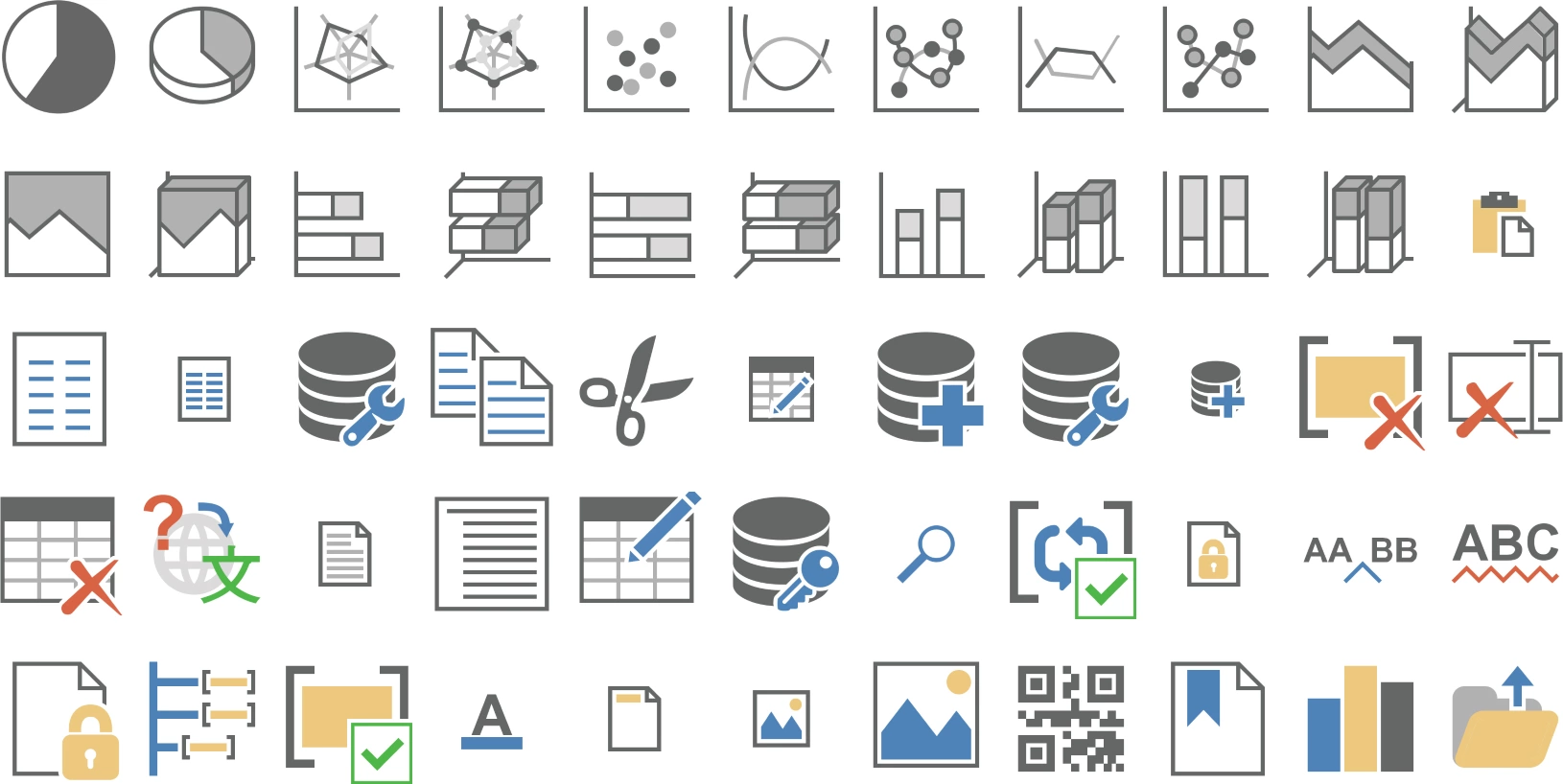
The images of the built-in ribbon tabs, toolbars and dialog boxes are based on vector graphics, which TX Text Control renders for the current DPI. The blog article New Icon Set Preview: Making your Applications DPI Aware introduced this icon set, and shows the icons at a large size:
Make a .NET Application DPI Aware
In a project for .NET 8 or higher, set the DPI awareness in Program.cs, before the first form is created. The following Main method is the one of the TX Words sample:
using System;
using System.Windows.Forms;
static class Program
{
[]
static void Main()
{
Application.EnableVisualStyles();
Application.SetHighDpiMode(HighDpiMode.PerMonitorV2);
Application.SetCompatibleTextRenderingDefault(false);
Application.Run(new Form1());
}
}
Application.SetHighDpiMode and the enumeration HighDpiMode belong to Windows Forms. PerMonitorV2 makes the application per-monitor DPI aware; SystemAware would make it system DPI aware. Call it before the first form is created, as the sample does. For .NET, Microsoft's article High DPI support in Windows Forms also points to project-level application settings as another place for the same value.
Make a .NET Framework Application DPI Aware
In the .NET Framework 4.7 and later, per-monitor DPI awareness of Windows Forms is switched on in the application configuration, as Microsoft's article High DPI support in Windows Forms describes:
Add an application manifest to the project, if it has none, with Project > Add New Item... > Application Manifest File. Declare compatibility with Windows 10 in its
compatibilityelement:<compatibility xmlns="urn:schemas-microsoft-com:compatibility.v1"> <application> <!-- Windows 10 compatibility --> <supportedOS Id="{8e0f7a12-bfb3-4fe8-b9a5-48fd50a15a9a}" /> </application> </compatibility>Add the
DpiAwarenesskey to App.config, inside theconfigurationelement:<System.Windows.Forms.ApplicationConfigurationSection> <add key="DpiAwareness" value="PerMonitorV2" /> </System.Windows.Forms.ApplicationConfigurationSection>Keep
Application.EnableVisualStyles()as the first call inMain, and rebuild.
The .NET Framework version of TX Words uses the same App.config entry. Microsoft no longer recommends setting the DPI awareness in the manifest itself, because the manifest overrides App.config.
Give Your Own Ribbon Buttons Sharp Icons
TX Text Control rescales the images of its own ribbon items. A button your code adds keeps the image your code assigned, so your code has to give it an image for the current DPI, and a new one when the DPI changes. ResourceProvider returns the built-in icons of TX Text Control for any DPI, identified by the name of an item. The following code in Form1.cs follows the TX Words sample: it reads the DPI when the window is created and updates the icons of a print button named printButton when Windows reports a new DPI:
using System.Drawing;
using System.Windows.Forms;
using TXTextControl.Windows.Forms;

public partial class Form1 : Form
{
    private const int WM_CREATE = 0x0001;
    private const int WM_DPICHANGED = 0x02E0;
    private float dpi;

    protected override void WndProc(ref Message message)
    {
        switch (message.Msg)
        {
            case WM_CREATE:
                // The resolution of the display the window is created on
                using (Graphics g = Graphics.FromHwnd(Handle))
                {
                    dpi = g.DpiX;
                }
                break;

            case WM_DPICHANGED:
                // The new resolution is in the low word of WParam
                int newDpi = (int)message.WParam & 0xFFFF;
                if (newDpi != dpi)
                {
                    dpi = newDpi;
                    SetPrintButtonIcons();
                }
                break;
        }

        base.WndProc(ref message);
    }

    private void SetPrintButtonIcons()
    {
        // Built-in icons in the size the new resolution needs
        string print = ResourceProvider.FileMenuItem.TXITEM_Print.ToString();
        printButton.LargeIcon = ResourceProvider.GetLargeIcon(print, dpi);
        printButton.SmallIcon = ResourceProvider.GetSmallIcon(print, dpi);
    }
}
The code works as follows:
WndProcreceives the Windows messages of the form.WM_CREATEarrives when the window is created,WM_DPICHANGEDwhen it has moved to a display with another DPI or the scale factor has changed.- GetLargeIcon and GetSmallIcon return the icon of the item for the given DPI.
ResourceProvider.FileMenuItem.TXITEM_Printidentifies the print command; theRibbonItemvalues of the predefined tabs identify their items. - LargeIcon and SmallIcon of the RibbonButton show the new icons.
printButtonis aRibbonButtonyour code created, as Custom Tabs and Commands shows. CallSetPrintButtonIconsonce after creating it as well.
The TX Words Ribbon sample contains the complete code for all its buttons in MainWindow_DpiChanged.cs; see TX Words Sample Application.
Test on Several Displays
Change the scale factor in the Windows display settings while the application runs, and move its window between two displays with different scale factors. The document, the ribbon, the rulers and the status bar should stay sharp and keep their size relative to the text. An image that stays small or blurry belongs to a control your code draws; give it an image for the new DPI, as above.
Next Steps
- High DPI and Scaling: blurry editors and icons, and how to fix them.
- Themes, Colors, and Icons: the colors and icons of the ribbon and the
ResourceProvider. - Accessibility and UI Automation: other settings that help users read and work with the editor.