
Add Repeating Merge Blocks
An invoice has one customer but many items, and the template cannot know how many. A merge block solves this: a part of the template, such as a table row, that is repeated once for each record of a list in the data. Following on from the invoice of the previous tutorials, you add a block for the Items of invoice.json, merge it, and see the same result with business objects.
Prerequisites
- The application from Create a Template, which loads invoice.json into the Reporting tab when the form opens.
- The merge code from Merge Data into Fields.
How Merge Blocks Work
A merge block is a named part of the document whose name starts with txmb_, followed by the name of a list in the data. Here the block is txmb_Items, and the list is the Items array of the JSON data. During the merge, the block is copied once for each item, with its formatting, and the merge fields inside it receive the values of that item: Description, Quantity and Price.
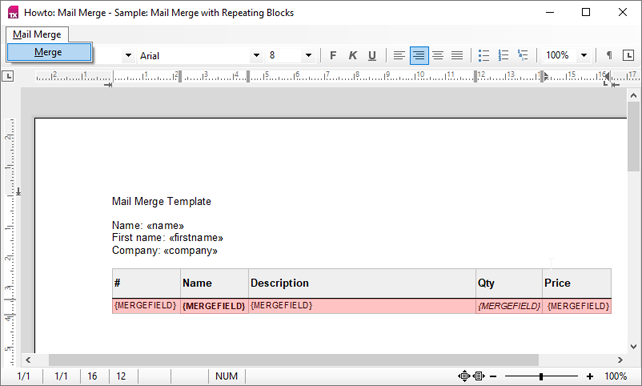
A block can be a table row, a complete table, paragraphs or other content. For an invoice, a table row is the natural choice: the table grows by one row per item. In the following template of the Windows Forms mail merge sample, the highlighted table row is a merge block:
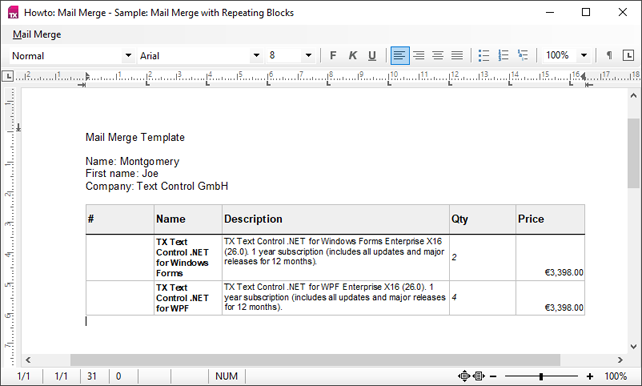
After the merge, the table has one row for each record of the block's data:
Insert the Block With the Ribbon
Press F5 and design the template as in Create a Template.
Place the input position where the table of items goes.
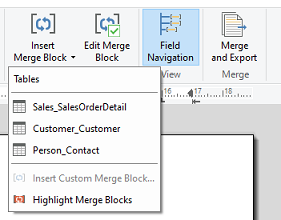
Open the Insert Merge Block drop-down in the Merge Blocks group of the Reporting tab and select Items. The drop-down lists the tables of the data source that can become a block:
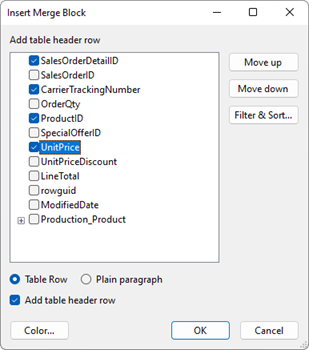
In the dialog box, select the columns Description, Quantity and Price and confirm with OK. Table Row and Add table header row create the block as a table row below a header row:
Save the template again as invoice.docx.
The Reporting tab inserts a table row with the three merge fields and marks it as the block.
Insert the Block in Code
The same block can be inserted by your code. Add the following using directives and methods to Form1:
using System.Collections.Generic;
using TXTextControl.DocumentServer.DataSources;
using TXTextControl.DocumentServer.Windows.Forms;
private void insertItemsBlockButton_Click(object sender, EventArgs e)
{
    // The Items block and the merge fields it contains
    MergeBlockInfo mergeBlockInfo = new MergeBlockInfo("Items")
    {
        ColumnNames = new List<string> { "Description", "Quantity", "Price" }
    };

    // A table row that is repeated for each item, below a header row
    MergeBlockSettings mergeBlockSettings = new MergeBlockSettings(BlockTemplateType.TableRow, true);

    // Insert the block at the current input position
    ribbonReportingTab1.DataSourceManager.InsertMergeBlock(textControl1, mergeBlockInfo, mergeBlockSettings);
}

private void insertItemsBlockDialogButton_Click(object sender, EventArgs e)
{
    DataSourceManager dataSourceManager = ribbonReportingTab1.DataSourceManager;

    // Let the user choose the columns of the Items block
    using (InsertMergeBlockDialog dialog = new InsertMergeBlockDialog(
        dataSourceManager, textControl1, dataSourceManager.DataTables["Items"]))
    {
        dialog.ShowDialog(this);
    }
}
The code works as follows:
- MergeBlockInfo names the list of the data, and its ColumnNames are the merge fields of the block.
- MergeBlockSettings with
BlockTemplateType.TableRowcreates the block as a table row, andtrueadds a header row above it. - InsertMergeBlock inserts the block at the input position of
textControl1. - InsertMergeBlockDialog is the dialog box of the Reporting tab. DataTables returns the table of the loaded data by its name.
Merge the Template
The merge code of Merge Data into Fields does not change. It loads the template with LoadSubTextParts set to true, which imports the block, and MergeJsonData fills the block from the Items array, like the fields from the other properties.
Click mergeButton. The invoice now has a table with one row for Consulting and one for Training. The content of a block without data is removed, because RemoveEmptyBlocks is true by default.
Merge Business Objects Instead
The same template works with business objects. A property whose type is a collection fills the block of the same name:
using System.Collections.Generic;

public class Invoice
{
    public string Company { get; set; }
    public string Name { get; set; }
    public string InvoiceNumber { get; set; }
    public List<InvoiceItem> Items { get; set; } = new List<InvoiceItem>();
}

public class InvoiceItem
{
    public string Description { get; set; }
    public int Quantity { get; set; }
    public decimal Price { get; set; }
}
In the merge code, replace the call of MergeJsonData with MergeObject:
Invoice invoice = new Invoice { Company = "Contoso Ltd.", Name = "Jane Miller", InvoiceNumber = "INV-1001" };
invoice.Items.Add(new InvoiceItem { Description = "Consulting", Quantity = 2, Price = 150.00m });
invoice.Items.Add(new InvoiceItem { Description = "Training", Quantity = 1, Price = 480.00m });

mailMerge.MergeObject(invoice);
Next Steps
- Merge Blocks: block types, empty blocks and block events in detail.
- Nested Blocks and Master-Detail Reports: blocks inside blocks.
- Sorting and Filtering: sort and filter the rows of a block.
- The blog article Mail Merge: Inserting Merge Blocks using the DataSourceManager in C#: inserting blocks in code.