
Create a Ribbon Application With Sidebar Support
A ribbon application looks and works like a current word processor: tabs of commands at the top, panels such as styles or comments beside the document, and tabs that appear only while you work in a table. Built on the editor of your first application, it gets a sidebar with the document's styles, ribbon buttons that open sidebars, a RibbonForm with a Quick Access Toolbar, and a contextual Table Tools tab.
Prerequisites
- A Windows Forms project with the package
TXTextControl.TextControl.WinForms.SDKand aTextControlon Form1, as created in the first three sections of Create Your First Windows Forms Application. - The Enterprise or Professional edition, which includes the ribbon. See Editions and Feature Availability.
Add the Ribbon and the Bars
The sidebar goes next to the ribbon, the rulers and the status bar of your first application. If you completed the first tutorial, these controls are already on the form. Otherwise, add them with the smart tags of the TextControl and the ribbon, as in steps 3 and 4 of Add the Editor to the Form and in Add the Ribbon Tabs.
Add a Sidebar
Click the smart tag of the
TextControlagain and click Add a Right Sidebar.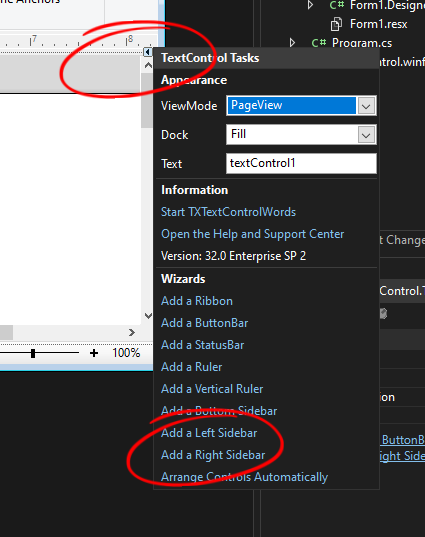
Click Arrange Controls Automatically again, so that the sidebar is docked at the right side of the editor.
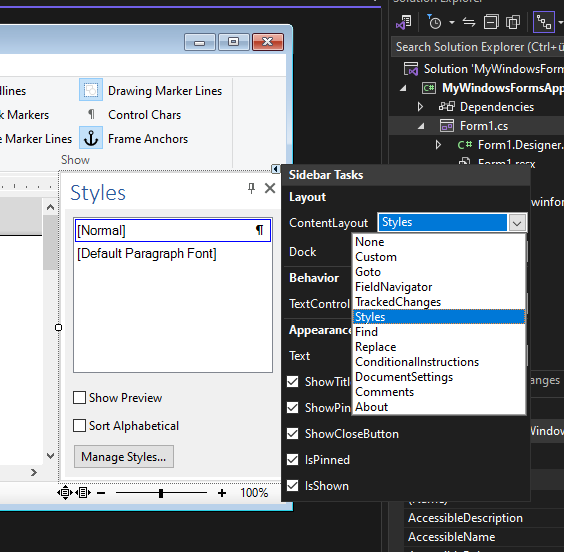
Click the smart tag in the upper right corner of the sidebar and select Styles as the ContentLayout.
Press F5. The ribbon, the rulers and the status bar surround the editor, and the sidebar at the right lists the styles of the document.
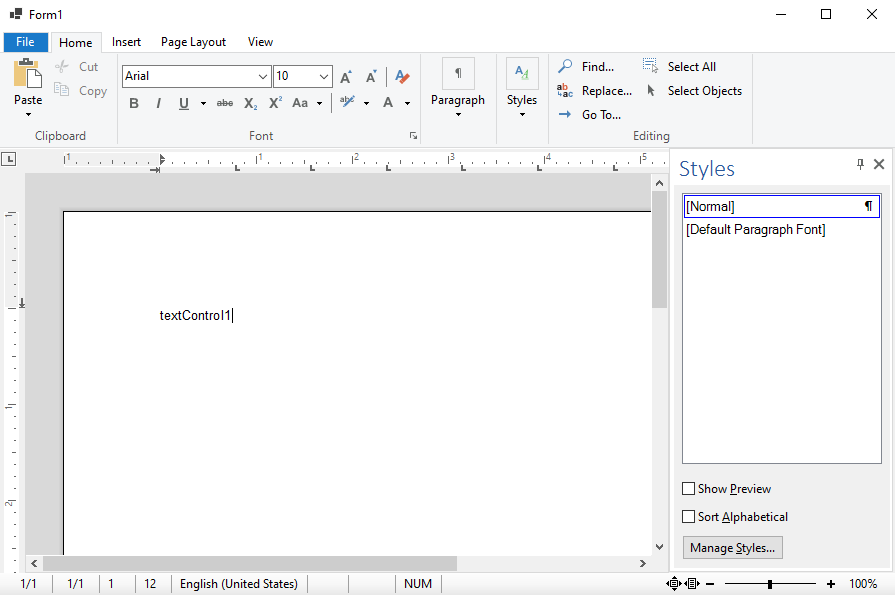
The sidebar has other panels as well, such as Find, Replace, TrackedChanges and Comments. Sidebar describes all of them.
Open Sidebars From Ribbon Buttons
Ribbon buttons such as Find, Replace and Comments can open their panel in a sidebar. The connection is a property of the ribbon tab:
- Select the Home tab of the ribbon, the
RibbonFormattingTab, in the designer. - In the Properties window, set FindSidebar and ReplaceSidebar to the sidebar you added.
- Select the Proofing tab, the
RibbonProofingTab, and set CommentsSidebar and TrackedChangesSidebar to the same sidebar. - Select the sidebar and clear IsShown in its smart tag, so that it is hidden until a button opens it.
Now the sidebar opens when the user clicks one of these buttons, with the panel of that button. The same connections in code are shown in Sidebar and Panels.
Convert the Form to a RibbonForm
Select the ribbon, open its smart tag and click Convert to a RibbonForm. The form now derives from RibbonForm, which draws the Quick Access Toolbar and the headers of contextual tabs in its title bar, as the next section uses.
Add a Table Tools Tab
A contextual tab group is a set of tabs that is shown only in a certain context. The following steps add a Table Tools group that appears while the input position is in a table:
Select the ribbon and find ContextualTabGroups in the Properties window. Click the ellipsis button to open the collection editor.
Click Add. Name the new group
m_grpTableTools, set its Header to Table Tools and choose a BackColor.Click the ellipsis button of its ContextualTabs property, open the Add drop-down, click RibbonTableLayoutTab and close both editors with OK.
Add the following code to Form1.cs:
public partial class Form1 : TXTextControl.Windows.Forms.Ribbon.RibbonForm
{
    public Form1()
    {
        InitializeComponent();
        textControl1.InputPositionChanged += TextControl1_InputPositionChanged;
    }

    private void TextControl1_InputPositionChanged(object sender, EventArgs e)
    {
        // Show Table Tools only while the input position is in a table
        m_grpTableTools.Visible = textControl1.Tables.GetItem() != null;
    }
}
Press F5, insert a table with the Table button of the Insert tab and click into it. The Table Tools header appears in the title bar with the table layout tab.
The code works as follows:
- InputPositionChanged occurs each time the input position moves.
- Tables.GetItem returns the table at the input position, or
nulloutside a table. - Visible shows or hides the ContextualTabGroup.
The TX Words Sample
The setup installs a complete ribbon application with a bottom, a left and a right sidebar and contextual tabs for tables and frames, on a RibbonForm. Its source code is in %USERPROFILE%\Documents\TX Text Control 34.0.NET for Windows Forms\CSharp\TX Words\Ribbon.
Next Steps
- Load and Save Documents: open and save documents from your own buttons or menus.
- Ribbon and UI: built-in tabs, custom commands, sidebars and localization in detail.
- Built-in Ribbon Tabs and Custom Tabs and Commands: the predefined tabs and custom tabs.
- The blog article Getting Started: Creating a .NET 8 Windows Forms Ribbon Application with Sidebar Support: the same steps with screenshots.