
Document Metadata
Title, author, subject and keywords describe a PDF without opening it: PDF readers show them in the document properties, desktop search indexes them and archives sort by them. In TX Text Control .NET for Windows Forms, this metadata belongs to the document in the TextControl. It is loaded with a document, edited in code or by the user in the sidebar and written into every PDF the editor saves. The sections below show where each value lives, how to set it before saving, how users edit it, how to read it from many files and how to store properties of your own.
Setting document properties with SaveSettings for a first PDF is part of Create a PDF in Getting Started, and reading them after loading is shown in Loading Documents.
Where Metadata Lives
The metadata of a PDF are the document properties of TX Text Control: DocumentTitle, Author, DocumentSubject, DocumentKeywords, CreatorApplication, CreationDate and UserDefinedDocumentProperties. TextControl.DocumentSettings holds the values of the document in the editor, SaveSettings overrides them for one save and LoadSettings returns those that Load read. Document Properties explains the three objects and lists each property with its value when it's empty.
Set the Metadata Before Saving
The following handler in Form1.cs gives the document in textControl1 a title, an author and keywords, and saves it as PDF with the name of your application as its creator. Form1.cs needs using System; and using TXTextControl;:
private void savePdfButton_Click(object sender, EventArgs e)
{
    DocumentSettings documentSettings = textControl1.DocumentSettings;

    // Stays with the document for every later save
    if (string.IsNullOrWhiteSpace(documentSettings.DocumentTitle))
    {
        documentSettings.DocumentTitle = "Invoice INV-2025-001";
    }

    documentSettings.Author = Environment.UserName;
    documentSettings.DocumentKeywords = new string[] { "invoice", "INV-2025-001", "Acme Corporation" };

    // Overrides the document settings for this file only
    SaveSettings saveSettings = new SaveSettings()
    {
        CreatorApplication = "Invoice Desk",
        LastModificationDate = DateTime.Now
    };

    textControl1.Save("invoice.pdf", StreamType.AdobePDF, saveSettings);
}
The code works as follows:
- DocumentSettings holds the metadata of the current document. Values changed there are saved with this document from now on, in PDF and in other formats.
- The title is set only if the document has none, so a title the user entered or a loaded document brought along is kept.
SaveSettingssets the creating application and the modification date for this file. Everything else comes fromDocumentSettings.
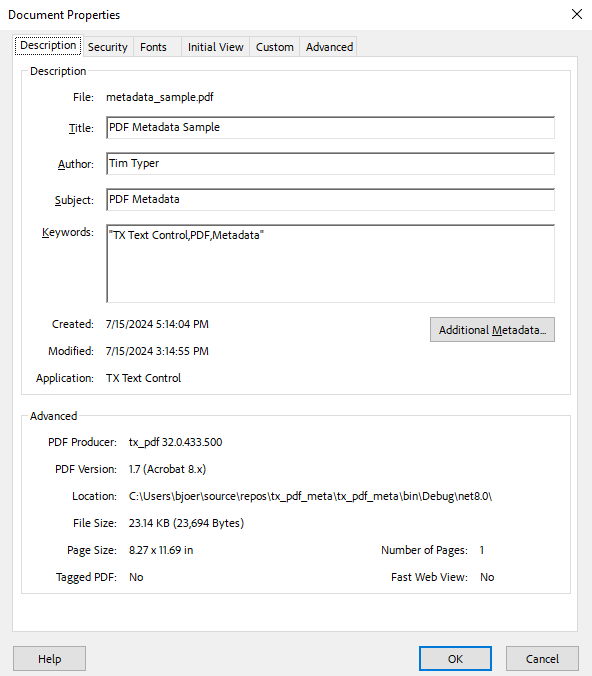
Open invoice.pdf in a PDF reader and show its document properties. Adobe Acrobat lists the values on the Description tab:
Let Users Edit the Properties in the Sidebar
The DocumentSettings panel of the Sidebar lets users edit the title, author, subject, keywords and custom properties of the document in the editor, and whatever they enter is saved with the next Save. Let Users Edit the Properties shows the panel and how to display it, and Let Users Manage Attachments in the Sidebar opens it from a button.
Update the Metadata of an Existing PDF
To change the keywords of a PDF, load it, change what you need and save it again. The title, author and subject of the original document stay, because they come from DocumentSettings:
private void updatePdfButton_Click(object sender, EventArgs e)
{
    textControl1.Load("invoice.pdf", StreamType.AdobePDF);

    // Filled from the loaded PDF
    DocumentSettings documentSettings = textControl1.DocumentSettings;
    MessageBox.Show($"Title: {documentSettings.DocumentTitle}\nCreated with: {documentSettings.CreatorApplication}");

    documentSettings.DocumentKeywords = new string[] { "invoice", "INV-2025-001", "paid" };

    textControl1.Save("invoice-paid.pdf", StreamType.AdobePDF,
        new SaveSettings() { LastModificationDate = DateTime.Now });
}
Without a new CreatorApplication, the saved PDF still names the application that created the original file. Loading rebuilds the pages of the PDF as an editable document, as PDF Import and Its Limitations explains, so the saved PDF is a new document with the old metadata.
Build a Keyword Index of PDF Files
Reading the metadata of many files doesn't need the editor. A ServerTextControl, the TX Text Control without a user interface, loads them one after the other. The following handler reads the PDF files of the folder Invoices and writes an index as JSON. It needs using System.Collections.Generic;, using System.IO;, using System.Linq; and using System.Text.Json;:
private void buildIndexButton_Click(object sender, EventArgs e)
{
    List<object> index = new List<object>();

    using (ServerTextControl tx = new ServerTextControl())
    {
        // Initialize the new instance before using it
        tx.Create();

        foreach (string file in Directory.GetFiles("Invoices", "*.pdf"))
        {
            // Text only: the metadata doesn't need the layout of the pages
            LoadSettings loadSettings = new LoadSettings()
            {
                PDFImportSettings = PDFImportSettings.GenerateLines
            };

            tx.Load(file, StreamType.AdobePDF, loadSettings);

            index.Add(new
            {
                File = Path.GetFileName(file),
                Title = loadSettings.DocumentTitle,
                Author = loadSettings.Author,
                Keywords = (loadSettings.DocumentKeywords ?? Array.Empty<string>()).Select(keyword => keyword.Trim()).ToArray(),
                Created = loadSettings.CreationDate == DateTime.MinValue ? (DateTime?)null : loadSettings.CreationDate
            });
        }
    }

    File.WriteAllText("index.json", JsonSerializer.Serialize(index, new JsonSerializerOptions { WriteIndented = true }));
}
DocumentKeywords is null when a PDF has no keywords, and a missing date is DateTime.MinValue; the index stores an empty array and null for them. The blog article Enhancing PDF Searchability in Large Repositories by Adding and Reading Keywords Using C# .NET recommends consistent tags and 5 to 10 keywords per document.
Store Custom Properties
Besides the standard metadata, a document can carry properties of your own, such as an invoice number, in a UserDefinedPropertyDictionary. Set the Properties in Code shows how to add and change them, and Which Formats Store the Properties lists the formats that save them.
Give an Accessible PDF Its Title
PDF/UA, the standard for accessible PDF documents, requires a document title: without one, a PDF fails accessibility validation. Since version 34.0, TX Text Control writes the structure of an accessible PDF, as Create an Accessible PDF (PDF/UA) describes, and the title comes from DocumentSettings.DocumentTitle. In a desktop application, the user can supply it: the following handler opens the sidebar panel in a sidebar named sidebarLeft instead of saving when the title is missing. It needs using TXTextControl.Windows.Forms;:
private void saveAccessiblePdfButton_Click(object sender, EventArgs e)
{
    if (string.IsNullOrWhiteSpace(textControl1.DocumentSettings.DocumentTitle))
    {
        // Let the user enter the title first
        sidebarLeft.ContentLayout = Sidebar.SidebarContentLayout.DocumentSettings;
        sidebarLeft.IsShown = true;
        MessageBox.Show("Enter a title for the document, then save it again.");
        return;
    }

    textControl1.Save("invoice.pdf", StreamType.AdobePDF);
}
The blog article Preflighting PDF/UA Documents with TX Text Control in .NET C# checks the title together with the descriptive texts of images and tables before a document is saved.
Read the Raw Metadata of a PDF
With PDFImportSettings LoadEmbeddedData, Load also provides the metadata of a PDF as it is stored in the file, in LoadSettings.EmbeddedData. The dictionary's keys are values of EmbeddedDataFormat, and MetaData returns the metadata:
private void showRawMetadataButton_Click(object sender, EventArgs e)
{
    LoadSettings loadSettings = new LoadSettings()
    {
        PDFImportSettings = PDFImportSettings.GenerateTextFrames | PDFImportSettings.LoadEmbeddedData
    };

    textControl1.Load("invoice.pdf", StreamType.AdobePDF, loadSettings);

    if (loadSettings.EmbeddedData != null &&
        loadSettings.EmbeddedData.TryGetValue(EmbeddedDataFormat.MetaData, out object metaData))
    {
        MessageBox.Show(metaData.ToString());
    }
}
GenerateTextFrames is the default import of a PDF, so the document looks the same in the editor as without the additional flag. The dictionary is filled only when LoadEmbeddedData is set, and it contains the formats the PDF provides; TextCoordinates is used in Text Extraction.
Next Steps
- Attachments: embed files with their own metadata.
- PDF/A: archive documents together with their metadata.
- Sidebar and Panels: add the sidebar with the DocumentSettings panel.
- Loading Documents: read the properties of any loaded document.