
Document Protection and Editable Regions
Forms, contracts and templates often have to stay fixed except for a few places that certain people fill in. A protected document in a TextControl is read-only or restricted as a whole, and editable regions are the exceptions: ranges of text that everyone, or only a named user, may still change. Protection is set up with the Permissions tab of the ribbon or in code, and it travels with the document file.
The code samples use Form1.cs with an editor named textControl1, the form of Create Your First Windows Forms Application. This page covers protection inside the editor; how far it protects a document against other programs is discussed in Document Protection.
How Document Protection Works
The EditMode property of the TextControl decides whether a document is protected:
| Value | Effect |
|---|---|
Edit | The text can be edited and formatted without restrictions |
ReadAndSelect | The text can be read and selected; editing and formatting are restricted as the document permissions say |
ReadOnly | The text is only displayed and can't be selected |
UsePassword | Combined with ReadAndSelect by the bitwise OR operator, a dialog box asks for a password that protects the restrictions |
The restrictions of ReadAndSelect are the DocumentPermissions, a DocumentPermissions object. All of its properties are true by default:
| Property | Allows |
|---|---|
| ReadOnly | Nothing: when true, neither the text nor its formatting can be changed |
| AllowFormatting | Formatting the document |
| AllowFormattingStyles | Formatting with styles, which needs AllowFormatting as well |
| AllowCopy | Copying content to the clipboard |
| AllowPrinting | Printing the document |
| AllowEditingFormFields | Filling in form fields |
The permissions and the password are saved in the document in encrypted form, in RTF, DOC, DOCX, PDF and the TX Text Control format (TX). A document protected with a password opens read-only; to lift the protection, the user sets the edit mode back to Edit and enters the same password.
Editable regions stay editable in ReadAndSelect mode. Each region has a user name: only that user may edit it, or everyone if the name is empty. The users of the editor are listed in UserNames. Regions can overlap, and they are highlighted with a color that depends on the user.
Protect a Document With the Ribbon
The Permissions tab, a RibbonPermissionsTab, holds all protection settings. Add it to the ribbon with the smart tag of the ribbon, as Built-in Ribbon Tabs describes. A user protects a document with it in four steps:
In the groups Restrict Formatting and Restrict Editing, choose what remains allowed, such as Allow Printing, Allow Copy and Fill in Form Fields, or click Read Only.
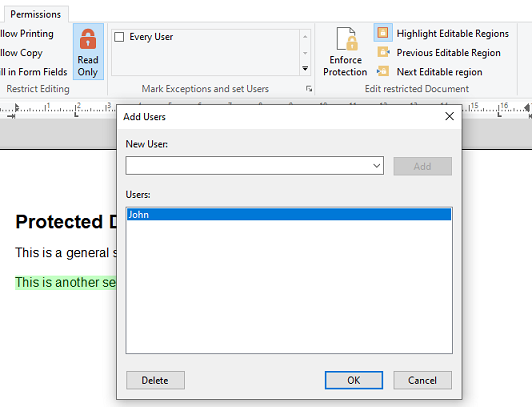
To add a user, click the dialog box launcher of the Mark Exceptions and set Users group, enter the name in the Add Users dialog box and click Add:
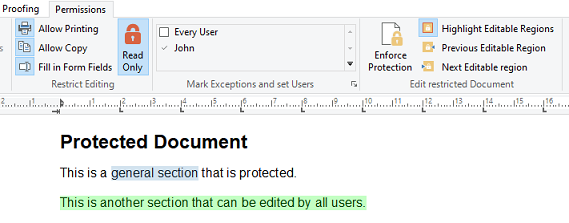
Select the text the user may change and check the box of the user in the list of the group. Every User makes the selection editable for everybody:
Click Enforce Protection and enter a password.
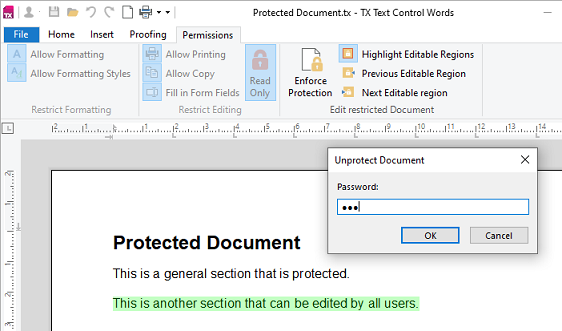
To remove the protection, the user clicks Enforce Protection again and enters the password:
Highlight Editable Regions turns the highlighting on and off, and Previous Editable Region and Next Editable region move between the regions of the current user.
The names in the Add Users dialog box can come from your application. RegisteredUserNames of the tab lists the names it offers, and AllowAddingUserNames set to false prevents users from typing other names:
// Offer only the users of the application in the Add Users dialog box
ribbonPermissionsTab1.RegisteredUserNames = new string[] { "Tim Typer", "Ryan Reviewer" };
ribbonPermissionsTab1.AllowAddingUserNames = false;
ribbonPermissionsTab1 is the name the designer gave the tab.
Mark Editable Regions in Code
EditableRegions returns the EditableRegionCollection of the document. Its Add method inserts an EditableRegion:
private void markSelectionButton_Click(object sender, EventArgs e)
{
    // Everyone may edit the selected text; the region has the ID 1
    EditableRegionCollection.AddResult result =
        textControl1.EditableRegions.Add(new EditableRegion(null, 1));

    if (result == EditableRegionCollection.AddResult.NoSelection)
    {
        MessageBox.Show("Select the text that should stay editable.");
    }
}

private void markForUserButton_Click(object sender, EventArgs e)
{
    // Only Tim Typer may edit characters 1 to 20; the start is one-based
    textControl1.EditableRegions.Add(new EditableRegion("Tim Typer", 2, 1, 20));
}
The code works as follows:
- The first parameter of the constructor is the user name.
nullor an empty string makes the region editable for everyone. - The second parameter is an identifier of your choice, from 1 up; 0 means no identifier. GetItem finds a region by it.
- Without a start and a length, the region covers the current selection. With them, it covers that range; the first character has the position 1.
Addreturns a value of EditableRegionCollection.AddResult, for exampleSuccessful,NoSelection, orCombinedwhen the new region was merged with an overlapping or adjacent region of the same user and ID.
Protect the Document in Code
After marking the regions, set the permissions and switch to ReadAndSelect. With UsePassword, the user is asked for the password:
private void protectButton_Click(object sender, EventArgs e)
{
    // What remains allowed outside the editable regions
    textControl1.DocumentPermissions.ReadOnly = true;
    textControl1.DocumentPermissions.AllowPrinting = true;
    textControl1.DocumentPermissions.AllowCopy = false;

    // Protect the document; a dialog box asks for the password
    textControl1.EditMode = EditMode.ReadAndSelect | EditMode.UsePassword;

    textControl1.Save("contract.docx", StreamType.WordprocessingML);
}
Without UsePassword, the restrictions apply as well, but no password protects them: setting EditMode back to Edit lifts them. According to Text Control, the permissions are saved in the document only together with a password, so use UsePassword for documents that leave the editor.
Open a Protected Document
Set UserNames to the signed-in user before the document is loaded. The regions of this user and the regions for everyone can then be edited:
private void Form1_Load(object sender, EventArgs e)
{
    // The regions of these users can be edited
    textControl1.UserNames = new string[] { "Tim Typer" };

    textControl1.Load("contract.docx", StreamType.WordprocessingML);
}
TX Text Control compares the names and doesn't check who the user is, so take them from your application's sign-in, as User Names Aren't Sign-Ins explains. The first name of the list is also the author of tracked changes and comments, as Track Changes shows. To remove the protection in code, set EditMode to EditMode.Edit: for a document protected with a password, the editor asks for it.
Check What the User May Do
Read-only properties of the TextControl tell whether an action is allowed at the moment, taking the edit mode and the permissions into account. Use them to enable or disable buttons and menu items of your own:
| Property | Tells whether |
|---|---|
| CanEdit | The text or its formatting can be changed |
| CanPrint | The document can be printed |
| CanCopy | Text is selected and may be copied |
| CanCharacterFormat, CanParagraphFormat | The selection can be formatted |
| CanStyleFormat | Styles can be applied |
| CanDocumentFormat | Page and section formatting, such as margins and page size, can be changed |
| CanEditFormFields | Form fields can be filled in |
Work With Editable Regions
- GetItems returns the regions at the input position as an array, or
null. - Remove removes a region but not its text. With
trueas the second parameter, only the selected part of the region is removed, which can split it in two. - EditableRegionHighlightMode of the
TextControlhighlights the regions while they contain the input position (HighlightMode.Activated, the default), always or never. A region's own HighlightMode and HighlightColor override it; the color needs an alpha value below 255 so that the text remains visible. - ScrollTo moves the input position to a region, and Text returns its text.
The TextControl raises EditableRegionCreated and EditableRegionDeleted when a region is added or deleted, and EditableRegionEntered and EditableRegionLeft when the input position moves into or out of one. Their handlers receive EditableRegionEventArgs with the region in EditableRegion:
private void textControl1_EditableRegionEntered(object sender, EditableRegionEventArgs e)
{
    string user = string.IsNullOrEmpty(e.EditableRegion.UserName) ? "everyone" : e.EditableRegion.UserName;
    Text = $"Editable by {user}";
}
Headers, footers and text frames have regions of their own, in the EditableRegions collections of HeaderFooter and TextFrame. To save a document without the region markers, keeping their text, pass a SaveSettings object whose OmittedContent is OmittedContent.EditableRegions to Save.
Next Steps
- Document Protection: what protection does and doesn't guard against.
- Form Fields and Conditional Instructions: forms whose fields remain editable in a protected document.
- Passwords and Access Permissions: passwords and permissions of PDF files.
- Track Changes: record changes with the author from
UserNames.