
Create a PDF Form
Form fields that you insert in a TextControl document become fillable fields when the document is saved as PDF: a text box, a drop-down list or a check box that users fill out in their PDF reader. Starting from the editor of your first application, you insert three form fields in code, give them names, and save and open the PDF form.
Prerequisites
- The application from Create Your First Windows Forms Application, with a
TextControlnamedtextControl1onForm1. - The Enterprise edition, which includes form fields. See Editions and Feature Availability.
Add two buttons to the form, insertFormButton and saveFormButton, and double-click each one to create its Click handler. Form1.cs needs these using directives:
using System.Diagnostics;
using TXTextControl;
How Form Fields Become a PDF Form
TX Text Control has four kinds of form fields: TextFormField for text, CheckFormField for a check box, SelectionFormField for a drop-down list or a combo box, and DateFormField for a date. You add them to the FormFields collection of the TextControl, which inserts them at the input position.
When the document is saved as PDF, each form field is converted into a PDF form field. No setting is needed for this, and the name you give a field becomes its name in the PDF form.
Insert the Form Fields
The following code writes three labels and inserts a form field after each of them:
private void insertFormButton_Click(object sender, EventArgs e)
{
    textControl1.Selection.Text = "Name: ";
    AddFormField(new TextFormField(3000)   // width in twips while empty
    {
        Name = "name",
        DescriptiveText = "Your full name"
    });

    textControl1.Selection.Text = "\nCountry: ";
    AddFormField(new SelectionFormField(new string[] { "United States", "Germany", "Italy" }, 0)
    {
        Name = "country",
        DescriptiveText = "Your country"
    });

    textControl1.Selection.Text = "\nSend me the newsletter: ";
    AddFormField(new CheckFormField(false)
    {
        Name = "newsletter",
        DescriptiveText = "Subscribe to the newsletter"
    });
}

// Insert a form field and move the input position behind it
private void AddFormField(FormField formField)
{
    textControl1.FormFields.Add(formField);
    textControl1.InputPosition = new InputPosition(
        formField.Start + formField.Length - 1,
        TextFieldPosition.OutsideTextField);
}
The code works as follows:
- Selection.Text inserts the labels at the input position.
- The constructors create the fields:
TextFormFieldwith its width in twips while it is empty,SelectionFormFieldwith its items and the index of the preselected one, andCheckFormFieldunchecked. - Name identifies each field in the PDF form, and DescriptiveText describes it, for example as a tooltip in the PDF reader and for screen readers.
- FormFieldCollection.Add inserts the field at the input position.
- After a form field is inserted, the input position is still next to the field. Setting InputPosition with
TextFieldPosition.OutsideTextFieldmoves it behind the field, so that the next label is not typed into it.
Save and Open the PDF Form
private void saveFormButton_Click(object sender, EventArgs e)
{
    string path = Path.Combine(
        Environment.GetFolderPath(Environment.SpecialFolder.MyDocuments),
        "form.pdf");

    // Form fields are saved as fillable PDF form fields
    textControl1.Save(path, StreamType.AdobePDF);

    Process.Start(new ProcessStartInfo(path) { UseShellExecute = true });
}
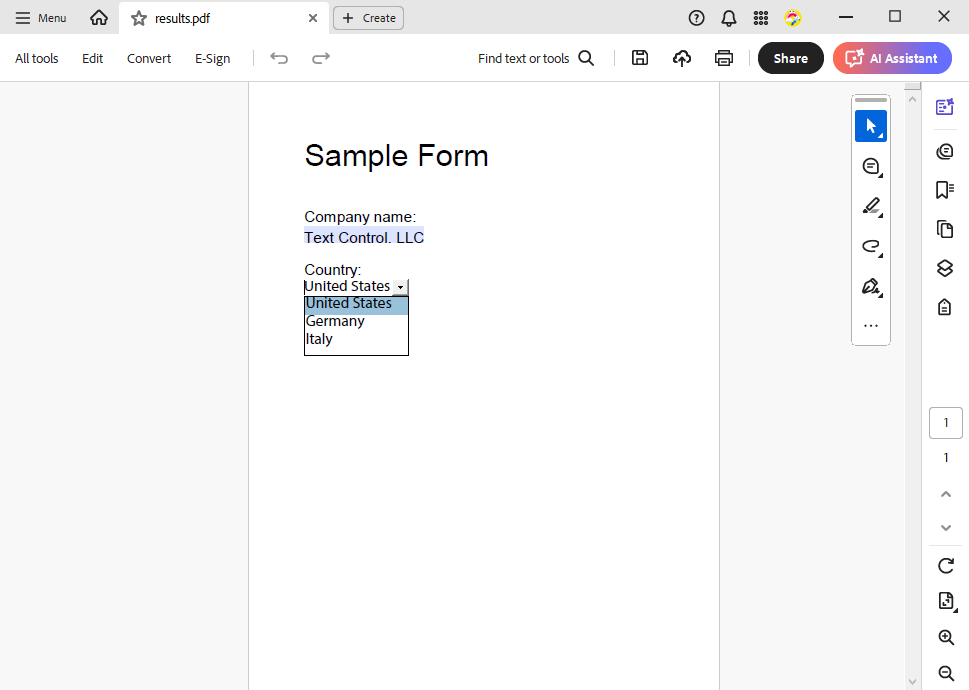
Run the application, click insertFormButton and then saveFormButton. The PDF reader opens form.pdf with a text box after "Name:", a drop-down list with three countries after "Country:" and a check box after "Send me the newsletter:". Fill them out and save the PDF in the reader:
Insert Form Fields With the Ribbon
Users can insert the same form fields without code, with the Form Fields tab of the ribbon, the RibbonFormFieldsTab. Design a Form With the Ribbon shows the tab and how to add it to your form.
Fill Out the Form in the Editor
The same document can also be filled out in textControl1 itself: three settings of the editor protect the text and leave only the form fields editable. Let Users Fill Out the Form shows them.
Next Steps
- Digitally Sign a PDF: sign the PDF with a certificate.
- PDF Forms: create, read and flatten PDF forms in detail.
- Form Fields and Conditional Instructions: form fields in the editor.
- The blog article Create Fillable PDF Forms in .NET C#: a complete form built in code.