
Mail Merge
A mail merge with MailMerge rarely fails with an error. More often, it succeeds and the result isn't what you expected: a field is empty or gone, a block isn't repeated, or a date has the wrong format. The problems below start from what you see in the merged document. Merge Data into Fields shows a working merge to compare with.
A Merge Field Disappears or Stays Empty
A merge field of the template isn't in the merged document, or it is there without a value.
MailMerge fills a field from the column or property whose name matches the name of the field, at the level of the data the field is in; fields of child data use dot notation, such as address.street. When no column matches, the field gets no value, and because RemoveEmptyFields is true by default, it is removed. With business objects, the property names are the field names, and the first object of a collection defines the structure: objects of other types leave some fields empty.
- Set
RemoveEmptyFieldstofalse, so that fields without data stay in the document and you can see which ones they are. - Handle FieldMerged and mark every field whose Merged is
false, as Show a Text for Fields Without Data shows. - Correct the field name in the template or the column name in the data.
The blog article MailMerge: Field Mapping and Handling of Unmerged Fields describes the mapping in detail.
Empty Lines Remain Where Fields Had No Data
An address or a list has blank lines where fields without data were.
Removing an empty field doesn't remove the line it was on.
- Keep
RemoveEmptyFieldsattrue. - Set RemoveEmptyLines to
true, which removes lines that are empty after the merge. Its default isfalse. - For images without data, set RemoveEmptyImages to
true.
A Merge Block Isn't Repeated or Disappears
A section of the template that should repeat for each record appears once, with empty fields, or it is missing from the result.
A merge block is a subtext part whose name starts with the prefix that MergeBlockNamePrefix returns, txmb_. The rest of the name must match the name of the table, or of the collection property of a business object, that holds the records. A block without data is removed, because RemoveEmptyBlocks is true by default. In a template from Microsoft Word, blocks are bookmarks, which are loaded as subtext parts only on request.
- Check that the block name starts with
txmb_and that the rest matches the name in the data, for exampletxmb_Itemsfor a propertyItems. - If the block disappears, check that the data contains records for it, or set
RemoveEmptyBlockstofalseto see the empty block. - When you load a Word template into the editor, set LoadSettings.LoadSubTextParts to
true, as Document Conversion describes.
Add Repeating Merge Blocks shows a working block. The blog article MailMerge: Removing Empty Blocks explains the removal.
Numbers or Dates Are Parsed or Formatted Wrongly
A date or a number in the merged document is wrong, or it has the format of another country.
Values in the data are parsed with DataSourceCulture and formatted with MergeCulture. Both default to the culture of the current thread, which differs between machines, as Parse Numbers and Dates With the Right Culture explains.
- Set
DataSourceCultureto the culture your data is written in. - Set
MergeCultureto the culture the document should show. - Merge again.
MergeJsonData Throws a ParserException
MergeJsonData throws an exception derived from ParserException.
The JSON string isn't valid, or it doesn't have the shape MergeJsonData expects: a single object or an array of objects with the same structure. The derived class tells you what is wrong, as the table in Merge JSON Data lists.
- Catch
ParserExceptionaroundMergeJsonDataand log the type of the exception. - Validate the JSON, and make sure it is one object or an array of objects with the same structure.
Merge Throws a MergeCanceledException
The merge stops with a MergeCanceledException.
Your code canceled the merge: the exception is thrown when a handler of DataRowMerged sets Cancel to true, for example when a user stops a long merge.
- Catch
MergeCanceledExceptionwhere you call the merge method, and treat it as a canceled merge, not as an error.
LoadTemplate Returns False
LoadTemplate returns false, and the merge has no template.
The template is invalid or couldn't be loaded.
- Check the path and the format you pass to
LoadTemplate. - Open the template in the editor to see whether it loads there. Document Conversion describes the errors of loading.
The Merged Document Has the Wrong Page Size or Margins
The merged document has the page size and margins of the editor, not those of the template.
UseTemplateFormat is false by default. Then MailMerge uses the page size and margins of its TextComponent.
- Set
UseTemplateFormattotrueto keep the page format of the template.
Merged Content or Images Disappear in an Earlier Service Pack
After a merge, table cells lose their content, or merged images in merge blocks are missing, although the data contains values for them.
The service packs of version 34.0 fixed several merges that removed content. The Known Issues page of version 34.0 lists, among others, these fixes:
| Fixed in | What went wrong in the merge |
|---|---|
| Service Pack 1 | A memory leak in the MailMerge class, and a table header shown above a table cell with a formula |
| Service Pack 2 | Merged images in merge blocks were deleted when RemoveEmptyImages was true |
| Service Pack 5 | Merged content was removed when RemoveEmptyLines was used inside table cells, a merge removed the complete content of a table cell, and images lost their ID and name |
- Read the service pack your application runs with from VersionInfo.ServicePack.
- Install the latest service pack, update
TXTextControl.TextControl.WinForms.SDKto 34.0.5 and rebuild the application. - If the problem remains, check the open issues on the Known Issues page. It lists as open, for example, that SaveDocumentToMemory doesn't work with documents whose merge block bookmarks are in invalid positions.
The Database Connection Dialog Doesn't Connect to Azure SQL
In the Choose Data Source dialog box, which the Select Data Source button of the Reporting tab opens, a connection to an Azure SQL database fails.
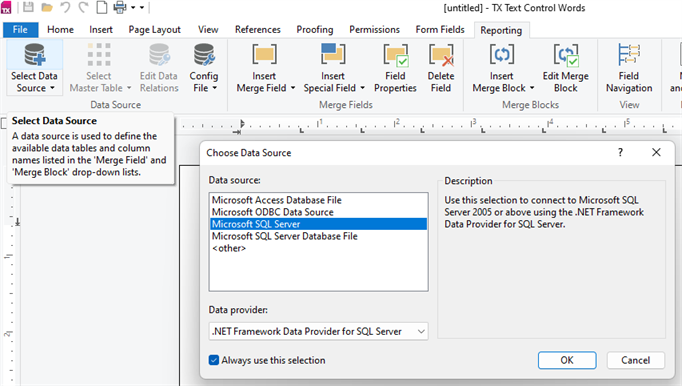
The dialog box is the DatabaseConnectionDialog, which builds a connection string for the DataSourceManager. The Known Issues page of version 34.0 lists as open that it can't connect to Azure SQL databases.
- Load the data from the Azure SQL database in your own code, for example into a
DataSet. - Merge it with Merge, as DataSets and DataTables describes.