
Toolbars and Mini Toolbars
Not every editor needs a ribbon. The ButtonBar is a single tool bar with the most used font and paragraph commands, and the mini toolbars are small pop-up versions of the ribbon that appear next to the text a user selects or right-clicks. Both work with a TextControl in a Windows Forms application; the sections below show how to choose the buttons of the button bar, turn the mini toolbars on and add commands of your own to them.
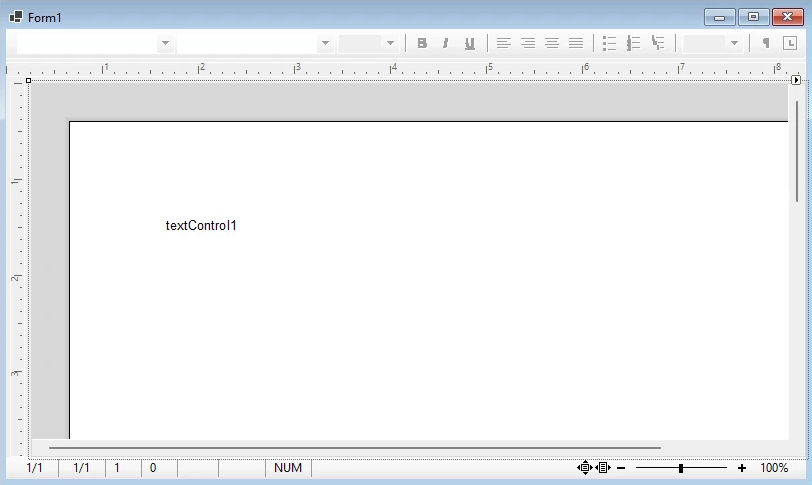
Add Rulers, Toolbars, and a Status Bar adds the button bar to a form step by step.
The Button Bar
The ButtonBar in the TXTextControl namespace shows and sets the font and paragraph attributes of the connected editor: font name and size, bold, italic and underline, alignment, lists, indents, styles and zoom. It is connected through TextControl.ButtonBar, which the smart tag's Arrange Controls Automatically sets. Unlike the ribbon, it is part of every edition, Express included.
Choose and Order the Buttons
The buttons are values of the TXTextControl.Button enumeration, such as FontBoldButton and FontItalicButton, which the reference page of ButtonPositions lists. These members decide which buttons the bar shows and how:
| Member | Effect |
|---|---|
| ButtonPositions | The buttons in the order they are shown, up to 31 |
| ButtonSeparators | For each position, whether a separator follows the button |
| ButtonOffsets | Additional distances between the buttons, in pixels |
| ResetButtonPositions, ResetButtonSeparators, ResetButtonOffsets | Restore the default of each |
The Getting Started tutorial shows ButtonPositions and ButtonSeparators in code. The bar shows only buttons of the Button enumeration; commands of your own application belong in the ribbon, as described in Custom Tabs and Commands.
Appearance and Read-Only Mode
ButtonStyle sets how the buttons are painted, and BorderStyle the border of the bar. With ReadOnly set to true, the bar keeps showing the attributes of the text at the input position, but users cannot change them with it:
// Flat buttons, and no formatting through the button bar
buttonBar1.ButtonStyle = TXTextControl.ButtonStyle.FlatButtons;
buttonBar1.ReadOnly = true;
The color scheme of the bar is described in Themes, Colors, and Icons.
Mini Toolbars
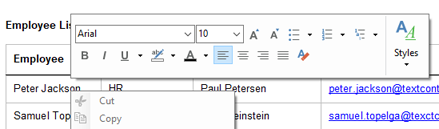
A MiniToolbar is a contextual tool bar with a few formatting groups. It opens at the mouse position when the user releases a mouse button, and the context decides which one appears:
- The TextMiniToolbar appears for selected text, the text at the input position and a table. Its groups are font, styles and, in a table, table layout.
- The ObjectMiniToolbar appears for a selected text frame, drawing frame or barcode frame, with borders, colors and alignment of that object. It opens only with the right mouse button.
Turn Them On
No mini toolbar is shown by default, so existing applications keep their behavior. TextControl.ShowMiniToolbar takes values of MiniToolbarButton that you combine with the bitwise or operator:
| Value | The mini toolbar appears |
|---|---|
None | Never, the default |
LeftButton | When the left mouse button is released and text is selected |
RightButton | When the right mouse button is released |
// Show mini toolbars for the left and the right mouse button
textControl1.ShowMiniToolbar = MiniToolbarButton.LeftButton | MiniToolbarButton.RightButton;
The context menu that opens with the right mouse button is described in Context Menus.
Change the Groups Once
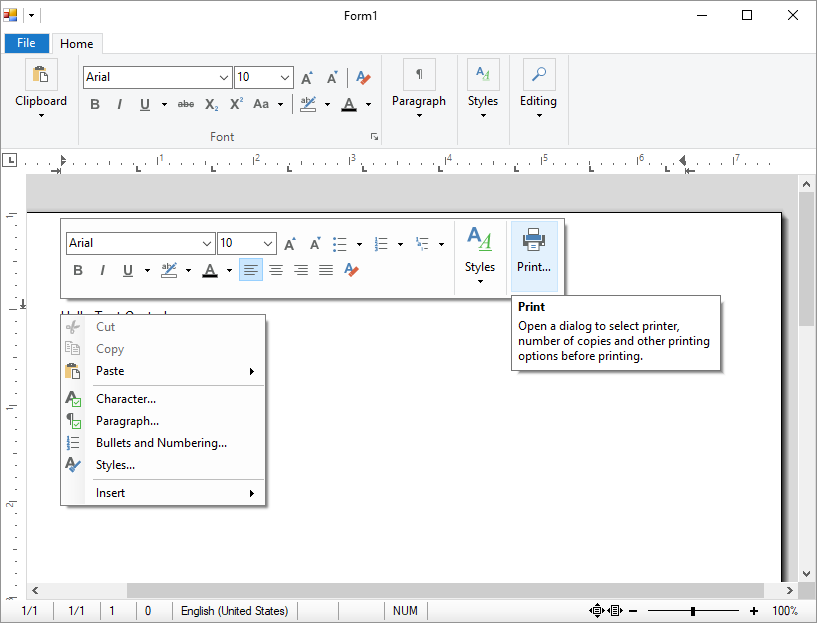
The groups of a mini toolbar are ribbon groups: MiniToolbar.RibbonGroups is the same kind of collection as the groups of a ribbon tab, and holds the same item classes. Right after a mini toolbar has been created, TextMiniToolbarInitialized or ObjectMiniToolbarInitialized occurs, and that is where you change its structure.
The following handler removes the table group from the text mini toolbar and adds a group with a print button. Attach it in the constructor of the form with textControl1.TextMiniToolbarInitialized += TextControl1_TextMiniToolbarInitialized;:
using TXTextControl;
using TXTextControl.Windows.Forms;
using TXTextControl.Windows.Forms.Ribbon;

private void TextControl1_TextMiniToolbarInitialized(object sender,
    MiniToolbarInitializedEventArgs e)
{
    // Remove the table layout group
    TextMiniToolbar miniToolbar = (TextMiniToolbar)e.MiniToolbar;
    RibbonGroup tableGroup = (RibbonGroup)miniToolbar.FindItem(
        TextMiniToolbar.RibbonItem.TXITEM_TableLayoutGroup);
    e.MiniToolbar.RibbonGroups.Remove(tableGroup);

    // Add a group with a print button
    string print = ResourceProvider.FileMenuItem.TXITEM_Print.ToString();
    RibbonGroup printGroup = new RibbonGroup() { ShowSeperator = false };
    RibbonButton printButton = new RibbonButton()
    {
        Text = ResourceProvider.GetText(print),
        LargeIcon = ResourceProvider.GetLargeIcon(print, this),
        DisplayMode = IconTextRelation.LargeIconLabeled
    };
    printButton.Click += (s, args) => textControl1.Print("My Document");
    printGroup.RibbonItems.Add(printButton);
    e.MiniToolbar.RibbonGroups.Add(printGroup);
}
The code works as follows:
- MiniToolbarInitializedEventArgs.MiniToolbar is the new mini toolbar. You can change it, or assign a
MiniToolbarof your own to replace it. - TextMiniToolbar.FindItem takes a value of TextMiniToolbar.RibbonItem, as
FindItemof a ribbon tab does.ObjectMiniToolbarhas its own FindItem andRibbonItem. - ShowSeperator turns off the separator after the last group. The
ResourceProvidergives the new button the icon and text of the built-in print command, as described in Custom Tabs and Commands.
Decide Each Time It Opens
MiniToolbarOpening occurs every time a mini toolbar is about to open. Use it to show or hide groups for the current context, not to add them:
- MiniToolbarContext says where the user clicked, as a combination of ContextMenuLocation values such as
TextSelection,TableorSelectedFrame. - MiniToolbar is the mini toolbar that opens; assign another one to show it instead. Location is its position in screen coordinates.
- The event arguments derive from
CancelEventArgs: setCanceltotrueand no mini toolbar opens.
private void TextControl1_MiniToolbarOpening(object sender, MiniToolbarOpeningEventArgs e)
{
    // No mini toolbar for selected frames
    if ((e.MiniToolbarContext & ContextMenuLocation.SelectedFrame) != 0)
    {
        e.Cancel = true;
    }
}
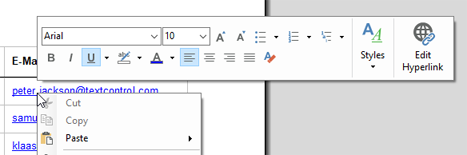
The Howto sample MiniToolbar, installed in %USERPROFILE%\Documents\TX Text Control 34.0.NET for Windows Forms\CSharp\Howto\MiniToolbar, adds an Edit Hyperlink group that its MiniToolbarOpening handler shows only when the user right-clicks a hyperlink:
Next Steps
- Rulers and Status Bar: the other bars around the editor.
- Context Menus: the menu that opens with the right mouse button.
- Custom Tabs and Commands: the ribbon classes the mini toolbar groups are made of.
- The blog article Using the ResourceProvider to Customize the Ribbon MiniToolbar: the print button example with icons for the current resolution.