
Document Editor
A Windows Forms application with a TextControl on its form is a word processor: users type, format, insert tables and images, review changes and print, while your code loads documents, reacts to events and adds commands of its own. The pages below take each of these subjects further than the first tutorials, from the life of the control on a form to the ribbon, the dialog boxes and the events around it.
If you haven't placed an editor on a form yet, start with the tutorials of Document Editor in Getting Started. They create the project, add the control from the Toolbox, connect a ribbon or a button bar and build the file commands that every page here assumes.
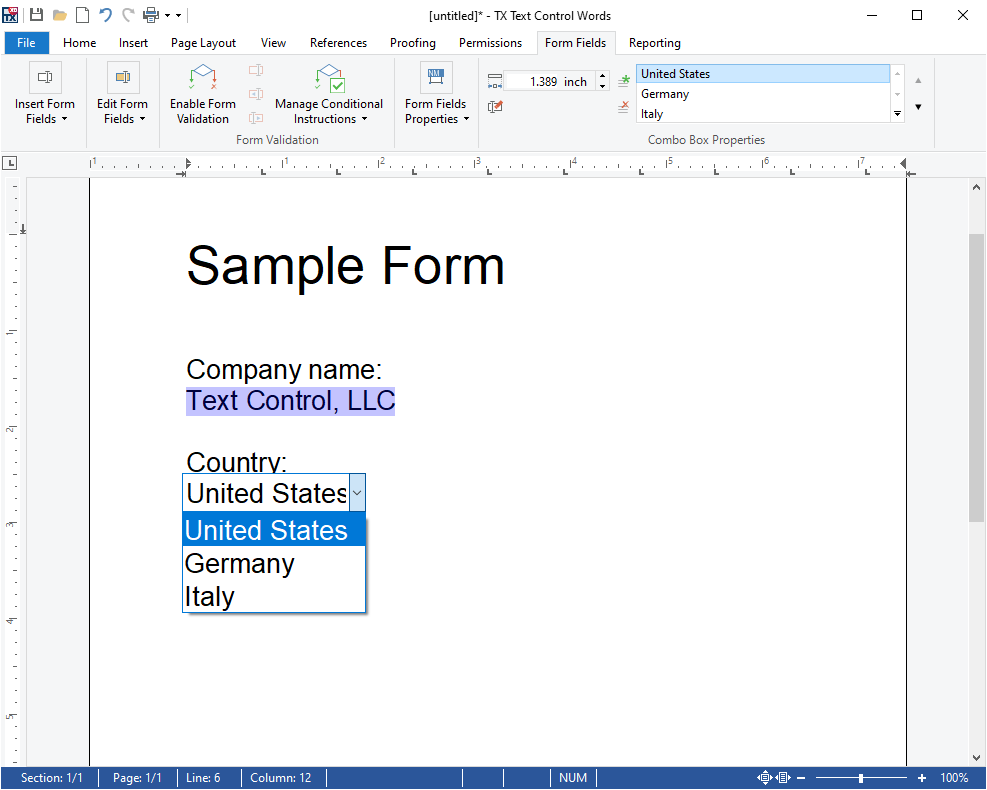
How the Editor Works
- One control holds the document. TextControl is a Windows Forms control that you drag from the Toolbox onto a form. Its document consists of the main text, text frames, headers, footers and footnotes.
- Users need no code. Typing, selecting, the clipboard keys, undo and the context menus work as soon as the control has the focus.
- Your code shares the object model.
Selectionand collections such asTablesandSectionsalso belong to ServerTextControl, which Document Processing uses without a user interface. - The interface around it is made of controls. A Ribbon or a button bar, rulers, a status bar and sidebars are separate controls that you connect to the
TextControlthrough properties, in the designer or in code.
Find the Right Page
| If you want to | Read |
|---|---|
| Know when the control is ready and where startup code goes | Architecture and Control Lifecycle |
| Work with the selection, the clipboard, undo or search | Editing Text |
| Format text and paragraphs | Text and Paragraph Formatting |
| Add tables, images, frames, charts or barcodes | Tables and Table Formulas and the pages after it |
| Build forms that users fill out | Form Fields and Conditional Instructions |
| Let several people review a document | Track Changes, Comments |
| Change the ribbon, toolbars, sidebars or dialog boxes | Ribbon and UI |
Where to Start
- Work through Create Your First Windows Forms Application and Create a Ribbon Application with Sidebar Support.
- Read Architecture and Control Lifecycle, so that your code runs at the right moment and on the right text part.
- Open the page of the feature you are adding.
- Compare your form with the TX Words Sample Application, which combines most features of this section.
Pages in This Section
- Architecture and Control Lifecycle: text parts and the stages of a form.
- Loading and Saving Documents: the Open and Save As dialog boxes, documents in a database, and where each load and save option is described.
- Document Properties: title, author and custom properties.
- Editing Text: selections, clipboard, undo, search and keys.
- Text and Paragraph Formatting: fonts, paragraphs and tab stops.
- Stylesheets: paragraph and character styles.
- Bullets and Numbered Lists: bulleted and numbered lists.
- Tables and Table Formulas: tables, cells and formulas.
- Images: placing images in the text.
- Text Frames and Shapes: text frames and drawings.
- Charts and Barcodes: chart and barcode frames.
- Headers and Footers: headers, footers and page numbers.
- Sections and Page Layout: page formats and section breaks.
- Footnotes: footnotes and their numbering.
- Tables of Contents: generated from structure levels.
- Fields, Hyperlinks, and Bookmarks: text fields and links.
- Subtext Parts: named ranges of text.
- Form Fields and Conditional Instructions: fillable forms.
- Signature Fields: places for signatures.
- Track Changes: accepting and rejecting changes.
- Comments: notes on the text.
- Document Protection and Editable Regions: read-only documents and editable regions.
- Spell Checking and Hyphenation: connecting a spell checker.
- Viewing, Zooming, and Navigation: view modes and zoom.
- Printing and Print Preview: dialogs, previews and page ranges.
- Ribbon and UI: the controls around the editor.
- Events: handlers and events by subject.