
Create a .NET Framework Application
Existing Windows Forms applications often still run on the .NET Framework, and TX Text Control works there as well. The editor you build is the same as in Create Your First Windows Forms Application, with a ribbon, rulers and a status bar. What differs is how TX Text Control gets into the project: there is no NuGet package, and the license comes through licenses.licx.
Prerequisites
- Visual Studio on Windows with the .NET Framework 4.8. See .NET and .NET Framework.
- The setup of TX Text Control .NET for Windows Forms 34.0, the full or the trial version. For .NET Framework projects, it provides the assemblies and the toolbox tab. See Installing the Product.
Create the Project
Open Visual Studio and create a new project.
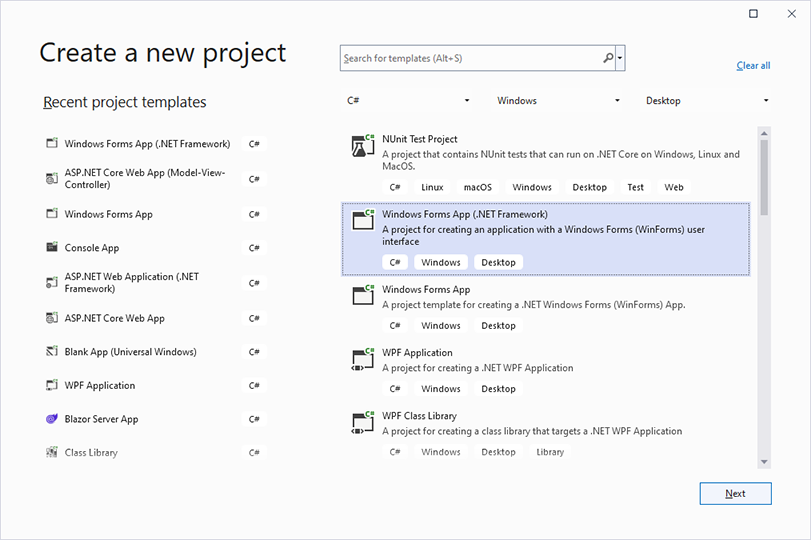
Select C# from the Languages list, Windows from the Platform list and Desktop as the Project Type. Select Visual Basic instead for a Visual Basic project; the steps are the same.
Select the project template Windows Forms App (.NET Framework) and click Next.
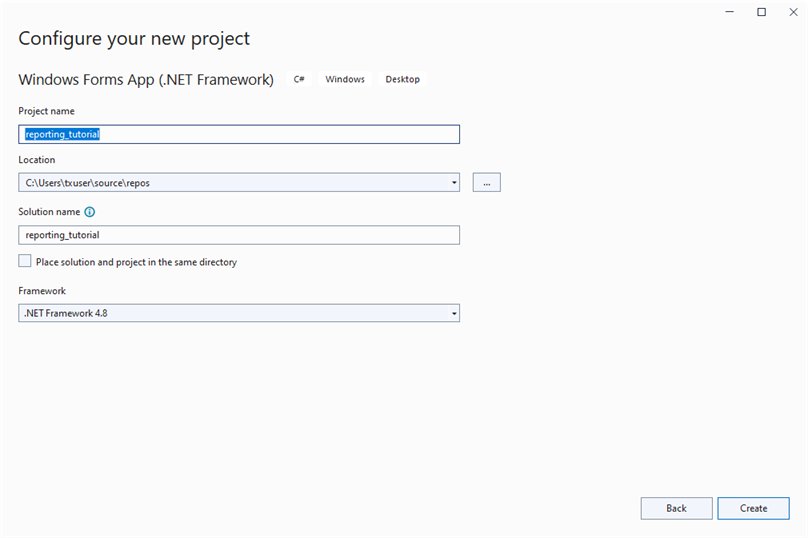
Enter a project name, select .NET Framework 4.8 in the Framework list and click Create.
Add the Editor to the Form
With Form1 open in the designer, find the tab TX Text Control 34.0 in the Toolbox. The setup created it, and it lists all controls and components of TX Text Control.
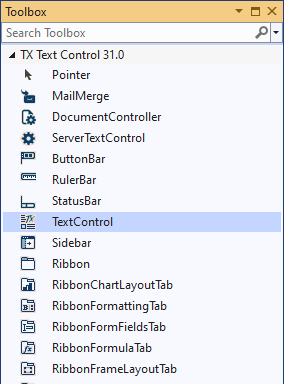
Select TextControl and draw the control onto the form.
Add the ribbon, the status bar and the two rulers with the smart tag of the
TextControl, as in steps 3 and 4 of Add the Editor to the Form in the .NET tutorial. The designer works the same way in a .NET Framework project.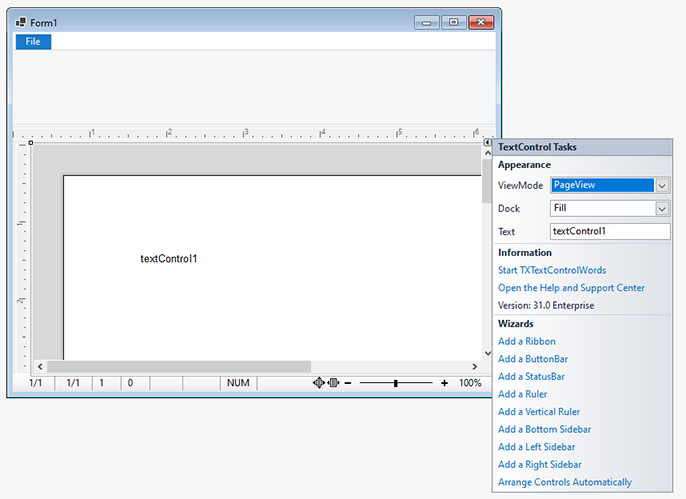
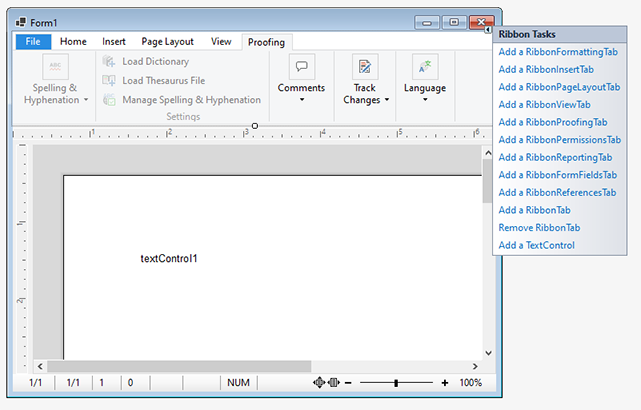
Add the ribbon tabs from Home to Proofing with the smart tag of the ribbon, as in Add the Ribbon Tabs.
Run the Application
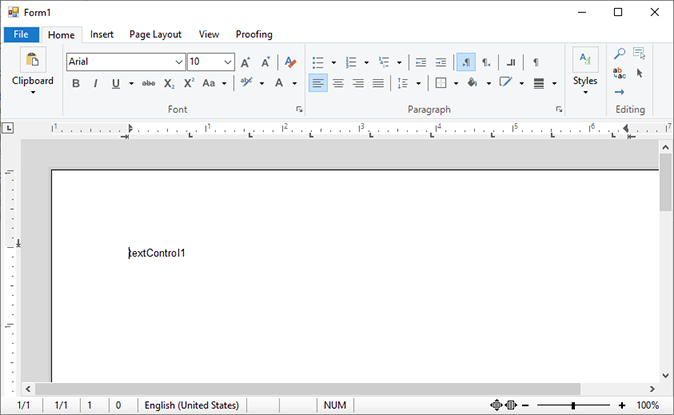
Press F5. The form shows the same word processor as in the .NET tutorial: the ribbon with its tabs, a horizontal and a vertical ruler, the document in page view and the status bar.
The code of Load a Document When the Form Opens works unchanged in this project.
What Is Different in a .NET Framework Project
- The assemblies come from the setup. The project references the assemblies in the Assembly folder of the installation, by default C:\Program Files\Text Control GmbH\TX Text Control 34.0.NET for Windows Forms\Assembly.
- The license comes through licenses.licx. When you drop the
TextControlon the form, Visual Studio adds an entry to the project's licenses.licx file, and the license compiler embeds the license into your assembly when you build. If Visual Studio reports that a control "could not be licensed", check the entries of this file. See Development Licenses. - Service packs need no change. A service pack replaces the files in the installation folder and keeps the assembly version, so the project picks it up when you rebuild.
- Publishing means shipping the assemblies and native libraries yourself. See Deploying .NET Framework Applications.
The Finished Sample
The setup installs this tutorial as a finished project in %USERPROFILE%\Documents\TX Text Control 34.0.NET for Windows Forms\CSharp\Tutorial\Simple, and in Visual Basic under VB.NET\Tutorial\Simple.
Next Steps
- Load and Save Documents: open and save documents with and without dialog boxes.
- Migrating from .NET Framework to .NET: move the project to .NET 8 or higher later.
- Create a Ribbon Application with Sidebar Support: add sidebars and a RibbonForm.