
Tables of Contents
A table of contents at the beginning of a manual, a report or a contract lists its headings with page numbers, and in TX Text Control it is generated from the document itself. Mark the headings with structure levels, insert a table of contents with the ribbon, the built-in dialog box or code, and update it after the document has changed.
The examples extend the application of Create Your First Windows Forms Application, with a TextControl named textControl1 on Form1, and Form1.cs needs using TXTextControl;. Tables of contents were introduced in version 29.0 and are part of the Enterprise edition; see Editions and Feature Availability.
How a Table of Contents Is Generated
TX Text Control doesn't recognize a heading by its font. It uses the structure level of a paragraph, a number from 0 to 10:
- 0, the default, means that the paragraph belongs to the body text.
- 1 to 10 mark headings, for example 1 for chapters and 2 for sections.
A table of contents covers a range of levels, such as 1 to 2. When it is inserted, TX Text Control searches the document for all paragraphs with a level in this range and creates one entry per paragraph, with or without a page number. The entries take over the font and paragraph attributes of their headings, and for each level a formatting style is created: TOC_Title, TOC_Level1, TOC_Level2 and so on. Change these styles to change the look of the table of contents.
A document can contain several tables of contents, for example one for the whole document and one for a single part. A table of contents doesn't follow later changes by itself: update it after headings have been added, removed or moved to another page.
Insert a Table of Contents With the Ribbon
The References tab of the ribbon, RibbonReferencesTab, has three groups for tables of contents:
- Table of Contents with the buttons Insert..., Delete, Update and Modify....
- Table of Contents Properties with the minimum and maximum structure level, the title, and whether the table of contents has hyperlinks, page numbers and right-aligned page numbers.
- Paragraph Structure Levels, which assigns a structure level to each paragraph style, and Add Paragraph to insert a paragraph with a certain level.
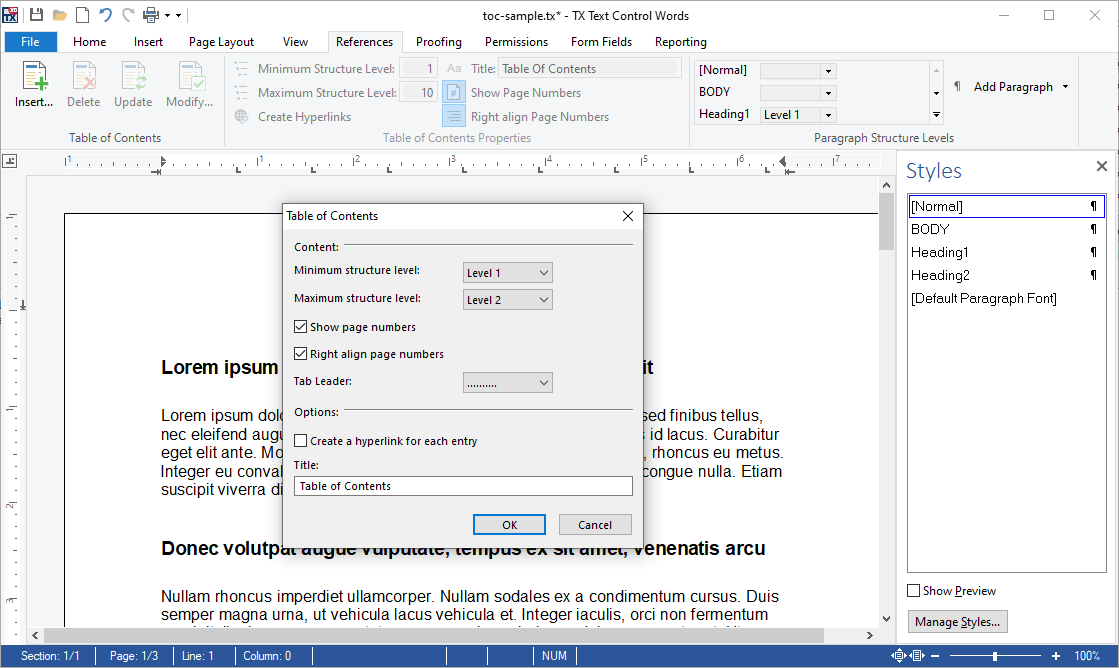
Insert... opens the Table of Contents dialog box. It sets the range of structure levels, the page numbers and their tab leader, whether each entry becomes a hyperlink, and the title:
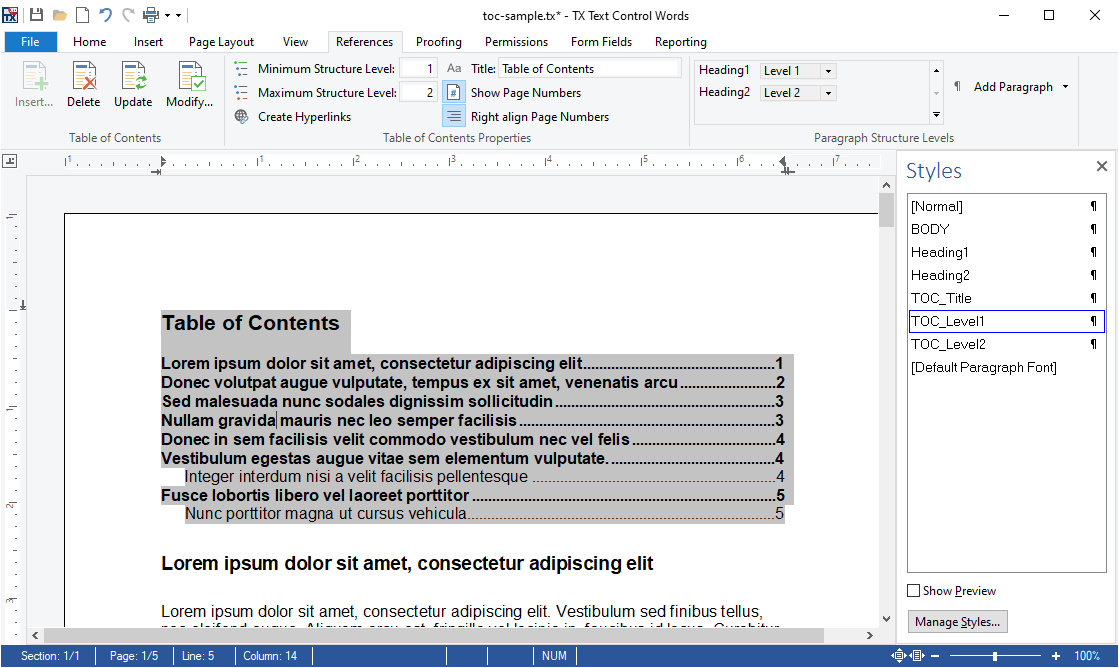
The result is a list of entries with dot leaders and right-aligned page numbers. The Styles sidebar on the right lists the generated styles TOC_Title, TOC_Level1 and TOC_Level2, and the Paragraph Structure Levels group connects the styles Heading1 and Heading2 with level 1 and 2:
To add the tab to your form, click the smart tag of the ribbon in the designer and click Add a RibbonReferencesTab, as in Create Your First Windows Forms Application. Without a ribbon, TextControl.TableOfContentsDialog opens the same dialog box: it changes the table of contents at the input position, or inserts a new one.
Mark Headings With Structure Levels
ParagraphFormat.StructureLevel sets the level of a paragraph. You can set it on single paragraphs, but it is more common to make it part of a paragraph style: every paragraph with the style then becomes an entry of that level. The following handler of the form's Load event creates two styles:
private void Form1_Load(object sender, EventArgs e)
{
    // Paragraphs with these styles become entries of level 1 and 2
    ParagraphStyle chapter = new ParagraphStyle("Chapter");
    chapter.Bold = true;
    chapter.ParagraphFormat.StructureLevel = 1;
    textControl1.ParagraphStyles.Add(chapter);

    ParagraphStyle section = new ParagraphStyle("Section");
    section.Bold = true;
    section.ParagraphFormat.StructureLevel = 2;
    textControl1.ParagraphStyles.Add(section);
}

private void chapterButton_Click(object sender, EventArgs e)
{
    textControl1.Selection.FormattingStyle = "Chapter";
}

private void levelButton_Click(object sender, EventArgs e)
{
    // 0 is body text, 1 to 10 are heading levels
    textControl1.Selection.ParagraphFormat.StructureLevel = 2;
}
Connect Form1_Load in the constructor with Load += Form1_Load; and add two buttons, chapterButton and levelButton.
- A ParagraphStyle has a name, font attributes such as
Boldand aParagraphFormatwith the structure level. ParagraphStyles.Add adds it to the document. Stylesheets explains styles. - Selection.FormattingStyle applies a style to the selected paragraphs.
- Selection.ParagraphFormat sets the structure level of the selected paragraphs directly, without a style.
Insert a Table of Contents in Code
A TableOfContents object defines the levels and the settings, and TextControl.TablesOfContents returns the collection that inserts it at the input position:
private void insertTocButton_Click(object sender, EventArgs e)
{
    // Entries for all paragraphs with the structure levels 1 to 2
    TableOfContents tableOfContents = new TableOfContents(1, 2)
    {
        Title = "Contents",
        HasPageNumbers = true,
        HasRightAlignedPageNumbers = true,
        HasLinks = true
    };

    // Insert the table of contents at the beginning of the document
    textControl1.Select(0, 0);
    TableOfContentsCollection.AddResult result = textControl1.TablesOfContents.Add(tableOfContents);

    if (result == TableOfContentsCollection.AddResult.ContentNotFound)
    {
        MessageBox.Show("The document has no paragraphs with the structure level 1 or 2.");
    }
}
The code works as follows:
- The TableOfContents constructor takes the minimum and the maximum structure level, each from 1 to 10.
- Title is the heading above the entries; an empty string means no title. HasPageNumbers adds page numbers, and HasRightAlignedPageNumbers aligns them at the right border with a tab.
- HasLinks makes each entry a link to its heading, as described below.
- TextControl.Select moves the input position to the beginning of the text.
- TableOfContentsCollection.Add returns a value of TableOfContentsCollection.AddResult:
Successful,ContentNotFoundwhen no paragraph has a level in the range, orError, for example inside a text field or another table of contents, because tables of contents can't be nested.
TablesOfContents returns the tables of contents of the text part with the input focus, which is the main text in this example. Headers, footers and text frames have their own collections.
Update and Remove Tables of Contents
The following handlers update all tables of contents, open the dialog box and remove the table of contents at the input position:
private void updateTocButton_Click(object sender, EventArgs e)
{
    foreach (TableOfContents tableOfContents in textControl1.TablesOfContents)
    {
        tableOfContents.Update();
    }
}

private void tocDialogButton_Click(object sender, EventArgs e)
{
    textControl1.TableOfContentsDialog();
}

private void removeTocButton_Click(object sender, EventArgs e)
{
    // The table of contents at the input position, or null
    TableOfContents tableOfContents = textControl1.TablesOfContents.GetItem();

    if (tableOfContents != null)
    {
        textControl1.TablesOfContents.Remove(tableOfContents);
    }
}
- Update regenerates the entries and the page numbers and returns an
AddResultas well. Call it after changing properties such as MinimumStructureLevel orTitleof an existing table of contents. - GetItem returns the table of contents at the input position, or the one with a name or an ID. Name and
IDare yours to set. - Remove deletes the table of contents with its text and with all document targets its links point to.
A template merged by MailMerge needs an update as well, because the merge adds headings. The blog article Combining MailMerge and Table of Contents calls Update after the merge, and Mail Merge explains the merge.
Links From the Entries to the Headings
With HasLinks, each entry is a DocumentLink, and a DocumentTarget is inserted at each heading. When the user clicks an entry while holding CTRL, the document scrolls to the heading. The generated targets have names that begin with TOC_, and their AutoGenerationType is TableOfContents instead of None.
If your application handles DocumentLinkClicked for its own links, as shown on Fields, Hyperlinks, and Bookmarks, skip the generated ones, which TX Text Control already handles:
private void textControl1_DocumentLinkClicked(object sender, DocumentLinkEventArgs e)
{
    DocumentTarget target = e.DocumentLink.DocumentTarget;

    // TextControl scrolls to table of contents targets itself on CTRL+click
    if (target != null && target.AutoGenerationType != AutoGenerationType.TableOfContents)
    {
        target.ScrollTo();
    }
}
Connect it in the constructor with textControl1.DocumentLinkClicked += textControl1_DocumentLinkClicked;.
React to Table of Contents Events
TextControl raises TableOfContentsCreated and TableOfContentsDeleted when a table of contents is inserted or deleted, and TableOfContentsEntered and TableOfContentsLeft when the input position moves into or out of one. The handlers receive a TableOfContentsEventArgs with the table of contents in its TableOfContents property, for example to enable an Update button only while the cursor is in a table of contents.
Save Tables of Contents
Tables of contents are compatible with MS Word: they are loaded from and saved to DOC, DOCX and RTF documents. In an exported PDF document, the entries of a table of contents with links are clickable links. Loading and Saving Documents shows how to save.
Next Steps
- Stylesheets: paragraph styles for headings and the
TOC_styles. - Fields, Hyperlinks, and Bookmarks: document links and targets.
- Footnotes: references at the bottom of a page.
- The blog article X19 Sneak Peek: Table of Contents: the feature from styles to clickable entries.