
Integrating TX Spell .NET for Windows Forms
TX Spell .NET for Windows Forms is the spell checker of TX Text Control: a separate product of Text Control that brings the dictionaries, hyphenation lists and synonyms the TextControl lacks. Adding it to an application that already uses TX Text Control takes a package, a component and one property. The checklist below covers the whole integration -- installation, licensing, the connection, several editors and deployment -- and points to the TX Spell .NET documentation, which describes every feature in detail.
What Each Product Contributes
| TX Text Control .NET for Windows Forms | TX Spell .NET for Windows Forms | |
|---|---|---|
| Package | TXTextControl.TextControl.WinForms.SDK 34.0.5 | TXTextControl.TXSpell.WinForms.SDK 11.0.1 |
| In the toolbox | The tab TX Text Control 34.0 | The tab TXSpell 11.0, with the component TXSpellChecker |
| At run time | The red underlines, the context menu of misspelled words, the spelling dialog, the Proofing ribbon tab and hyphenation at the end of a line | The words: US English dictionary, hyphenation list, synonym list and language recognition, and further languages you add |
The TextControl has the members that display the results, such as IsSpellCheckingEnabled and IsHyphenationEnabled. Spell Checking and Hyphenation lists them and shows what the user sees.
Install and License Both Products
TX Spell .NET is installed, licensed and updated independently of TX Text Control:
- Install the setup of TX Spell .NET for Windows Forms, the full or the trial version. Like the setup of TX Text Control, it adds its package to Text Control Offline Packages. See Installing the Product.
- In your project, choose Project > Manage NuGet Packages..., select Text Control Offline Packages as the package source and install
TXTextControl.TXSpell.WinForms.SDK. - Build the project. The package embeds its own license file, txspell.winforms.license, into your assembly, next to the one of TX Text Control.
TX Spell .NET 11.0 was released together with TX Text Control 33.0 and is the version to use with TX Text Control 34.0. Plan upgrades of both products together; Upgrading from Previous Versions lists what changes.
Connect the Spell Checker
The TXSpellChecker component connects to the editor through SpellChecker, a property of the TextControl that holds the component itself:
Open the form in the designer and drag TXSpellChecker from the tab TXSpell 11.0 onto it. As a component, it appears in the component tray below the form as
txSpellChecker1.Select
textControl1and choose txSpellChecker1 in the drop-down of SpellChecker in the Properties window: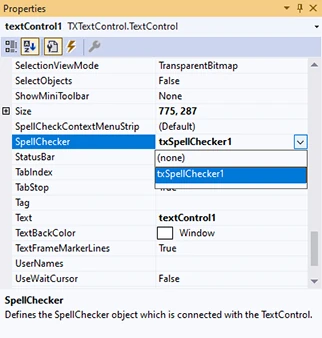
Set IsSpellCheckingEnabled to True, and IsHyphenationEnabled to True if lines should be hyphenated.
The same connection in code, in the constructor of the form after InitializeComponent:
// Connect TX Spell .NET and check as the user types
textControl1.SpellChecker = txSpellChecker1;
textControl1.IsSpellCheckingEnabled = true;
textControl1.IsHyphenationEnabled = true;
The TextControl initializes a connected spell checker itself. Press F5 and type a misspelled word: it gets a red zigzag line, a right-click on it shows suggestions, and the buttons of a Proofing tab, a RibbonProofingTab, work as soon as the spell checker is connected. What the User Sees shows the context menu, the tab and the spelling dialog. Create Your First Windows Forms Application in the TX Spell .NET documentation builds such a form step by step.
Several Editors, One Spell Checker
One TXSpellChecker serves every TextControl of a form: set the SpellChecker property of each editor to the same component. The dictionaries are loaded once, and a word the user adds to the dictionary in one editor is accepted in all others. For editors created in code, as in Embedding the Editor in Forms and UserControls, connect each new editor when you create it:
// Every new editor uses the spell checker of the form
TextControl editor = new TextControl() { Dock = DockStyle.Fill };
editor.SpellChecker = txSpellChecker1;
editor.IsSpellCheckingEnabled = true;
The Multiple controls sample of TX Spell .NET, which the setup installs in the folder Samples\WinForms\CSharp\TextControl\Multiple controls of its samples, connects four editors of one form to the same TXSpellChecker. Each one underlines its misspelled words and offers the same suggestions:
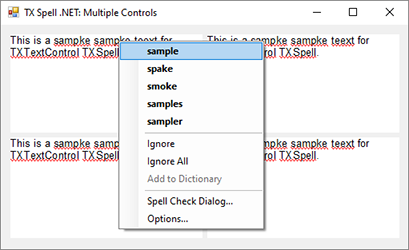
Checking Multiple Controls also shows one spelling dialog that works through several editors.
Deploy the Application
With the package, the build copies the assemblies of TX Spell .NET, TXSpell.dll and TXSpell.Windows.Forms.dll, and the folders Dictionaries, HyphenationLists, SynonymLists and LanguageRecognition into the output folder, and Publish copies them into the publish folder. Deploy them together with the files of TX Text Control, which Managed Assemblies and Native Libraries lists. The package contains US English only; other languages are downloaded separately, as Installing Dictionaries and Language Data describes. Deployment Guide in the TX Spell .NET documentation covers the rest.
Where to Continue
The TX Spell .NET documentation describes each part of the integration:
| Task | Read |
|---|---|
Every member of the TextControl that works with TX Spell .NET | TX Text Control .NET for Windows Forms |
| Load dictionaries for other languages | Loading and Managing Dictionaries |
| Change the spelling dialog and the context menu | Spell Check Dialog, Context Menus |
| Hyphenate documents | Hyphenation with TX Text Control |
| Solve problems with dictionaries or licenses | Troubleshooting |
Next Steps
- Spell Checking and Hyphenation: the spell checking members of the
TextControl, and a spell checker of your own. - TX Spell .NET for Windows Forms: the documentation of the spell checker.
- Visual Studio Designer Integration: connect components in the Properties window.